Google Home Wake Word Not Working: How to Fix Hey Google Issues
Quick Answer
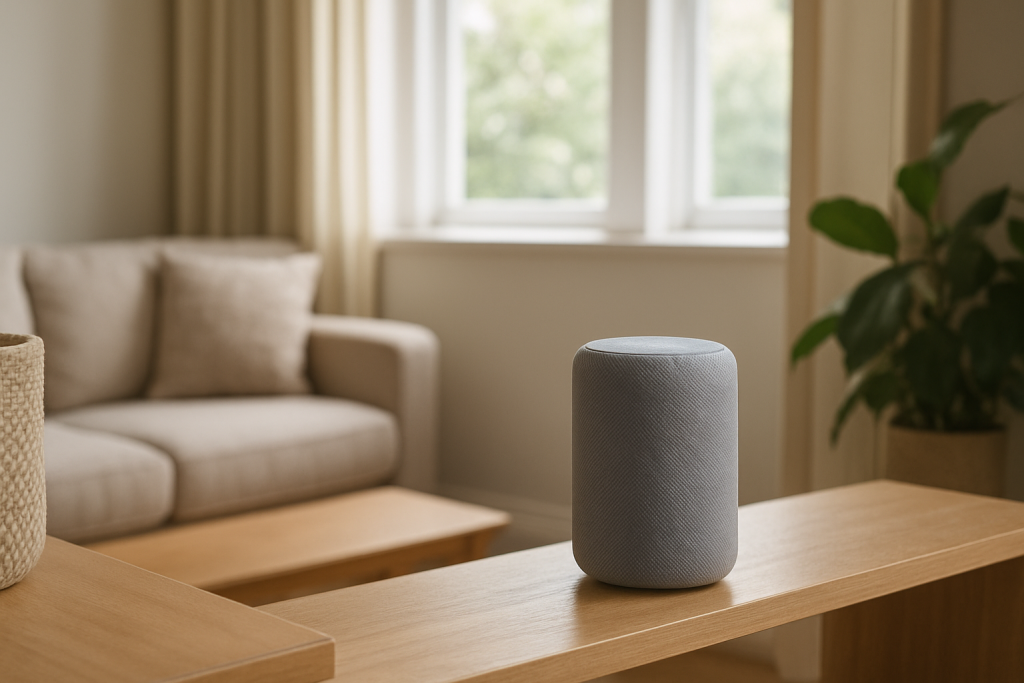
The most common real-world reason Hey Google stops working is not the internet or the speaker itself. It is reduced wake-word detection caused by microphone sensitivity being effectively lowered by placement and room acoustics: the device is too far away, partly blocked, pointed the wrong way, competing with other sound sources, or sitting in a space that creates echoes or absorbs speech.
Try these three quick checks first:
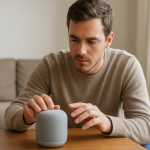
1) Move closer (within 6–10 feet) and speak at a normal volume toward the device. If it works up close but not across the room, the issue is almost always placement, noise, or acoustics.
2) Check the mic mute switch. Many Google Home and Nest speakers/displays have a physical microphone mute toggle. If muted, the device will not respond to Hey Google at any distance.
3) Watch for the listening indicator when you say Hey Google. If you see lights or on-screen listening but it misunderstands, it is hearing you but struggling with clarity (room noise/echo). If nothing reacts, it is not detecting the wake word (mute, distance, obstruction, language/account mismatch, or a device-level setting).
This applies to Google Home, Home Mini, Nest Mini, Nest Audio, Nest Hub, Nest Hub Max, and many Google Assistant-enabled speakers and displays.
Why This Happens
Wake-word detection is a local process on the device that relies on the microphone array hearing a specific sound pattern. In real homes, the microphones are usually fine, but the sound reaching them is not. Small changes in placement and acoustics can make a big difference because the wake word is short and easy to mask.
Common causes tightly related to microphone sensitivity and acoustics include:
1) Distance and angle: microphones are optimized for voices in the same room, not through hallways or around corners. If the device is behind you or off to the side, your voice arrives weaker and less distinct.
2) Obstruction and surfaces: placing the device behind a TV, inside a bookshelf cubby, under cabinets, or near clutter can block direct sound. Hard surfaces (glass, tile, bare walls) can add reflections that smear speech, while soft surfaces (thick curtains, plush furniture) can absorb higher frequencies that help speech clarity.
3) Competing audio: TVs, soundbars, kitchen fans, humidifiers, air purifiers, and even running water produce steady noise that masks consonants. The wake word can be present but buried under noise, especially if the device is near the noise source.
4) Multiple devices hearing at once: two Google devices in the same area can both partially hear you. Sometimes neither wins cleanly, especially if one is farther away but louder due to reflections.
5) Voice and language mismatches: if Assistant language settings changed, or Voice Match is confused between accounts, the device may hear you but fail to engage reliably. This is less common than placement, but it can look similar.
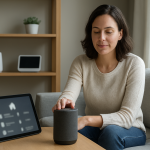
Real-world scenario: a Nest Hub on a kitchen counter works fine until it gets moved next to a blender base and a reflective backsplash. Now the fan noise and reflections reduce clarity, and Hey Google works only when you lean in.
A common user mistake is speaking louder from farther away instead of improving the signal. Louder speech can distort in a reflective room and still lose clarity. A better test is to move closer and reduce competing noise.
An overlooked technical cause is the microphone mute switch being bumped during cleaning or cable adjustments. Because it is a physical switch, app settings cannot override it.
Most Likely Causes in Real Homes
1) Device placement reduces effective mic sensitivity: too far away, blocked by objects, placed in a corner, or aimed away from where people speak.
2) Room acoustics and noise floor: TV audio, fans, HVAC vents, and hard reflective surfaces reduce wake-word clarity.
3) Microphone muted (hardware switch) or privacy mode enabled on certain models.
4) Assistant language/Voice Match/account mismatch after adding a family member, changing phones, or changing Google account settings.
5) Network or cloud-side hiccup causing inconsistent follow-through after the device starts listening (less likely for wake word itself, but it can look like wake word failure if the device lights up and then stops).
Step-by-Step Fix
Confirm the device is actually hearing anything by using the closest-range test.
What to do: Stand 2–3 feet from the device, face it, and say Hey Google twice at a normal speaking volume. Watch for lights or on-screen listening.
What the result means: If it responds up close but not from your usual spot, you have a placement/acoustics issue, not a broken device.
If it fails: Go to the next step to rule out a muted microphone or disabled wake word.
Check the physical microphone mute switch and privacy indicators.
What to do: Locate the mic switch (often on the back or side). Toggle it off and on once, then leave it unmuted. On displays, also check for on-screen mic disabled indicators.
What the result means: If wake word works immediately after unmuting, the issue was hardware mute.
If it fails: Continue to confirm the wake word setting is enabled in the Google Home app.
Verify that Hey Google detection is enabled for that specific device.
What to do: Open the Google Home app on the phone that manages the home. Select the device, open its settings, and find the option for Hey Google and Voice Match or Recognition and sharing (wording varies by model). Confirm Hey Google detection is on.
What the result means: If it was off, turning it on should restore wake word immediately.
If it fails: If the toggle is on but behavior is unchanged, proceed to a placement and noise test to address the most common cause.
Run a placement and noise-floor test to isolate acoustics.
What to do: Temporarily move the device to a quiet spot in the same room: away from the TV, away from fans, and not tucked under cabinets or inside shelves. Place it on an open surface with at least a few inches of clearance around it. Then test Hey Google from your normal speaking position.
What the result means: If it improves in the quieter, more open spot, the original location is degrading detection via obstruction, reflections, or noise.
If it fails: If it still does not respond even in a quiet open area, continue to language and account checks.
Check Assistant language settings for mismatches.
What to do: In the Google Home app, open Assistant settings and look for Languages. Ensure the language matches what you are speaking (and remove extra languages temporarily if you do not use them).
What the result means: If wake word detection improves after simplifying languages, the device was struggling with language selection or recognition.
If it fails: Proceed to Voice Match and account sync checks.
Re-train Voice Match if the device hears you but does not engage reliably.
What to do: In Google Home app Assistant settings, find Voice Match and re-train your voice model. If multiple household members use the device, have each person confirm their Voice Match is set up correctly.
What the result means: If the device starts responding consistently to you (and not confusing you with someone else), the issue was identity recognition interfering with engagement.
If it fails: If the device still does not react at all, verify the device is online and properly linked to your home.
Confirm device online status and account-home association.
What to do: In the Google Home app, check whether the device shows as Offline. If it is online, open its settings and confirm it is assigned to the correct Home and room. Also confirm you are signed into the expected Google account on your phone.
What the result means: If the device is offline or attached to a different home/account, wake word may appear broken because the device is not fully functional or is controlled by a different configuration.
If it fails: If it is offline, move to a quick network isolation test that does not require deep Wi-Fi knowledge.
Do a hotspot test to separate device/acoustics problems from network problems.
What to do: Create a temporary hotspot on your phone (with a simple name and password). Connect the Google device to the hotspot and test Hey Google. Keep the device in the same physical location so acoustics are not changed during the test.
What the result means: If wake word and follow-up responses work better on the hotspot, your home network is contributing (latency, band steering, or connectivity drops). If wake word still fails the same way, it is not primarily a network issue.
If it fails: If you cannot connect to the hotspot or results are unclear, continue with a controlled reboot order to clear stuck network sessions.
Use a reboot order that targets connectivity without guessing.
What to do: Unplug the modem, then the router (or main mesh node). Wait 60 seconds. Plug in the modem first and wait until it is fully online. Then plug in the router/mesh main node and wait until Wi-Fi is stable. Finally, unplug and replug the Google device.
What the result means: If the device was lighting up but failing to complete requests after the wake word, this often resolves stale network sessions and restores normal behavior.
If it fails: If wake word still does not trigger at all, return focus to the primary angle: microphone pickup. Continue with a multi-device interference check.
Check for nearby Google devices competing for the wake word.
What to do: If you have multiple Google/Nest speakers in the same open area, temporarily mute the microphones on the others or unplug them for five minutes. Then test Hey Google on the target device from your usual spot.
What the result means: If reliability improves when other devices are muted, you are seeing cross-device competition or echo effects. Adjust placement so one device is the clear listener in that space.
If it fails: If there is no change, proceed to a room-geometry check for reflections and absorption.
Adjust for room acoustics with simple, safe changes.
What to do: Move the device away from corners and reflective backdrops (glass, tile backsplashes) by even 6–12 inches. Avoid placing it directly under cabinets. Aim it toward where people speak most often. If the room is very echoey, test with the TV volume lower or with the device moved closer to the speaking area.
What the result means: If small moves produce big improvements, the microphones are fine and the environment was the problem.
If it fails: If nothing changes across multiple positions and the device never shows listening indicators, you may have a device-level fault or a configuration conflict. Move to advanced troubleshooting.
Advanced Troubleshooting
Only use this section if the basic fixes above fail, especially if the device does not react to the wake word even at close range in a quiet spot with the microphone unmuted.
Account or cloud-side issue: If the device reacts (lights come on) but immediately stops, or says it cannot verify your voice/account, remove and re-add the device to the Google Home app under the correct Google account. Also check whether your Google account has recently changed password or enabled new security prompts; those can interrupt Assistant services until reauthorized.
Network issue that can mimic wake-word failure: Wake word detection is local, but many people interpret the problem as wake word not working when the device hears the wake word and then fails to complete the request. If the hotspot test improved reliability, look for band steering behavior (devices bouncing between 2.4 GHz and 5 GHz) or unstable mesh backhaul. A practical check is to open your router client list and confirm the device stays connected and does not repeatedly disconnect or change connection type during use.
Firmware/software cause: If the device recently updated and behavior changed, leave it powered on and connected overnight to allow updates to complete and services to settle. Incomplete updates can cause odd microphone or Assistant behavior. If you have multiple identical devices, compare behavior in the same room; if only one is affected, it is less likely to be a general software change.
Configuration conflict: If the device is in a home with multiple managers, or if there are duplicate homes/rooms in the Google Home app, settings can be applied inconsistently. Confirm the device appears once, in the correct home, and that the controlling phone is signed into the account that originally set it up.
When to Reset or Replace
A soft restart is appropriate when the device sometimes responds, or when it hears the wake word (lights show listening) but behaves inconsistently afterward. A soft restart is simply unplugging the device for 30 seconds and plugging it back in. This clears temporary audio and network states without removing your home setup.
A factory reset is appropriate when all of these are true: the microphone is unmuted, the device does not respond to Hey Google even from 2–3 feet away in a quiet room, settings show wake word detection enabled, and the device is online but still unresponsive. A factory reset removes the device from your Google Home setup, clears Wi-Fi credentials, and clears device-specific settings. You will need to set it up again in the Google Home app.
Hardware safety warning: Do not open the device, pry seams, or attempt internal repairs. These devices contain delicate components and are not designed for user servicing. If you suspect physical damage (liquid exposure, a drop, or a microphone port clogged with debris), keep troubleshooting to external checks only and consider replacement if factory reset does not restore normal operation.
How to Prevent This
Placement habits that keep wake word reliable: Keep the device in the open, roughly at head height when possible, and pointed toward the area where people speak. Avoid placing it behind a TV, inside shelving, or under cabinets. Keep a little space around it so the microphone array can pick up direct sound.
Manage room noise: If the device lives in a kitchen or living room, place it away from constant noise sources such as vents, fans, and appliances. If the TV is the main competitor, a small relocation so the device is not directly in front of the TV speakers often improves wake-word detection more than any settings change.
Stable network habits (only as much as needed): Keep your Google/Nest devices on a stable Wi-Fi setup and avoid frequent SSID/password changes. If you use a mesh system, ensure the main node is placed where it can provide a consistent connection to the area where the Assistant device sits. Unstable connections can make it seem like the wake word is failing when the device is actually failing after it starts listening.
Account stability: Try to keep the same primary Google account managing the home, and avoid frequent removal/re-adding of household members unless necessary. After account password changes or security changes, open the Google Home app once to confirm everything is still authorized.
Routine checks: After moving furniture, adding a rug, installing curtains, or rearranging the TV area, re-test wake word from your typical speaking spots. Acoustic changes in a room can be enough to push wake-word reliability from good to frustrating.
FAQ
My Google Home lights up when I say Hey Google, but then it does nothing. Is that still a wake word problem?
If the lights come on, the wake word is working. The failure is happening after detection, usually during request processing. The most common next causes are network instability, account authorization issues, or the device struggling to hear the rest of your command due to noise or echo. Use the hotspot test and the quiet-room placement test to separate network follow-through problems from acoustic clarity problems.
Does speaking louder help Hey Google hear me?
Not reliably. In echoey rooms, louder speech can create more reflections and reduce clarity. A better approach is to reduce competing noise and improve direct sound: move the device closer to where you speak, keep it out in the open, and avoid placing it near TVs, fans, or reflective corners.
I changed nothing, and now Hey Google fails across the room. What changed?
Small environmental changes often go unnoticed: a new fan, a different TV volume level, a device moved a few inches into a corner, seasonal HVAC noise, or even a new backsplash or bare wall surface can change how speech reaches the microphones. Re-run the close-range test and then the temporary relocation test to confirm whether acoustics are the trigger.
Common misconception: If Hey Google is not working, it must be Wi-Fi.
Wake word detection happens on the device, so Wi-Fi is not the first suspect when the device does not react at all. Wi-Fi becomes relevant when the device reacts (lights show listening) but cannot complete requests. Start with microphone mute, distance, obstruction, and noise before spending time on network settings.
Can multiple Google devices in one room cause Hey Google to fail?
Yes. If two devices can hear you similarly well, you may get inconsistent responses or delayed reactions. The simplest fix is to separate them by distance, place one closer to the main speaking area, or temporarily mute one device to confirm competition is the cause, then adjust placement so one device is clearly the best listener.
That lingering feeling of “why is this so hard” can finally let go. The work has been done in broad daylight, no dramatic speeches required, and the rest is just living with cleaner edges.
Not everything needs to be complicated to matter. The best part is how ordinary it starts to feel, the way things do when they finally line up.