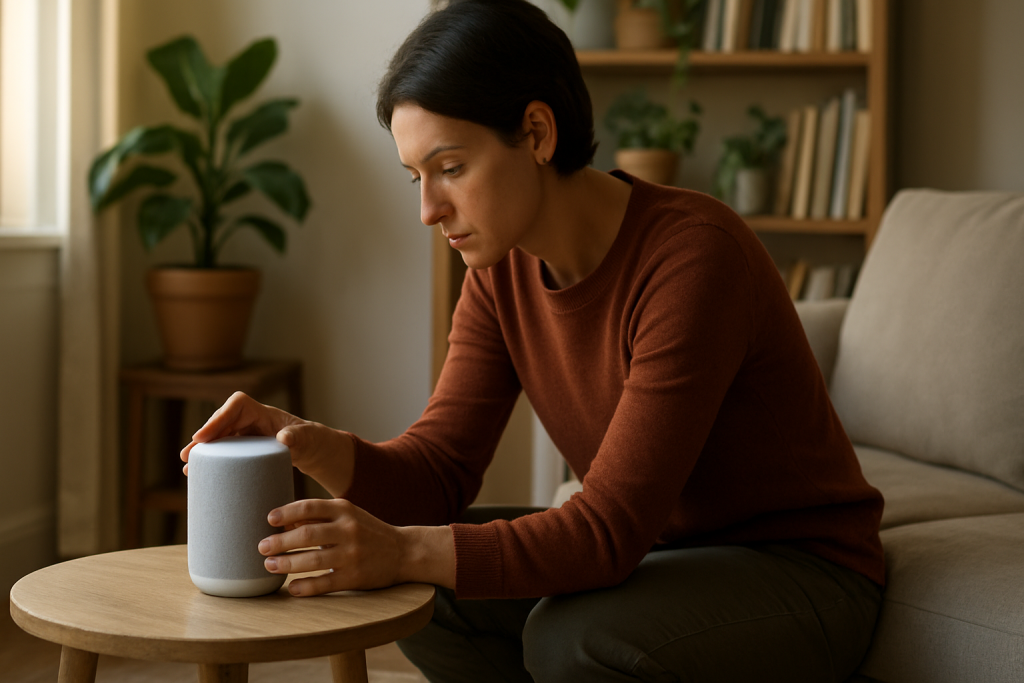
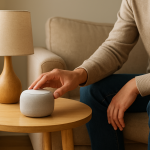
In most homes, a Google Home or Nest speaker stops hearing you because the microphone is muted (hardware mic switch/button) or the device/app permissions for the mic input path are blocked. The device may still play music and respond to taps, which makes it feel like a voice problem when it is actually a mute/permission setting.
Do these three checks first:
1) Check the physical mic mute switch or mic button on the device (many Nest speakers and displays have a dedicated mic switch). If the mic is muted, the device typically shows an indicator (lights or on-screen message) and will not respond to Hey Google.
2) In the Google Home app, open the device and confirm the microphone is enabled (for displays/cameras) and that the device is assigned to the correct home and room. If the app can’t control the device or shows it as unavailable, you may be signed into the wrong Google account or the device is linked to a different home.
3) Check your phone’s permissions for the Google Home app (and Google app, if you use it for Assistant setup). If microphone permission is denied on your phone, setup and voice-related features can fail or appear inconsistent, especially after an OS update.
Affected devices include Google Home, Home Mini, Nest Mini, Nest Audio, Nest Hub/Nest Hub Max, and some Nest Wifi points with Assistant.
Why This Happens
The dominant root cause is that the microphone input path is disabled somewhere in the chain: a hardware mute switch is on, the device is set to ignore the wake word, the wrong account/home is controlling the device, or the app permissions needed to manage voice features are blocked.
Closely related causes that commonly produce the same symptom (device won’t respond to voice, but otherwise works) include:
1) Hardware mic mute enabled: a physical switch/button disables the mic at the device level. This overrides most software settings.
2) Assistant or wake word disabled: the device is connected, but it is configured not to listen for Hey Google.
3) Account mismatch: the Google Home app is signed into an account that is not the device owner, or the device is assigned to a different home. The app may show the device but not apply the right voice settings.
4) Voice Match/user recognition conflict: the device hears sound, but refuses personal results or fails to recognize the speaker, making it seem like it is not listening.
5) Language/region mismatch: the device expects a different Assistant language than you are speaking, or the phone and device languages don’t align.
6) Overlooked technical cause: on Nest Hub and some Assistant-enabled devices, a privacy setting can disable the mic while still allowing touch controls and casting. This can be triggered by a household member toggling privacy controls or by a routine that changes device behavior.
Real-world scenario: a homeowner mutes the mic during a phone call or when guests are over, then later expects Hey Google to work. Because music still plays and the device still shows the time, the mute switch is forgotten.
Common user mistake: trying to fix it by changing Wi‑Fi settings first. If the mic is muted or Assistant listening is disabled, Wi‑Fi changes won’t help and can add new problems.
Overlooked technical cause: the device is in the right room but in the wrong home structure in the Google Home app (for example, two homes exist: Home and Home 2). Voice settings are applied per home/device, so you can be “fixing” the wrong instance.
Most Likely Causes in Real Homes
1) Mic mute switch/button is on (most common, especially after cleaning or moving the device).
2) Assistant listening/wake word is turned off for that device or for that user profile.
3) Google Home app is signed into the wrong Google account, or the device is assigned to a different home.
4) Voice Match/personal results settings are conflicting, making it seem like the device isn’t responding.
5) Language mismatch or multiple languages configured in a way that reduces wake word reliability.
Step-by-Step Fix
Confirm the microphone is not physically muted.
What to do: Locate the mic mute switch or mic button on your Google Home/Nest device. Toggle it once, then try saying Hey Google from 6–10 feet away in a normal voice. On Nest Hubs, also check for any on-screen mic-off indicator.
What the result means: If the device starts responding immediately, the issue was hardware mute and the mic input path is restored.
If it fails: Continue to the next step. If you see a persistent mic-off indicator even after toggling, note it for the reset section later.
Run a simple listening test that does not rely on the wake word.
What to do: If you have a Nest Hub (display), open the device settings on-screen (swipe up or use the settings menu) and look for microphone status. If you have a speaker-only device, open the Google Home app, select the device, and look for any mic/privacy indicators or device status messages. Then try a manual command by tapping the device (if it has a touch control) or using the Assistant button on a display.
What the result means: If manual controls work but Hey Google does not, the device is powered and connected, but the wake word/listening path is disabled (mute, Assistant setting, language, or Voice Match).
If it fails: If even manual controls appear unresponsive in the app, you may have an account/home mismatch or a connectivity problem; proceed to the next step to verify app/account control first.
Verify you are controlling the correct home and correct Google account in the Google Home app.
What to do: Open the Google Home app. Tap your profile icon and confirm the signed-in Google account. Then tap the home selector (top area of the app) and confirm you are in the home where the device is set up. Open the device tile and confirm it shows as online and in the correct room.
What the result means: If switching accounts or homes makes the device appear/disappear, you were previously managing the wrong home structure. Voice settings changes won’t apply until you are in the correct home and account.
If it fails: If you cannot find the device in any home/account you own, the device may be linked to another household member’s account. Ask the primary device owner to check their Google Home app, or move to the reset section if ownership cannot be confirmed.
Check Assistant and voice-related settings for the device.
What to do: In the Google Home app, open the device, then open its settings. Look for settings related to Google Assistant, Recognition/Voice Match, and Personal results. Ensure the device is allowed to respond to Hey Google and that Assistant is enabled for the home.
What the result means: If Assistant or wake word listening was disabled, re-enabling it should restore voice control within a minute or two.
If it fails: If settings are missing, greyed out, or won’t save, continue to the next step to check phone permissions and then account sync.
Confirm your phone’s permissions for managing voice features.
What to do: On your phone, open Settings, find Apps, then Google Home and ensure Microphone permission is allowed. If you use the Google app for Assistant setup, check Microphone permission there too. Also confirm Bluetooth permission is allowed if your phone is used for nearby setup.
What the result means: If permissions were blocked, enabling them can fix voice setup, Voice Match enrollment, and device management steps that otherwise fail silently.
If it fails: If permissions were already correct, proceed to Voice Match and language checks.
Re-check Voice Match and personal results (this is a common false mic failure).
What to do: In the Google Home app, go to Assistant settings and find Voice Match. Ensure your voice model is enabled for the home and that the device is selected. Then check Personal results settings for that device.
What the result means: If the device responds to Hey Google but refuses personal requests (calendar, contacts, reminders), the mic is working; the issue is recognition or personal results permissions.
If it fails: If the device still does not respond to Hey Google at all, continue to the language check.
Check Assistant language settings (especially in bilingual homes).
What to do: In Assistant settings, confirm your primary language matches what you are speaking to the device. If you have multiple languages enabled, temporarily set only one language and test Hey Google again.
What the result means: If the wake word starts working after simplifying to one language, the mic was fine; wake word detection was reduced by language configuration.
If it fails: Continue to a quick network isolation test to rule out device-cloud communication issues that can look like a mic problem.
Do a hotspot test to separate microphone issues from connectivity/account issues.
What to do: Create a temporary hotspot on your phone (with a simple name and password). In the Google Home app, attempt to move the device to the hotspot network (Wi‑Fi change). Then test Hey Google.
What the result means: If the mic and Assistant work on the hotspot, the device microphone is fine. The problem is likely your home network configuration (client isolation, DNS filtering, or band steering issues) or account communication being blocked on the main network.
If it fails: If it still won’t respond on the hotspot, focus back on device-level settings, account linkage, or a firmware/configuration problem.
Check your router client list for duplicates and band steering confusion.
What to do: Log into your router and open the connected devices/client list. Look for your Google/Nest device. Confirm it appears once and has a stable connection. If your router combines 2.4 GHz and 5 GHz under one name (band steering), consider temporarily separating bands or ensuring the device stays on a stable band supported by that model.
What the result means: If the device is repeatedly disconnecting or appearing multiple times, Assistant requests may fail or time out, which can feel like the mic isn’t working because you never get a response.
If it fails: If you are not comfortable changing router settings, skip to the controlled reboot order step to clear stale connections, then retest.
Reboot in the correct order to clear stuck voice services (without guessing).
What to do: Unplug the modem for 30 seconds, plug it back in and wait until it is fully online. Then reboot the router and wait until Wi‑Fi is stable. Finally, unplug the Google/Nest device for 30 seconds and plug it back in. After it reconnects, test Hey Google.
What the result means: If this fixes it, the issue was likely a stuck network session, DNS resolution problem, or a device service that needed a clean reconnection to Google’s servers. This is not about power cycling randomly; it is about re-establishing the correct connection path in order.
If it fails: Move to Advanced Troubleshooting for account/cloud checks and firmware/config conflicts.
Advanced Troubleshooting
Use this section only if the basic fixes above did not restore voice control. At this point, you are mainly looking for an account/cloud sync issue, a network rule blocking Assistant traffic, a firmware/software glitch, or a configuration conflict inside the home setup.
Account/cloud issue: If multiple household members use the device, remove and re-add the affected user to the home (Home app > home settings > household). If only one person is affected (for example, one voice never works but others do), the mic is not the problem; it is account recognition. Re-train Voice Match for that user and confirm the same Google account is used on their phone and in the home.
Network issue: If the hotspot test worked but the home network fails, look for router features that block local device discovery or cloud access. Common culprits are client/AP isolation, strict firewall rules, DNS filtering that blocks Google services, or a guest network being used by the speaker. Also check whether the device is on a different VLAN/SSID than the phone running the Google Home app. The mic can be fine while the Assistant response path is blocked.
Firmware/software cause: If the device is online but behaves inconsistently (sometimes hears, sometimes doesn’t), leave it powered and connected for a few hours to complete any pending updates. If you recently changed privacy settings, routines, or digital wellbeing filters, temporarily disable those features and retest. Conflicting schedules can make the device appear to ignore you at certain times.
Configuration conflict: If you have multiple Google/Nest devices close together, one device may be responding while the other seems deaf. Test by muting or unplugging nearby devices briefly and speaking directly to the target device. If the wrong device responds, the microphone is working; you are dealing with device selection and placement, not mic failure.
When to Reset or Replace
Choose a reset only after you confirm the mic is not muted and you have verified the correct account/home settings. Resetting is useful when settings are stuck, ownership is unclear, or the device shows persistent mic-off behavior that does not change when you toggle the hardware switch.
Soft restart criteria: Use a normal power unplug/replug (or restart from the app if available) when the device is online but voice features are frozen, settings won’t apply, or it recently changed networks/accounts. This does not remove your home configuration.
Factory reset criteria: Use a factory reset when the device is linked to the wrong account/home and you cannot regain control, when the Google Home app cannot manage the device reliably, or when the mic/privacy state appears stuck across restarts. A factory reset removes the device from your home, clears Wi‑Fi credentials, clears linked home settings on the device, and requires full setup again in the Google Home app.
Hardware safety warning: Do not open the device, pry panels, or attempt internal repairs. If the mic switch is physically broken or the device shows signs of swelling, heat damage, liquid intrusion, or crackling/buzzing audio, stop troubleshooting and contact official support or replace the device safely.
How to Prevent This
Keep mic status obvious: If you routinely mute the mic for privacy, make it a habit to unmute after. In homes with multiple people, agree on a simple rule so the mic isn’t left muted unintentionally.
Maintain account stability: Keep the same primary Google account as the home owner, and add household members properly rather than signing in/out on the same phone. Avoid creating multiple homes unless you really need them; it is a common reason settings appear to change but don’t affect the device you are talking to.
Use consistent language settings: If you speak more than one language, configure Assistant languages carefully and avoid frequent switching. If wake word reliability drops, temporarily return to a single language until things are stable.
Network habits that help voice reliability: Keep speakers on the main network (not guest). If you use mesh Wi‑Fi, place nodes so the speaker has a stable connection and is not constantly roaming between access points. If band steering causes frequent reconnects, consider a more stable SSID setup so the device stays connected consistently.
Routine/service management: Review routines, Digital Wellbeing, and downtime settings after major app updates or after adding new devices. A schedule that limits Assistant responses can be mistaken for a microphone failure.
FAQ
My Google Home plays music, but it won’t respond to Hey Google. Is the microphone broken?
Usually not. If it can play music, the speaker and power are fine. The most likely causes are the mic mute switch/button is on, the wake word is disabled, or the device is responding on a different nearby speaker. Confirm the hardware mic switch first, then check Assistant settings in the Google Home app.
Does Wi‑Fi affect whether the microphone works?
Wi‑Fi does not control the physical microphone, but it can affect whether you get a response. The device may hear you, then fail to process the request if it cannot reach Google services. That is why the hotspot test is useful: if it works on a hotspot, your mic is fine and the issue is your home network path.
Common misconception: If the lights come on when I speak, that proves the mic is working.
Not always. Some devices may show lights for touch interactions, notifications, or partial wake detection without successfully processing voice. The more reliable test is whether the device consistently responds to Hey Google and completes a simple request like what time is it, after you confirm it is not muted and Assistant listening is enabled.
Only one person in the house can use voice commands. Everyone else is ignored. What does that mean?
That points to Voice Match or account linking, not a microphone failure. The device is hearing speech, but it is not matching other users to allowed profiles or personal results settings. Add each person as a household member in the correct home and enable Voice Match for the device.
My Nest Hub says the mic is off even after I toggle the switch. What should I do?
First, confirm you are toggling the correct hardware control and that no on-screen privacy setting is also disabling the mic. If the indicator stays on across a power restart and the Google Home app cannot change related settings, a factory reset is the next reasonable step. If the mic-off state still persists after reset, treat it as a hardware fault and avoid disassembly.
What used to feel heavy now sits a little lighter, like taking your coat off at the door. The tension isn’t gone forever, but it’s no longer in charge of the room.
There’s a calm clarity in that—less squinting at the same problem, more room for ordinary days. You can almost hear the brain stop circling the drain and start doing something else.