Google Home Timers or Alarms Not Working: How to Fix It
If your Google Home or Nest device confirms a timer but you never hear it, start with two checks: make sure you are listening to the device that created it, and check its dedicated alarm and timer volume.
A loud music volume does not mean your alarm volume is loud. Also, ordinary alarms and countdown timers should still ring when Night mode’s Do Not Disturb setting is enabled. Turning off Night mode should not be your first fix.
This guide covers Google Home and Nest speakers, Nest Hub, and Nest Hub Max. Menu labels can vary with the Google Home app version. Google Assistant and Gemini for Home may also differ in how they let you manage timers across devices.
Quick diagnostic: what exactly is failing?
Choose the symptom that matches your device before changing settings.
What happens
Start here
The device never confirms your request
Check the microphone and whether voice requests work
A timer is active but you cannot hear it finish
Check alarm and timer volume, then run a short test
The alert sounds in another room
Set a fresh test directly on the intended speaker
A countdown works but a scheduled alarm fails
Verify the alarm’s time and repeat days
Neither alerts nor music produce sound
Investigate a wider audio problem
The device reports a connection error
Restore its connection before testing again
These are diagnostic starting points, not proof of a particular fault.
1. Confirm that the intended device accepted the request
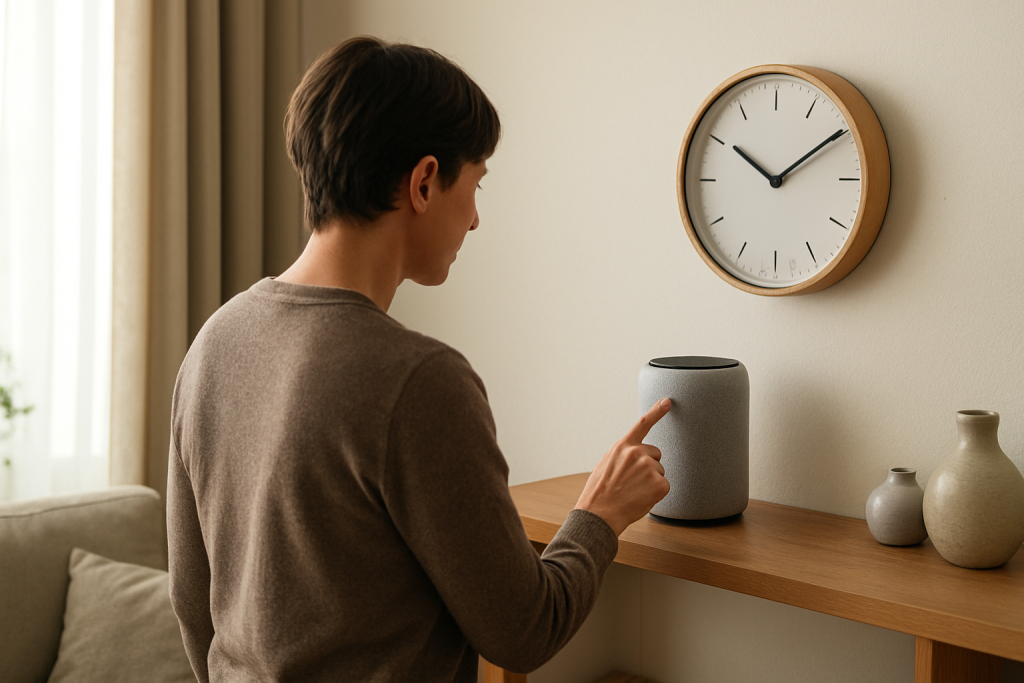
Stand close to the speaker or display you want to use. Say:
“Hey Google, set a timer for one minute.”
After its confirmation, ask: “Hey Google, how much time is left?”
Listen for the response from that same device. On a Nest Hub, check the countdown on its screen.
Google says the alarm and the timer alert sound play on the speaker or display used to set them. You can manage timers in the Google Home app from compatible speakers in the same home and Wi-Fi network, but the alert still plays on the device where the timer was set.
An alarm created in your phone’s clock app is a separate alarm. Do not assume it will sound on your Nest speaker.
What this test tells you: If there is no confirmation or countdown, troubleshoot the timer request first. If the countdown exists, move to the alert-volume check.
Google provides a separate volume setting for alarms and timers. Voice volume commands change media and voice-assistant volume, rather than this alert setting.
In the Google Home app:
Select the correct home and find your speaker or display. Google’s current instructions place this under Home → All devices.
Touch and hold its tile.
Open Settings → Audio → Alarms & Timers.
Raise the slider to a clearly audible level.
Run another one-minute timer and remain nearby until it finishes.
If your app layout differs, open the device’s settings and look for the alarm and timer audio control.
On a Nest Hub or Nest Hub Max, swipe up from the bottom of the screen, open Volume, and expand the controls if needed to access alarm and timer volume.
What this test tells you: If the timer is now audible, the alert-volume setting explains the symptom. If it remains silent, note whether the display shows the timer finishing.
Test the alarm separately from the countdown timer. Ask the device, “What alarms are set?” or “When is my alarm set for?” and listen carefully to its answer.
For a new test, choose a specific clock time a few minutes ahead and state AM or PM explicitly. For example, if it is 2:10 PM, request an alarm for 2:13 PM. Wait for confirmation.
For a recurring alarm, verify the requested days. A weekday alarm will not test the same schedule as an everyday alarm.
If the device reports an unexpected current time, note the discrepancy. Check that the home address in Google Home is correct, then restart the device and check its reported time again. A working timer but a failed clock-time alarm narrows the investigation to the alarm request or schedule; it does not prove a time-zone or clock-sync fault.
Google’s Night mode settings can lower voice-assistant response volume and dim device lights. Its Do Not Disturb option mutes certain notifications and startup sounds. Google explicitly says that timers and alarms still ring.
Do not confuse an ordinary countdown timer with a sleep timer. A sleep timer stops media playback rather than sounding a countdown alert, and Google documents separate restrictions for that feature.
If the correct device accepted the timer and its alert volume is audible, try a restart:
Disconnect the speaker or display from power.
Leave it unplugged for one minute.
Reconnect it and wait for startup to finish.
Create a fresh short timer, then test a separate alarm.
A restart is different from a factory reset. Create a new timer for the test instead of relying on one that was running before you unplugged the device.
6. Investigate connectivity only when the symptoms point there
If the device reports that it cannot connect, restore its connection before trying to create another alarm. Check whether other online voice requests work and whether the device is reachable in Google Home.
A timer failing to sound, by itself, does not establish a Wi-Fi fault. Avoid changing router security, splitting network names, or moving the speaker to a hotspot just because one alarm failed.
If alerts remain silent, compare them with another audio function: can the device play music or give an audible voice response?
Record these details before contacting Google support:
Device model and, if available, firmware version.
Whether music and voice responses are audible.
Whether a one-minute timer is confirmed and finishes visibly.
Whether a separate test alarm sounds.
The alarm and timer volume setting.
Any error message and the approximate time of the failed test.
This gives support a repeatable symptom to investigate.
A factory reset is a last resort. It clears device data and requires setup again. Follow Google’s model-specific reset instructions; the physical procedure differs between models. Google says you cannot perform this reset using a voice command or the Google Home app.
Do not replace a speaker solely because one scheduled alarm failed. First establish whether the problem affects alerts, voice requests, or all audio.
Frequently asked questions
Why does music play loudly but my alarm is quiet?
Music and alert volume have separate controls. Check the device’s Alarms & Timers setting rather than relying on a music-volume command.
Will an alarm ring on every speaker in a group?
Do not expect an alarm to be broadcast throughout a speaker group. Google documents alarm playback on the device used to create it.
Should I disable Do Not Disturb to make ordinary timers ring?
Google says alarms and timers still ring with Night mode’s Do Not Disturb enabled. Check the dedicated alert volume and the device that accepted your request.
Should I factory-reset the device immediately?
No. First run a short timer, check alert volume, verify a separate alarm, and restart. A reset erases device data and should follow the instructions for your exact model.
If you need an alarm for an important appointment while troubleshooting, use a separate backup alarm until your Google device passes repeated tests.