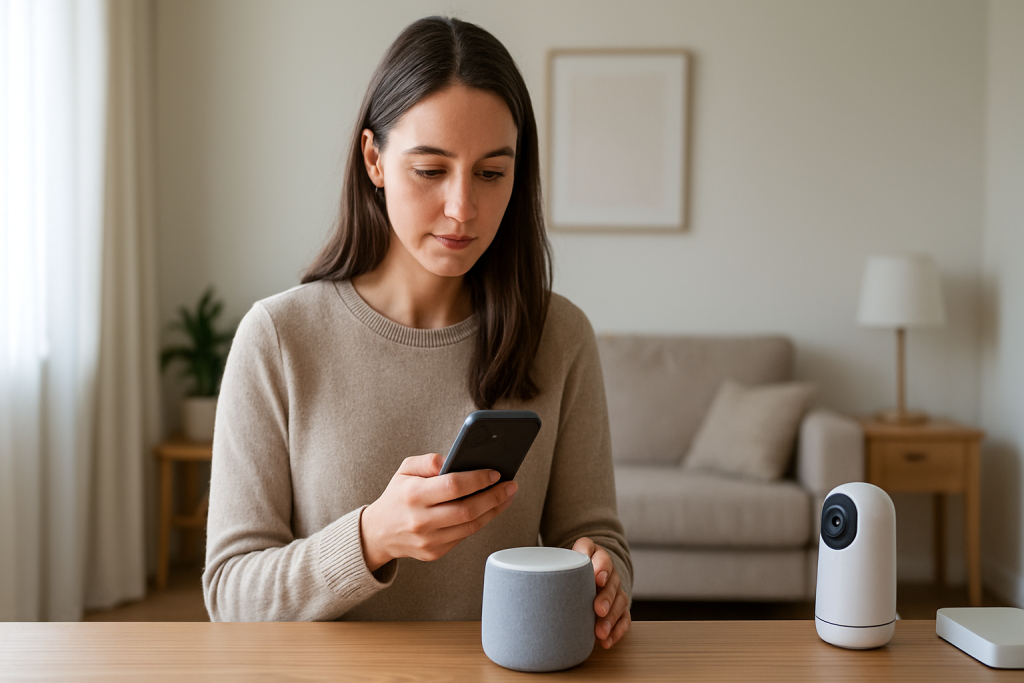
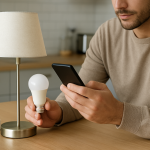
person checking smart speaker and phone settings in a living room

Google Home Routines Not Running on Schedule: How to Fix It

Quick Answer

The most common reason scheduled Google Home routines do not run is that the routine is being blocked by schedule logic (wrong time zone or days), Home/Away state (presence-based conditions preventing execution), or a conflicting routine rule (another routine or Household setting overriding it). This is especially common when routines target Nest speakers/displays, Google Home speakers, Chromecast/Google TV, Nest Hub alarms, or smart lights/plugs controlled through Google Home.

Three immediate diagnostic checks:

1) In the Google Home app, open the routine and confirm the schedule days, time, and time zone are correct, and that the routine is enabled.

2) Check Home/Away status in the Google Home app. If the routine depends on being Home or Away (or if you recently enabled presence sensing), the routine may be prevented from running.

3) Look for conflicts: two routines scheduled at the same time, a bedtime/alarm routine overlapping, or a device-level setting like Do Not Disturb/Night mode that blocks announcements or actions.

Why This Happens

Scheduled routines rely on cloud scheduling plus local device execution. If the schedule conditions do not match what Google thinks is true right now (time zone, day-of-week, Home/Away state), the routine will not trigger. If it does trigger but another rule overrides it (quiet hours, a second routine, or a device is assigned to a different home), the routine may appear to do nothing.

Tightly related causes that commonly stop schedules:

1) Time zone or date/time mismatch: the phone, Google account, or a display/speaker can drift into a different time zone, especially after travel or daylight saving changes.

2) Home/Away state blocks execution: presence sensing can prevent routines intended for when you are home, or can stop actions when Google believes nobody is home.

3) Conflicting routine rules: two routines scheduled for the same minute, or a routine that changes volume/Do Not Disturb just before another routine tries to speak or play media.

4) Wrong home structure or device assignment: the routine is created under one Home, but the target device is assigned to another Home or to a different room under a different household.

5) Account and Voice Match mismatch: routines tied to a specific person may not execute as expected if the device is logged into a different primary account, or if Voice Match is required for personal results.

Real-world scenario: A homeowner sets a weekday 7:00 AM routine to turn on kitchen lights and play news on a Nest Hub. After enabling presence sensing and adding a second phone to the household, Google sometimes marks the home as Away at 7:00 AM. The routine is scheduled correctly, but it does not run because the Home/Away condition is not met, or the Hub is in a different Home than the routine.

Common user mistake: Creating the routine under one Google account, then later changing the default account on the speaker/display or removing and re-adding the device. The routine still exists, but it targets devices the account no longer controls.

Overlooked technical cause: A device can stay connected but lose reliable cloud reachability due to router features like band steering or client isolation. The schedule fires in the cloud, but the device misses the command or receives it late, making it look like the routine never ran.

Most Likely Causes in Real Homes

1) Home/Away presence state is wrong or newly enabled and blocking routines.

2) Routine schedule settings are correct visually, but time zone/daylight saving is mismatched between phone, Google account, and device.

3) Conflicting routines or quiet-hour features (Night mode/Do Not Disturb) prevent audible actions, so it seems like nothing happened.

4) Routine is created in the wrong Home, or the target device is assigned to a different Home/room than expected.

5) Account mismatch or Voice Match/personal results restrictions prevent personal actions (calendar, reminders, media) from running on schedule.

Step-by-Step Fix

  1. Confirm the routine is actually scheduled and enabled.

    What to do: Open Google Home app, tap Automations (or Routines), open the routine, and verify the schedule time, days, and that the routine is enabled. If there are multiple starters (time plus another condition), note them.

    What the result means: If the schedule is missing, disabled, or set to the wrong days, the routine will never trigger. If it has additional conditions (like Home/Away), the schedule alone is not enough.

    What to try next if it fails: Correct the schedule, save it, then create a temporary test schedule for 2–3 minutes in the future to confirm it triggers.

  2. Run a controlled test to see if the routine triggers but the actions fail.

    What to do: In the routine editor, use the Play button (or Run) to run it manually while you are near the target device. Watch what happens: do lights change, does audio play, does the device respond?

    What the result means: If manual run works, the actions and device control are fine and the problem is schedule logic (time zone, Home/Away, conflicts). If manual run fails, the problem is device targeting, account permissions, or connectivity to the device/service.

    What to try next if it fails: Note which action fails first (lights, media, announcement). Remove that action temporarily and re-test to isolate the failing component.

  3. Check Home/Away status and presence sensing settings.

    What to do: In Google Home app, open Settings, then Presence sensing (or Home/Away routines). Confirm whether the home is currently shown as Home or Away. Review which phones are used for presence and whether any old devices are still listed.

    What the result means: If the home is marked Away when you are home, any routine that requires Home (or is blocked while Away) may not run. If presence sensing was recently enabled, routines may behave differently than before.

    What to try next if it fails: Temporarily disable presence sensing or remove Home/Away conditions from the routine, then test the schedule again. Also remove old phones from presence sensing and ensure location permissions are allowed on the active phones.

  4. Verify time zone and date/time consistency across phone, account, and devices.

    What to do: On your phone, confirm automatic date/time and automatic time zone are enabled. In Google Home app, check the Home address (used for time zone in some cases). If you have a Nest Hub, open its settings and confirm it shows the correct local time.

    What the result means: If any device or the phone shows the wrong time, the routine can trigger at the wrong hour or not at all (for example, if it triggers while you are asleep and you never notice). Daylight saving changes can expose this.

    What to try next if it fails: Correct the phone time settings, confirm the Home address is accurate, then power-cycle the affected speaker/display so it re-syncs time from the network and Google services.

  5. Look for routine conflicts and quiet-hour blockers.

    What to do: Check other routines scheduled near the same time, including Bedtime, Good morning, alarm-based routines, and Home/Away routines. On speakers/displays, check Night mode and Do Not Disturb settings, and check if volume is scheduled to go to zero overnight.

    What the result means: If two routines fire at the same minute, one may interrupt the other, especially if both play media. If Do Not Disturb or Night mode is active, announcements may be suppressed, so it seems like the routine did not run even if device actions occurred.

    What to try next if it fails: Stagger routines by at least 2–5 minutes. Temporarily disable Night mode/Do Not Disturb and retest. Add a visible action (like turning a light on for 10 seconds) to confirm whether the routine ran.

  6. Confirm the routine is targeting the correct home, room, and device.

    What to do: In Google Home app, switch to the correct Home (top of the app if you have multiple). Open the target speaker/display and confirm it is assigned to the same Home and the expected room. In the routine, verify the device selections for actions like announcements, media playback, or device controls.

    What the result means: If the routine is in Home A but the speaker is in Home B, the schedule may trigger but the device will not receive the command. This is common after moving devices, renaming rooms, or setting up a second household.

    What to try next if it fails: Move the device into the correct Home, or recreate the routine while you are viewing the correct Home. After changes, run the routine manually again.

  7. Check account, Voice Match, and personal results settings for routines that use personal data.

    What to do: For routines that play a personal playlist, read calendar events, or give commute info, confirm the speaker/display is linked to the right primary Google account. In device settings, review Recognition and sharing settings, Voice Match, and Personal results.

    What the result means: If personal results are off or the device is linked to a different account, the routine may partially run (lights work) but personal actions fail silently. That can look like the routine did not run if the first noticeable action is personal (like news or calendar).

    What to try next if it fails: Turn on Personal results for that device, confirm Voice Match is set up for the right person, and re-save the routine. If multiple household members exist, ensure the routine is owned by the account that has access to the services used.

  8. Do a quick network reachability test that focuses on routine execution reliability.

    What to do: Check your router client list and confirm the speaker/display is online and has a stable connection (not rapidly reconnecting). If you have a dual-band router with band steering, note whether the device is bouncing between 2.4 GHz and 5 GHz. If possible, temporarily connect the Google device to a phone hotspot for one scheduled test (create a test routine a few minutes ahead).

    What the result means: If the routine works reliably on the hotspot but not on your home Wi-Fi, the schedule logic is probably fine and the issue is local network behavior interfering with cloud-to-device delivery. Band steering and isolation features can cause intermittent misses.

    What to try next if it fails: Disable client isolation/guest mode for the device network, reduce aggressive band steering if your router allows it, and keep the device on a stable band. Then retest the scheduled routine.

  9. Use a deliberate reboot order only if symptoms point to stale connections.

    What to do: If routines run manually but scheduled triggers are inconsistent across multiple devices, or devices show as offline/online randomly, restart in this order: modem (if separate) first, then router, then the Google speakers/displays last. Wait for the router to be fully online before powering the Google devices.

    What the result means: This clears stale network sessions and forces fresh cloud connections, which can restore reliable delivery of scheduled commands.

    What to try next if it fails: If the issue persists after a clean restart sequence, move to Advanced Troubleshooting to check for account sync, software updates, and configuration conflicts.

Advanced Troubleshooting

This section is only needed if the basic fixes above do not restore reliable scheduled routine behavior.

Account/cloud issue: If routines fail across all devices and schedules, but manual control works, the routine service may be stuck on the account. Try signing out and back in on the Google Home app (or removing and re-adding the account to the phone), then re-open the routine and re-save it. If you recently changed your Google password or enabled extra security, re-authenticate any linked services used inside routines (music providers, smart home brands) so the routine does not fail mid-run.

Network issue (when relevant): If only one device misses schedules, it may be sleeping or losing connectivity. Check whether it is on a guest network, behind an access point with isolation, or placed where signal is weak. If you use a mesh system, confirm the device is not constantly roaming nodes. A stable connection matters more than peak speed for scheduled reliability.

Firmware/software cause: Ensure the Google Home app is updated and that the speaker/display has current firmware. Outdated app versions can save routine changes incorrectly, and older device firmware can have time sync or connectivity bugs that show up as missed schedules.

Configuration conflict: If you have both Home/Away routines and time-based routines controlling the same devices (lights, thermostat, volume), you can get a tug-of-war. Simplify: temporarily disable one set, confirm the other works, then reintroduce rules with clear precedence (for example, Home/Away handles security and thermostats, while time-based handles morning lighting).

When to Reset or Replace

A soft restart is appropriate when the routine schedule is correct but the device is intermittently unreachable, slow to respond, or shows incorrect time/online status. A soft restart does not remove your home setup; it simply refreshes the device connection and local state.

A factory reset is appropriate when the device consistently fails to receive scheduled actions even after you have confirmed schedule logic, Home/Away state, account linkage, and network stability. Factory reset removes the device from your Google Home, clears local settings, and requires you to set it up again (Wi-Fi, room assignment, and preferences). It does not delete your Google account, but it does break the link until you add the device back.

Replace only after a factory reset and a hotspot test still show the device missing scheduled routines while other devices work. That pattern suggests a device-specific hardware or firmware fault.

Hardware safety warning: Only use the normal reset method for your model (button sequence or reset pin). Do not open the device, do not attempt internal repairs, and do not use liquids or sprays to clean ports or microphones.

How to Prevent This

Keep schedule logic simple: Prefer one clear starter per routine (time OR Home/Away) unless you truly need both. If you must combine conditions, test after any change to presence sensing, household members, or phone permissions.

Maintain account stability: Avoid frequently switching the primary account on speakers/displays. If multiple people use the home, decide which account owns key routines and linked services, and keep that consistent.

Reduce rule conflicts: Stagger routines by a few minutes and avoid having multiple automations fight over the same setting (especially volume, media playback, and lights). When you add a new routine, check whether it overlaps with existing bedtime, alarm, or Home/Away routines.

Support reliable device reachability: Place speakers/displays where Wi-Fi is stable, not at the edge of coverage. If you use mesh Wi-Fi, place nodes so devices do not constantly roam. If your router has aggressive band steering, aim for stability over frequent band changes for smart home devices.

Review routines after major changes: Daylight saving changes, travel, router replacements, new phones, and adding household members are the times routines most often break. After any of these, run the routine manually once and schedule a short test run to confirm it still triggers.

FAQ

Why does my routine run when I press Run, but not on schedule?

If manual run works, the device and actions are generally fine. The failure is usually in schedule logic: wrong days/time zone, Home/Away state blocking it, or a conflict with another routine at the same time. Recheck starters and temporarily remove Home/Away conditions to confirm.

Do I need to keep my phone at home for scheduled routines to work?

No. Scheduled routines are cloud-based and should trigger without your phone present. The exception is when the routine depends on presence sensing using your phone location. In that case, your phone’s location permissions and battery optimization settings can affect whether Google correctly marks the home as Home or Away.

My routine is supposed to announce something, but nothing is spoken. Did the routine fail?

Not necessarily. Night mode or Do Not Disturb can suppress announcements, and volume schedules can set the device volume too low to hear. Add a visible action (like toggling a light) to confirm whether the routine ran, then adjust Night mode, Do Not Disturb, and volume settings.

Is Wi-Fi speed the reason routines do not run on time?

This is a common misconception. Speed is rarely the issue. Stability and reachability matter more: frequent reconnects, band steering causing roaming, guest network isolation, or intermittent cloud connectivity can prevent the device from receiving the scheduled command reliably.

Why do routines stop working after I add a new Google/Nest speaker or a second home?

Adding devices or a second home can change where devices are assigned and which account is primary on a speaker/display. A routine created in one Home cannot reliably control devices assigned to another Home. Confirm the routine and the target devices are in the same Home, and recreate the routine if needed so it saves with the correct device targets.

If your voice assistant is still not working, you can follow our complete voice assistant troubleshooting guide to identify the issue step by step.

That’s the strange part: the hardest steps already feel strangely familiar, like closing a tab you forgot you had open. The noise fades, and what’s left is a cleaner line you can actually live with.

Call it relief, or just the quieter satisfaction of things finally behaving. No big ceremony—just a little less friction showing up in the day-to-day.

Scroll to Top