Google Home Wont Control Smart Lights or Plugs: How to Fix It
Quick Answer
The most common real-world cause is a broken control path between Google Assistant and the device service: the smart-home account link is stale, permissions changed, or the cloud sync is out of date. In that situation, Google Home can still see devices, but commands fail, control buttons spin, or you get messages like device not available.
Do these three checks first:
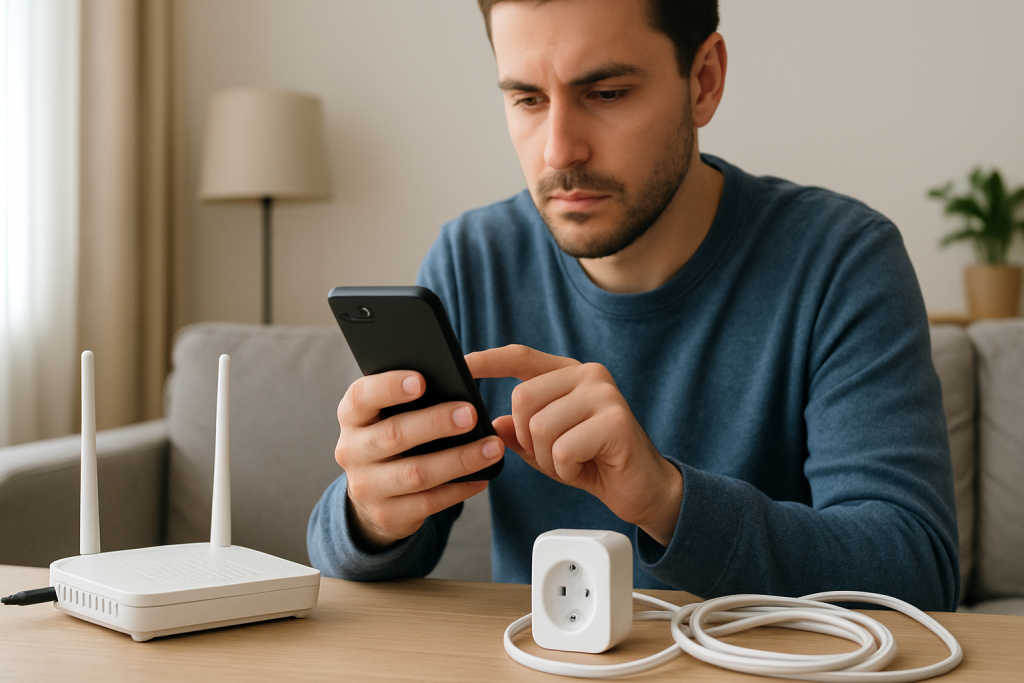
1) In the Google Home app, tap the light or plug tile. If it shows Offline or Not responding, the cloud link or device service is not updating status correctly.
2) In Google Home app settings, confirm you are using the same Google account and the correct Home structure (the right household). If you are in the wrong Home, you may be talking to devices that are not actually linked to your account.
3) Open the manufacturer app for the light/plug (Philips Hue, Kasa, LIFX, Wemo, etc.). If the device also fails there, the problem is on the device side; if it works there but not in Google, the link/sync path is the issue.
This affects smart lights, smart plugs, switches, and hubs that connect through a cloud account, as well as some local hubs that still require cloud authorization for voice control.
Why This Happens
When you say Hey Google, turn on the lamp, the command usually does not go directly from the speaker to the plug. It travels through a chain: your Google account and Home, the linked smart-home service (the manufacturer cloud), and then down to the device or its hub. If any part of that chain is out of sync, Google can stop controlling devices even though your Wi-Fi and devices seem fine.
Common, tightly related causes include:
1) The third-party service link expired or was revoked. Many brands require periodic re-authorization, especially after password changes, security updates, or enabling two-factor authentication.
2) Google Home is using the wrong Google account, wrong Home, or wrong room mapping. This is common in households with multiple phones, shared speakers, or multiple Homes (for example Home and Cabin).
3) Cloud sync is stale. Google may still show old devices, duplicate devices, or outdated names after you changed something in the manufacturer app.
4) Permissions and Voice Match issues. If Voice Match is off or confused, Google may not apply the right personal results, which can change which Home or devices it targets.
5) An overlooked technical cause: duplicate devices from multiple links. For example, linking both a hub integration and a direct device integration can create two copies, and Google may try to control the wrong one.
A real-world scenario: you changed your Wi-Fi password and reconnected your smart plugs in the manufacturer app. Everything works in that app, but Google Home still shows the old devices and reports them as unavailable. The manufacturer cloud sees the new devices, but Google is still holding the old cloud mapping until you force a resync or relink.
A common user mistake is renaming or moving devices only in Google Home while also managing them in the manufacturer app. For many brands, the manufacturer app is the source of truth, and Google will revert or fail to resolve the device when names or rooms conflict.
Most Likely Causes in Real Homes
1) The device service link needs to be reconnected (password changed, authorization expired, or account security update).
2) Google Home is pointed at the wrong Home or wrong Google account on the phone you are using to troubleshoot.
3) Devices were changed in the manufacturer app (renamed, moved, removed) and Google has not refreshed its device list.
4) Duplicate devices exist (linked twice through different integrations), so Google controls a ghost copy that is offline.
5) Network edge cases that break the control path: client isolation/guest network, band steering confusion for hubs, or a router blocking outbound connections needed for cloud control.
Step-by-Step Fix
Confirm the failure type by testing control in two places.
What to do: In the Google Home app, tap the tile for one affected light/plug. Then open the manufacturer app and toggle the same device there.
What the result means: If it fails in both apps, the device/hub is not reachable or not logged in correctly. If it works in the manufacturer app but not in Google Home, the assistant-to-device link/sync is the problem.
What to try next if it fails: If it fails in both, focus on the device/hub connectivity inside the manufacturer app first (sign-in status, hub online). If it works in the manufacturer app, continue to the next step.
Verify you are in the correct Google Home structure and account.
What to do: On the phone you use for setup, open Google Home. Tap your profile icon, confirm the active Google account, then check the Home selector (the household name). Make sure it matches where the devices were originally set up.
What the result means: If you are in the wrong Home or account, Google will show missing devices, control the wrong devices, or report unavailable even though someone else in the household can control them.
What to try next if it fails: Switch to the correct Home/account and test again. If you do not see the right Home, ask the household owner to re-invite your account, or proceed to relinking in later steps.
Force a device sync so Google refreshes the cloud device list.
What to do: Say to your speaker or phone: Hey Google, sync my devices. Then wait 30–60 seconds and try controlling one light/plug again.
What the result means: If control starts working, the issue was stale cloud sync (Google had an outdated device map). If you hear an error during sync, that often points to a broken link with a specific service.
What to try next if it fails: If the sync reports a problem with a named service (for example Kasa or Hue), go to the next step and relink that service.
Relink the affected smart-home service (the most reliable fix for broken permissions).
What to do: In Google Home, go to Settings, then Works with Google Home (or Devices and then Add, depending on app version). Find the manufacturer service and choose Reconnect or Unlink. Then link it again and sign in with the same manufacturer account used in their app.
What the result means: If relinking restores control, the previous authorization token or permissions were invalid. This is especially likely after changing the manufacturer password or enabling two-factor authentication.
What to try next if it fails: If linking fails or loops back to sign-in, confirm you can log into the manufacturer app first. If you can log in there but linking fails in Google, proceed to the account and permission checks in the next step.
Check for duplicate devices and remove the ghost copy.
What to do: In Google Home, search for the device name and look for duplicates (often one works and one shows Offline). Also check if you linked the same brand through two paths (for example, a hub integration plus direct device integration). Remove or unlink the duplicate entry, then sync devices again.
What the result means: If Google was controlling the offline duplicate, commands will fail even though the real device is online.
What to try next if it fails: Rename the working device uniquely in the manufacturer app (for example, Lamp Plug Living Room) and sync again so Google targets the correct one.
Confirm Voice Match and language settings are not steering commands to the wrong Home.
What to do: In Google Home, open the speaker or display that hears the command. Check Assistant settings for Voice Match and ensure your voice is added. Also confirm the Assistant language matches what you speak and is consistent across household members.
What the result means: If Voice Match is off or confused, Google may not apply the right home context for your account, especially in multi-user homes. Language mismatches can cause device name parsing failures.
What to try next if it fails: Temporarily test with a very direct command from the Google Home app (tap the device tile) rather than voice. If app control works but voice does not, focus on Voice Match and device naming (avoid special characters and very similar names).
Run a hotspot test to separate cloud/link issues from local network quirks.
What to do: Use a phone hotspot as a temporary Wi-Fi network. Connect only the Google speaker/display (or your phone running Google Assistant) to the hotspot. Then try controlling a device that is cloud-connected (many plugs/lights are). Do not move all devices; this is a diagnostic test, not a permanent setup.
What the result means: If control works while the Google device is on the hotspot, your home network may be blocking or interfering with the cloud control path (DNS filtering, firewall rules, or router features). If it still fails, the issue is more likely account linking or the manufacturer cloud service itself.
What to try next if it fails: If hotspot fixes it, proceed to the network checks in the next step. If hotspot does not fix it, skip ahead to Advanced Troubleshooting for account/cloud issues.
Check the router client list and band steering behavior for hubs and bridges.
What to do: Log into your router and open the connected devices list. Confirm the Google speaker/display is online and that the hub/bridge (if you have one) is online. If your router combines 2.4 GHz and 5 GHz under one name, temporarily disable band steering or create separate SSIDs to ensure hubs that require 2.4 GHz stay on 2.4 GHz.
What the result means: If the hub/bridge is missing from the client list, Google cannot reach the device service locally or the hub cannot reach the cloud. If the hub keeps bouncing between bands or disconnecting, the cloud link can appear broken even though Wi-Fi looks fine.
What to try next if it fails: Reconnect the hub/bridge to the correct band, then resync devices in Google. If the router shows frequent disconnects, consider relocating the hub closer to the router or reducing interference (without changing anything else yet).
Restart in the correct order only if you suspect the network path is stuck.
What to do: If you have confirmed linking is correct but devices still show Offline, restart in this order: modem (or fiber ONT) first, then router, then hubs/bridges, then the Google speaker/display. Wait for each to fully come online before moving to the next.
What the result means: This clears stale WAN sessions, DNS issues, and hub cloud reconnect problems that can break the assistant-to-device control path even when Wi-Fi seems normal.
What to try next if it fails: If status is still wrong after a clean restart order, move to Advanced Troubleshooting; the issue is likely account, firmware, or configuration conflict rather than a temporary network stall.
Advanced Troubleshooting
Only use this section if the basic fixes above did not restore control. At this point, you are looking for a deeper account/cloud problem, a network policy issue, a firmware/software mismatch, or a configuration conflict between integrations.
Account and cloud issues
If relinking fails or devices reappear as duplicates after you remove them, the manufacturer account may be logged in on multiple regions or multiple accounts (for example, two different emails). Confirm the manufacturer app shows the same account email you used during linking. If the brand offers a web portal, verify there are not multiple homes/locations inside the manufacturer account. Then unlink the service in Google Home, wait a minute, and link again so Google pulls a fresh device list.
If Google reports that it synced but devices still do not respond, check the manufacturer service status page (if available) or recent outage notices inside the manufacturer app. A cloud outage can look exactly like a local problem: devices appear in Google, but commands time out.
Network policies that break cloud control
Some routers have features that interfere with smart-home cloud traffic: DNS filtering, ad-blocking DNS, parental controls, or firewall settings that block outbound connections. If the hotspot test fixed the issue, temporarily disable those features and retest. Also confirm your Google devices and smart-home hubs are not on a guest network with client isolation enabled; isolation can prevent discovery and local coordination even when cloud control exists.
Firmware and app version mismatches
Update the Google Home app on your phone and ensure the Google speaker/display firmware is current (it updates automatically, but can lag if it has been unplugged for long periods). In the manufacturer app, check for hub firmware updates. A hub that updated recently may require a fresh cloud authorization, which is effectively fixed by relinking.
Configuration conflicts
If you use multiple ecosystems (for example, the same lights in both a hub integration and a direct integration), choose one control path and remove the other. Also avoid having two devices with the same spoken name in different rooms if you often issue commands without specifying the room. Google may target the wrong device, which looks like a failure when the wrong one is offline.
When to Reset or Replace
Use a reset only after you have confirmed the account link and sync are correct. Resetting too early often creates more duplicates and more confusion in Google Home.
Soft restart vs factory reset
A soft restart (powering a device off and back on) is appropriate when the device shows Offline in both Google Home and the manufacturer app, or when the hub is missing from the router client list. It does not remove your account link; it simply forces a reconnect.
A factory reset is appropriate when the device cannot be added reliably in the manufacturer app, repeatedly drops offline immediately after setup, or is stuck in a state where it will not accept the correct Wi-Fi credentials. A factory reset removes its pairing information and network settings, and you will need to set it up again in the manufacturer app and then resync or relink in Google Home.
Hardware safety warning
For plugs and lights, do not open the device housing or attempt internal repairs. If a plug is hot to the touch, smells like overheating, or shows visible damage, stop using it and follow the manufacturer safety guidance. For normal troubleshooting, stick to app settings, account linking, and safe power cycling.
How to Prevent This
Keep the control path stable by treating the manufacturer app as the source of truth. Do naming and room assignments there first, then sync Google. This reduces mismatches where Google tries to control a device ID that no longer exists.
Keep accounts stable: avoid frequent password changes on the manufacturer account, and if you do change it, plan to relink the service in Google Home right after. If you enable two-factor authentication, expect to re-authorize the integration.
For network habits, aim for consistency rather than constant tweaking. If you use a combined 2.4/5 GHz Wi-Fi name, watch for hubs that prefer 2.4 GHz and place them where the 2.4 GHz signal is strong. If you run a mesh system, keep the hub/bridge near a stable node and avoid moving it often; frequent roaming can cause cloud reconnect delays that look like control failures.
Manage routines and services carefully. If you remove a device, also remove it from Google routines and automations. A routine calling a deleted device can produce confusing errors that make it seem like all control is broken when only one device reference is stale.
FAQ
Why does Google Home show the device, but it says not responding?
Seeing the device usually means Google still has a record of it from a previous sync. Not responding typically means the live control path is broken: the manufacturer cloud is not accepting commands from Google, the authorization expired, or the device/hub is offline in the manufacturer service. Relinking the service and then syncing devices is the most direct fix.
If the device works in the manufacturer app, does that prove my Wi-Fi is fine?
It proves the device can be controlled through that app, but it does not fully prove the Google-to-manufacturer authorization path is healthy. Many manufacturer apps can control devices even when a third-party integration token has expired. That is why relinking and forcing a sync are key tests.
Do I need to remove and re-add every light and plug in Google Home?
Usually no. If the manufacturer integration is linked, Google should repopulate devices after a sync. Removing individual devices in Google can help when there are duplicates, but the cleaner approach is to fix the link and let Google refresh the device list from the source.
Common misconception: If I reboot the speaker, it will fix smart light control.
Rebooting the speaker can help if it is temporarily stuck, but most cases where lights or plugs stop responding are caused by a broken account link, stale sync, or duplicate device mapping. If the manufacturer app works and Google does not, focus on relinking and syncing before spending time on repeated reboots.
Why does it work for one family member but not another?
This usually points to account and Home membership differences. One person may be using a different Google account, may not be added to the correct Home, or may have Voice Match off so commands are routed with the wrong context. Confirm both users are in the same Home and that the speaker recognizes the correct voice profile.
After all the noise, it’s oddly simple to feel the shape of what matters again. The clutter doesn’t vanish, but it stops steering the conversation.
There’s a quiet relief in letting the issue be what it is—and moving on with your day. The solution doesn’t feel dramatic; it just fits, like a door you finally don’t have to wrestle.