Smart Plug Works on Phone but Not Tablet? How to Fix App Issues
Quick Answer
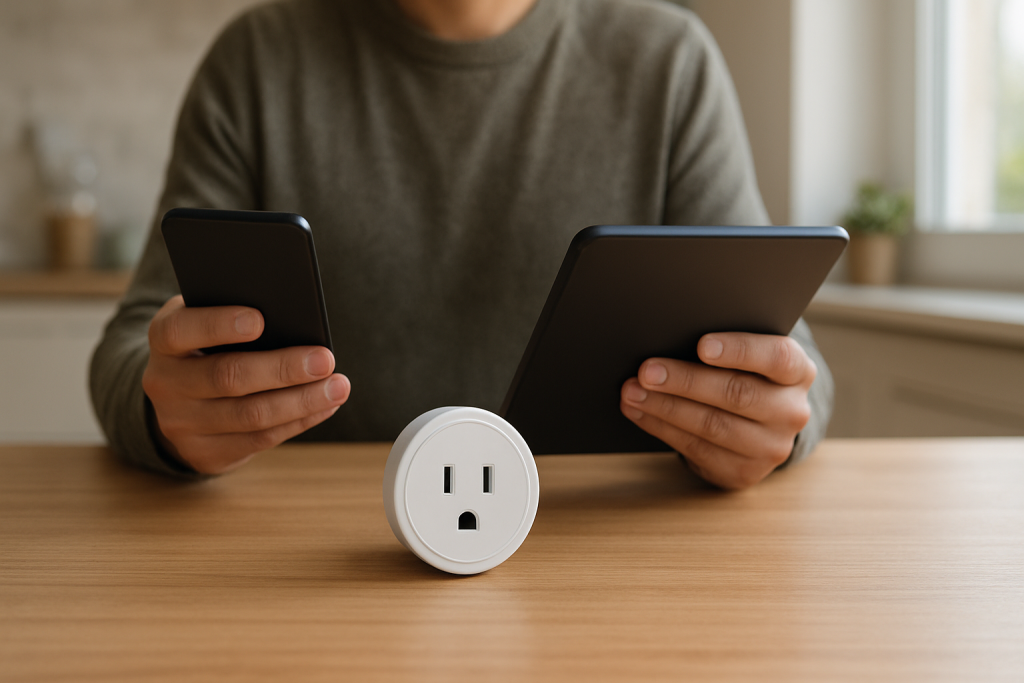
When a smart plug or smart switch works from your phone but not your tablet, the most common cause is not the plug itself—it’s the app session on the tablet. The phone is usually signed in correctly and synced to the right “Home/Household,” while the tablet is using an outdated login token, a different region/home, or an older app build that can’t fully sync device status.
This shows up as “Offline” on the tablet, missing devices, or controls that spin and then fail—even though the plug responds instantly on the phone. Fixing the tablet’s app session and making sure both devices are viewing the same home and permissions typically resolves it.
Do these three quick checks first: (1) Confirm both phone and tablet are logged into the exact same account and “Home/Household” inside the app. (2) Force-close the tablet app, reopen it, and manually pull to refresh the device list (or open the plug details screen and refresh). (3) On the tablet, sign out of the smart home app and sign back in to renew the session token.
Why This Happens
Smart plug/switch apps rely on a mix of cloud sessions (your account login), local discovery (finding the device on your network), and ecosystem syncing (Alexa, Google Home, Apple Home, SmartThings, Matter controllers, Zigbee hubs/bridges). Your phone and tablet can look “the same,” but they often aren’t: they may store different app sessions, have different permissions, or even be connected through different network paths (especially in homes with mesh WiFi).
Common causes tightly tied to phone/tablet differences include:
First, an app session sync problem: the tablet’s login token expires or the app is stuck on an old session, so the cloud can’t authorize control even though the device is fine.
Second, a home/room context mismatch: many platforms support multiple Homes, locations, or households. A real-world scenario is a shared home where one family member created “Home” on the phone, but the tablet is still viewing “Default Home,” so the plug appears missing or “not responding.”
Third, permission/sharing differences: the phone may be the owner account while the tablet is signed into a shared user profile that can view devices but not control them, or can’t see newly added plugs until the share sync completes.
Fourth, a compatibility issue: the tablet may be running an older OS version or an older app build that handles newer device firmware, Matter migrations, or hub integrations differently.
Fifth, an overlooked technical cause: some tablets use “Private Wi‑Fi Address,” VPNs, or DNS filtering settings differently than phones. That can block local discovery or cloud calls, making the app appear broken only on the tablet.
Most Likely Causes in Real Homes
1) Tablet app session/token is stale. The tablet “looks logged in,” but it’s not fully authenticated for control or device refresh.
2) Wrong Home/Household selected on the tablet. The device list is tied to a specific home, not just the account.
3) App version/OS compatibility gap. Phones are updated more often; tablets lag behind and may not sync correctly after device firmware/app changes.
4) Permissions or sharing not applied to the tablet’s account. Shared homes, kids’ tablets, or secondary accounts commonly have limited rights or incomplete sync.
5) Tablet network path differs (mesh node, VPN, private address). The plug works on the phone because the phone’s network route allows local or cloud access while the tablet’s does not.
Step-by-Step Fix
Confirm the tablet is using the same login and the same “Home/Household” as the phone.
If the plug list differs between devices, it usually means the tablet is on a different account, a different region, or a different home/location view. On the tablet, open the app’s Home selector (often at the top) and switch to the same Home name you see on the phone.
If you can’t find the same Home on the tablet, sign out and sign back in on the tablet next; if it still doesn’t appear, the tablet may be logged into a different account or the home share was never accepted.
Refresh the tablet’s app session (force-close, reopen, then refresh device status).
If the plug changes from Offline to Online after a fresh open and refresh, the issue was likely a stuck background session or cached device list. This is especially common after app updates, router restarts, or power outages where the cloud state changes.
If the tablet still shows stale status or fails to control, move to signing out/in to renew the authorization token.
Sign out of the smart plug/switch app on the tablet, then sign back in.
If control starts working immediately afterward, it confirms an authentication/session sync issue. Your phone kept a valid token; the tablet didn’t.
If signing in doesn’t fix it, the next most likely cause is compatibility (app/OS) or a permissions/home mismatch, so proceed to version checks and sharing checks.
Check for app and OS version mismatches between phone and tablet.
If the phone has a newer app version or the tablet OS is older, the tablet may not fully support newer device firmware, Matter controller changes, or hub integrations. Update the app on the tablet first; then check for tablet OS updates.
If the tablet can’t be updated (common with older tablets), try controlling through an ecosystem app (Alexa/Google Home/Apple Home/SmartThings) on the tablet as a workaround; if that works, the device is fine and the manufacturer app is the compatibility bottleneck.
Verify permissions and sharing for the tablet’s account (especially in shared homes).
If the tablet is signed into a different family member’s account, you may see devices but not control them, or you may not see newly added plugs/switches. On the owner phone, re-check Home members and device permissions, then have the tablet user accept any pending invitations.
If permissions look correct but the tablet still can’t control, remove and re-add the tablet user sharing (software-only) and then refresh on the tablet; if that fails, test network path differences next.
Rule out tablet-only network path issues (mesh WiFi roaming, VPN, private address) without “resetting everything.”
On the tablet, temporarily disable VPN/private relay features (if enabled), then retry control. If the plug starts responding, the tablet was routing app traffic differently than the phone. In mesh homes, also walk closer to the main router (not a far mesh node) and test again; if it works near the main router, the tablet’s roaming path is likely causing discovery/control issues.
If you still get failures, run a hotspot isolation test: connect the tablet to your phone’s hotspot (with the smart home app still signed in) and try controlling. If it works on hotspot but not on home WiFi, the issue is network-policy related on the tablet’s normal connection (DNS filtering, client isolation, or mesh behavior). If it fails even on hotspot, focus back on app/account compatibility.
Check whether the tablet is failing only in one “control path” (manufacturer app vs Alexa/Google Home/Apple Home/SmartThings).
If the plug works in the manufacturer app on the phone but works in Alexa/Google Home on the tablet (or vice versa), that usually means an ecosystem sync issue or a device duplicate. For example, Matter devices can appear twice (native and bridged), and one copy may be stale on the tablet.
If only one app fails on the tablet, relink/resync that specific integration (device discovery or account link refresh). If all apps fail only on the tablet, return to tablet session/OS/network causes.
Check schedules, scenes, and “status mismatch” symptoms (smart plugs especially with energy monitoring).
If the tablet shows the plug On while it’s actually Off (or power readings don’t update), it usually means the tablet app isn’t receiving fresh state updates. That’s still a sync/session problem more than a device problem. Refresh the device detail page and verify the tablet’s time zone and location permissions (some apps use them for automations and state refresh intervals).
If the tablet is the only place where automations fail to show or edit correctly, update the app and sign out/in again; if automations behave oddly across apps, look for duplicate routines created in multiple places (manufacturer app plus Alexa/Google/SmartThings) and disable one set.
Advanced Troubleshooting
This section is only needed if basic fixes fail.
Account/cloud issue: If the tablet can log in but never fully loads device state (blank list, constant loading, or “server error”), the cloud session may be stuck for that device. Try removing the app from the tablet’s “connected devices” list in the account security page (if available), then sign in again. If your home uses multiple regions (common with travel or moving), verify the app region setting matches the account region used on the phone.
Network issue (tablet-specific): Some routers treat devices differently based on MAC randomization/private address. If the tablet gets a new “identity” frequently, the router may apply different profiles, DNS filters, or parental controls that block smart home traffic. Turn off the tablet’s private address feature for your home WiFi network (software setting), reconnect, and retest. If your mesh has separate IoT or guest networks, confirm the tablet is not on guest while the plug is on the main network, because some guest networks block local discovery.
Firmware/software cause: If the plug recently updated firmware (or migrated to Matter, or was added through a hub/bridge like Zigbee), an older tablet app may not understand the new device capabilities or state reporting. Confirm the device firmware is current using the phone (since it works), then update the tablet app to match. If the tablet cannot update, use an ecosystem controller app that is supported on the tablet OS.
Configuration conflict (groups, scenes, automations, permissions): If the tablet controls a group/room scene and nothing happens, but individual device control works on the phone, the tablet may be operating an outdated group definition. Rename the device (small change) on the phone, then check whether the tablet reflects the rename after refresh; if it doesn’t, the tablet isn’t syncing home metadata properly and needs a sign-out/in or reinstall.
Ecosystem sync issue (Alexa/Google Home/Apple Home/SmartThings/Matter): If the tablet uses a different controller path (for example, Apple Home on an iPad vs manufacturer app on a phone), make sure the tablet is signed into the same ecosystem account and the same Home. With Matter, ensure the tablet is added as a controller to the same fabric/home and not controlling a duplicate bridged copy. If voice assistants show duplicates, remove the stale duplicate and re-run device discovery.
When to Reset or Replace the Device
A soft restart is simply power-cycling the smart plug (unplug/replug) or toggling power at the outlet it’s connected to, then waiting a minute for it to reconnect. This won’t remove it from your account and is safe to try if the plug seems slow to report status. However, when the phone works reliably and only the tablet fails, a device restart usually isn’t the main fix—session sync is.
A factory reset removes the plug/switch from its app and requires pairing again. After a reset, you may lose room assignments, custom names, schedules/timers, scenes, automations, and (for energy-monitoring smart plugs) historical energy data stored in the app. Consider a factory reset only if the device is frequently offline on all controllers, won’t accept firmware updates, or behaves inconsistently across multiple phones/tablets after you’ve confirmed the accounts and app versions match.
Replacement is reasonable if the device repeatedly drops offline across all controllers and networks, fails updates repeatedly, or shows unstable behavior (random clicking/on-off not explained by automations). Stop using the device and replace it immediately if you notice overheating, a burning smell, discoloration, melting, or any visible damage.
How to Prevent This in the Future
Keep phone and tablet app sessions healthy by updating the smart home app on both devices and signing back in after major app redesigns or migration prompts. Tablets that are used occasionally are the most likely to hold stale tokens.
Use consistent naming and Home/room organization. If you maintain multiple “Homes” (main house, vacation home), label them clearly and verify the tablet is viewing the correct Home before troubleshooting the device itself.
Avoid duplicate automations spread across multiple apps. If you create schedules in both the manufacturer app and Alexa/Google Home/SmartThings, you can get state confusion that appears differently on different devices. Keep scheduling in one place when possible.
After power outages or router restarts, give smart plugs/switches a few minutes to re-register, then open the app and refresh. If your home uses mesh WiFi, keep the plug within strong coverage and avoid placing it in a spot where devices roam between nodes unpredictably (like garages and far corners), which can delay discovery on one client device but not another.
Practice sharing hygiene in shared homes: ensure each person uses their own account where supported, accepts invitations promptly, and has the right control permissions. When a tablet changes hands (old tablet becomes a wall controller), do a clean sign-in with the intended account instead of reusing an old session.
FAQ
My smart plug shows “Offline” on the tablet but works instantly on my phone. Is the plug actually offline?
Usually not. If it responds on the phone, the plug is online and controllable. “Offline” on the tablet typically indicates the tablet app is out of sync (stale session, wrong Home selected, or blocked discovery), not that the device lost connection.
If I reinstall the app on the tablet, will I lose my schedules and automations?
Reinstalling the app on the tablet generally does not delete schedules stored in the cloud account or on the device; it mainly clears the tablet’s local cache and session. You’ll need to sign in again and reselect the correct Home. Factory resetting the plug/switch is what usually removes pairing and can affect schedules and history.
Why does voice control work on the tablet (Alexa/Google/Apple Home) but the manufacturer app doesn’t?
This points strongly to an app session or compatibility problem in the manufacturer app on the tablet. The ecosystem app is using a different control path (cloud-to-cloud or hub-based), so it can still work even when the tablet’s manufacturer app is logged out silently or unable to refresh device metadata.
Common misconception: “This is always a 2.4 GHz vs 5 GHz problem.” Is that true?
No. While smart plugs often connect on 2.4 GHz, a phone working while a tablet fails is more often an account/session sync issue than a band issue. Band problems typically prevent the plug from connecting at all, which would usually break control on every device—not just the tablet.
There’s a strange kind of relief in seeing the problem named and the path through it laid out plainly. The clutter fades, and what’s been tugging at the edge of your attention turns into something you can live with—finally.
It doesn’t feel dramatic so much as correct, like setting a crooked picture straight and realizing you were the one squinting. In the end, the work isn’t loud; it’s just there, steady, and easier to ignore.