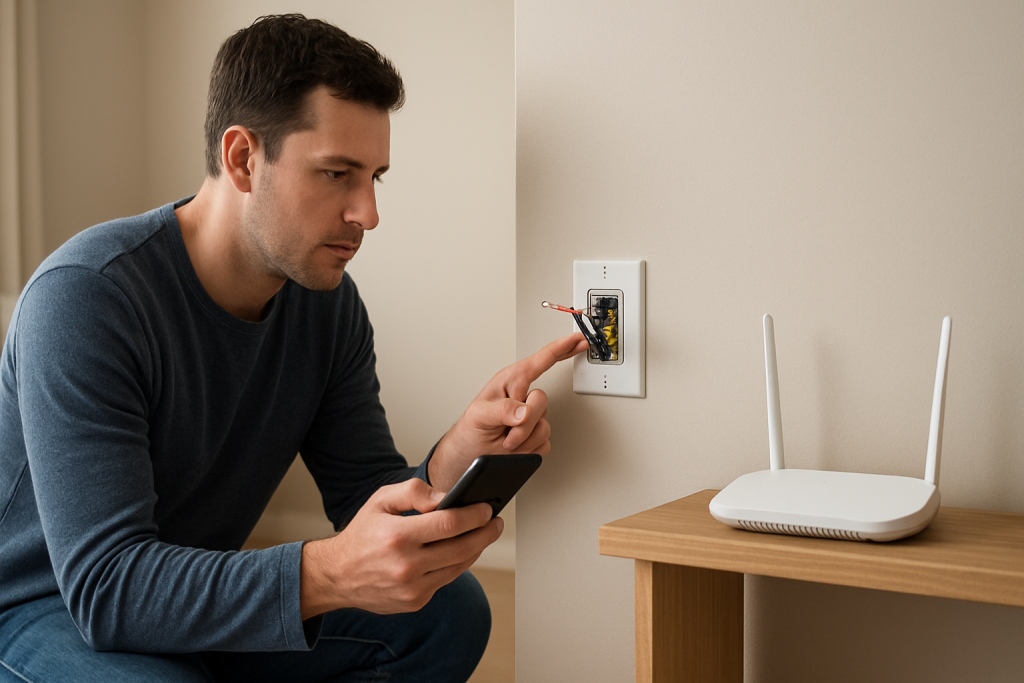
Smart Switch Shows Offline but WiFi Works? How to Fix It
Quick Answer
When a smart switch (or smart plug) shows “Offline” in its app even though your WiFi is working for everything else, the most common reason is not your internet speed—it’s a sync problem between the app, the vendor’s cloud, and the device’s last known session. The device may still be on your network, but the app can’t confirm it through the cloud, so it labels it offline.
This is especially common after router restarts, power outages, app updates, or when you control the same device from multiple ecosystems (Alexa, Google Home, Apple Home, SmartThings, Matter controllers). One platform updates its status, another stays “stuck” until it re-syncs.
Do these three quick actions: 1) Force close the device app and reopen it, then pull down to refresh the device list. 2) Toggle your phone between WiFi and cellular data and refresh again (this tests whether the app is stuck on a bad network path). 3) Check whether the device responds from another controller (Alexa/Google/Apple Home/SmartThings) or via a local button—if it works there, you’re dealing with a cloud/app sync issue, not a dead switch.
Why This Happens
The causes that most tightly fit this situation are:
1) Cloud session or account sync glitch: the device is online locally, but the cloud thinks it’s disconnected until it re-registers.
2) App cache/session problem: after an app update or a phone OS update, the app may keep stale login tokens or old device state, so it reports Offline even though the device is reachable.
3) Post-outage reconnect timing: after a power outage, switches may reconnect to WiFi quickly, but the cloud registration can lag behind; during that window the app shows Offline.
4) Ecosystem mismatch: you renamed/moved the device in one app (vendor app vs Alexa/Google/Apple Home), or you have duplicates via Matter/bridge integrations, and one entry goes stale.
5) Overlooked technical cause: DHCP/IP changes or mesh roaming can move the device to a different node/IP. The device is “on WiFi,” but the cloud/app’s connection path is temporarily broken until the device re-authenticates.
Real-world scenario: your router reboots overnight for an update. In the morning, your phone is online and streaming works, but your smart switch is “Offline” in its app. The switch may have rejoined WiFi, but it’s still waiting to re-establish its secure cloud session, or the app is showing yesterday’s cached state.
Common user mistake: assuming “Offline” means the switch has no power or WiFi, then immediately factory-resetting it. That often creates more work (re-pairing, rebuilding automations) when the real fix is simply re-syncing the account/session.
Most Likely Causes in Real Homes
These are ordered by probability for “offline in app, WiFi works” situations:
1) Vendor cloud or account session desync: the device is connected, but the cloud/app can’t validate it until you refresh login or it re-registers.
2) App cache/token issue after updates: the phone app shows Offline until you force close, clear cache (where available), or sign out/in.
3) Router restart/outage timing plus DHCP changes: the device gets a new IP lease or reconnects slowly; the app reads old state until the device checks in again.
4) Mesh WiFi roaming or band steering edge case: the device clings to a weak node or bounces, causing repeated cloud reconnect attempts even though “WiFi works” for phones.
5) Conflicts across platforms (Alexa/Google/Apple Home/SmartThings/Matter): one platform controls it, another shows it offline due to duplicate entries, wrong home/room, or a broken link.
Step-by-Step Fix
Refresh the app’s connection and device list: force close the vendor app (and any related smart home app), reopen it, and pull down to refresh the device list.
If the device comes back online, it usually means the issue was stale app state or a temporary cloud sync delay.
If it still shows Offline, move to the next step to confirm whether this is only an app display problem or a real connectivity problem.
Test control from a different path: try toggling the switch from another ecosystem you use (Alexa, Google Home, Apple Home, SmartThings) or use the physical button on the switch. If it’s a smart plug, try turning it on/off from the device button if it has one.
If another controller can control it (or the physical button works normally), the device likely has power and is functioning; the problem is app/cloud sync, linking, or stale device registration.
If nothing can control it (and the physical button behavior is abnormal), continue to the next step to check network/session recovery.
Do a clean “network path” test from your phone: turn off your phone’s WiFi and use cellular data, open the vendor app, and refresh the device status. Then switch back to WiFi and refresh again.
If the device appears online on cellular but not on WiFi, your home network is likely blocking or misrouting the app’s cloud connection (common with VPN profiles, DNS filtering, “Private Wi-Fi Address” quirks, or router security features). If it’s the opposite (works on WiFi but not cellular), the vendor cloud may be having trouble or your account session needs re-authentication.
If there’s no change either way, go to the next step to address the most common cause: a stuck cloud session after an outage/reboot.
Power-cycle in the correct order (safe and non-invasive): unplug the smart plug or turn the switch off at its normal control (do not do electrical work), then reboot your router/mesh system, wait until WiFi is fully back, and only then restore power to the smart device.
If the device comes online afterward, it usually means it needed a clean DHCP lease and a fresh cloud registration after the network stabilized.
If it stays offline, continue to the next step to verify 2.4 GHz and mesh behavior, which frequently affects smart switches/plugs even when phones seem fine.
Confirm the device is on a stable 2.4 GHz path: smart switches and plugs are commonly 2.4 GHz WiFi devices. If your router uses band steering (one network name for 2.4/5 GHz), temporarily move your phone close to the router and try the app refresh again. If you have a mesh, test by unplugging the nearest mesh node for a few minutes so the device is encouraged to reattach to a stronger, more stable node (only if doing so won’t disrupt essential service).
If the device comes back online after you change proximity or node conditions, you likely have a roaming/weak-signal issue causing repeated cloud dropouts even though general WiFi “works.”
If it doesn’t help, proceed to the next step to address account linking and device duplication across ecosystems.
Re-sync accounts and remove stale duplicates: in the vendor app, confirm you are logged into the correct account and the device is assigned to the correct “Home/Location.” Then in Alexa/Google Home/SmartThings/Apple Home, run a device sync/discovery. If you see duplicate devices (often from Matter, bridges, or previous pairing attempts), disable or remove the stale entry rather than the working one.
If a re-sync fixes it, the issue was ecosystem status mismatch rather than WiFi connectivity.
If it still shows offline, continue to the next step to check for firmware/app mismatches that commonly break cloud check-ins.
Check app and firmware versions (and finish partial updates): update the vendor app, then check whether the device has a pending firmware update. Keep your phone awake and near WiFi while updates run; partial updates can leave devices stuck “offline” in the cloud even when they’re connected locally.
If an update completes and the device returns online, the problem was a compatibility or migration issue between app/cloud/device.
If you cannot reach the device to update it, move to Advanced Troubleshooting for deeper cloud/network checks before considering a reset.
Advanced Troubleshooting
This section is only needed if basic fixes fail.
Account/cloud issue: If multiple devices from the same vendor suddenly show Offline while other brands work, it often points to a vendor cloud outage or an account token problem. Sign out of the vendor app and sign back in. If the app offers a “region” or “data center” setting, ensure it didn’t change after an update.
Network issue: Some routers have security features that interrupt IoT cloud sessions (AP isolation/guest network, “client isolation,” strict firewall rules, DNS filtering, VPN profiles on the phone, or router-based ad/tracker blocking that’s too aggressive). If the device is on a guest network, move it to the main network when possible because guest networks commonly block device-to-cloud stability and local discovery needed by some ecosystems.
Firmware/software cause: A failed firmware update can leave the switch connected to WiFi but unable to complete secure cloud authentication. If the app shows the device as “offline” but you can still sometimes control it locally (or it briefly appears online), that intermittent pattern strongly suggests a cloud-auth loop. Give it 10–15 minutes after power and network are stable, then refresh; some devices retry registration on a timer.
Configuration conflict: Check for conflicting automations and schedules across apps. For example, a vendor schedule turns the switch off at 11:00 PM while an Alexa routine turns it on at 11:01 PM. This can look like “offline” or “unresponsive” because the state flips and the app lags behind. Also verify time zone and location settings in the vendor app—after phone migrations or daylight savings changes, schedules can run at unexpected times, making the device seem unreliable.
Ecosystem sync issue (Alexa/Google/Apple Home/Matter): If the vendor app shows the device online but Alexa/Google/Apple shows it offline, the device is likely fine and the integration link is broken. Disable and re-enable the skill/integration, then run discovery again. For Matter, ensure you’re using one primary controller consistently; adding the same device to multiple controllers can create duplicates where one entry stops updating even though another works.
When to Reset or Replace the Device
Soft restart vs factory reset: A soft restart is simply removing power briefly and restoring it (or using an in-app reboot option if available). A factory reset wipes pairing information and forces you to set it up again. For “Offline but WiFi works,” try soft restarts and account re-sync steps first because many cases are cloud/session-related and don’t require wiping the device.
What you may lose after a reset: Expect to redo WiFi or hub pairing, room/home assignment, names used by voice assistants, and any vendor-app schedules or timers. If it’s a smart plug with energy monitoring, you may also lose historical energy data and reporting baselines depending on the platform.
When a reset is reasonable: Reset if the device never returns online after you’ve confirmed the account is correct, the app is updated, the network path is stable, and re-syncing integrations didn’t help. Also reset if the device is stuck in a half-paired state (appears as a duplicate, can’t be controlled consistently, or fails discovery repeatedly).
When replacement is reasonable: Replace if it repeatedly drops offline across multiple networks, cannot complete firmware updates, or behaves erratically (random switching that isn’t explained by automations or power recovery settings). Stop using the device and seek help immediately if you notice overheating, a burning smell, discoloration, cracking, or any visible damage.
How to Prevent This in the Future
Keep the “cloud + app + device” relationship stable with a few habits:
Maintain predictable network behavior: Avoid frequent SSID/password changes. If you use mesh WiFi, place nodes so IoT devices aren’t forced to roam between weak signals. After router firmware updates or planned restarts, give smart switches/plugs a few minutes to re-register before assuming they’re broken.
Keep 2.4 GHz friendly for IoT: If band steering is aggressive, consider options that keep 2.4 GHz stable for smart devices. The goal isn’t faster WiFi; it’s fewer reconnects and fewer cloud re-auth attempts.
Avoid duplicate automations across apps: Choose one “source of truth” for schedules (either the vendor app or your main ecosystem) and disable duplicates elsewhere. Conflicting routines can create status mismatches that look like offline/unresponsive behavior.
Be consistent with names and rooms: Use one naming scheme and keep devices in the correct Home/Location. Many “offline” reports are actually the app looking at a stale copy of the device in the wrong home, room, or duplicate entry.
Outage recovery habit: If you have a power outage, wait until the router/mesh is fully online before turning on loads that power-cycle smart plugs or switches. A stable network first reduces cloud registration failures.
Stay current—but finish updates: Update the vendor app and device firmware periodically, and avoid interrupting updates. Partial updates are a common trigger for “offline in app” problems.
Sharing hygiene: In shared homes, confirm you’re using the same primary account and that shared users have proper permissions. A guest account may see devices as offline if it lost access or if the device moved to a different home/location.
FAQ
If my smart switch is “Offline,” does that always mean it’s not on WiFi?
No. “Offline” often means the app (or cloud) can’t confirm the device’s session, even if the device is connected to your router. If the physical button works and another platform can still control it, the switch likely isn’t “dead”—it’s out of sync.
Why does it work in the vendor app but show offline in Alexa/Google Home/Apple Home?
That usually indicates an ecosystem link or discovery problem, not a WiFi failure. The vendor app is talking directly to the vendor’s cloud (or local control), while the voice assistant relies on an integration and periodic status sync. Re-sync devices, check for duplicates, and re-link the integration if needed.
After a power outage, how long should I wait before troubleshooting?
Give it 5–15 minutes after your router/mesh is fully back online. Many smart switches reconnect quickly but re-register with the cloud on a retry timer. If it’s still offline after that window, start with app refresh and account re-auth steps before resetting.
Is factory resetting the fastest fix for “Offline”?
Not usually, and it’s a common misconception. Factory reset is best when the device is stuck in a broken pairing state or can’t re-register after all sync steps. In many homes, the quicker fix is refreshing the app session, correcting home/room/account mismatches, and re-syncing the cloud integration.
It doesn’t feel dramatic, which is kind of the point. The mess gets smaller day by day, and the air clears in the background while you’re trying to get on with your life.
Not everything changes overnight, but there’s a steadier rhythm now—less spinning, fewer reroutes, more “okay, that’s handled.” I didn’t notice the shift until I looked up and realized I’d stopped bracing for the same old headache.