Smart Switch Won’t Reconnect After Power Outage? What to Do
Quick Answer
After a power outage, a smart switch can stay “offline” even though the light still works manually because it often boots faster than your WiFi or hub. When the switch comes back first, it may try to reconnect before your router, mesh system, or cloud account is fully ready, then fail to re-sync and never retry the right way.
This is especially common in real homes with mesh WiFi, band steering (combined 2.4 GHz/5 GHz names), ISP gateways that take several minutes to stabilize, or ecosystems that rely on cloud sign-in (Alexa, Google Home, SmartThings) and device discovery.
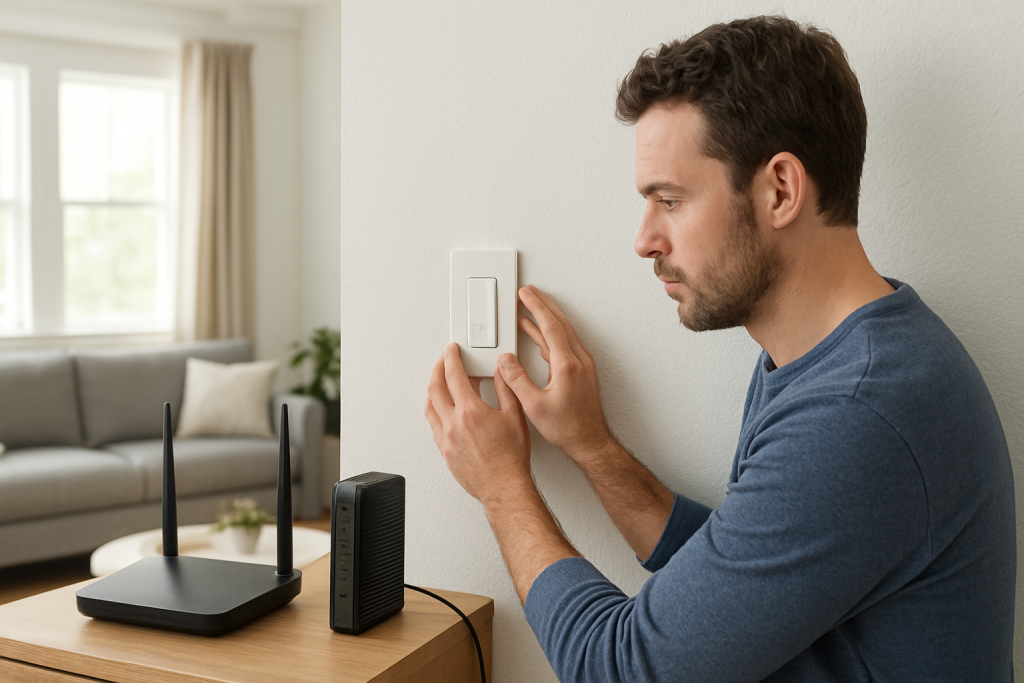
Do these three diagnostics now: (1) confirm your router/mesh shows “internet connected” (not just powered on), (2) open the device’s own app and pull-to-refresh to see if it’s a local connection issue or a cloud/sync issue, and (3) power-cycle in the correct order: router/mesh first, then the smart switch (turn it off/on at the wall switch if it controls the circuit, or use its on/off button if available) so the switch reconnects after WiFi is stable.
Why This Happens
The core problem is boot order and reconnection timing. A smart switch (or the WiFi module inside it) usually comes online within seconds after power returns. Your network often does not. During that gap, the switch may attempt to reconnect, fail, and then get “stuck” until a later trigger forces a fresh join and cloud registration.
Common outage-related causes closely tied to boot/sync timing include:
First, the router/mesh may still be negotiating with the ISP (WAN link) or rebuilding the mesh backhaul when the switch tries to connect. The switch can join WiFi briefly, then lose it, and sometimes won’t recover cleanly.
Second, DHCP and IP assignments can change after an outage. If your network reshuffles addresses while the switch is mid-boot, the app may show it offline even though it’s connected to WiFi under a new address.
Third, band steering can mislead the device during the first reconnect. Many smart switches require 2.4 GHz, but after an outage your system may steer clients differently or temporarily hide 2.4 GHz during optimization, leading to repeated failed joins.
Real-world scenario: your mesh nodes reboot at different speeds; the node closest to the switch comes up last. The switch connects to a distant node with a weak signal, then drops when the nearer node returns and roaming decisions change.
Common user mistake: cycling the switch repeatedly while the router is still recovering. This can cause more failed join attempts and longer cooldown timers in some devices.
Overlooked technical cause: cloud re-registration delays. Even if local WiFi is fine, some ecosystems need the device to re-authenticate with the vendor cloud; outages can trigger expired tokens or account sessions, making it appear offline in Alexa/Google/Home apps until the device app re-syncs.
Most Likely Causes in Real Homes
1) Router/mesh wasn’t fully ready when the switch rebooted. The device attempted WiFi join too early and didn’t retry effectively.
2) 2.4 GHz reconnect failure due to band steering. The switch needs 2.4 GHz but your network briefly pushed it toward 5 GHz or a roaming transition.
3) Mesh roaming or node selection changed post-outage. The switch latched onto a weak node, then became unstable and dropped off.
4) App/cloud sync mismatch. The switch is connected locally, but the vendor app or voice assistant still thinks it’s offline due to stale session or delayed re-registration.
5) Duplicate device entries, groups, or automations causing confusion. After outages, assistants may show a “ghost” device while the real one is online elsewhere, making control appear broken.
Step-by-Step Fix
Confirm what “offline” means by testing manual control and one app path. Use the physical paddle/button to toggle the switch, then open the manufacturer app (not only Alexa/Google/Home) and refresh the device page. If manual control works but the manufacturer app shows offline, it usually means a network rejoin problem; if the manufacturer app works but Alexa/Google/Home doesn’t, it’s a sync/link issue. If you can’t access the manufacturer app, move to the next step to stabilize the network first.
Wait for full WiFi recovery, not just power. Check that your router/mesh app shows “internet connected” and that phones can browse reliably on WiFi. If internet is still coming and going, the switch may keep failing its early boot reconnect. If internet and WiFi are stable, proceed to the next step to force a clean reconnect attempt from the switch after the network is ready.
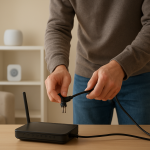
Redo the boot order on purpose: network first, switch second. Reboot the router/mesh (using its app or unplugging it briefly), wait until WiFi and internet are fully back, then power-cycle the smart switch by turning it off and back on using its normal control (no wiring access). If it reconnects after this order, the cause was the post-outage timing/sync window. If it still won’t reconnect, continue.
Verify the switch is on 2.4 GHz and not stuck in band steering. In your router/mesh settings, confirm that 2.4 GHz is enabled and that your network name/password didn’t change after an update or reset. If your system uses a single combined SSID, temporarily enabling a dedicated 2.4 GHz SSID (or a guest 2.4 GHz network, if available) can help test whether steering is blocking the reconnect. If the switch reconnects on a dedicated 2.4 GHz network, the issue is steering/roaming; keep going to stabilize placement and settings.
Test mesh proximity and roaming stability. Stand near the switch with your phone on WiFi and check signal quality (your mesh app often shows device-to-node connection). If the switch is far from a node or separated by dense walls, it may reconnect inconsistently after outages. If moving a mesh node (or adding a closer one you already own) improves stability, the issue is post-reboot node selection. If you can’t change placement, proceed to isolate whether it’s the home network itself.
Run a hotspot isolation test (quick, non-invasive). Temporarily create a 2.4 GHz hotspot on a phone using the same SSID/password as your home WiFi (only if you know how to do this safely without disrupting other devices too long). Then briefly turn off your main WiFi so the switch tries to join the hotspot. If it joins the hotspot reliably, the switch is likely fine and your home router/mesh recovery behavior is the culprit. If it still won’t join, the problem is likely with the switch’s saved network credentials or its firmware state; continue.
Re-sync the ecosystem that shows it offline (Alexa/Google Home/Apple Home/SmartThings/Matter controller). If the manufacturer app shows the switch online but your voice assistant doesn’t, run device discovery/sync in that assistant and check for duplicates. If discovery finds a “new” switch, assign it to the correct room and remove the ghost entry. If the assistant still fails, relink the skill/integration or re-authorize the account; if that fixes it, the outage caused an account token/session mismatch rather than a WiFi failure.
Check automations and schedules for “it reconnected but behaves wrong.” After reconnection, verify that timers, schedules, or routines didn’t reset to a default time zone or run twice due to duplicates in multiple apps. If you see random on/off after the outage, it often means two controllers are sending commands (for example, both the manufacturer app and a hub/assistant). If disabling one automation stops the behavior, consolidate control to a single place.
Advanced Troubleshooting
This section is only needed if basic fixes fail.
Account/cloud issue: If the switch won’t appear online anywhere except possibly on your router’s client list, log out and back into the manufacturer app and confirm you’re in the correct “Home/Location.” In shared households, being signed into the wrong home or missing permissions can make devices look offline even when they’re connected.
Network issue: Check whether your router enabled client isolation, a new firewall profile, or changed DNS after the outage. Some smart switches need local LAN access for initial discovery and then cloud access for control. If your phone is on a guest network while the switch is on the main LAN (or vice versa), the app may not find it during recovery even though the switch is technically online.
Firmware/software cause: After outages, some devices resume with a partially applied firmware update or a corrupted cloud session. In the manufacturer app, look for pending firmware updates once the device is reachable. If updates repeatedly fail or the device disappears mid-update, treat this as a stability problem (signal/mesh) before attempting updates again.
Configuration conflict: Groups/scenes can mask a working switch. Test controlling the single device directly, not through a room group, scene, or “all lights” command. If single-device control works but a group fails, the group likely includes a ghost/duplicate device or the wrong home/room assignment.
Ecosystem sync issue (Matter, hubs, bridges): For Matter-over-WiFi devices, the controller (Apple Home hub, Google Home hub, SmartThings hub, etc.) may have come back online later than the switch. Rebooting the controller/hub after the network is stable often forces re-commissioning checks without resetting the switch. If Zigbee is involved (for example, a smart switch exposed through a hub), ensure the hub is online and that the integration to Alexa/Google/Home is linked and refreshed; the outage may have broken the bridge-to-cloud session rather than the Zigbee link itself.
When to Reset or Replace the Device
A soft restart is simply power-cycling the switch in normal use or using an in-app “restart” option if available. A factory reset wipes pairing and forces full setup again. Factory reset is appropriate when the switch refuses to join WiFi after you’ve confirmed stable 2.4 GHz coverage and correct boot order, or when the switch is “stuck” in an unreachable state across multiple network restarts.
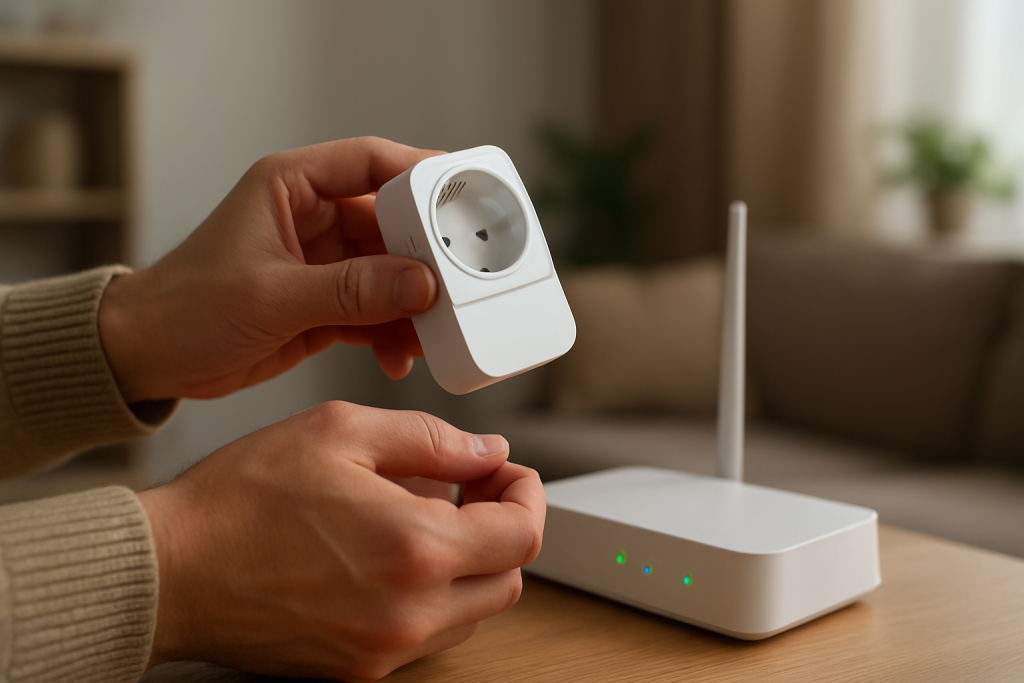
Before resetting, expect to lose: WiFi credentials, app pairing, room assignment, scenes, schedules, and voice assistant links. If the device is a smart plug with energy monitoring, you may also lose energy history and calibration data. After reset, you will need to re-add it in the manufacturer app first, then re-link to Alexa/Google Home/Apple Home/SmartThings/Matter as needed.
Replacement becomes reasonable if the switch repeatedly drops offline after every minor outage or router reboot, cannot complete firmware updates on a known-stable network, or shows unstable relay behavior (clicking, rapid toggling) that persists even with automations disabled. Stop using the device and seek help if you notice overheating, a burning smell, discoloration, or visible damage.
How to Prevent This in the Future
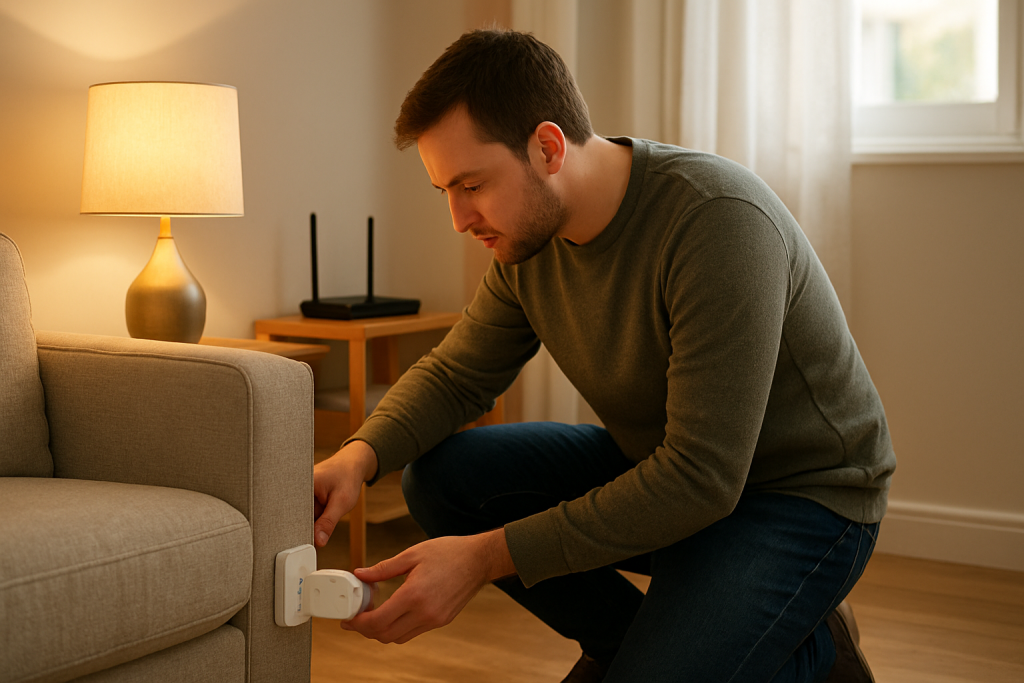
Use an outage-friendly recovery routine: after power returns, let the router/mesh and any hubs fully stabilize before toggling switches repeatedly. If you often lose power, consider setting a household habit: “WiFi first, devices second.”
Improve reconnect reliability by keeping strong 2.4 GHz coverage where switches are installed. In mesh systems, ensure nodes aren’t placed too far apart or behind dense materials, because post-reboot roaming decisions can be harsher than day-to-day roaming.
Avoid duplicate automations across multiple apps. Pick one primary place for schedules (manufacturer app, hub app, or voice assistant) so you don’t get conflicting commands after outages, when controllers may resync at different times.
Keep naming and room organization consistent across apps. Matching names makes it easier to spot ghost devices and prevents assistants from controlling the wrong entry after rediscovery.
Maintain firmware and app health when things are calm, not right after an outage. Update the router/mesh firmware, the manufacturer app, and the smart switch firmware periodically so post-outage reconnect logic and cloud tokens are current.
Review sharing and permissions in shared homes. If multiple users manage the same home, ensure everyone is added correctly and using the same home/location; permission drift is a common reason devices look offline to one person after an app update or relogin.
FAQ
My smart switch works manually, so why does the app say it’s offline?
Manual control uses the switch’s local electrical function, which can work even when the WiFi/cloud side is disconnected. After an outage, the switch may have powered up before WiFi was ready, failed its reconnect, and never re-registered with the app or assistant until you force a clean reconnect (network stable first, then switch power-cycle).
Do I need to factory reset after every power outage?
No. That’s a common misconception. Most post-outage failures are timing and sync problems (WiFi/hub recovery order, band steering, cloud session refresh). A controlled reboot order and an assistant/app re-sync usually fixes it without wiping your setup.
Why does it show online in the manufacturer app but not in Alexa/Google Home/Apple Home?
That typically means the switch is connected and the vendor cloud sees it, but the assistant integration is out of sync. Run device discovery, remove duplicates, and re-link the integration if needed. Outages often break the assistant’s cached device list or account token even when the switch itself is fine.
My mesh WiFi is “up,” but the switch still won’t reconnect. What’s the fastest way to confirm it’s a mesh/steering issue?
Try a dedicated 2.4 GHz test (temporary separate SSID or a controlled hotspot test). If the switch joins reliably there, the device is likely healthy and your mesh’s post-reboot roaming/band steering behavior is the real issue. Adjusting node placement and ensuring stable 2.4 GHz availability usually prevents repeats.
After all the talking, it comes down to something almost ordinary: a little less friction, a little more room to breathe. The change doesn’t announce itself with fireworks; it just shows up in the places you used to trip over.
There’s a quiet relief in that—like finding your keys without turning the whole house upside down again. You can feel the day move differently, even if nobody else notices.