Smart Switch Reset Not Working? How to Reset It Properly
Quick Answer
When a smart switch “won’t reset,” the reset usually is happening but not completing because the switch never reaches the correct reset mode, or it resets but immediately re-joins the old network/account and looks unchanged. In real homes, the most common culprits are using the wrong button timing, confusing a reboot with a factory reset, or the app/voice ecosystem still showing the old cached device entry.
Start by watching the switch’s indicator behavior (blink pattern matters), then remove the device from the controlling app/ecosystem before trying again, and finally confirm you’re using the correct reset method for your device type (WiFi vs Zigbee/Matter) and for that model’s “press/hold” timing.
Do these three actions now: 1) Note the exact LED pattern before/after you attempt reset (solid, slow blink, fast blink). 2) In the brand app and in Alexa/Google Home/Apple Home/SmartThings, remove the device (or disable its integration) so it can’t “snap back” after resetting. 3) Retry the reset with a timer (most failures are simply not holding the button long enough or releasing at the wrong blink pattern).
Why This Happens
A smart switch reset is not one single action; it’s a sequence the device and app must both interpret correctly. The switch must enter the correct reset mode, the app must be ready to claim it, and your ecosystem (Alexa/Google/HomeKit/SmartThings/Matter controller) must not be holding onto an old device record that masks what happened.
Common, tightly related causes include:
1) Real-world scenario: after a power outage or router replacement, the switch is still trying to reconnect to the old WiFi credentials. You “reset,” but the switch returns to its previous state because it never actually cleared network data, or the app still shows the old cloud record.
2) Common user mistake: performing a reboot (quick press or brief power cycle) instead of a factory reset (long press until a specific LED pattern), or letting go when the light changes once even though the model requires two phases (for example, hold until fast blink, release, then hold again).
3) Overlooked technical cause: the device resets, but the phone/app can’t complete onboarding due to 2.4 GHz vs 5 GHz band steering, mesh roaming, VPN/private relay settings, or blocked local discovery used by Matter and some WiFi provisioning methods. It looks like “reset didn’t work,” but pairing never finishes.
4) Ecosystem mismatch: Zigbee switches reset correctly but will not pair unless the hub is in pairing mode; Matter devices may require removing the device from the previous controller first, or you’ll get “already added” behavior.
Most Likely Causes in Real Homes
1) Wrong reset timing or wrong button: Many switches have separate actions for restart, WiFi reset, and full factory reset; missing the exact hold duration is the #1 reason resets “fail.”
2) Device still exists in an app or ecosystem: If it remains in the brand app, Alexa/Google Home/Apple Home/SmartThings, or a Matter controller, it can reappear, duplicate, or block re-adding.
3) 2.4 GHz onboarding problems: The reset succeeds, but the phone cannot deliver new WiFi credentials due to band steering, mesh nodes, or a phone connected to 5 GHz while the switch requires 2.4 GHz setup.
4) Mesh WiFi roaming during setup: During pairing, your phone may jump between mesh nodes; the switch connects to one node but your phone is on another, causing the app to time out.
5) Firmware/app state mismatch: After an app update or partial firmware update, the device may be in pairing mode but the app session is stale (cached login/token), leading to repeated “device not found” or “reset failed” messages.
Step-by-Step Fix
Confirm what “reset” means for your switch model (reboot vs network reset vs factory reset). What to do: in the brand app’s help for your exact model, look for wording like “Factory reset,” “Remove device,” “Reset WiFi,” and the required LED pattern (slow/fast blink). Result meaning: if the app lists multiple reset types, your previous attempts may have only rebooted it. If it fails: move to the next step and treat your first goal as “get the LED into pairing/reset mode,” not “make it disappear from the app.”
Clean up the device record before you reset again. What to do: remove the switch from the brand app first; then remove it from Alexa/Google Home/Apple Home/SmartThings (and any other shared household accounts). For Matter devices, remove it from the Matter controller that originally added it. Result meaning: if the device stops reappearing or duplicating, the “reset not working” symptom was actually a cloud/equipment record conflict. If it fails: if you can’t remove it because it shows offline, continue anyway and plan to re-authenticate integrations in later steps.
Do a proper power-cycle sequence to clear stuck states. What to do: turn the switch off and on from its physical control, then wait 60–90 seconds with power on (don’t spam the button). Result meaning: if the LED changes to a normal ready state, the switch was hung and a clean restart may restore reset responsiveness. If it fails: proceed to a timed reset attempt with a clear LED observation.
Perform the factory reset using a timer and the LED pattern as your guide. What to do: press and hold the reset/pairing control for the full specified time (commonly 5–15 seconds), and only release when the LED reaches the correct pattern (often fast blink for pairing). Some models require a second hold to confirm; if your model says so, follow that two-step sequence exactly. Result meaning: if you can reliably trigger the documented blink pattern, the switch is resetting correctly; any remaining issue is pairing/app-side, not the switch “ignoring” reset. If it fails: try once more with a longer hold and ensure you’re pressing the correct control (some switches use a small recessed button; others use a paddle sequence).
Pair it the right way for its ecosystem type (WiFi vs Zigbee vs Matter). What to do: for WiFi switches, start pairing in the brand app and keep your phone on a 2.4 GHz network; for Zigbee switches, put the Zigbee hub into pairing mode first, then reset the switch into pairing; for Matter, use your chosen controller (Apple Home, Google Home, Alexa, SmartThings) and confirm you’re signed into the same home/structure where you want it to live. Result meaning: if it pairs quickly on the correct method, your earlier “reset failure” was actually “paired to the wrong place” or “hub not ready.” If it fails: continue to isolate network conditions next.
Run a hotspot isolation test to separate reset problems from home network problems. What to do: use a phone hotspot set to 2.4 GHz (if available) with a simple SSID/password, then attempt pairing again (WiFi switches only). Result meaning: if it pairs on the hotspot, the reset is fine and your home WiFi setup (band steering, mesh roaming, security settings) is blocking onboarding. If it fails: the issue is likely account/app/firmware state or the switch is not truly entering pairing mode.
Check for automation conflicts that look like “reset didn’t take.” What to do: before concluding the reset failed, disable schedules/timers/routines in the brand app and in Alexa/Google Home/Apple Home/SmartThings, plus any scenes/groups that include the switch. Result meaning: if the switch keeps toggling or “comes back,” it may be an automation reasserting a state right after you reset/re-add. If it fails: proceed to advanced cloud and ecosystem sync checks.
Advanced Troubleshooting
This section is only needed if basic fixes fail.
Account/cloud issue: If the switch resets but always reappears under an old name/room, sign out of the brand app, sign back in, and ensure you’re in the correct “Home/Location” inside the app (many apps support multiple homes). If the device is shared to another family member, confirm they didn’t re-add it in their app, which can make your app look “stuck.”
Network issue: If hotspot pairing works but home WiFi fails, focus on onboarding conditions: temporarily disable VPN/private relay on the phone, avoid captive portals/guest networks, and keep the phone near the router (not a distant mesh node). Band steering can cause your phone to jump to 5 GHz mid-setup; if your router allows it, temporarily separate 2.4 GHz and 5 GHz names during setup, then recombine later.
Firmware/software cause: If pairing repeatedly fails at the same step (for example, it connects but never finishes), update the brand app, then check for a firmware update after pairing succeeds. If you suspect a stalled firmware update from earlier, a clean remove-and-readd after app re-login often clears the mismatch. Avoid rapid repeated reset attempts; some devices throttle provisioning after many failures.
Configuration conflict: Duplicates in Alexa/Google Home/Apple Home/SmartThings can block discovery or show the “wrong” switch responding. Remove duplicates, then re-discover devices. Also confirm the switch is assigned to the correct room/home; mis-assignment commonly causes “it reset but still shows offline” because you’re viewing a different home structure.
Ecosystem sync issue (Alexa/Google Home/Apple Home/Matter): For voice assistant failures after a successful reset and re-add in the brand app, relink the brand skill/integration (or re-enable it) and run device discovery again. For Matter, confirm you removed it from the old controller before adding; otherwise it may refuse to commission or will appear but be unresponsive.
When to Reset or Replace the Device
A soft restart is a normal power cycle or a brief press that reboots the switch without clearing settings. Use this when the switch is slow, temporarily offline, or after a router reboot. A factory reset wipes its pairing information so it can be added like new; use this when you’re changing routers, moving the device to a new home/account, changing ecosystem controller (especially Matter), or you can’t recover control.
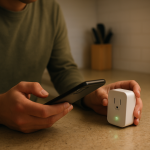
After a factory reset, you may lose: the device’s pairing, room assignment, custom name, schedules/timers, automations tied to the old device ID, and voice assistant links. If you’re dealing with a smart plug (not a switch) that tracks energy, you may also lose historical energy data in the app, depending on how the app stores it.
Replacement is reasonable if: the switch frequently goes offline despite a stable network, cannot complete firmware updates repeatedly, resets only intermittently, or shows unstable behavior like random toggles after all automations are disabled (which can indicate a failing internal relay or power recovery logic misbehaving). Stop using the device and seek help if you notice overheating, a burning smell, discoloration, cracking, or any visible damage.
How to Prevent This in the Future
Keep onboarding predictable: when adding or resetting WiFi switches, use a stable 2.4 GHz connection, stay close to the router, and avoid switching between mesh nodes during setup. After setup, you can move back to normal phone settings.
Reduce “reset confusion” by keeping one source of truth: create automations in one place when possible (either the brand app or your ecosystem), and avoid duplicating schedules across the brand app plus Alexa/Google/HomeKit/SmartThings. Duplicate routines often look like a reset failed because the switch keeps snapping back to an old state.
Stay organized: use consistent device names and rooms across the brand app and your voice assistant home structure. When a device is replaced or reset, delete the old entry immediately so you don’t end up controlling a “ghost” device.
Practice outage recovery: after power outages or router restarts, give the network a few minutes to fully stabilize before trying resets. Many “reset not working” reports are really “device is still reconnecting” plus an impatient retry cycle that never lets onboarding finish.
Maintain software hygiene: keep the brand app and your ecosystem apps updated, and re-authenticate integrations after major updates if devices suddenly show offline. In shared homes, confirm who owns the device in the brand app and who has permissions in Alexa/Google Home/Apple Home/SmartThings to avoid accidental re-adding or removal loops.
FAQ
How do I know if my smart switch actually factory reset?
The best indicator is the LED pattern documented for your model (often a fast blink or a distinct color change) and the device appearing as “new” during pairing. If the LED never changes to the reset/pairing pattern, you likely performed a reboot, not a factory reset, or released the button too early.
Misconception: “If I reset it, it will disappear from Alexa/Google Home/Apple Home automatically.” Is that true?
No. A factory reset clears the switch’s local memory, but your apps and voice ecosystems may keep a cloud record of the old device. You often need to remove the device entry manually (and sometimes relink the integration) to prevent duplicates, “offline” ghosts, or the appearance that the reset didn’t work.
My switch resets, but pairing fails every time. Does that mean the switch is bad?
Not necessarily. If you can reliably trigger the correct pairing LED pattern, the reset is working. Repeated pairing failures more often point to onboarding conditions like 2.4 GHz requirements, band steering, mesh roaming during setup, VPN/private relay interference, or a stale app login/session that needs a sign-out/sign-in.
Why does the switch turn back on or off right after I reset and re-add it?
That usually means an automation, schedule, scene, or power-recovery setting is applying a command as soon as the device comes online. Disable routines in both the brand app and your voice assistant/platform, then re-test with only manual control before rebuilding automations one at a time.
There’s a peculiar relief in watching the noise thin out. The real work was always less mysterious than it felt, and now the path looks almost boring—like it should’ve from the start.
In a world that loves drama, this kind of clarity is oddly satisfying. Not flashy, not dramatic, just steady enough to let life keep moving.