Smart Switch Keeps Disconnecting on Mesh WiFi? What to Check
Quick Answer
When a smart switch (or smart plug) keeps going “Offline” on a mesh WiFi system, the most common cause is roaming and band steering. Mesh routers try to “help” devices by moving them between access points (nodes) or between 2.4 GHz and 5 GHz bands. Many smart home WiFi devices prefer 2.4 GHz and reconnect slowly, so they can appear to disconnect repeatedly even though the rest of your home WiFi looks fine.
This is especially noticeable after a mesh node reboot, a power outage, or when you move around the home and the mesh decides the device should join a different node. The switch may still work manually at the wall, but the app shows it as unreachable because it lost its network session or grabbed a new IP address during roaming.
Do these 3 quick checks first: (1) In your mesh app, see which node/band the switch is connected to and whether it’s bouncing between nodes, (2) temporarily place your phone next to the switch and run a basic on/off test from the device’s app to see if signal quality is the trigger, and (3) temporarily disable band steering or create a 2.4 GHz-only connection method (guest/IoT network or split SSIDs) and test stability for 30–60 minutes.
Why This Happens
Mesh WiFi is designed for phones and laptops that roam smoothly. Many smart switches and smart plugs are simpler WiFi clients: they often stick to 2.4 GHz, have slower roaming logic, and can struggle when the mesh nudges them to a different node or band. If the device loses its connection even briefly, cloud control (and sometimes voice control) can fail until it fully reconnects.
Tightly related causes you’ll see in real homes include:
1) Roaming between mesh nodes: the switch connects to Node A, then the mesh encourages it to join Node B. If the signal at the switch location is borderline, this can repeat throughout the day.
2) Band steering (2.4 GHz vs 5 GHz): if your mesh uses one network name for both bands, the system may try to place devices on 5 GHz. Many switches either can’t use 5 GHz or behave poorly when the steering decisions change.
3) Weak or “noisy” signal where the switch is installed: walls, metal electrical boxes, dense tile, appliances, and mirrors can weaken 2.4 GHz. A switch can look “close” to a node on a floor plan but still have poor signal in the wall.
Real-world scenario: a mesh node in a hallway is unplugged during cleaning. When it comes back, several smart switches reconnect to a different node. One switch ends up “stuck” to a farther node with weaker signal, then flips offline every time the mesh tries to move it again.
Common user mistake: using the same SSID for 2.4 GHz and 5 GHz and assuming “it doesn’t matter” for smart switches. With many WiFi smart devices, it matters because steering and roaming decisions can make them unstable.
Overlooked technical cause: the device’s IP address changes during roaming or after a reboot, and the app/cloud temporarily still expects the old session. This can look like a disconnect even though the WiFi password is correct.
Most Likely Causes in Real Homes
1) Band steering pushing the device between 2.4 GHz and 5 GHz: many switches are 2.4-only, and steering can cause repeated reconnect attempts.
2) Roaming between nodes with borderline signal: the switch “bounces” between nodes, causing short drops that make it show offline in the app or in Alexa/Google Home.
3) Weak 2.4 GHz at the switch location (inside a wall, near metal, or across multiple rooms): the mesh may look strong elsewhere, but the switch has a poor link.
4) Post-outage or post-router-restart reconnection order problems: mesh nodes and the internet gateway come up at different times, and the switch misses its clean reconnect window.
5) Ecosystem sync confusion (Matter/Alexa/Google/Apple Home/SmartThings) after a network change: the switch is connected, but the controller still thinks it’s offline until rediscovery or relink.
Step-by-Step Fix
Check the device’s live connection details in your mesh app (connected node and band) and in the device app (online/offline). If the connected node changes often or the band flips, that strongly points to roaming/band steering. If it stays on one node/band but still drops, move to the next step to test signal quality at the switch.
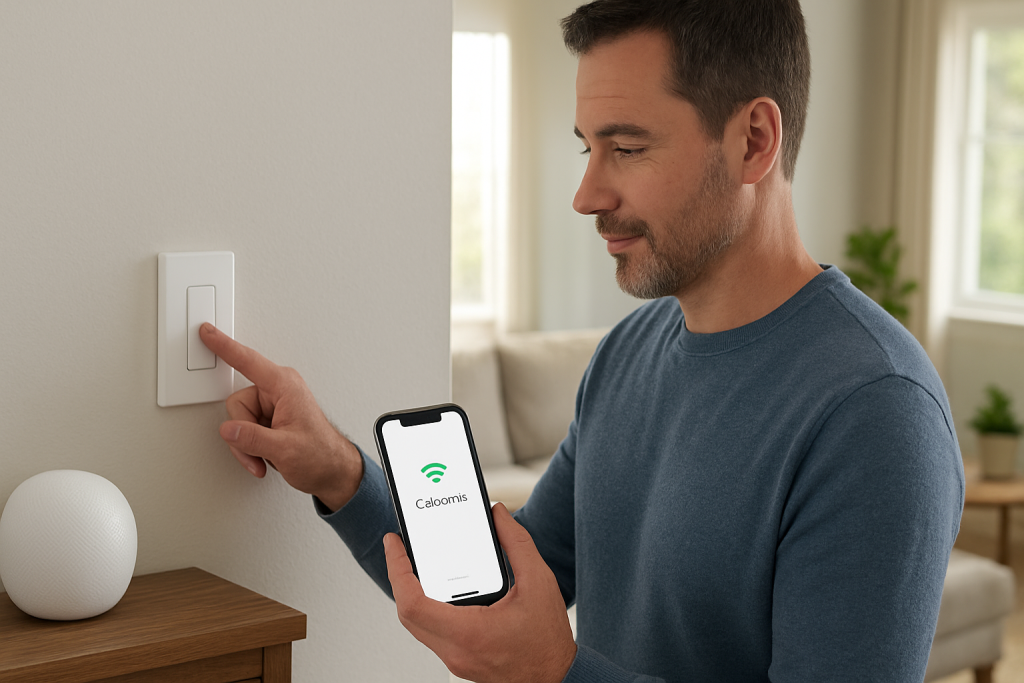
Do a “close-range stability test”: stand near the switch with your phone and trigger on/off 10–20 times in the device’s own app (Kasa/Tapo, Meross, etc.), not a voice assistant. If it works reliably up close but fails from other rooms, the issue is usually weak signal at the switch or roaming to a worse node. If it fails even while you’re nearby, move to the next step to isolate band steering and network behavior.
Temporarily disable band steering or provide a 2.4 GHz-only connection method for the switch (for example, a dedicated IoT/2.4 network if your mesh supports it). If the switch becomes stable on 2.4-only, band steering was the cause; keep it on 2.4 and avoid “auto” steering for that device. If it still disconnects on a 2.4-only setup, continue to the next step to test node placement and roaming.
Force a better node relationship: without moving any wiring, test by temporarily moving a mesh node closer to the switch location (or repositioning the node to a more open spot). If stability improves, the original problem was weak signal or poor path to the node, which triggers roaming and disconnects. If there’s no improvement, go to the next step to rule out network/session issues after reboots.
Run a controlled reboot sequence (network first, then device): restart the mesh system starting with the main router/gateway, then nodes, then power-cycle the switch at its breaker only if you can do so safely and you know which circuit it’s on (otherwise skip the device power cycle and just wait for it to reconnect). If the switch stays stable afterward, the issue was likely a stale session or IP change after an outage/restart. If it drops again within hours, proceed to the next step to isolate the mesh from the internet and ecosystem layers.
Try a hotspot isolation test: temporarily connect the switch to a simple 2.4 GHz phone hotspot (same room) just to test stability for 15–30 minutes. If it stays connected on the hotspot, your mesh roaming/band steering or node placement is the real problem. If it still disconnects even on a strong hotspot, move to the next step because firmware, cloud, or the device itself may be at fault.
Check for app/firmware updates and then re-sync the ecosystem that controls it: update the device app and device firmware first, then in Alexa/Google Home/SmartThings/Apple Home refresh discovery or re-add the integration (for Matter, confirm the controller is the one you expect). If this fixes “offline in assistant but fine in device app,” it was an ecosystem sync issue, not WiFi. If the device app also shows drops, continue to the next step to look for automation conflicts that mimic disconnects.
Audit schedules, automations, and duplicate devices: check the device app schedules, and also routines in Alexa/Google Home/Apple Home/SmartThings. If the switch “disconnects” mainly when it turns on/off by itself, it may be an automation conflict or a delayed cloud command, not a WiFi drop. If removing duplicates and disabling routines stops the behavior, the issue was configuration conflict; if the device still goes offline randomly, move to advanced troubleshooting.
Advanced Troubleshooting
This section is only needed if basic fixes fail.
Account/cloud issue: If the switch is online locally but frequently shows offline in the app until you sign out/in, your account session may be stale. Log out of the device app, log back in, and confirm you’re using the correct region/account. If you use a shared home, confirm the device is owned by the correct primary account and shared properly; mismatched permissions can look like random offline status.
Network issue (mesh-specific): Some mesh systems have “client steering,” “fast roaming,” or “802.11k/v/r” options. These can improve phones but destabilize simple IoT clients. If your mesh allows it, reduce aggressive steering for IoT devices or use an IoT network that keeps devices on 2.4 and limits roaming. Also check if the switch is connecting to a far node even when a closer one exists; this is a hallmark of steering decisions and borderline signal.
Firmware/software cause: A firmware update can change how the switch reconnects after sleep or after a router change. If disconnects started right after an update (router or device), look for a second “stability” update, and confirm the app version is current on all family phones. Mixed app versions in a shared home can cause inconsistent status reporting.
Configuration conflict: Groups/scenes can hide what’s actually happening. A switch in a group might appear offline because the group contains a duplicate entry (for example, a Matter version and a cloud version of the same device). Remove duplicates, keep one canonical device entry, and rebuild the group/scene. If voice assistants control the wrong instance, it can look like the switch is ignoring commands.
Ecosystem sync issue (Alexa/Google Home/Apple Home/Matter bridge): If the device app is stable but assistants frequently show “not responding,” remove and re-add the integration or re-run discovery. For Matter, make sure the device is commissioned to the correct primary controller and that other platforms are added through the intended sharing method; inconsistent controller roles can cause intermittent reachability reports.
When to Reset or Replace the Device
A soft restart is simply power-cycling the switch (or turning the circuit off and back on if that’s the only safe way to reboot it). This can clear a stuck network session without deleting anything. A factory reset wipes pairing information and usually removes the device from the app, voice assistants, rooms, and automations.
Before a factory reset, know what you may lose: WiFi credentials stored on the device, room/zone assignment, schedules/timers set in the device app, routines in Alexa/Google Home/SmartThings that reference it, and Matter pairing details. If it’s a smart plug with energy monitoring, you may also lose historical energy data or reporting baselines depending on the platform.
Reset is reasonable when: the device cannot stay connected even on a strong 2.4 GHz hotspot, it fails to rejoin after you’ve stabilized 2.4-only networking, or it repeatedly fails firmware updates. Replacement becomes reasonable if it continues to drop offline across multiple networks, can’t complete updates after multiple attempts, or shows unstable switching behavior (clicking on/off without any routines enabled).
Safety note: If you notice overheating at the wall plate, a burning smell, discoloration, crackling sounds, or any visible damage, stop using the device and have it checked by a qualified professional. Do not continue troubleshooting through repeated power cycles in that situation.
How to Prevent This in the Future
Keep IoT devices on predictable WiFi: if your mesh supports an IoT or 2.4 GHz-only network, use it for smart switches and smart plugs to avoid band steering surprises. If you must use a combined SSID, reduce aggressive steering features for IoT where possible.
Plan for signal quality at the wall: switches are installed in challenging RF spots. Keep mesh nodes in open areas, not inside cabinets, behind TVs, or near large metal objects. If a switch is at the edge of coverage, aim for “one good node” rather than multiple weak nodes that encourage roaming.
Avoid duplicate automations across apps: choose one “source of truth” for schedules (device app or one ecosystem). Duplicates can look like disconnects when the device is actually receiving conflicting commands.
Be consistent with names and rooms: use a single device name across apps, avoid creating a second copy via Matter and cloud simultaneously unless you understand which one you’ll control, and keep room assignments aligned. This reduces “not responding” errors caused by controlling the wrong instance.
Use outage recovery habits: after power outages or planned network changes, let the mesh fully come online first, then wait a few minutes for switches to reconnect before running automations. If your mesh reboots automatically after updates, expect a short period where the app may show offline while devices re-register.
Maintain firmware and apps: update the mesh firmware and device firmware intentionally (not all at once right before a trip). Keep the controlling apps updated on the phones/tablets used in the home, especially in shared households where older app versions can show incorrect status.
Keep sharing and permissions tidy: confirm who “owns” the device in the manufacturer app, and share from there as needed. If multiple people add the same device separately to assistants, you can end up with duplicates that behave inconsistently.
FAQ
Why does my smart switch work manually but show “Offline” in the app?
Manual control is local (the switch still switches power), but the app needs the switch to stay connected to WiFi and often to the cloud. If roaming or band steering causes brief drops, the app may mark it offline until the switch fully reconnects and re-registers.
Is this a “2.4 GHz vs 5 GHz” problem or a mesh problem?
Usually it’s both together. Many smart switches are 2.4 GHz-only, and mesh systems often use band steering and roaming across nodes. The combination can cause the switch to get pushed toward a band or node it doesn’t handle well, leading to repeated disconnects.
Common misconception: If my phone has strong WiFi near the switch, the switch must also have strong WiFi. True?
Not necessarily. Phones have better antennas and roaming behavior than most IoT devices. A switch inside a wall box can have a weaker signal even when your phone shows full bars in the same spot, which is why checking the connected node/band and doing a close-range stability test is more reliable.
My switch is stable in its own app but “not responding” in Alexa/Google Home/Apple Home. What does that mean?
That usually points to an ecosystem sync or duplicate-device problem rather than a WiFi drop. Refresh device discovery, confirm the integration link is active, and remove duplicate entries (for example, a Matter instance and a cloud instance with similar names) so the assistant controls the correct device consistently.
There’s a small, almost silly relief in seeing the problem put back in its proper place. The noise doesn’t vanish, but it stops pulling at the edges of your day.
What’s left feels more grounded than dramatic—less like a debate, more like a door that finally opens the right way. After all that buildup, the quiet part is the best part.