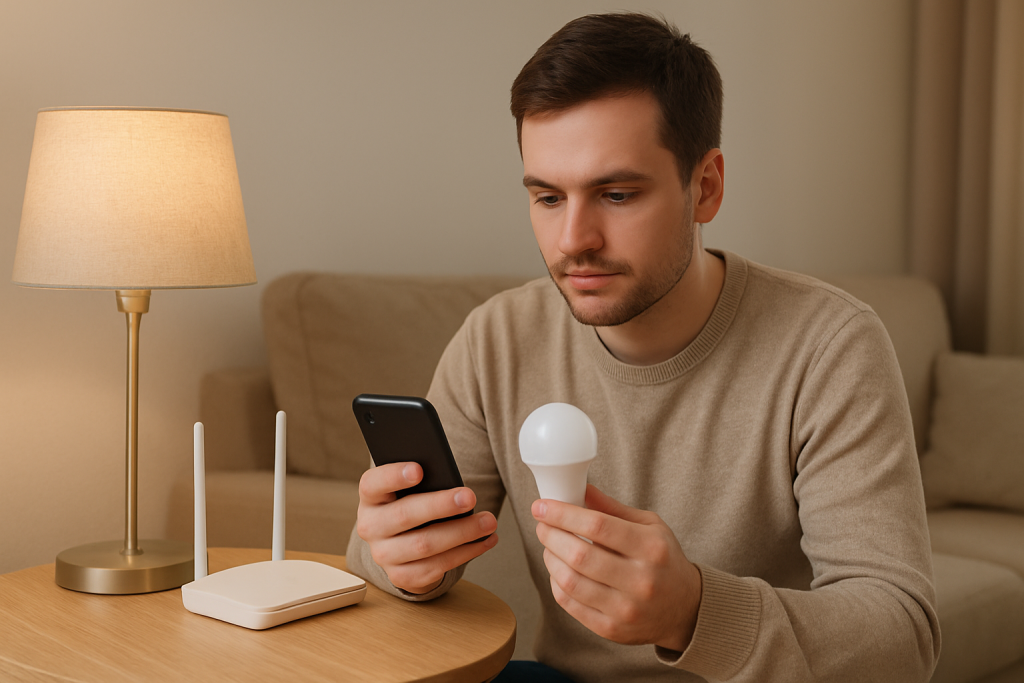
Smart Bulbs Not Reconnecting After Router Restart: How to Fix It
Quick Answer
The most common reason smart bulbs don’t reconnect after a router restart is that the network the bulbs remember is no longer identical to what comes back online. In real homes, this usually happens when the router changes something during reboot—most often the 2.4 GHz WiFi details, band steering behavior, DHCP addressing, or the way a mesh system assigns access points. Smart bulbs (especially WiFi bulbs) are picky about consistency and may silently fail to rejoin even though phones and laptops reconnect fine.
Zigbee and Matter setups can show a similar symptom for a different reason: the hub/bridge comes back online in a different state than the app expects, or the hub’s connection to your router/cloud takes longer than the bulbs’ recovery window. The bulbs may be fine, but the app shows them “offline” because the controller (hub, bridge, or Matter controller) hasn’t fully recovered.
Do these three diagnostics immediately: (1) In the router app, confirm the 2.4 GHz network name (SSID) and password did not change and that 2.4 GHz is enabled. (2) In the smart lighting app, check whether the bulbs are “offline” versus “unreachable” and whether the hub/bridge shows as online. (3) Power-cycle in the right order: router first, then hub/bridge (if you have one), then the bulbs—waiting for each to fully return before moving to the next.
Why This Happens
After a router restart, smart lighting fails most often because the “identity” of your network changes in a way bulbs don’t handle well. Phones and computers are designed to roam, retry, and recover quickly. Many smart bulbs are designed to connect to a very specific WiFi environment (usually 2.4 GHz only) or to a hub that must be stable and reachable. When the router reboots, it can briefly present a different network state, and bulbs may miss the reconnect window or attach to the “wrong” part of a mesh and never complete the handshake.
Common technical causes tied to this behavior include:
1) 2.4 GHz availability and band steering changes. Many WiFi bulbs only support 2.4 GHz. If the router temporarily disables 2.4 GHz during reboot, merges bands aggressively, or changes how it steers devices, bulbs can fail to rejoin even though your phone reconnects on 5 GHz.
2) SSID/password mismatch or “same name, different network.” If you changed the SSID, enabled a guest network, replaced the router, or restored settings, the network may look similar but not match what the bulb saved. A frequent real-world mistake is renaming the WiFi or “optimizing” settings after a restart without realizing bulbs don’t automatically learn new credentials.
3) Mesh roaming and access point selection. In mesh systems, a bulb may latch onto a distant node with a weak signal after reboot. Because bulbs have small antennas and limited roaming logic, they can get stuck on a poor connection and appear offline in the app.
4) DHCP and IP timing. Some routers take time to bring DHCP and DNS fully online. Bulbs may connect to WiFi but fail to obtain a usable IP address or fail to resolve the cloud endpoints they need. The app then reports “offline” even though the bulb is technically associated with WiFi.
5) Hub/controller recovery timing (Zigbee, Philips Hue, Matter). If you use a Zigbee hub/bridge (Hue Bridge, SmartThings, etc.) or a Matter controller, the bulbs may be fine but the controller isn’t ready. If the hub is still booting, updating, or reconnecting to the cloud, the app can show devices as unavailable.
Real-world scenario: a homeowner restarts the router at night to “speed it up.” The next morning, several WiFi bulbs are offline, but only the ones farthest from the router. The mesh picked a different node during reboot, and those bulbs attached to a weak signal. They never fully complete cloud registration, so the app shows them offline while nearby bulbs work.
Common user mistake: changing WiFi settings right after a restart (new SSID, enabling “smart connect,” turning off 2.4 GHz, or moving bulbs to a guest network) and assuming bulbs will adapt like phones do.
Overlooked technical cause: some routers enable client isolation, “IoT network” segmentation, or new firewall rules after a firmware update. The bulbs may connect, but your phone and the hub/controller can’t reach them locally, so discovery and control fail.
Most Likely Causes in Real Homes
1) 2.4 GHz WiFi disabled, hidden, or band-steered too aggressively. Bulbs that only do 2.4 GHz can’t rejoin reliably.
2) SSID/password changed or the bulb is trying to join a guest/isolated network. The bulb remembers old credentials and won’t “ask” for new ones.
3) Mesh node reassignment and weak signal after reboot. Bulbs get stuck connected to a far node and appear offline.
4) Hub/bridge/controller not fully recovered (Zigbee, Hue, Matter). The bulbs are present, but the control plane is down.
5) Router firmware update altered security, isolation, or DHCP behavior. Devices connect but can’t be controlled or can’t reach required services.
Step-by-Step Fix
Confirm what type of system you have (WiFi bulbs vs hub-based Zigbee/Matter). What to do: Look in your smart lighting app and identify whether your bulbs connect directly to WiFi (common with many WiFi bulbs) or whether they connect to a hub/bridge (common with Zigbee systems like Hue, and some Matter setups). What the result means: If you have a hub/bridge, the hub must be online before bulbs will appear normal in the app. If bulbs are WiFi, the router’s 2.4 GHz settings are the most likely blocker. If it fails: If you’re not sure, check whether there is a physical bridge connected to your router by Ethernet; if yes, treat it as hub-based and follow the hub steps below.
Check the router’s 2.4 GHz WiFi is enabled and unchanged. What to do: In the router or mesh app, verify 2.4 GHz is turned on, the SSID name and password match what you used when you first set up the bulbs, and the network is not hidden. If your router uses a single combined SSID for 2.4/5 GHz, temporarily disable band steering/smart connect if your router allows it, or create a dedicated 2.4 GHz SSID for setup and recovery. What the result means: If 2.4 GHz was off or changed, turning it back on or restoring the original SSID/password often brings bulbs back within a few minutes. If it fails: If you cannot restore the original WiFi details, plan to re-add the bulbs later (factory reset may be required), but continue with the next steps first to avoid unnecessary resets.
Do a clean reboot sequence (router → hub/bridge → bulbs). What to do: Unplug the router for 30 seconds, plug it back in, and wait until internet is fully working on a phone. If you have a hub/bridge (Hue Bridge, Zigbee hub, Matter controller), power-cycle it next and wait 2–5 minutes. Then power-cycle the affected bulbs by turning the light switch off for 15 seconds and back on (leave it on afterward). What the result means: If bulbs return after this sequence, the issue was timing: bulbs or hubs tried to reconnect before the network was ready. If it fails: Proceed to app-level diagnostics to determine whether the bulbs are truly offline or just not visible to the controller.
Use the app’s device status hints to separate “no WiFi” from “no control.” What to do: In your lighting app, open a bulb’s details and look for messages like “offline,” “unreachable,” “not responding,” or “needs attention.” Also check whether your hub/bridge shows “online” in its own section. What the result means: If the hub is offline, focus on hub/router connectivity. If only some bulbs are offline, focus on signal/mesh behavior or bulb-specific reconnect problems. If everything is offline, it points to network identity changes, isolation, or account sync issues. If it fails: If the app provides no detail, use the router’s connected devices list to see whether the bulbs appear connected to WiFi (for WiFi bulbs) or whether only the hub appears (for Zigbee systems).
For WiFi bulbs: check whether they are actually connected to the router. What to do: In the router app, search the client list for each bulb (names may be generic). Note whether they are connected on 2.4 GHz and whether the signal strength looks weak. What the result means: If the bulb is not listed at all, it likely isn’t joining WiFi (SSID/password mismatch, 2.4 GHz issue, or the bulb is stuck). If it is listed but the app can’t control it, it may be on an isolated network, blocked by firewall rules, or failing cloud registration. If it fails: If you can’t identify bulbs, temporarily turn off other devices or look for new/unknown clients that appear when you power-cycle one bulb at a time.
Run a mesh behavior test (common after restarts). What to do: If you use a mesh system, open the mesh app and see which node each bulb (or the hub) is connected to. If a bulb is attached to a far node with weak signal, try moving the mesh node slightly, or temporarily power off the nearest mesh node to force reassociation, then power-cycle the bulb once. What the result means: If bulbs come back after reassociation, the root cause is roaming/attachment behavior after reboot. If it fails: Keep the bulb powered on and continue; you may need to improve placement or reduce band steering later.
Check guest network and client isolation settings. What to do: Ensure bulbs and your phone are on the same main network (not guest). In the router settings, look for “AP isolation,” “client isolation,” “IoT isolation,” or “block LAN access.” If you intentionally use an IoT network, confirm it still allows your controller/app to reach devices as required by your ecosystem. What the result means: If isolation is enabled, bulbs may connect but cannot be discovered or controlled locally, especially during recovery after a restart. If it fails: Temporarily disable isolation and test control; if that fixes it, re-enable isolation only if you can configure allowed access properly.
Verify schedules, scenes, and groups aren’t masking the problem. What to do: Turn on one affected bulb from its individual device tile, not a room/group. Then check if a schedule or automation is immediately turning it off or changing brightness/color. Also check that the bulb is still assigned to the correct room/location in the app. What the result means: If individual control works but groups don’t, the issue is likely group sync or a corrupted scene/automation. If it fails: Remove the bulb from the group and re-add it, or rebuild the group. If the bulb is in the wrong home/location, move it back and retest.
Account sync test (cloud-dependent ecosystems). What to do: Log out of the lighting app and log back in, or force a cloud sync if the app offers it. Confirm your phone has internet and that the app is not blocked by a VPN or private DNS setting. What the result means: If devices suddenly reappear, the bulbs/hub were fine but the app’s account session was stale after the router restart. If it fails: Continue to the hotspot isolation test to separate network issues from device issues.
Hotspot isolation test (fast way to prove a router-specific problem for WiFi bulbs). What to do: If you have one WiFi bulb that is easy to reset/re-add, temporarily set up a phone hotspot with a simple 2.4 GHz-compatible name/password (if your phone supports it) and attempt to onboard that bulb to the hotspot using the manufacturer app. What the result means: If the bulb works on the hotspot, the bulb is likely fine and your home router settings are the problem (2.4 GHz, isolation, band steering, or DHCP/DNS). If it fails: If the bulb can’t join even a hotspot, the bulb may be stuck, needs a factory reset, or has hardware failure.
For Zigbee (including many Hue setups): confirm the hub is stable and the Zigbee mesh recovered. What to do: Check the hub/bridge lights and its status in the app. Keep the hub powered and connected by Ethernet. Leave the bulbs powered on for at least 15–30 minutes to allow the Zigbee mesh to heal after the restart. What the result means: If bulbs gradually return, the Zigbee network needed time to rebuild routes. If it fails: Power-cycle the hub once more after the router is stable, then try turning one problem bulb off/on at the switch to prompt it to rejoin.
For Matter: verify the controller and phone are on the same network and the fabric is intact. What to do: Ensure the phone and the Matter controller (often a hub/speaker/bridge) are on the same home network and not on guest WiFi. Open the controller app and confirm the home is reachable. What the result means: If the controller is offline or on a different network segment, Matter devices may appear unavailable even if powered. If it fails: Reboot the controller after the router is stable; if devices are still missing, you may need to re-commission affected devices (see reset guidance below).
Advanced Troubleshooting
This section is only needed if basic fixes fail.
Account or cloud issue: If your app shows the home but not devices, or devices show as “offline” everywhere (multiple phones), the service may be temporarily unavailable or your account session may be corrupted after the router restart. Test by using a second phone on cellular data to open the app. If devices appear there, the issue is local network/app session, not the bulbs. If devices are missing everywhere, wait 30–60 minutes and then retry login; avoid repeatedly deleting devices during an outage because it can create extra cleanup later.
Network issue (relevant when bulbs connect but can’t be controlled): Router firmware updates can re-enable isolation, change firewall defaults, or alter DNS behavior. If bulbs show connected in the router but apps can’t control them, temporarily disable advanced security features (client isolation, “block unknown devices,” strict firewall profiles) and test again. If control returns, re-enable features one at a time to find the specific conflict.
Firmware/software cause: After a router restart, some hubs and bulbs attempt updates or get stuck in a partial state. Check for updates in the hub app and your router app. If a hub is updating, leave it powered and connected until it completes. If your phone OS updated recently, confirm the app still has local network permissions (some phones require explicit permission to discover devices on the LAN).
Configuration conflict (groups, scenes, automation, permissions): If only grouped controls fail, rebuild the room/group and re-save scenes. If voice assistants stopped controlling lights but the manufacturer app works, the link between accounts may have broken—unlink and relink the integration in the assistant app. If multiple household members have access, confirm the primary account still owns the home and that permissions didn’t reset after a logout.
When to Reset or Replace the Device
Soft restart vs factory reset: A soft restart is simply power-cycling the bulb (off 10–15 seconds, back on) and leaving it on to reconnect. A factory reset wipes the bulb’s saved network/controller information so it can be set up again from scratch. Use a factory reset only after you confirm the network is stable and the bulb still won’t rejoin.
What you lose after a reset: Expect to lose the bulb’s pairing, room assignment, custom name, and any scenes/groups tied to that specific device. In some ecosystems, automations that reference the bulb directly may break and need to be rebuilt. If you have many bulbs, resetting one at a time is safer than resetting everything.
Safety note: If a bulb is flickering unusually, has a burnt smell, shows discoloration, or becomes excessively hot to the touch, stop using it and replace it. Do not continue troubleshooting a device that appears physically damaged or overheating.
How to Prevent This in the Future
Keep the network identity stable: Avoid changing SSID names and passwords unless you’re prepared to re-add WiFi bulbs. If you must change them, plan a controlled re-onboarding session rather than doing it right after a router reboot.
Prefer consistent 2.4 GHz behavior for WiFi bulbs: Keep 2.4 GHz enabled. If your router’s band steering causes frequent reconnect issues, consider using a dedicated 2.4 GHz SSID for smart home devices so bulbs always find the same network.
Improve placement and mesh reliability: Keep hubs/bridges centrally located and away from dense obstructions. For mesh systems, place nodes so the bulbs have a strong, stable signal. Bulbs that are barely in range are the first to fail after any restart.
Manage automations carefully: Document key schedules and scenes. If lights behave “wrong” after a reboot, you can quickly verify whether an automation is overriding manual control.
Plan for power outage recovery: If your home has brief outages, consider putting the router and any hubs/bridges on a battery backup so the network returns cleanly and predictably. Even without extra equipment, using a consistent reboot order (router first, then hubs, then devices) prevents many “offline” events.
Keep firmware current, but avoid mid-day surprises: Router and hub updates can change behavior. Schedule updates for a time when you can verify devices reconnect, and avoid changing multiple settings at once.
FAQ
Why do only some bulbs fail after a router restart?
If only a few bulbs fail, it usually points to signal and attachment issues, not a global outage. Those bulbs are often far from the router/mesh node, stuck on the wrong mesh node, or more sensitive to 2.4 GHz changes. A targeted power-cycle and a mesh reassociation check typically fixes the outliers.
My phone is on WiFi, so why can’t the bulbs reconnect?
This is a common misconception. Your phone can use 5 GHz and has robust roaming and retry logic. Many smart bulbs are 2.4 GHz-only and less tolerant of band steering, SSID changes, or temporary DHCP/DNS delays. A working phone connection does not prove the 2.4 GHz smart device environment is stable.
Do I need to factory reset all my bulbs after a router reboot?
No. A router reboot should not require resets. Factory reset is a last resort for devices that will not rejoin after you confirm 2.4 GHz settings, remove isolation issues, and perform a proper reboot sequence. Resetting everything at once often creates extra work rebuilding rooms, scenes, and automations.
Why does the app show bulbs “offline” but the wall switch still turns them on?
The wall switch is only providing power. The “offline” status means the app cannot communicate with the bulb through WiFi, a hub, or the cloud. If the bulb turns on with power but won’t respond in the app, focus on network identity (2.4 GHz/SSID), isolation settings, hub status, and whether the bulb is actually connected in the router client list.
My Zigbee/Hue bulbs are offline after the router restart—does Zigbee use WiFi?
Zigbee bulbs do not join your WiFi directly. They connect to a hub/bridge, and the hub connects to your router. After a router restart, the hub may take time to reconnect, and the Zigbee mesh may need time to heal. Keep the hub wired and powered, leave bulbs powered on, and give the system 15–30 minutes before taking more drastic steps.
There’s a strange kind of quiet relief when the thinking stops and the noise doesn’t come back immediately. The whole situation feels less like a puzzle and more like something you can finally put down.
Not everything changes overnight, but the direction does. You can tell because the days feel a little less crowded, and the same old question doesn’t keep tapping you on the shoulder.