Why Your Router Keeps Restarting and Knocking Smart Devices Offline
Quick Answer
If your router keeps restarting and your smart home devices (cameras, plugs, thermostats, speakers) keep dropping offline, the most common cause is router overheating. When internal components get too hot, the router may throttle, crash, or reboot to protect itself, which looks like random “internet outages” but is actually the router resetting.
Overheating is especially likely when the router is tucked into a cabinet, placed on top of an ISP modem that runs warm, surrounded by other electronics, or working hard (many devices, video streams, mesh backhaul, or heavy 5GHz use). Fixing airflow and heat buildup often stabilizes the entire home network quickly.
Why This Happens
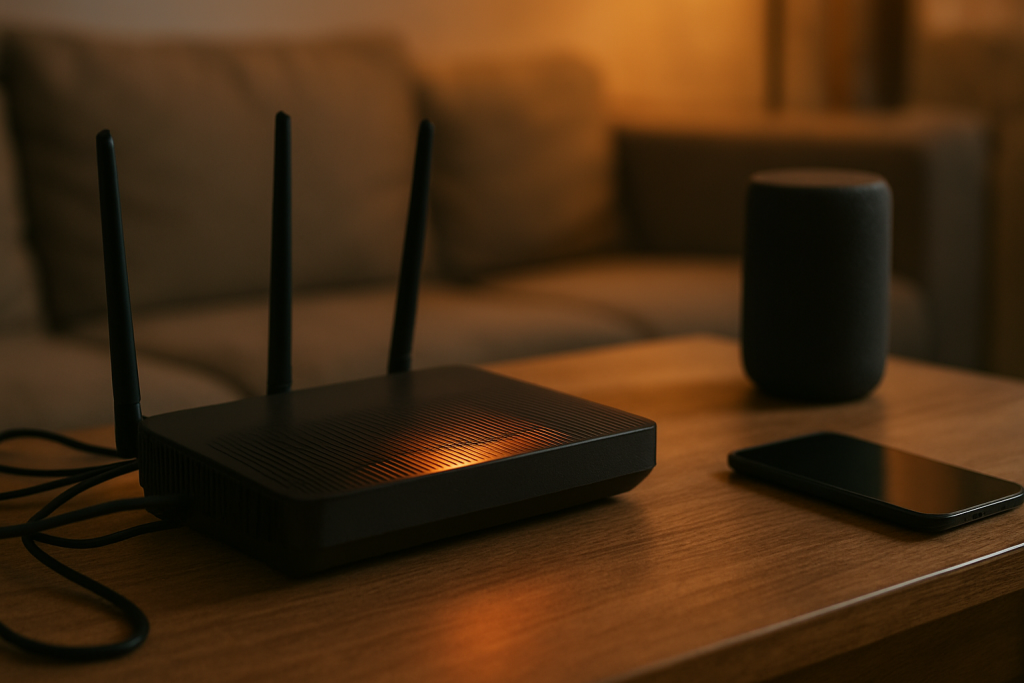
Routers are small computers with CPUs, radios (2.4GHz and 5GHz), and power circuitry packed into a plastic shell. Heat is normal, but when it can’t escape, temperatures rise until the router becomes unstable. The symptoms are often confusing: Wi-Fi disappears briefly, the router’s lights cycle, and smart devices fail to reconnect cleanly, leaving them “offline” in their apps even after phones and laptops seem fine.
Overheating tends to show up in patterns. You may notice reboots during the warmest part of the day, after a few hours of streaming, or when multiple smart cameras are uploading. In a real-world apartment scenario, the router might be placed in a media console near the TV and game console, in a tight space with poor airflow. Add thick walls and a far-away smart lock or doorbell, and the router increases transmit power and retries, which increases workload and heat.
Some routers are more susceptible than others. Compact “tower” designs and ISP modem-router combo units often run hotter because they combine a modem, router, and Wi-Fi radios in one enclosure. If the unit is standing on carpet, pressed against a wall, or stacked under a cable box, heat can’t dissipate.
While overheating is the dominant root cause for frequent restarts, a few related factors can push an already-warm router over the edge:
First, firmware bugs or memory leaks can cause the router to gradually consume resources until it crashes and reboots. Heat makes this worse because components become less tolerant of marginal conditions. Second, power issues (a failing power adapter, loose barrel connector, or overloaded power strip) can mimic overheating by causing brief brownouts. Third, configuration issues like an overloaded DHCP pool or IP conflicts can cause devices to “fall off” even when the router doesn’t reboot, making the problem seem like constant instability.
One overlooked technical cause is a failing Ethernet port or cable between an ISP modem and your router (or within a modem-router combo). If the WAN link flaps repeatedly, some routers will restart the WAN stack or even reboot under certain firmware conditions. This can coincide with heat because the router is already stressed.
A common user mistake is placing the router where it “looks tidy” rather than where it can breathe: inside a closed cabinet, behind books, on top of a warm DVR, or sandwiched between the wall and a couch. Another mistake is forcing smart devices onto 5GHz when they only support 2.4GHz, or enabling band steering that causes frequent roaming attempts; the extra reconnect churn can amplify the perception of instability during reboots.
Finally, it helps to remember how 2.4GHz vs 5GHz plays into smart device reliability. Many smart devices use 2.4GHz because it travels farther and penetrates walls better, but it’s also more crowded and more prone to interference from neighbors, microwaves, and Bluetooth. When the router overheats and restarts, 2.4GHz devices may take longer to rejoin due to power-saving behavior and slower reconnection logic, while phones on 5GHz may reconnect quickly, making the outage seem “smart-device-only.”
Step-by-Step Fix
Confirm it’s actually restarting (not just Wi-Fi dropping).
Watch the router LEDs during an “outage.” If the power light blinks, the unit cycles through boot lights, or the uptime in the router app resets to near-zero, you’re dealing with reboots. If only Wi-Fi drops but the router stays up, skip ahead to interference and configuration checks.
Reduce heat immediately: improve placement and airflow.
Move the router into open air. Keep it upright if designed that way, and leave several inches of clearance on all sides. Avoid stacking it on the ISP modem, DVR, AV receiver, or game console. If it must be in a media area, place it on an open shelf rather than inside a closed cabinet. If you have pets, keep vents free of hair and dust.
Perform a practical heat test to confirm overheating.
After the router has been running for an hour, feel the top and bottom. Warm is normal; “too hot to keep your hand on comfortably” is a red flag. For a more objective test, use a phone temperature probe accessory or an inexpensive infrared thermometer and compare temperatures before and after improving airflow. If reboots stop when a small fan is aimed at the router, overheating is strongly confirmed.
Clean and de-dust the router vents.
Unplug the router, then use compressed air to clear vents and gaps. Dust acts like insulation and can raise internal temperatures significantly. While you’re there, ensure the router isn’t sitting on thick fabric or carpet that blocks intake vents underneath.
Check the power adapter and outlet.
Use the original power adapter if possible. A mismatched adapter (wrong voltage/amperage) can cause instability and extra heat in the power circuitry. Try a different wall outlet (not a switched outlet) and avoid overloaded power strips. If the connector feels loose, the router may be rebooting from momentary power loss.
Update firmware and reboot on your schedule.
Log into the router’s admin page or app and install the latest firmware. Firmware updates often fix stability issues that present as random restarts. After updating, do one intentional reboot so the router starts clean. If your router supports it, disable “auto reboot” or “scheduled reboot” features that may be misconfigured.
Stabilize 2.4GHz for smart devices.
Ensure the 2.4GHz network is enabled and uses WPA2 or WPA2/WPA3 mixed mode if your smart devices are older. If the router allows it, set 2.4GHz channel width to 20 MHz for better compatibility and less interference. Choose a fixed channel (1, 6, or 11) if auto-channel keeps hopping and devices struggle to rejoin after a reboot.
Check DHCP settings to avoid IP conflicts.
DHCP is the router feature that hands out local IP addresses to devices. If the DHCP pool is too small (for example, only 20 addresses) and you have many smart devices, phones, and guests, devices can fail to get an address and appear offline. Expand the DHCP range. If you’ve assigned manual “static IPs” on devices, make sure they don’t overlap with DHCP-assigned addresses, which can cause IP conflicts where two devices fight for the same address.
Reduce load temporarily to see if reboots stop.
Pause heavy usage for a test window: stop 4K streaming, pause cloud camera uploads, and disconnect unused devices. If the router stops rebooting under lighter load, it may be overheating under sustained throughput or it may be underpowered for your device count.
Advanced Troubleshooting
If the basic heat and placement fixes reduce restarts but don’t eliminate them, focus on isolating whether the router is crashing from heat, firmware, WAN instability, or radio interference.
Check router logs, uptime, and temperature indicators
Many routers expose system logs and uptime. Look for entries like “kernel panic,” “watchdog reboot,” “thermal shutdown,” or repeated WAN link resets. Some models show internal temperature. If you see reboots clustered around high temps or heavy traffic, overheating remains the prime suspect even if the router doesn’t explicitly say “thermal.”
Separate the modem from the router (or bypass the combo unit)
If you have an ISP modem-router combo, it may be the device rebooting, not your separate router. Combos run hotter and are more constrained. If possible, enable bridge mode on the ISP unit and use your own router for Wi-Fi. This reduces heat and workload on the ISP device and often improves stability. If you already have a separate modem and router, verify the Ethernet cable between them is snug and not kinked; try a different cable and port.
Test with 2.4GHz-only for smart devices and reserve 5GHz for high-bandwidth clients
Because many smart devices are 2.4GHz-only, keep them there for range and reliability. Use 5GHz for phones, laptops, and streaming boxes that benefit from higher speeds. If band steering is aggressive, it can cause devices to churn between bands. Consider splitting SSIDs (separate names for 2.4GHz and 5GHz) during troubleshooting so you can control what connects where.
Look for interference and distance problems that amplify instability
Interference usually doesn’t reboot a router by itself, but it can increase retransmissions and CPU load, which increases heat. In apartments with many neighboring networks, 2.4GHz can be saturated. Move the router away from microwaves, cordless phone bases, baby monitors, and metal enclosures. If smart devices are far away or behind thick walls, consider repositioning the router centrally or adding a mesh node or wired access point so the router isn’t straining to reach edge devices.
Identify a router configuration issue that can trigger crashes
Features like QoS, traffic monitoring, parental controls, intrusion detection, and VPN servers can increase CPU usage and heat. As a test, disable one feature at a time for 24 hours and watch for reboots. Also check if the router is set to an unusually high transmit power; “max power” can increase heat and may worsen interference. Auto settings are often safer unless you have a specific reason to change them.
Rule out a failing router by stress-testing carefully
A practical method is controlled load testing: run a sustained download on a laptop over Ethernet (or 5GHz) for 15–30 minutes while monitoring whether the router reboots. If reboots happen reliably under load even with good airflow, the router may have failing components or inadequate cooling design. If it only reboots when enclosed or stacked, placement and heat are the primary culprits.
When to Reset or Replace the Device
Consider a factory reset when you suspect a configuration or firmware corruption issue, especially if the router has been upgraded across multiple firmware versions or you’ve changed many settings over time. Resetting can clear unstable settings, broken DHCP reservations, and problematic band steering configurations. Before resetting, note your ISP settings (PPPoE credentials if applicable), Wi-Fi names/passwords, and any port forwards.
Replace the router if overheating persists despite proper ventilation, cleaning, and updated firmware, or if reboots occur even in a cool, open location with a known-good power adapter. Also replace if the router is several years old and serving a modern smart home with dozens of devices; older models may run at high CPU utilization continuously, generating more heat and becoming unstable. If you’re using an ISP modem-router combo that runs hot and reboots, ask the ISP for a newer model or switch to a separate modem plus a quality router.
Replace immediately if you notice physical signs of failure: a bulging power adapter, a burning smell, discolored plastic near vents, or the unit becoming extremely hot within minutes of powering on. These are safety concerns, not just connectivity issues.
How to Prevent This in the Future
Preventing router restarts is mostly about keeping temperatures stable and reducing unnecessary workload. Place the router in an open, central location, away from direct sunlight and other heat sources. If your home layout forces the router into a warm area, add airflow: a small USB fan, a ventilated shelf, or simply more clearance can make a dramatic difference.
Keep firmware current, but avoid beta firmware unless you’re specifically testing a fix. After major updates, verify that smart devices reconnect properly and that 2.4GHz settings remain compatible (20 MHz on 2.4GHz is a common stability choice). Review DHCP settings yearly as your device count grows; expand the DHCP pool and use DHCP reservations for critical smart devices to reduce IP conflicts without manually setting static IPs on the devices themselves.
Design your Wi-Fi so the router isn’t doing all the work. In thick-walled homes or long apartments, add a wired access point or mesh node to improve coverage. Better coverage reduces retransmissions and reconnect attempts, which reduces CPU load and heat. Keep high-bandwidth devices on 5GHz when close to the router, and keep distant or low-power smart devices on 2.4GHz for better range.
Finally, avoid the tidy-but-troublesome setup: router inside a closed cabinet, stacked on a modem, with cables tightly bundled around vents. That single choice is responsible for a large share of “random restarts” and smart device dropouts.
FAQ
Why do my phones reconnect quickly, but my smart plugs and cameras stay offline after a reboot?
Many smart devices use 2.4GHz and reconnect more slowly, especially if they’re at the edge of coverage or in power-saving modes. Phones often prefer 5GHz and have more robust roaming and retry behavior, so they appear “fine” first. Improving 2.4GHz stability, reducing interference, and preventing the router from rebooting (often by fixing overheating) usually resolves this.
Can overheating happen even if the router doesn’t feel that hot?
Yes. Hotspots can form near the CPU or radio amplifiers while the outer shell feels only warm. Also, some routers reboot before the case becomes extremely hot. A simple test is to improve airflow or aim a small fan at the router; if reboots stop, heat was a key factor.
What is an IP conflict, and can it look like devices are “offline”?
An IP conflict happens when two devices try to use the same local IP address. This can occur if you manually set a static IP on a device that overlaps with the router’s DHCP range. The result can be devices that randomly disconnect, fail to respond, or appear offline in apps. Using DHCP reservations (set on the router) instead of manual static IPs on devices helps prevent this.
Should I use 2.4GHz or 5GHz for smart home devices?
Use 2.4GHz for most smart home devices because it has better range and wall penetration. Use 5GHz for high-bandwidth devices like streaming boxes and laptops, especially near the router. If your router supports separate network names for each band, splitting them can make troubleshooting and long-term stability easier.
Could a firmware update cause reboot loops?
It’s possible. A bad update, a corrupted configuration carried over after updating, or a new feature enabled by default can destabilize some routers. If reboots started immediately after an update, try another update if available, or back up settings and perform a factory reset, then reconfigure only the essentials and test stability before enabling advanced features.