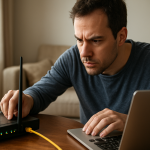
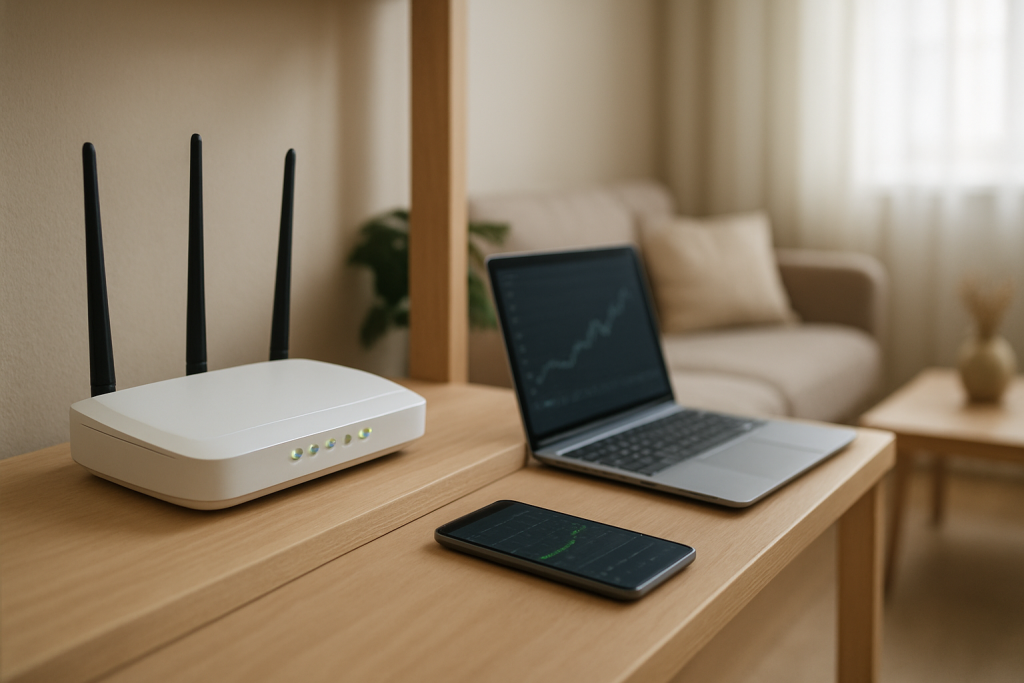
person checking home router and laptop connection troubleshooting

How to Fix Connected Without Internet on WiFi After a Router Reboot

Quick Answer

If your phone, laptop, or smart device shows “Connected” to WiFi but says “No Internet” right after a router reboot, the most common cause is a DHCP lease failure. DHCP is the router service that hands out local IP addresses; after a reboot it can temporarily stop issuing addresses, issue the wrong gateway/DNS, or hand out an address that conflicts with another device.

Start by power-cycling in the correct order (modem first, then router, then devices), then confirm your device received a valid IP address (not a self-assigned 169.254.x.x). If the IP looks wrong, renew the lease or forget/rejoin the network. If it keeps happening, check the router’s DHCP settings, address pool size, and any reserved/static IPs that may be colliding.

Why This Happens

After a router reboot, several network services have to come back online in the right sequence: WiFi radios, routing/NAT, DNS forwarding, and DHCP. The WiFi portion can be “up” quickly, so devices reconnect and show “Connected,” but internet access depends on getting a working IP configuration from DHCP.

Here’s what a DHCP lease failure looks like in plain terms: your device joins the WiFi network name (SSID), but it either doesn’t get an address at all, gets an address outside the router’s network, or gets an address that doesn’t match the correct gateway/DNS. Without the right local settings, the device can’t reach the router for internet routing, even though the WiFi signal is fine.

Common triggers after a reboot include:

DHCP server delay or crash: Some routers take longer to start DHCP than they do to start WiFi. Devices reconnect too fast and time out, then keep the old lease or self-assign an address.

Lease table confusion: If the router reboots and loses its DHCP lease table, it may reissue an IP that another device is still using. That creates an IP conflict, which can look like “connected, no internet” or intermittent internet.

Address pool too small: In a busy home with smart plugs, cameras, TVs, and phones, a small DHCP pool (for example, only 20 addresses) can run out after a reboot when everything requests an address at once.

Router configuration issues: Misconfigured DHCP range, duplicate static IPs, or a “guest network isolation” setting can block access to the gateway or DNS.

Firmware quirks: Router firmware updates (or a buggy version) can cause DHCP to stall under load right after reboot. This is especially common on ISP modem-router combo units that receive automatic updates overnight.

Overlooked cause: A second DHCP server on the network (like an old router left plugged in, or a mesh node in the wrong mode) can hand out conflicting settings. Devices may get an IP from the “wrong” box and lose internet even though WiFi shows connected.

Real-world scenario: in an apartment with thick concrete walls, you might use a range extender or an ISP gateway plus your own router. After a reboot, the extender reconnects, your phone connects to the extender’s strong signal, but DHCP requests bounce between devices or are delayed. The phone shows connected, but it can’t reach the correct gateway or DNS.

Step-by-Step Fix

  1. Confirm the router actually has internet first. Check the router’s internet/WAN light and, if possible, connect one laptop/PC directly to the router with an Ethernet cable. If wired internet works, the ISP link is fine and you can focus on DHCP/WiFi. If wired internet does not work, reboot the modem/ONT and verify the ISP outage status.

  2. Reboot in the correct order (this prevents stale DHCP and WAN sessions). Unplug the modem (or fiber ONT) and router. Wait 60 seconds. Plug the modem/ONT back in first and wait until it is fully online (usually 2–5 minutes). Then plug in the router and wait another 2 minutes. This sequence helps the router obtain a clean WAN address and start DHCP cleanly.

  3. Check your device’s IP address and renew the DHCP lease. This is the fastest way to confirm a DHCP lease failure.

    What you want to see: an IP like 192.168.x.x or 10.0.x.x (varies by router), a default gateway matching the router (often 192.168.x.1), and DNS servers populated.

    Red flags: 169.254.x.x (self-assigned), a blank gateway, or a gateway that doesn’t match your router’s network.

    Actions:

    iPhone/iPad: Settings > Wi‑Fi > tap the “i” next to your network > toggle Airplane Mode on/off, or use “Renew Lease” if available.

    Android: Settings > Network & Internet > Wi‑Fi > your network > Forget, then reconnect (Android doesn’t always expose “renew lease” directly).

    Windows: Disconnect/reconnect Wi‑Fi, or disable/enable the Wi‑Fi adapter. If you’re comfortable, use the built-in network troubleshooter to force a renewal.

    macOS: Wi‑Fi settings > Details > TCP/IP > Renew DHCP Lease.

  4. Forget the network and rejoin (clears cached parameters). A common user mistake is repeatedly rebooting the router without clearing the device’s saved network profile. If the device is holding onto an old gateway/DNS or a stale lease, it may keep failing until you remove and re-add the network. After forgetting, rejoin and enter the password again.

  5. Temporarily split 2.4GHz and 5GHz (or force the device to the right band). After a reboot, band-steering can misbehave and some devices bounce between 2.4GHz and 5GHz while trying to renew a lease. For troubleshooting, give 2.4GHz and 5GHz different names (for example, HomeWiFi-2G and HomeWiFi-5G) and connect the device intentionally.

    Notes: Many smart home devices only support 2.4GHz. Phones and laptops may prefer 5GHz, but 5GHz has shorter range and is more sensitive to walls. If your router is far away or you’re in an apartment with thick walls, 2.4GHz may be more stable during recovery.

  6. Check router DHCP settings: enabled, pool size, and lease time. Log into the router’s admin page and verify:

    DHCP Server: ON.

    Address pool: large enough for your household (consider 100+ addresses if you have many smart devices).

    Lease time: 12–24 hours is typical. Extremely long leases can keep stale assignments around; extremely short leases can cause churn after reboot.

  7. Look for IP conflicts and fix them. If you’ve assigned static IPs on devices (printers, NAS, cameras) and those IPs fall inside the DHCP pool, the router can accidentally hand the same IP to another device after reboot. Fix by either:

    Moving static device IPs outside the DHCP pool, or

    Using DHCP reservations in the router (preferred), so the router always assigns the same IP to that device’s MAC address.

  8. Test with one device close to the router. This is a practical way to separate signal/interference from DHCP issues. Stand within 10 feet of the router and connect a phone or laptop. If it still shows “connected without internet,” it’s likely not distance-related. If it works close but fails in other rooms, you may also have a coverage problem (especially on 5GHz) that’s making DHCP renewals unreliable.

Advanced Troubleshooting

If the basic steps restore internet but the problem returns after every reboot (or randomly), focus on what could disrupt DHCP specifically.

Check for a second DHCP server (overlooked but common)

Two DHCP servers on one network cause unpredictable results: some devices get correct settings, others get a wrong gateway or DNS and lose internet. This can happen if you have:

An old router still connected by Ethernet (even “just for extra ports”).

A mesh system node set to router mode instead of access point mode.

An ISP modem-router combo plus a separate router both running DHCP.

Fix: ensure only one device is the router (with DHCP enabled). Put the other device(s) in access point/bridge mode, or disable DHCP on them.

Inspect router logs and DHCP client list

Most routers show a DHCP client list. Look for:

Devices with duplicate IP addresses.

Many “expired” or “declined” leases right after reboot.

Clients that appear/disappear rapidly (could be band-steering or weak signal causing repeated reconnects).

DNS vs DHCP: verify what’s actually failing

Sometimes the device has a valid IP but still reports “no internet” because DNS is broken. A quick test method: if your device allows it, try loading a website by name and then try reaching a known IP address. If IP works but names don’t, DNS is the issue (still often delivered by DHCP). In the router, set DNS to reliable public resolvers or your ISP’s, and avoid “DNS proxy” features if they’re unstable on your model.

Firmware and software causes

Router firmware bugs frequently show up as DHCP problems under load after reboot. If your router recently updated, check for another update or a known-stable release. If the router is an ISP gateway, you may not control firmware; in that case, disabling advanced features you don’t need (traffic monitoring, parental controls, certain security filters) can reduce post-reboot instability.

Router configuration issues that break DHCP after reboot

Settings to review:

LAN IP/subnet changes: If you changed the router LAN IP (for example, from 192.168.0.1 to 192.168.50.1), some devices may cling to old settings until they renew properly.

Guest network isolation: Guest networks sometimes block DNS or gateway access depending on implementation. Test on the main SSID.

IPv6: Some routers advertise IPv6 incorrectly after reboot, and devices may prefer it, resulting in “no internet” even though IPv4 is fine. As a test, temporarily disable IPv6 in the router and recheck.

Interference and distance as a DHCP reliability problem

Weak signal doesn’t just slow internet; it can cause the DHCP handshake to fail. In apartments, neighboring routers on the same channel can create bursts of interference. If devices far from the router struggle after reboot:

Use 2.4GHz for distant smart devices.

Manually set 2.4GHz to channels 1, 6, or 11 (whichever is least congested).

Move the router higher and away from metal objects, microwaves, and cordless phone bases.

When to Reset or Replace the Device

Resetting a device is reasonable when you’ve confirmed the router is issuing valid DHCP leases to other devices, but one device repeatedly fails after reboots.

Consider a device network reset if:

It keeps self-assigning a 169.254.x.x address while other devices get 192.168.x.x addresses.

It connects to WiFi but never shows a default gateway.

It only fails on your network but works on a phone hotspot (hotspots use a different DHCP service and simpler routing).

For smart home devices, use the manufacturer’s network reset procedure (often holding a button for 5–15 seconds). For phones and computers, use “Reset Network Settings” (note: this removes saved WiFi networks and VPN profiles).

Replacement is more likely if the WiFi chipset is unstable or the device can’t handle modern security/roaming features. Older smart plugs and budget cameras may struggle with band-steering, WPA3 transition modes, or fast roaming. If a device fails repeatedly after every router reboot while others recover normally, it may simply have poor DHCP client behavior.

How to Prevent This in the Future

Stability after reboots comes from making DHCP predictable and reducing the chaos of dozens of devices requesting leases simultaneously.

Use DHCP reservations for critical devices. Reserve IPs for smart hubs, cameras, doorbells, printers, and NAS units. This prevents conflicts and makes troubleshooting easier.

Increase the DHCP pool size. If your router defaults to a small range, expand it so you don’t run out of addresses when everything reconnects at once.

Avoid mixing static IPs on devices with DHCP on the router. If you must use static IPs, keep them outside the DHCP pool and document them.

Keep firmware current, but be cautious with automatic updates on the day of a big change. If your router offers a stable channel vs beta, choose stable. After updating, reboot once during a convenient time and confirm DHCP behavior.

Separate 2.4GHz and 5GHz if you have finicky smart devices. Band-steering is convenient, but some IoT devices behave better when they always see the same SSID on 2.4GHz.

Limit double-router setups. If you use an ISP modem-router combo plus your own router, configure bridge mode on the ISP unit or access point mode on your router so only one device runs DHCP.

Plan for coverage. If devices are at the edge of coverage, they’re more likely to miss DHCP renewals after a reboot. A properly placed access point or mesh system (configured with a single router/DHCP authority) is better than a chain of extenders.

FAQ

Why does it say “Connected” if there’s no internet?

“Connected” only means your device successfully joined the WiFi network. Internet access requires a valid IP address, default gateway, and DNS—usually provided by DHCP. After a reboot, WiFi may come up before DHCP is ready, or DHCP may hand out incorrect settings, so the device connects but can’t route traffic to the internet.

What does a 169.254.x.x IP address mean?

That’s a self-assigned address (often called APIPA). It typically appears when the device asked for a DHCP lease but didn’t receive one. With a 169.254.x.x address, the device can’t reach your router’s gateway for internet. Renew the lease, forget/rejoin the network, and verify the router’s DHCP server is enabled.

Can 2.4GHz vs 5GHz cause “no internet” after a reboot?

Indirectly, yes. DHCP relies on a clean WiFi connection during the initial handshake. 5GHz is faster but has shorter range and is more affected by walls; a marginal 5GHz link can drop packets and cause DHCP to fail. For devices farther away (or in apartments with thick walls), 2.4GHz is often more reliable during reconnects after a reboot.

How do I know if I have an IP conflict?

Symptoms include one device knocking another offline, intermittent “no internet,” or a device that works only after toggling WiFi. In the router’s client list, you may see duplicate IPs or frequent reconnects. Conflicts often come from static IPs set on devices that overlap the DHCP pool. Fix by using DHCP reservations or moving static IPs outside the pool.

Should I factory reset the router if this keeps happening?

If DHCP failures persist after checking pool size, reservations, firmware, and ensuring there’s only one DHCP server, a factory reset can clear corrupted settings. Reset is especially reasonable if the issue started after a firmware update or configuration change. Before resetting, save screenshots of key settings (SSID/password, ISP login if required, port forwards). After reset, reconfigure minimally and test DHCP stability after a reboot.

For a broader overview of common network problems, see our complete smart home WiFi troubleshooting guide.

It feels almost unfair how quickly the weight drops off when the answer finally sits where it belongs. The rest is just ordinary life continuing, no dramatic music required.

For some reason, the hardest part is always believing it could be that straightforward. Now it’s simply there—cleaner, quieter, and a little more bearable.

Scroll to Top