Smart Bulb Not Responding in One Lamp Socket: What to Check
Quick Answer
When a smart bulb works elsewhere but not in one specific lamp socket, the most likely cause is the lamp itself: the socket isn’t delivering clean, constant power to the bulb. Smart bulbs (Wi‑Fi, Zigbee, Thread/Matter, and hub-based systems like Hue) need steady power to stay connected and respond. A loose center contact, a worn socket, a lamp switch that’s not fully on, or a “smart” lamp feature like a dimmer can interrupt power just enough to make the bulb appear offline or unresponsive.
Start by treating this as a power-path problem first, not an app problem. If the bulb doesn’t light reliably, won’t pair, or frequently shows “offline” only in that lamp, the lamp socket and its switch are the prime suspects.
Immediate actions:
1) Move the same bulb to a different lamp or ceiling fixture to confirm the bulb and app are basically working. 2) Put a simple non-smart bulb in the problem lamp to see if the lamp socket provides stable power. 3) Make sure the lamp’s switch is fully ON and any inline dimmer is set to maximum (or bypassed if possible).
Why This Happens
A smart bulb is a small computer plus an LED driver. Unlike a traditional bulb, it doesn’t just “turn on” with any partial voltage or shaky contact. It needs consistent power so its internal power supply can stay stable and its radio (Wi‑Fi, Zigbee, or Thread) can stay connected. One lamp socket can be just marginal enough to cause repeated brownouts: the bulb may flicker, reboot, drop off the network, or refuse commands even though the same bulb behaves normally in another fixture.
Common root causes that fit real homes include:
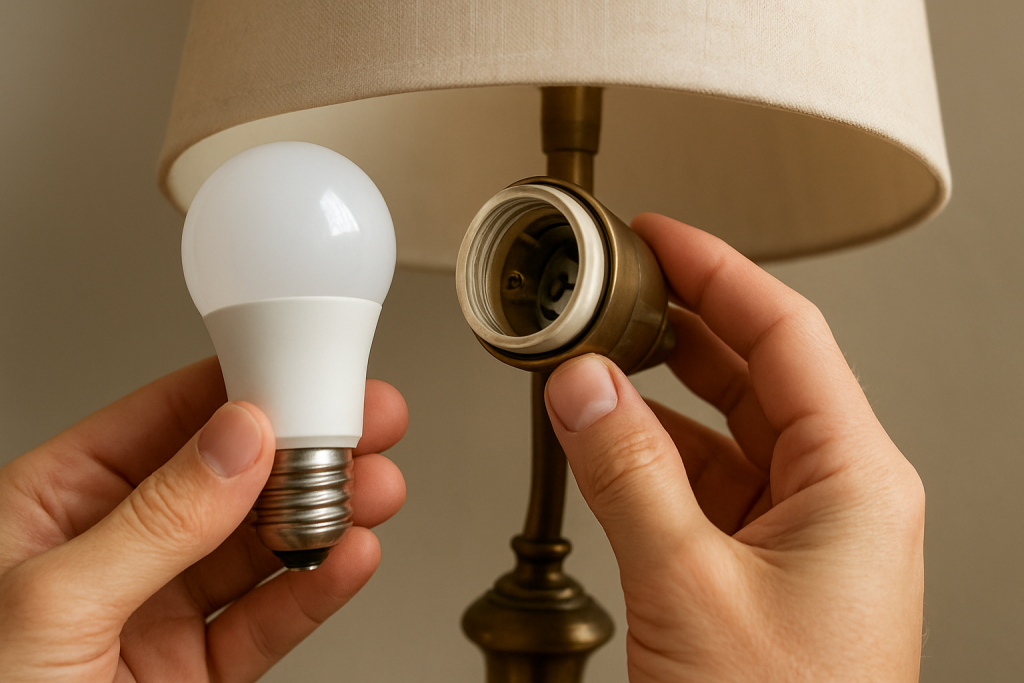
1) Poor socket contact: The center contact tab in the socket can be flattened over time. The bulb screws in, but the electrical contact is intermittent. If the bulb flickers when you gently touch the lamp or rotate the bulb slightly, it usually means the socket contact is unreliable.
2) Lamp has a dimmer or touch-control: Many smart bulbs do not behave well with dimmers, touch lamps, clap switches, or 3-way brightness “tap” controls. These controls often reduce voltage or chop the waveform. If the bulb works only at certain dimmer positions or randomly disconnects, it usually means the lamp is not providing full-time, clean power.
3) The lamp switch isn’t consistently left on: A common user mistake is turning the lamp off at the physical switch and then expecting app control later. Smart bulbs must have power to respond. If someone in the home uses the lamp switch out of habit, the bulb will show offline until power is restored.
4) Overlooked technical cause: Some lamps (especially older ones) have a polarized plug, a loose plug in the outlet, or a worn cord switch that causes brief power interruptions when the cord is moved. A smart bulb can reset from a split-second interruption that a traditional bulb might barely show.
Real-world scenario: A smart bulb works perfectly in a ceiling light but won’t stay online in a bedside touch lamp. The touch lamp’s electronics “sip” power and alter the waveform even when “on,” causing the smart bulb to reboot or fail to maintain its radio connection. The fix is usually to use a non-dimming, simple on/off lamp, or keep the lamp’s control at full output with a stable on/off upstream.
Most Likely Causes in Real Homes
1) The lamp has a dimmer/touch/3-level control that isn’t compatible with smart bulbs.
2) The socket contact is loose or worn, causing intermittent power.
3) The lamp’s physical switch is being turned off (by habit, cleaning, or a child), cutting power to the bulb.
4) The bulb is assigned to the wrong room/home or is controlled by a group/scene that masks its real status.
5) The lamp location has weaker wireless coverage (especially for Zigbee/Thread bulbs or Wi‑Fi bulbs on the edge of coverage), so it looks “offline” even though it has power.
Step-by-Step Fix
Confirm the symptom: is it a power problem or a control problem?
What to do: In the problem lamp, turn the lamp switch fully ON. Watch the bulb for 60 seconds. Note whether it lights normally, flickers, cycles on/off, or stays dark. Then try controlling it from the app (on/off and brightness).
What the result means: If the bulb is dark or flickers, it usually means unstable power at the socket or an incompatible lamp control. If it lights normally but won’t respond to the app, it’s more likely a network/app/group issue.
What to try next if it fails: If it flickers or stays dark, go to step 2. If it lights fine but won’t respond, skip ahead to step 5.
Swap-bulb test (fastest way to isolate the lamp socket).
What to do: Put a simple non-smart bulb in the problem lamp. Then put the smart bulb in a different lamp or fixture that you know works reliably.
What the result means: If the non-smart bulb also flickers or doesn’t turn on reliably, the issue is the lamp/socket/power path, not the smart bulb. If the smart bulb works normally elsewhere, the smart bulb is likely fine and the problem is specific to that lamp or its location.
What to try next if it fails: If the lamp looks unreliable even with a non-smart bulb, proceed to step 3. If the lamp is fine with a non-smart bulb but the smart bulb still misbehaves only in that lamp, proceed to step 4.
Check for dimmers, touch controls, 3-way brightness, or “smart” lamp features.
What to do: Look for an inline slider/rotary dimmer on the cord, a touch base, a clap sensor, or a “tap to change brightness” behavior. If there is a dimmer, set it to maximum brightness and leave it there. If it’s a multi-level touch lamp, set it to the highest level and leave it there.
What the result means: If the bulb becomes stable only at maximum, it usually means the lamp control is altering power and the smart bulb needs full, steady voltage. If it still drops offline or flickers, the lamp control may be incompatible even at maximum.
What to try next if it fails: If the lamp has any dimming/touch electronics and the bulb remains unreliable, the practical fix is to use the smart bulb in a simple on/off lamp and use a regular bulb in the dimming/touch lamp. If you must keep the lamp, continue to step 4 to rule out socket fit issues.
Check bulb seating and socket fit (without forcing anything).
What to do: With the lamp switched OFF, let the bulb cool if it was on. Screw the smart bulb in until it is snug, not overtight. Then switch the lamp ON and gently wiggle the bulb base a tiny amount (do not bend the socket or use tools). Also check whether the shade/harp is pressing on the bulb or twisting it.
What the result means: If the bulb turns on/off or flickers with slight movement, it usually means the socket contact is marginal. Smart bulbs are more sensitive because a brief disconnect can reboot them and drop them from the network.
What to try next if it fails: If movement affects it, stop using that lamp for a smart bulb and use a different lamp/socket for smart lighting. If movement doesn’t affect it, go to step 5.
Check the app status and the “right home/room” problem.
What to do: Open the smart lighting app (or platform app) and confirm the bulb is listed, not duplicated, and assigned to the correct home/location. If you use multiple ecosystems (for example, a hub app plus Apple Home/Google Home/Alexa), check the bulb in the original manufacturer app first, then in the platform app.
What the result means: If the bulb responds in the manufacturer app but not in the platform app, it usually means an account sync, permission, or integration issue. If it shows “offline” everywhere while the lamp is ON, it points back to power instability or weak wireless at that location.
What to try next if it fails: If it’s an integration mismatch, proceed to step 6. If it’s offline everywhere, proceed to step 7.
Group, scene, and schedule verification (a common “it’s not responding” illusion).
What to do: Temporarily remove the bulb from any group/room lighting group, disable relevant automations, and test direct control of that single bulb (on/off and brightness). Also check for schedules like “turn off at midnight,” “vacation mode,” or “adaptive lighting” features that may override manual control.
What the result means: If direct control works but group control fails, the issue is likely a group sync problem or a conflicting automation. If the bulb turns itself off again after you turn it on, a schedule or scene is usually firing.
What to try next if it fails: If groups/scenes are the problem, rebuild the group and re-add the bulb after it’s stable. If direct control still fails, continue to step 7.
Network and placement check based on bulb type (Wi‑Fi vs Zigbee/Thread/Matter).
What to do: Identify how the bulb connects: Wi‑Fi bulbs connect directly to your router; Zigbee bulbs connect through a hub; Thread/Matter bulbs connect through a Thread border router (often a smart speaker/display/hub). Now test the lamp location: move the lamp temporarily closer to the router/hub/border router (even a few meters can matter) and see if responsiveness improves.
What the result means: If it works when closer but not in the original spot, the issue is likely weak signal or mesh routing at that location. For Zigbee/Thread, the mesh may not have a strong route near that lamp. For Wi‑Fi, the bulb may be on the edge of coverage or connecting to a distant mesh node.
What to try next if it fails: If moving it closer helps, keep the lamp there temporarily and proceed to step 8 to confirm mesh behavior. If moving it doesn’t help, proceed to step 9.
Mesh behavior test (especially important for Zigbee/Thread and Wi‑Fi mesh systems).
What to do: If you have a hub-based system, power the bulb ON and leave it undisturbed for 30–60 minutes to allow mesh routing to settle. If you have a Wi‑Fi mesh, check which node the bulb is connected to in your router/mesh app, then temporarily reboot only the nearest node (not the whole network) and re-test.
What the result means: If the bulb becomes stable after time, it usually means the mesh needed to re-route. If it becomes stable after a nearby node reboot, it suggests the bulb was stuck to a poor connection path.
What to try next if it fails: If it remains unreliable, proceed to step 9 and isolate whether the issue is cloud/account or local connectivity.
Hotspot isolation test (separates “home network issue” from “bulb/lamp issue”).
What to do: For Wi‑Fi bulbs only: create a temporary 2.4 GHz hotspot on a phone (with a simple name/password), then attempt to set up the bulb on that hotspot while the bulb is powered in a known-good lamp. Do not change your whole home network; this is a temporary test.
What the result means: If the bulb works reliably on the hotspot, the bulb hardware is likely fine and your home Wi‑Fi configuration (band steering, isolation, or mesh behavior) is the likely cause. If it still fails on the hotspot, the bulb may be failing or the power path is unstable.
What to try next if it fails: If hotspot works, proceed to step 10 for Wi‑Fi band and router settings checks. If hotspot fails, skip to step 11.
Wi‑Fi band check and router settings that commonly break smart bulbs.
What to do: Confirm the bulb is on 2.4 GHz if it’s a 2.4-only device (many are). If your router uses one combined name for 2.4/5 GHz, temporarily enable a separate 2.4 GHz SSID for setup and stability testing. Also check for client isolation/guest network use; bulbs should be on the main network if you want phones/speakers to control them.
What the result means: If the bulb becomes stable when forced to 2.4 GHz and the main network, it usually means band steering or isolation was preventing consistent local control.
What to try next if it fails: If it still won’t respond, go to step 11.
Power cycle sequence (correct order matters for hubs and Matter).
What to do: Turn the lamp OFF for 20 seconds, then ON. If you use a hub or border router, also reboot the hub/border router (one device only), wait for it to come fully online, then power-cycle the bulb again. Finally, reopen the app and test control.
What the result means: If this fixes it, the bulb likely lost its session with the hub/router after a brief power interruption and needed a clean reconnect.
What to try next if it fails: If the bulb still shows offline or unresponsive, proceed to the Advanced Troubleshooting section.
Advanced Troubleshooting
This section is only needed if basic fixes fail.
Account or cloud issue: If the bulb responds locally in one app but not through voice assistants or a platform app, sign out and back in to the platform app, then re-check permissions for the smart home skill/integration. If commands work sometimes but not others, it often points to a cloud sync delay or an account link problem rather than the lamp socket.
Network issue (only when the bulb has stable power): If the bulb is powered reliably (no flicker, no random resets) but still drops offline in that room, treat it as a coverage problem. Thick walls, metal lamp bases, mirrors, and appliances can block signals. For Zigbee/Thread, too few always-powered mesh devices nearby can leave the bulb without a good route. For Wi‑Fi, a mesh node placed behind a TV or inside a cabinet can create a “looks close but performs far” situation.
Firmware/software cause: If multiple bulbs updated recently and one location became unreliable, check for firmware updates in the manufacturer app and update the hub/border router firmware as well. If the bulb is stuck “updating” or “unreachable,” it may be failing mid-update due to weak signal or unstable power at that lamp.
Configuration conflict (groups, scenes, automation, permissions): A bulb that turns on and then immediately changes brightness or turns off is usually being controlled by an automation, adaptive lighting feature, or a scene recall from a switch/remote. Temporarily disable automations and remove the bulb from groups to confirm direct control works. If direct control works, rebuild the automation rules one at a time so you can identify which rule is overriding your commands.
When to Reset or Replace the Device
Soft restart vs. factory reset: A soft restart is simply turning the lamp off for 20–30 seconds and back on, or using an in-app “reconnect” option if available. A factory reset wipes the bulb’s pairing and network credentials so it can be set up again from scratch. Use a factory reset only after you have confirmed the lamp provides stable power and the bulb still won’t stay connected.
What you lose after a reset: You typically lose the bulb’s pairing to the hub/platform, its room assignment, name, schedules stored on the device, and any custom scenes tied to that specific device entry. You may need to re-add it to groups and automations.
Replace the bulb if: it frequently overheats, has a burning smell, the base is discolored, the lens is warped, or it repeatedly reboots even in a known-good lamp and on a stable network. Stop using any bulb that shows heat damage or physical deterioration.
How to Prevent This in the Future
Use stable power at the lamp: Smart bulbs behave best in simple on/off lamps. Avoid pairing them with dimmers, touch lamps, or 3-way brightness controls unless the bulb system explicitly supports that use in your setup.
Keep device placement practical: If a lamp is in a weak-signal corner, expect more dropouts. Place hubs/border routers in open areas, not behind TVs or inside cabinets. For mesh-based systems, ensure there are enough always-powered devices to create a solid path through the home.
Manage automations carefully: Name automations clearly and avoid multiple rules that fight each other (for example, one schedule turns the lamp off while another turns it on for occupancy). When troubleshooting, disable automations first so you can confirm manual control is stable.
Plan for power outages: After outages, some bulbs default to “on” or may reconnect slowly. If your system supports power-on behavior settings, set them intentionally so lamps don’t surprise you and so bulbs rejoin the network predictably.
Maintain firmware and app updates: Keep the hub/border router and the bulb firmware current, but avoid updating during times when power is unstable (storms) or when the lamp is frequently switched off. Updates are more reliable when the bulb has strong signal and uninterrupted power.
FAQ
My smart bulb works in other lamps. Does that prove the problem lamp is bad?
It strongly suggests the lamp socket or lamp control is the issue, especially if the bulb is stable elsewhere. The fastest confirmation is the swap-bulb test: a normal bulb in the problem lamp and the smart bulb in a known-good fixture. If the normal bulb also acts up, the lamp is the likely cause.
The bulb lights up, but the app says “offline.” What does that usually mean?
If the lamp is fully on and the bulb stays lit without flicker, “offline” usually means a connectivity problem at that location or a platform sync issue. For Wi‑Fi bulbs, check 2.4 GHz and whether the bulb is on the main network (not guest). For Zigbee/Thread/Matter, it often means the mesh route is weak near that lamp or the hub/border router needs time or a reboot to re-establish routing.
Do smart bulbs work with dimmer switches or dimmer knobs on lamps?
In most real homes, this is a common mismatch. A smart bulb expects full, steady power and does its own dimming internally. A dimmer on the lamp or wall can reduce or distort the power and cause flicker, random resets, or dropouts. If the lamp has a dimmer or touch control, testing at maximum brightness can confirm whether the control is interfering.
Misconception: “If the bulb is unresponsive, reinstall the app first.” Is that the right first step?
Usually not. When the problem is limited to one lamp socket, power delivery and lamp controls are more likely than the app. Reinstalling the app can waste time and may create new login/sync steps. Start with the swap-bulb test and lamp control checks, then move to app and network diagnostics if the bulb has stable power.
Why does the bulb keep turning itself off in that lamp, even when it responds to commands?
If it turns off again after you turn it on, it is usually an automation, schedule, or scene override rather than a socket problem. Disable schedules and automations temporarily and test direct control of the single bulb. If direct control stays stable with automations off, re-enable rules one at a time until you find the one that is overriding your manual commands.
By the time you reach this point, the noise has already thinned out. The problem no longer feels mysterious, and the answer stops being a riddle and starts being a choice.
It’s a little like setting down a heavy bag you didn’t realize you were carrying. Not dramatic—just steadier, with fewer head-scratches to earn.