Smart Bulb Reset Not Working: How to Reset It Properly
Quick Answer
The most common reason a smart bulb “won’t reset” is that it is not actually receiving a clean, complete reset sequence. In real homes, the reset pattern is often interrupted by a wall dimmer, a smart switch cutting power too slowly, a loose lamp socket, or the bulb still being controlled by a hub/app that immediately reclaims it after power returns.
Another frequent cause is that the bulb did reset, but you are looking in the wrong place to re-add it: the wrong app account, the wrong home/room, the wrong hub (Zigbee/Matter), or the wrong WiFi band. This is especially common in homes with multiple ecosystems (WiFi bulbs plus a Zigbee hub, or multiple “homes” set up in the same app).
Do these three diagnostic actions first: (1) confirm the bulb is on a simple on/off power source (no dimmer, no smart switch) and can stay powered continuously, (2) check the bulb’s reset feedback (blinking pattern or color cycle) and note exactly what it does, and (3) in the app, search for the device under the correct home/location and confirm you are on the correct phone account and network.
Why This Happens
Smart bulb resets fail most often because the reset method depends on precise power timing and a predictable control path. Many bulbs reset using a timed on/off sequence (for example, toggling power multiple times). In a real home, power is rarely “clean”: smart switches fade power, dimmers distort voltage, and some lamps have touch controls that delay switching. If the bulb does not see the expected timing, it will not enter reset mode.
There are also ecosystem-specific behaviors that make a reset look like it failed. Zigbee bulbs (including many hub-based systems) may appear “stuck” because the hub still has an entry for the bulb and will try to reconnect when the bulb comes back online. Matter devices can be “already commissioned” to a controller; if you reset incorrectly, the controller may still think it owns the device, and pairing will fail until you remove it from the controller first.
Common user mistake: flipping the wall switch too slowly or too quickly, or stopping the sequence early because the bulb briefly flickers. Many bulbs only confirm reset at the end with a specific blink/color cycle; partial flicker does not mean it reset.
Overlooked technical cause: the bulb is being powered through a smart switch, relay, or fixture that does not fully cut power (some “off” states still leak a small current). That can keep the bulb’s electronics partially alive, preventing a true reset and causing erratic reset feedback.
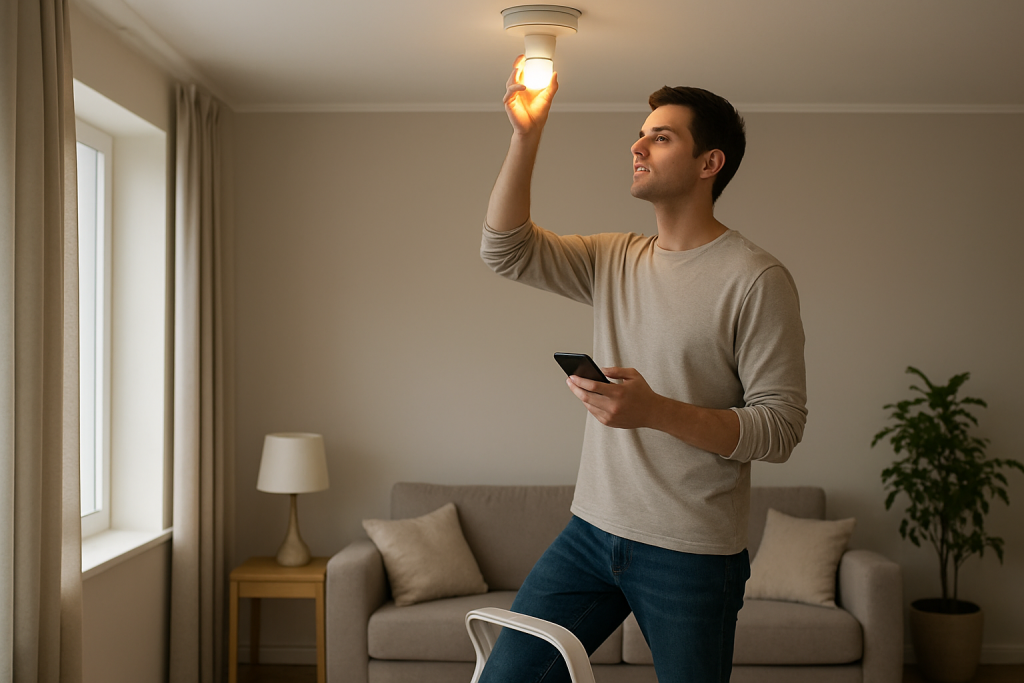
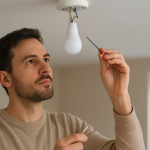
Real-world scenario: a homeowner has a smart bulb in a ceiling fixture controlled by a dimmer. The bulb works sometimes, but when they try the on/off reset pattern, the bulb never flashes the confirmation. The dimmer’s ramp-up and minimum load behavior prevents the bulb from seeing distinct on/off cycles, so the reset never triggers.
Most Likely Causes in Real Homes
1) The bulb is on a dimmer, smart switch, or touch lamp that breaks the reset timing.
2) The on/off reset pattern is not the one for that bulb, or the timing is off (too fast/slow).
3) The bulb reset succeeded, but you are trying to add it in the wrong place (wrong app, wrong home, wrong hub/controller).
4) The bulb is still “owned” by an ecosystem (Zigbee hub or Matter controller) and must be removed there first.
5) Network/app conditions block setup (phone on cellular/VPN, wrong WiFi band, or mesh node behavior during pairing).
Step-by-Step Fix
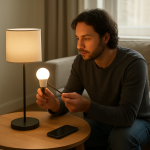
Move the bulb to a simple test socket with a plain on/off switch. Use a basic lamp with a physical switch, not a dimmer, not a smart switch, and not a touch-control lamp. Leave the bulb screwed in firmly.
What the result means: If the bulb behaves more predictably (steady on/off, consistent blink patterns), your original fixture or switch is interfering with reset timing or power delivery.
If it fails: Try a different lamp/socket. If the bulb still flickers or won’t stay on, the bulb may be failing or overheating protection may be triggering (see the “When to Reset or Replace” section).
Identify the bulb type before resetting: WiFi vs hub-based (Zigbee) vs Matter. WiFi bulbs typically pair directly to your router and app. Zigbee bulbs pair to a hub/bridge. Matter bulbs pair to a Matter controller (often a hub/speaker/TV). If you are not sure, check the packaging/app history: if it ever required a hub, treat it as hub-based.
What the result means: If you attempt a WiFi setup flow on a Zigbee bulb (or vice versa), it will look like the reset failed because the app is scanning the wrong radio.
If it fails: If you cannot determine the type, proceed with the next steps and focus on visible reset feedback (blink/color cycle), then use the app that originally controlled it.
Remove the bulb from the app/home before resetting (if it still appears there). In the controlling app, delete/remove the device. Also check for multiple “Homes” or “Locations” within the app and remove it from the correct one. If the bulb is in a group/room, remove it from the group first if the app requires it.
What the result means: If removal succeeds, you reduce the chance of account/controller conflicts that block re-pairing (especially with Matter and hub-based systems).
If it fails: If the app says “device offline” and won’t remove, look for a “remove anyway” option. If none exists, continue and later perform account/controller cleanup in Advanced Troubleshooting.
Perform the correct factory reset pattern and wait for the confirmation signal. Most bulbs use a power toggle pattern (often 3–6 on/off cycles). Turn the lamp switch fully off and on with clear pauses. After the last “on,” wait up to 10 seconds for the bulb to confirm reset (commonly rapid blinking or a color cycle). Do not stop early.
What the result means: A distinct confirmation pattern usually means the bulb is in pairing mode or has cleared prior settings. Random flicker during toggling is not confirmation.
If it fails: Try the same pattern again with slower, consistent timing. If still no confirmation, try a different known pattern (some bulbs use 3 cycles, others 5 or 6). If the bulb never gives any consistent feedback, suspect power-control interference (step 1) or a failing bulb.
Check the app device status and “Home/Room/Location” selection before pairing. In many apps, you can be logged into the right account but viewing the wrong home. Also check whether the bulb is being auto-assigned to a default room. Use the app’s “add device” flow and confirm you are adding it to the intended home/location.
What the result means: If the bulb “disappears” after pairing, it is often in a different home/location or assigned to a different room, not actually missing.
If it fails: Use the app’s search function for recently added devices, check “All devices,” and confirm you are not filtering by room.
For WiFi bulbs: verify the phone is on the correct WiFi band and disable VPN/cellular switching during setup. Many WiFi bulbs require 2.4 GHz during pairing. On a dual-band network with the same name, your phone may stay on 5 GHz while the bulb only supports 2.4 GHz. Temporarily turn off VPN and ensure your phone stays on WiFi (disable “Wi-Fi Assist”/mobile data switching if your phone has it).
What the result means: If pairing works only after forcing 2.4 GHz and disabling VPN, the “reset not working” symptom was actually a setup communication problem.
If it fails: Try connecting your phone to a dedicated 2.4 GHz guest network (if available) or temporarily separate the bands in your router settings. If you cannot change router settings, try the hotspot isolation test in the next step.
Hotspot isolation test (WiFi bulbs only): pair using a phone hotspot to separate bulb issues from router issues. Turn on a hotspot on a second phone (or your phone if you have another device to run the app). Use a simple SSID and password. Reset the bulb again, then attempt pairing to the hotspot network.
What the result means: If the bulb pairs to a hotspot but not your home WiFi, your home network settings or mesh behavior are the blocker (band steering, client isolation, WPA3-only, or multicast restrictions).
If it fails: If it will not pair even to a hotspot, the issue is more likely the bulb’s reset/pairing mode, the app/account, or the bulb hardware.
Mesh behavior test: complete setup near the main router/hub, then move the bulb back. Pairing is more sensitive than normal operation. For WiFi bulbs, set up within a few feet of the main router (not an extender node). For Zigbee bulbs, pair close to the hub/bridge. After it’s added, move it to the intended room.
What the result means: If pairing works only near the main router/hub, your original location has weak signal or interference. The bulb wasn’t “refusing to reset”; it couldn’t complete setup.
If it fails: Try a different outlet/lamp closer to the router/hub and repeat the reset. If it still fails, continue to the next steps.
Group sync test: remove automations/scenes that may be forcing the bulb state during setup. Temporarily disable lighting automations, schedules, and scenes that include the bulb (or its old device entry). Also check voice assistant routines that run at certain times.
What the result means: If the bulb keeps changing color/brightness or turning off during setup, an automation may be grabbing it, making reset attempts inconsistent.
If it fails: If you cannot find the automation, temporarily disable the integration (for example, unlink the lighting service from a voice assistant) until pairing is complete.
For hub-based bulbs (Zigbee): put the hub in pairing mode first, then reset the bulb. Many hubs discover devices best when they are actively scanning. Start the “add light” process on the hub/app, then perform the bulb reset so it immediately announces itself.
What the result means: If the bulb joins quickly when the hub is already scanning, your earlier attempts likely timed out before the hub was listening.
If it fails: Power-cycle the hub/bridge (unplug for 20 seconds, plug back in), then try again close to the hub.
For Matter bulbs: remove it from the Matter controller, then factory reset, then re-add. Matter devices can remain associated with a controller even after partial resets. Remove the accessory from the controller app first. Then factory reset the bulb and add it again using the current pairing method (QR code or numeric code, depending on the device).
What the result means: If re-adding works only after removing from the controller, the “reset not working” symptom was actually ownership/commissioning still being active.
If it fails: Reboot the controller device (hub/speaker/TV) and your phone, then try again. If multiple controllers exist in the home, ensure you are adding it to the same home ecosystem you intend to use.
Advanced Troubleshooting
This section is only needed if basic fixes fail.
Account or cloud sync problems
If the app shows the bulb in one phone but not another, or setup fails after a reset that clearly entered pairing mode, the account may be out of sync. Log out of the lighting app, force-close it, then log back in. If the app supports it, refresh device lists and confirm you are in the correct home/location. If you use multiple family accounts, confirm you are signed into the same account that originally owned the devices, or that you have been granted permissions to add devices.
Network conditions that block discovery (WiFi bulbs)
If hotspot pairing works but home pairing fails, focus on router settings rather than repeating resets. Common blockers include: WPA3-only mode (some bulbs require WPA2), client/AP isolation on guest networks (prevents phone-to-device setup), and mesh “band steering” that keeps the phone on 5 GHz while the bulb uses 2.4 GHz. Also, some routers restrict multicast/broadcast traffic, which can break local discovery in certain apps. A practical test is to temporarily pair on a simple 2.4 GHz network with WPA2 and no isolation, then move back to your normal network once confirmed stable.
Firmware/software mismatches
After a successful add, immediately check for firmware updates for the bulb and the hub/bridge (if used). If the bulb repeatedly drops offline or refuses to complete setup, outdated hub firmware can cause pairing instability. Also ensure your phone OS and the lighting app are up to date; setup flows change over time, especially for Matter and multi-admin features.
If the bulb resets and pairs but behaves “wrong” (turns on at odd times, wrong color, won’t respond), it is usually not a reset problem anymore. It is commonly a group/scene conflict: an old scene is still targeting the previous device entry, or a room group is applying a default state. Remove the bulb from groups, test it alone, then re-add it to groups one at a time. If multiple controllers exist (hub app plus voice assistant), confirm only one is managing schedules for that bulb.
When to Reset or Replace the Device
A soft restart is simply turning the bulb off for 20–30 seconds and turning it back on. This clears temporary glitches without erasing pairing. A factory reset erases network or hub pairing information and returns the bulb to setup mode.
After a factory reset, you typically lose: the bulb’s pairing to the app/hub/controller, custom names, room assignments, and sometimes scenes stored on the bulb. You generally do not lose automations stored in a hub or cloud, but they may break until you re-add the bulb and reselect it in those automations.
Replace the bulb if it shows signs of damage: persistent overheating (too hot to touch after normal use), a burning smell, visible discoloration, or buzzing that wasn’t present before. Also consider replacement if it cannot hold a steady power-on state in multiple known-good lamps, or if it never shows any consistent reset confirmation pattern despite correct power toggling in a simple socket.
How to Prevent This in the Future
Keep the power path simple for smart bulbs. Avoid using dimmers or smart switches to control power to a smart bulb unless the bulb is specifically designed for that arrangement. Use the app, voice control, or a compatible controller for daily on/off and dimming.
Maintain stable placement and signal. For WiFi bulbs, ensure the fixture is within reliable range of your router or a mesh node, but do initial setup near the main router when possible. For hub-based bulbs, keep the hub in a central location and avoid placing bulbs in metal fixtures that can reduce signal.
Manage automations carefully. Document key schedules/scenes and avoid duplicate routines across multiple apps. After adding or replacing a bulb, verify that only the intended automations target it.
Plan for power outages. If your bulbs default to “on after power restore,” consider setting a consistent power-on behavior in the app if available, and avoid rapid on/off switching during outages, which can accidentally trigger a factory reset pattern on some models.
Check firmware periodically. A quick monthly check for app, hub, and bulb updates prevents many pairing and stability issues, especially in mixed ecosystems (WiFi, Zigbee, and Matter in the same home).
FAQ
Why does my bulb blink but still won’t pair after a reset?
Blinking usually means the bulb entered pairing mode, so the reset likely worked. If it won’t pair, the problem is typically the setup path: wrong app/home, phone on the wrong WiFi band, VPN enabled, or the bulb is the wrong type (hub-based vs WiFi). Confirm the ecosystem first, then try pairing close to the router/hub and verify 2.4 GHz for WiFi bulbs.
Do I need to reset the bulb if it shows “offline” in the app?
Not always. “Offline” often means the bulb lost connectivity or power, not that it needs a factory reset. First confirm the fixture has power and the bulb turns on. Then try a soft restart (off for 20–30 seconds). Factory reset is best reserved for bulbs that will not reconnect or that you are moving to a different app/hub/home.
Misconception: “Turning the wall switch off and on once resets the bulb.” Is that true?
No. Most smart bulbs do not factory reset with a single power cycle. They require a specific multi-toggle pattern and a confirmation blink/color sequence. A single off/on is a restart, not a reset, and it will not clear pairing information.
What if the bulb resets but immediately goes back to the old name or behavior?
That usually means you are still seeing the old device entry in the app, or an automation is controlling a different bulb in the same group. Remove the old device entry, disable automations temporarily, and re-add the bulb. Then test the bulb alone before putting it back into rooms/groups/scenes.
Can a smart switch or dimmer prevent a reset from working?
Yes. Many reset methods depend on clean, timed power cuts. Dimmers and some smart switches ramp power or leak a small current even when “off,” which can prevent the bulb from detecting the reset sequence. For reliable resets, use a plain on/off lamp or socket during troubleshooting.
There’s a strange comfort in letting the noise fade and keeping the basics in plain sight. The real work is already understood—what follows is less drama than you might expect, more like unclenching your shoulders.
Now the days can move without that constant mental tap on the forehead. Not everything has to be bigger, louder, or more complicated for things to finally feel steadier.