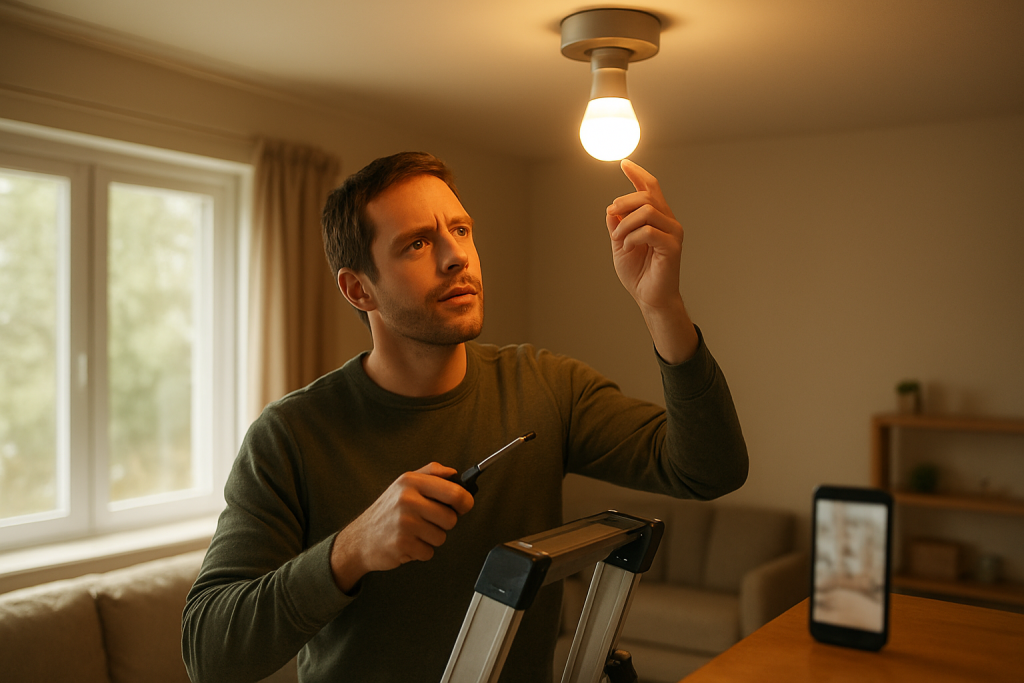
Smart Bulb Not Pairing After Factory Reset: What to Do
Quick Answer
When a smart bulb won’t pair after a factory reset, the most common real-world cause is that the bulb is not actually in the correct pairing mode for your ecosystem, or it is trying to rejoin a previous network/hub using stored commissioning data that wasn’t fully cleared. This shows up most often after multiple quick resets, switching apps (manufacturer app vs Apple Home/Google Home/Alexa), or moving between WiFi, Zigbee, and Matter setups.
Another frequent cause is a mismatch between what the bulb is advertising and what your phone/app is trying to add (for example: a Matter bulb being added as “WiFi,” a Zigbee bulb being searched for without the hub in permit-join mode, or a WiFi bulb stuck on 5 GHz requirements). After a reset, the bulb’s pairing window can also be short, and many apps time out before the bulb is ready.
Do these three diagnostics immediately: (1) confirm the bulb’s pairing indicator (specific blink pattern) matches the correct setup method for your ecosystem, (2) verify you are using the right “add device” path (WiFi vs Zigbee hub vs Matter/Thread) and the correct app, and (3) test pairing with your phone on 2.4 GHz WiFi (or with the hub placed within a few feet) to eliminate signal and join-mode issues.
Why This Happens
After a factory reset, a smart bulb is supposed to return to an “unclaimed” state and advertise itself for pairing. In real homes, pairing fails most often because the bulb and the controller (your phone, hub, or smart home platform) are not speaking the same onboarding method at the same time. This is less about “bad WiFi” in general and more about onboarding rules: pairing mode timing, network type expectations, and whether the bulb is still logically attached to an old home, hub, or Matter fabric.
Common technical causes tied to pairing after reset include:
1) Incorrect pairing mode or timing: Many bulbs have multiple reset patterns (for example, a “reset” versus “reset and enter pairing”), and the blink pattern can look similar. If the bulb is reset but not advertising, the app will never find it.
2) Ecosystem mismatch: WiFi bulbs pair directly to your router; Zigbee bulbs pair to a hub (Hue Bridge, SmartThings hub, etc.); Matter bulbs may pair via a QR code and can use WiFi or Thread depending on the model. If you choose the wrong add method, the bulb may be “invisible” even when it is working correctly.
3) Residual ownership or cloud record: Some platforms keep a cloud record of the device. If the bulb is still registered to an account, home, or “room” in the cloud, the app may block re-adding or it may try to control a device that no longer exists on the network.
4) Network onboarding constraints: Many WiFi bulbs require 2.4 GHz, and some fail if your phone is on 5 GHz or if your router uses band steering that confuses the onboarding step. Guest networks, client isolation, and private MAC address behavior can also interfere with discovery.
5) Overlooked technical cause: Matter devices can be “reset” but still remain commissioned to a fabric if the reset method used was not the full factory reset for Matter. In that state, the bulb may not present itself as available to add, or it may refuse new commissioning until the old fabric is removed.
Real-world scenario: You reset a bulb after changing routers. The bulb is now blinking, but the app can’t find it. What’s often happening is the app is searching for a previously known device entry, while the bulb is advertising as a new device (or as a Matter accessory) and the phone is on 5 GHz. The result is a pairing loop that looks like “device not found” even though the bulb is fine.
Common user mistake: Resetting the bulb multiple times quickly and then trying to add it in a different app than it was originally set up with. This can leave you in the wrong onboarding path (for example, trying to add a Zigbee bulb in a WiFi bulb flow, or trying to add a Matter bulb without using the Matter QR code path).
Most Likely Causes in Real Homes
1) The bulb is not in the correct pairing mode (blink pattern doesn’t match the add method).
2) Wrong ecosystem path (WiFi bulb being added as Matter, Zigbee bulb being added without hub permit-join, or wrong app/platform).
3) Phone/router onboarding mismatch (phone on 5 GHz, guest network, client isolation, or band steering confusion during setup).
4) The bulb is still “owned” in the account/home (cloud record or Matter fabric still present), blocking re-add.
5) Hub/mesh placement issue (hub too far, Zigbee channel interference, or mesh nodes causing discovery problems during onboarding).
Step-by-Step Fix
Confirm the bulb’s pairing indicator and reset method. What to do: Turn the bulb on and watch for the exact pairing signal (usually a specific blink cadence). If you’re unsure, perform the reset again using the manufacturer’s documented power-toggle sequence, then stop toggling and leave it on for at least 60 seconds.
What the result means: If the bulb never shows a pairing indicator, it usually means the reset did not complete or the bulb is not entering onboarding mode.
If it fails, try next: Move the bulb to a lamp/socket close to your router or hub and repeat the reset once more, slowly and exactly. If it still won’t indicate pairing mode, skip ahead to the “When to Reset or Replace” section.
Use the correct “Add device” path for the bulb type (WiFi vs Zigbee hub vs Matter). What to do: In your smart home app, choose the onboarding flow that matches the bulb’s ecosystem. WiFi bulbs are added as WiFi devices (often via the manufacturer app first). Zigbee bulbs must be added through the hub’s app with “permit join” enabled. Matter bulbs should be added using the Matter pairing option and the QR code/manual code.
What the result means: If the bulb appears only in one app or only when using Matter pairing, it usually means you were previously using the wrong onboarding method.
If it fails, try next: If you don’t see the bulb in any scan, proceed to Step 3 to eliminate network and discovery blockers.
Do a 2.4 GHz WiFi band check (for WiFi bulbs) or a close-range join test (for Zigbee/Matter). What to do: For WiFi bulbs, connect your phone to the 2.4 GHz network name (or temporarily disable 5 GHz if your router allows). For Zigbee bulbs, place the hub within a few feet of the bulb (or move the bulb temporarily closer). For Matter over Thread, ensure your home has an active Thread border router in the same home platform.
What the result means: If pairing works only on 2.4 GHz or only when close to the hub, the issue is usually onboarding sensitivity: weak signal, band steering, or interference during the join process.
If it fails, try next: Continue to Step 4 to rule out app/account confusion and stale device records.
Remove the old device entry from the app and verify the correct home/location. What to do: In the app, look for the bulb listed as “offline,” “unreachable,” or in an unexpected room. Remove it completely. Also confirm you are adding the bulb to the correct “Home,” “Structure,” or “Location” if you have more than one.
What the result means: If you find an old offline entry, it usually means the platform is still holding a record and may block re-adding or confuse discovery.
If it fails, try next: Log out and back into the app (Step 5) to refresh cloud/device lists.
Account sync test: log out/in and confirm permissions. What to do: Log out of the relevant app (manufacturer app, hub app, or home platform app), then log back in. If multiple household members manage devices, confirm you’re using the owner/admin account and that Bluetooth and local network permissions are allowed for the app.
What the result means: If the device suddenly becomes discoverable after re-login, it usually points to a cloud sync issue or permissions blocking local discovery.
If it fails, try next: Proceed to Step 6 to isolate the network path.
Hotspot isolation test (WiFi bulbs and some Matter-over-WiFi bulbs). What to do: Create a 2.4 GHz hotspot on a phone (if available) and attempt pairing to that hotspot using the bulb’s setup flow. Keep the bulb close to the phone.
What the result means: If pairing works on the hotspot but not on your home network, the bulb is likely fine and your home network is blocking onboarding (band steering, guest isolation, multicast filtering, or mesh behavior).
If it fails, try next: Continue to Step 7 to test mesh behavior and discovery.
Mesh behavior test: temporarily simplify the network during onboarding. What to do: If you use a mesh WiFi system, try pairing while connected to the main node (not a satellite). If your system allows it, pause additional nodes briefly during setup, then re-enable after the bulb is added. Keep the bulb near the main node for the first pairing.
What the result means: If pairing works only when satellites are paused or when near the main node, it usually means the onboarding traffic is being routed in a way the bulb/app can’t handle during initial setup.
If it fails, try next: Go to Step 8 for a power-cycle sequence and schedule check that can prevent immediate drop-off after pairing.
Power cycle sequence and schedule verification (prevents “pairs then disappears”). What to do: After a successful add attempt (even if it fails later), turn the bulb off for 10 seconds, then on and leave it on for 5 minutes. Check the app for any automation, schedule, adaptive lighting, or power-on behavior that might be turning it off or changing its state immediately.
What the result means: If the bulb pairs but then goes offline, it often means it’s being switched off by a schedule, a scene, or a power recovery setting, or it is losing network after the initial handshake.
If it fails, try next: Proceed to Step 9 to check groups/scenes and hub sync issues.
Group sync test (Hue rooms, Zigbee groups, scenes, and multi-admin homes). What to do: If the bulb belongs to a group/room, remove it from groups and add it back after it is stable. For hub-based systems, run any “repair,” “optimize,” or “rebuild” option the hub offers. For Matter multi-admin setups, ensure only one controller is attempting to add the device at a time.
What the result means: If the bulb becomes stable only after removing it from groups/scenes, the issue is likely a configuration conflict rather than a hardware failure.
If it fails, try next: Move to Advanced Troubleshooting to address firmware, cloud outages, and Matter fabric cleanup.
Advanced Troubleshooting
This section is only needed if basic fixes fail.
Account or cloud issue: If the app shows service errors, slow device lists, or repeated “something went wrong,” pairing can fail even when the bulb is ready. If possible, try adding the bulb from a second phone using the same account. If it works on one device but not the other, the problem is usually app permissions, cached data, or a temporary account sync problem. Clearing the app cache (or reinstalling the app) can help when the device list is stuck.
Network issue (relevant mainly for WiFi and Matter-over-WiFi): Some routers or mesh systems limit multicast/broadcast discovery, which smart home onboarding relies on. If hotspot pairing works but home pairing fails, check whether you are using a guest network, “AP isolation,” “client isolation,” or a security mode that blocks local device discovery. Also verify the phone and bulb are on the same LAN segment during setup. If your router has separate IoT and main networks, set up the bulb on the IoT network but keep your phone on that same network during onboarding.
Firmware/software cause: A bulb that was reset after a long time may need a firmware update, but it can only update after it successfully joins. If your hub has pending updates, update the hub first. If the manufacturer app offers a “firmware update after add,” keep the bulb powered on and near the router/hub for at least 15–30 minutes after pairing to allow updates to complete. If the bulb repeatedly drops during this period, it often indicates weak signal or interference rather than a bad bulb.
Configuration conflict (groups, scenes, automation, permissions): If the bulb pairs but behaves incorrectly (immediately turns off, changes color, or becomes unreachable), look for automations tied to time of day, motion sensors, “away mode,” or power recovery settings. In some homes, a wall switch is being turned off, which looks like “pairing failed” because the bulb disappears mid-setup. For shared households, confirm the app has local network and Bluetooth permissions and that you are not adding the bulb to the wrong home/structure where it will appear “missing.”
Matter-specific fabric cleanup: If a Matter bulb won’t re-add after reset, it may still be commissioned to a previous controller. Remove the accessory from the old home platform first (if it still appears there), then perform a full factory reset using the Matter-specific reset method for that device. If the bulb supports it, use the platform’s “Remove accessory” flow before attempting to add again. If you see messages like “Accessory already added” or “Already commissioned,” this is the strongest sign the fabric record is the blocker.
When to Reset or Replace the Device
Soft restart vs factory reset: A soft restart is simply turning the bulb off and on (using the lamp switch) and leaving it powered steadily. This can recover a bulb that is stuck after a failed pairing attempt. A factory reset wipes pairing data and returns the bulb to onboarding mode. If you factory reset repeatedly without changing anything else, you often end up repeating the same failure condition (wrong add method, wrong band, wrong app, or stale account record).
What you lose after a reset: Expect to lose the bulb’s name, room assignment, scenes, schedules, and any platform-specific settings tied to that device entry. In hub ecosystems, you may also lose group membership and automation links and need to re-add the bulb to rooms and scenes afterward.
Safety note: If the bulb is overheating, flickering rapidly even when not being controlled, has a burnt smell, or the base/disc is discolored, stop using it and replace it. Do not attempt to open the bulb or repair it.
How to Prevent This in the Future
Keep onboarding predictable: When adding or re-adding bulbs, do it close to the router or hub first, then move the lamp back to its normal location. Pairing is the most sensitive moment for signal and discovery.
Maintain a stable network setup: If your bulbs are WiFi-based, keep a clear 2.4 GHz option available and avoid moving bulbs between guest networks and main networks. If you use a mesh system, try to keep the main node as the primary onboarding point.
Manage automations carefully: Before troubleshooting, temporarily disable schedules and automations that might turn the bulb off or change it during setup. After the bulb is stable, re-enable automations one by one so you can identify any conflict.
Plan for power outages: After outages, some bulbs come back in a default power-on state that triggers automations or causes rapid state changes. If your platform supports power-on behavior settings, configure them so bulbs return to a predictable state.
Update hubs and apps regularly: Hub firmware and app updates often improve onboarding reliability, especially for Matter and multi-admin environments. Update the hub/controller first, then add devices.
FAQ
My bulb is blinking, so why can’t the app find it?
Blinking only tells you the bulb is in some special mode, not necessarily the correct pairing mode for your ecosystem. If the blink pattern doesn’t match the setup instructions, the bulb may be reset but not advertising for the method you’re using (WiFi vs Zigbee hub join vs Matter commissioning). Repeat the reset carefully and use the correct “Add device” path.
Do I need to delete the old bulb entry before pairing again?
Usually, yes. If the app still has an offline device entry, it can block re-adding or cause you to control a “ghost” record. Removing the old entry also forces the platform to treat the bulb as new, which reduces confusion during discovery and room assignment.
Misconception: “Factory reset guarantees it will pair like new.” Is that true?
No. A factory reset only helps if the rest of the onboarding conditions are correct. If the phone is on the wrong WiFi band, the hub is not in permit-join mode, the app is using the wrong add method, or the device is still commissioned to an old Matter fabric, the bulb can remain unpairable even after multiple resets.
It pairs to my phone hotspot but not my home WiFi. What does that mean?
That usually means the bulb is fine and your home network is the blocker. Common culprits are band steering during setup, guest network isolation, client isolation, or mesh routing behavior that breaks local discovery. Pair near the main router/node, ensure 2.4 GHz is used for WiFi bulbs, and avoid guest networks during onboarding.
My Zigbee bulb won’t pair after reset. What’s the most common reason?
The hub is not actually allowing new devices to join, or the bulb is too far from the hub during the join attempt. Put the hub into permit-join/add mode, move the bulb close to the hub for pairing, and then move it back once it’s fully added and stable.
Relief has a way of sneaking up on you, usually after you’ve spent too long thinking about it. The noise fades, the edges soften, and suddenly the day feels less crowded.
What’s left is quieter than you’d expect—just enough room to breathe and move on without fighting the same little battle again. Not dramatic, not cinematic, but real.