Smart Bulb Keeps Blinking and Wont Pair: What It Means
Quick Answer
A smart bulb that keeps blinking and won’t pair is usually stuck in pairing mode or repeatedly restarting because it can’t complete the “join” process. In real homes, the most common reason is a mismatch between what the bulb is trying to join and what your setup is actually providing (wrong app/ecosystem, wrong hub type, wrong pairing method, or the bulb being on the wrong network/account/location).
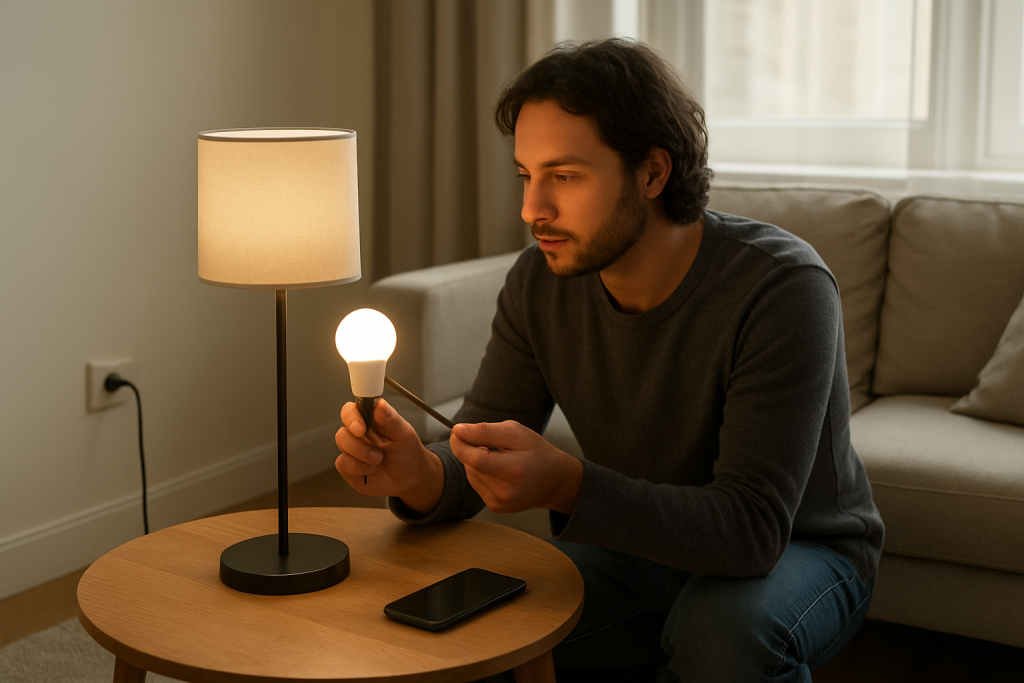
Blinking can also mean the bulb is being power-cycled unintentionally (a wall switch, dimmer, loose socket, or an automation that toggles power), which resets the bulb into pairing mode over and over. This is especially common with WiFi bulbs, but Zigbee bulbs (like those used with many hubs) can also blink when they’re searching for a network or were removed from one.
Do these three quick diagnostic actions first: (1) Confirm the bulb is on a steady power source (switch fully on, no dimmer). (2) In the app, verify you are using the correct add-device flow for the bulb type (WiFi vs hub-based Zigbee/Thread/Matter). (3) Move the phone and bulb close to the router or hub and try pairing again to rule out weak signal during setup.
Why This Happens
Pairing is not just “finding the bulb.” The bulb must enter a specific join state, your phone must talk to it (directly or through a hub), and then the bulb must successfully register to the correct network, account, and “home” (room/location) in the ecosystem. When any part of that chain fails, many bulbs signal it the only way they can: blinking.
Here are the most tightly related causes that lead to blinking with failed pairing across major smart lighting ecosystems (WiFi bulbs, Zigbee hubs, Matter, and platforms like Philips Hue, TP-Link, and others):
1) The bulb is in the wrong pairing mode for your setup. Many bulbs support more than one onboarding method (for example, standard WiFi pairing vs Bluetooth-assisted pairing, or Matter vs manufacturer mode). If the app expects one mode and the bulb is in another, the app may “see” the bulb briefly but fail to finish.
2) The bulb is still linked to a previous home, hub, or account. A bulb moved from one home to another (or from one hub to another) may keep blinking because it’s trying to rejoin its old network. This is common with Zigbee bulbs that were previously paired to a different hub, and with Matter devices that are still commissioned to another controller.
3) The bulb can’t maintain stable power long enough to complete pairing. If power is interrupted (wall switch toggled, a smart switch cutting power, a dimmer, a loose socket), the bulb can restart repeatedly. Each restart can re-trigger pairing mode, creating the “infinite blinking” symptom.
4) The phone-to-bulb handshake is failing during setup. Some WiFi bulbs require your phone to be on 2.4 GHz during setup, or require Bluetooth permissions/location services to be enabled for discovery. If the phone can’t complete the initial handshake, the bulb stays blinking.
5) The hub or border router isn’t ready for new devices. Zigbee hubs can hit device limits, have a weak mesh near the bulb, or be in a state where joining is blocked. Matter controllers can fail commissioning if the controller, phone, and device are not on the same LAN, or if the Thread border router is unavailable.
Real-world scenario: A homeowner replaces a regular bulb with a smart bulb in a hallway fixture controlled by a wall dimmer. The bulb blinks and won’t pair no matter what app they use. The dimmer is chopping power (even at “full”), so the bulb never gets clean power for setup.
Common user mistake: Trying to add a Zigbee bulb (hub-required) using a WiFi-bulb “Add Device” flow, or trying to pair a WiFi bulb through a hub app that only manages Zigbee lights. The bulb blinks, the app times out, and it looks like “the bulb is broken,” but it’s the wrong pairing path.
Overlooked technical cause: The bulb is being added to the wrong “home,” “location,” or “room” inside the app, especially if multiple homes exist (for example, “Home” and “Vacation House”), or if multiple accounts are used in the household. The pairing may succeed but the bulb appears missing, then the user resets it, and the cycle repeats.
Most Likely Causes in Real Homes
1) Wrong pairing method or wrong ecosystem app. The bulb is blinking because it’s ready, but the app/hub you’re using can’t onboard that device type.
2) Unstable power (dimmer, smart switch cutting power, loose socket). The bulb keeps rebooting into pairing mode and never finishes setup.
3) WiFi onboarding mismatch (2.4 GHz requirement, permissions, captive portal). The phone can’t complete the setup handshake, so the bulb stays blinking.
4) Hub/mesh weakness near the fixture (Zigbee/Thread). The bulb can’t reliably reach the hub/border router during join, so it blinks and fails.
5) Previously paired or commissioned elsewhere. The bulb is still bound to another hub/home/account and refuses to join cleanly until reset or properly removed.
Step-by-Step Fix
Confirm the bulb has steady power (no dimmer behavior). Turn the wall switch fully on and leave it on. If the fixture is on a dimmer, set it to maximum and do not adjust it during pairing. If there is a smart switch controlling the fixture, temporarily set it to “always on” or bypass any schedules that turn it off.
What the result means: If the blinking changes to steady-on (or stops blinking) after stabilizing power, the pairing failures were likely caused by repeated restarts.
If it fails, try next: Move to the next step, but also try a different lamp/socket you know is on a simple on/off switch to eliminate fixture wiring or dimmer interference.
Identify the bulb type and use the correct add-device flow. In the bulb’s packaging/manual (or model number online), confirm whether it is a WiFi bulb (pairs directly to your router), a Zigbee bulb (pairs to a hub), or a Matter bulb (pairs via a Matter controller, sometimes over Thread). Then start pairing in the matching app/controller: hub app for Zigbee, manufacturer app for many WiFi bulbs, or your Matter controller flow for Matter devices.
What the result means: If the bulb is discovered quickly once you use the correct flow, the original issue was a pairing-path mismatch rather than a defective bulb.
If it fails, try next: Continue to step 3 and focus on signal and proximity during onboarding.
Pair with the phone and bulb close to the router or hub. For WiFi bulbs, stand within a few feet of the router during setup. For Zigbee/Thread bulbs, stand close to the hub or border router. Keep the bulb powered on and blinking (or in pairing mode) while you start the add-device process.
What the result means: If pairing works only when close, the issue is likely weak signal or mesh coverage at the fixture location.
If it fails, try next: Proceed to step 4 to verify WiFi band/permissions (for WiFi) or joining settings (for hubs).
For WiFi bulbs: verify 2.4 GHz and permissions during setup. Many WiFi bulbs require 2.4 GHz. On your phone, temporarily disable cellular data (to keep the app from “escaping” to mobile data during onboarding), and ensure Bluetooth and Location permissions are allowed for the app if it uses Bluetooth-assisted setup. If your router uses a single network name for both 2.4 and 5 GHz, try temporarily connecting your phone to a dedicated 2.4 GHz SSID if available.
What the result means: If the bulb pairs after forcing the phone onto 2.4 GHz and enabling permissions, the problem was the phone-to-bulb onboarding handshake, not the bulb itself.
If it fails, try next: Go to step 5 and isolate the network using a hotspot test.
Hotspot isolation test (WiFi bulbs). Create a 2.4 GHz hotspot from a second phone (if available) and attempt to pair the bulb to that hotspot using the manufacturer app. Keep the bulb close to the hotspot phone. This is a diagnostic test, not a permanent setup.
What the result means: If the bulb pairs to the hotspot but not your home WiFi, the bulb is likely fine and your home network is blocking onboarding (band steering issues, client isolation, or router settings).
If it fails, try next: Continue to step 6 to check for “already added” status and home/location mix-ups.
Check the app’s device list, room/location, and account. In the app you are using, verify you are in the correct “Home” or “Location.” Then search the device list for an “offline” bulb entry that matches the model. If the bulb appears as offline, remove it from the app before trying to add it again. If multiple household members manage the home, confirm you are signed into the correct account and have permission to add devices.
What the result means: If you find the bulb already listed (often offline), the pairing “failed” because the bulb was already registered somewhere in that ecosystem, or it was added under a different home/account.
If it fails, try next: Move to step 7 and check for schedules/automations that may be forcing blinking or power cycling.
Verify schedules, scenes, and power behaviors that can mimic pairing problems. Look for automations that turn the light on/off rapidly (wake-up routines, motion rules, vacation mode). Also check if the bulb is part of a group that’s being controlled (for example, “All Lights Off” at a certain time). Temporarily disable those automations during pairing.
What the result means: If blinking stops or pairing succeeds after disabling automations, the issue was not radio/network discovery—it was configuration that kept interrupting setup.
If it fails, try next: Continue to step 8 and test hub/mesh behavior for Zigbee/Thread setups.
For Zigbee/Thread bulbs: test mesh reach and joining behavior. Ensure the hub/controller is online in its app. If the hub has a “permit join” window, start pairing immediately after enabling it. If the bulb is far from the hub, temporarily move a powered Zigbee/Thread router device (like a plug-in repeater or another always-powered device in that ecosystem) closer to the bulb location, or move the bulb to a closer lamp for pairing and then return it to the fixture.
What the result means: If pairing works when the bulb is closer (or after improving mesh), the problem is coverage at the original fixture location.
If it fails, try next: Proceed to step 9 and perform a controlled power-cycle sequence to re-enter pairing mode reliably.
Re-enter pairing mode with a controlled power-cycle sequence. Turn the bulb off for 10 seconds, then on. If the bulb requires a specific on/off pattern to enter pairing mode, follow the exact pattern from the manual. After the bulb indicates pairing mode (often a specific blink pattern), immediately start the add-device process and wait without toggling power.
What the result means: If the bulb pairs after a clean pairing-mode entry, the earlier attempts likely failed because the bulb was not actually in the correct join state.
If it fails, try next: Move to Advanced Troubleshooting for firmware/account/network edge cases, then consider reset guidance.
Advanced Troubleshooting
This section is only needed if basic fixes fail.
Account or cloud issue: If the app shows service outages, login loops, or devices not syncing across phones, sign out and sign back in. Confirm the app has accepted the latest terms/permissions. If multiple controllers exist (for example, multiple phones or a tablet), make sure only one is actively trying to commission/pair at a time. For Matter devices, verify you are commissioning into the correct home and that the controller you intend to use is the one performing the setup.
Network issue (relevant mainly to WiFi and Matter over WiFi): If the bulb pairs to a hotspot but not home WiFi, check router settings that commonly block onboarding: client isolation/guest mode, WPA3-only mode (some devices need WPA2 or mixed mode), and captive portal behavior. Also confirm your phone is on the same LAN as the controller (especially for Matter) and avoid VPN during setup.
Firmware/software cause: Update the app on your phone and update hub firmware if you use a hub. If the bulb was previously working and suddenly won’t re-pair after a router change, the app may require a newer onboarding flow. If the bulb pairs but becomes unresponsive, look for a firmware update step inside the app after it first appears.
Configuration conflict (groups, scenes, automation, permissions): A bulb that “pairs” but keeps blinking or appears to vanish is often placed into a group that immediately changes its state, or it’s controlled by two systems at once. If you use multiple platforms (for example, a manufacturer app plus a voice assistant plus a hub), temporarily manage the bulb from one place until it is stable, then link it to the other platform. For shared homes, confirm the user account has permission to add and control lights.
When to Reset or Replace the Device
Soft restart vs factory reset: A soft restart is simply turning the bulb off for 10–20 seconds and back on, then trying pairing again. A factory reset clears the bulb’s stored network/hub credentials and returns it to a fresh state. Use factory reset when the bulb is likely still linked to an old hub/home, or when it repeatedly fails at the same point in pairing even after signal and app checks.
What you lose after a reset: Expect to lose the bulb’s name, room assignment, schedules, scenes, and any automations tied to it. In hub-based systems, you may also need to rebuild groups. In Matter setups, a reset typically removes the device from its current fabric, meaning it must be commissioned again.
Safety note: If the bulb is unusually hot to the touch (more than typical warmth), smells like burning plastic, shows visible damage, or the base is discolored, stop using it and replace it. Do not continue repeated pairing attempts in that condition.
How to Prevent This in the Future
Keep power stable for smart bulbs. Use a simple on/off wall switch behavior during daily use. Avoid dimmers unless the bulb is specifically designed for that environment, and avoid frequently cutting power if you rely on automations.
Maintain reliable coverage where the bulb is installed. For WiFi bulbs, ensure the fixture location has solid 2.4 GHz coverage. For Zigbee/Thread, keep enough always-powered devices in the home to form a stable mesh, especially between the hub/border router and distant rooms.
Manage automations carefully. When adding new bulbs, temporarily disable aggressive routines (vacation mode, rapid scenes, motion rules) until the bulb is fully updated and stable. After changes, re-enable automations one at a time so you can identify conflicts quickly.
Plan for power outages. After an outage, some bulbs default to a specific power-on behavior that can look like “random blinking.” Check the bulb’s power-on setting (where supported) and set it to a predictable state.
Keep firmware and apps current. Update the hub firmware and the controlling app periodically. Pairing and commissioning methods change over time, and outdated software can cause discovery failures that look like hardware problems.
FAQ
Does blinking always mean the bulb is defective?
No. Blinking most often means the bulb is in pairing mode, searching for its network, or restarting due to unstable power. A truly defective bulb is more likely to be completely unresponsive, overheat, or fail to light at all.
My app finds the bulb, but pairing fails at the last step. What does that usually mean?
If discovery works but the final step fails, it usually points to a registration problem: wrong WiFi band during onboarding, permissions blocked on the phone, the bulb still tied to another account/home, or a hub/controller that can’t complete the join/commissioning handshake.
Can a wall dimmer cause pairing to fail even when the dimmer is set to maximum?
Yes. Many dimmers still “chop” the power waveform even at maximum, and smart bulbs often interpret that as unstable power. The bulb may blink, reset, or drop out during pairing. For troubleshooting, use a non-dimmed socket or a plain on/off switch circuit.
Misconception: “If I reset it enough times, it will eventually pair.” Is that true?
Repeated resets usually don’t help if the underlying issue is wrong pairing method, wrong app/home/account, weak signal near the fixture, or unstable power. Reset once you’ve confirmed the correct ecosystem and stable power, then focus on proximity and the correct onboarding steps.
Why did the bulb pair, but now it’s missing or shows as offline in the app?
This typically means it paired into a different home/location in the app, it’s controlled under a different account, or it lost connectivity immediately after setup due to weak WiFi/mesh at the fixture. Confirm the correct home selection, then test the bulb closer to the router/hub to separate connectivity from configuration.
There’s a quiet relief in seeing the mess turn back into something readable. The problem stops hogging the spotlight, and the days feel a little more like they belong to you again.
When the noise fades, what’s left is oddly simple: less stress, more space, and a sense that the world can be handled without heroic effort. Not dramatic, not flashy—just better.