Smart Plug Reset Not Working? How to Reset It Properly
Quick Answer
When a smart plug or smart switch “won’t reset,” it’s usually not broken—it’s usually not entering the correct reset mode. Most reset failures come from an incorrect button timing sequence, releasing the button too early, or trying to re-pair while the device is still tied to the old app/cloud record.
In real homes, this often happens after a router change, a power outage, or when multiple apps (brand app + Alexa/Google/Apple Home/SmartThings) are involved. A plug can look powered (LED on) but still refuse to reset if it’s stuck in the wrong state or you’re using the wrong reset type (reboot vs factory reset vs pairing mode).
Do these three diagnostic actions first: (1) watch the LED and write down the exact blink pattern after holding the button, (2) remove the device from the brand app and any voice assistant/home platform before attempting the reset, and (3) try the reset with the plug in a different outlet (not a power strip) to rule out unstable power or a switch-controlled outlet.
Why This Happens
Resetting is a specific sequence the device firmware expects: a certain hold duration, sometimes a release-and-hold pattern, and often different LED patterns for “reboot,” “pairing mode,” and “factory reset.” If the sequence isn’t completed exactly, the device may reboot normally but never clears its old network and account binding.
Common causes tightly tied to reset failures include:
First, a real-world scenario: after a power outage, your router comes back with a different DHCP timing and the smart plug reconnects to WiFi slowly. You try to reset it while it’s still reconnecting or while the app is still showing the old cloud state, and it never enters the correct mode.
Second, a common user mistake: holding the button until “something changes,” then letting go too soon. Many devices require a longer hold for factory reset than for pairing mode, and the first blink change is often only a soft reboot.
Third, an overlooked technical cause: the device is still “owned” by a cloud account or Matter fabric entry, so even after a reset attempt, the platform may keep showing a ghost device or block re-adding until it’s removed from the app/home first.
Fourth, WiFi-specific but directly related: if you’re using band steering (2.4 GHz and 5 GHz on the same name) or a mesh system, the phone used for setup may land on 5 GHz while the plug only supports 2.4 GHz. The reset works, but pairing fails, which looks like a reset failure.
Most Likely Causes in Real Homes
These are ordered by probability based on how resets typically fail in day-to-day setups:
1) Wrong reset mode: you’re triggering a reboot or “pairing mode” instead of a factory reset, so old credentials remain.
2) App/cloud binding still present: the plug/switch is still registered in the brand app, Alexa, Google Home, Apple Home, SmartThings, or a Matter controller, preventing a clean re-add.
3) Button timing or physical press not registering: short presses work, but the long-press isn’t being held long enough or the button is being released when the LED changes the first time.
4) Setup environment mismatch: phone on 5 GHz, plug on 2.4 GHz only, or mesh roaming causing the phone to hop nodes mid-setup.
5) Post-update or post-outage state confusion: the device is online locally but “offline” in the cloud, or the app session is stale, so every reset attempt appears to fail.
Step-by-Step Fix
Confirm what “reset not working” actually means by checking the LED behavior during a long press (don’t guess). The result matters: steady light often means powered but not pairing; fast blink often means pairing mode; a brief change then return to normal often means only a reboot. If you can’t get any LED change at all, move to the next step to rule out power/outlet issues before retrying the reset sequence.
Move the plug to a different wall outlet and avoid power strips, switched outlets, or loose sockets. If the LED becomes stable and button holds start registering consistently, your “reset failure” was likely unstable power or a bad contact. If nothing changes, try the next step to eliminate cloud/app binding problems that commonly block re-setup.
Remove the device from the controlling system(s) before resetting: delete it from the brand app first, then remove it from Alexa/Google Home/Apple Home/SmartThings (and from any Matter controller list if you use Matter). If removal succeeds and the device stops appearing as “offline/unreachable,” a new reset and re-add is much more likely to work. If you can’t remove it because it’s offline, continue anyway, but be prepared to clear “ghost devices” later in Advanced Troubleshooting.
Perform a true power-cycle reset attempt: unplug the smart plug (or turn the switch’s circuit off using its normal power source, without doing any wiring), wait 20 seconds, then plug it back in and wait another 30–60 seconds before holding the reset button. If the LED pattern changes more reliably after a clean boot, the device was stuck mid-state (common after outages). If it still won’t enter the correct mode, go to the next step and use a strict, timed reset sequence.
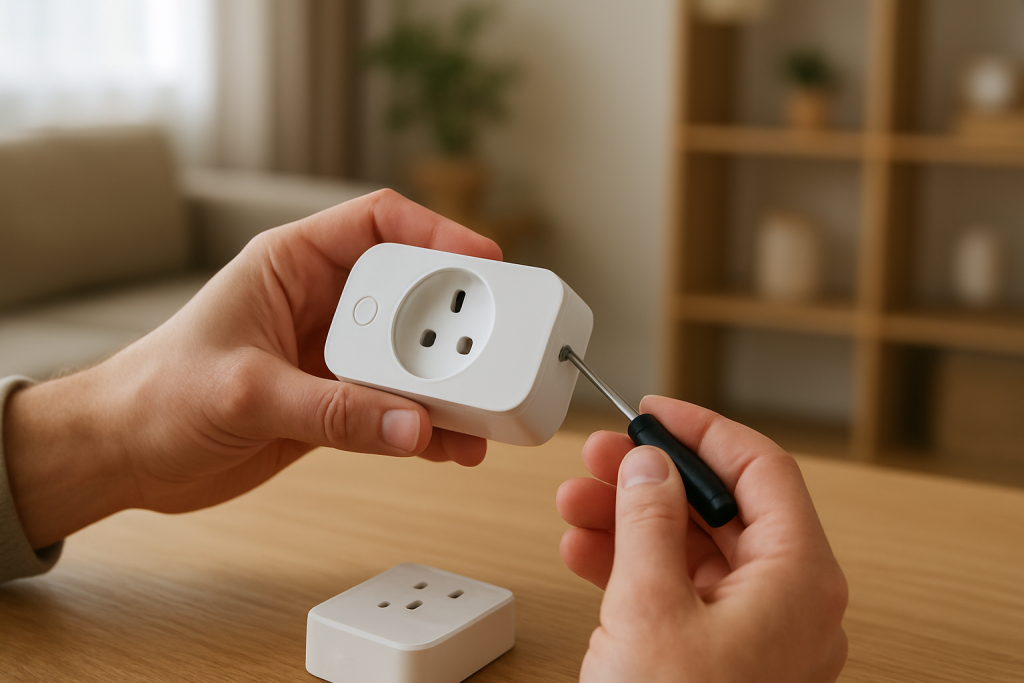
Use a strict timed reset sequence and wait for the final LED confirmation. Hold the reset button continuously for a full 10–15 seconds (some models require up to 20 seconds); do not release at the first blink change—many devices signal “pairing” first, then “factory reset” later. If you get the factory-reset LED pattern, proceed to re-pairing. If you only ever get the first-stage pattern, repeat once more with a longer hold; if still stuck, continue to the next step to isolate setup/pairing from reset itself.
Test pairing using the simplest path: use the brand app only (not Alexa/Google/Apple first), and make sure your phone is on 2.4 GHz WiFi during setup. If pairing works in the brand app, your reset was successful and the remaining issue is ecosystem syncing. If pairing fails even though the LED shows pairing mode, move to the next step to isolate your home network conditions.
Run a hotspot isolation test to separate “device won’t reset” from “device can’t join your WiFi.” Put your phone in hotspot mode with a simple 2.4 GHz hotspot name and password (if your phone supports 2.4 GHz hotspot), then try pairing the plug to that hotspot using the brand app. If it pairs to the hotspot, the reset is fine and your main network (band steering, mesh roaming, WPA mode, or client isolation) is the real blocker. If it won’t pair even to the hotspot while in pairing mode, continue to the next step for firmware/app-state causes.
Check app and firmware state: update the brand app, log out and back in, and look for a firmware update option after pairing (or during setup if prompted). If the device starts behaving after re-authentication, the issue was likely a stale session or a cloud token mismatch that made the reset appear ineffective. If updates fail repeatedly or the device drops offline during update, proceed to Advanced Troubleshooting.
If you use Zigbee (via a hub) or Matter, reset and re-join using the correct controller method. Zigbee devices often need to be put into pairing mode and joined close to the hub (or with the hub’s pairing mode active), and Matter devices must be removed from the Matter controller/fabric before re-adding. If joining succeeds near the hub/controller but fails in the usual location, the issue is range/mesh routing rather than the reset itself. If it fails everywhere, suspect a stuck device state and follow the Advanced section.
Advanced Troubleshooting
This section is only needed if basic fixes fail.
Account/cloud issue: If the plug resets and pairs but keeps showing “offline” in the app or won’t accept control, your account session may be out of sync. Log out of the brand app, restart your phone, log back in, and confirm the device is assigned to the correct “Home” within that app. If the device appears in multiple homes/locations, control can fail even though pairing succeeded.
Network issue (specific to reset/pairing failures): If hotspot pairing works but home WiFi pairing fails, focus on settings that break onboarding: band steering pushing the phone to 5 GHz, WPA3-only modes that some devices can’t join, or mesh systems that isolate clients across nodes during setup. A practical test is to stand near the main router (not a satellite node) during setup; if that fixes it, roaming/node selection was interfering with the pairing handshake.
Firmware/software cause: If the LED indicates pairing mode but the app cannot complete setup, it may be a post-update mismatch (app expects a newer device firmware behavior). Updating the app first and repeating the reset/pair sequence often resolves this. If the device repeatedly fails during firmware updates, treat it as unstable connectivity during the update window; keep the phone close, avoid switching apps, and avoid mesh roaming while the update runs.
Configuration conflict (automations, permissions, shared users): Random on/off behavior after “successful reset” often means you reset and re-added the device but an old schedule or automation still exists in Alexa, Google Home, SmartThings, or the brand app. If manual control in the brand app works but the device toggles unexpectedly, temporarily disable routines/automations in all platforms, then re-enable one at a time to find the conflict. In shared homes, confirm you’re signed into the correct household and that the device wasn’t re-shared with limited permissions.
Ecosystem sync issue (Alexa/Google Home/Apple Home/Matter bridge): If app control works but voice control fails, the reset was fine; the assistant link is the problem. Remove the device from the assistant, run device discovery again, and confirm it’s assigned to the correct room. Duplicate device names (especially after reset) can cause voice commands to control the wrong “ghost” device. For Matter, remove the accessory from the controller and re-add using the new pairing code after a factory reset.
When to Reset or Replace the Device
Soft restart vs factory reset: A soft restart is simply power-cycling (unplug/wait/plug back in). It clears temporary glitches but keeps WiFi credentials, hub pairing, and settings. A factory reset wipes stored network/hub credentials and forces a full re-pair; it’s the right move when you changed routers, moved homes, switched ecosystems, or the device is “stuck” in a bad state.
What you may lose after a factory reset: Expect to lose pairing to WiFi/Zigbee/Matter, room assignments, device names, schedules/timers, and automations tied to that device. Smart plug energy monitoring history may also reset or become split across “old device” and “new device” entries depending on the platform.
When replacement is reasonable: Replace the plug/switch if it repeatedly drops offline despite a stable network and successful hotspot testing, if firmware updates fail every time even near the router, or if it shows unstable relay behavior (clicking, delayed switching, or refusing to stay on/off) after a clean factory reset and re-add.
Safety note: If you notice overheating, a burning smell, discoloration, melting, or visible damage, stop using the device immediately and replace it. Do not continue troubleshooting a device that shows signs of heat damage.
How to Prevent This in the Future
Keep resets rare by reducing the situations that force them. Use consistent network habits: avoid frequent SSID/password changes, and after router restarts or power outages, give your network a few minutes to stabilize before trying to re-add devices.
During setup, keep your phone on 2.4 GHz when required and stay close to the main router to avoid mesh roaming during the pairing handshake. For Zigbee, pair near the hub so routing is established reliably before moving the device to its final outlet.
Avoid duplicate automations across platforms. If the brand app has schedules and Alexa/Google/SmartThings also has routines, pick one place to manage timers for that device to prevent “random” on/off behavior after a reset.
Use clear naming and room organization, and keep it consistent across the brand app and your voice assistant. This reduces ghost-device confusion after re-adding and makes it obvious which device is the newly reset one.
After outages, follow a simple recovery habit: router/mesh first, then hubs/controllers, then end devices. Finally, keep apps and firmware updated, and review sharing permissions when multiple household members manage the same smart home.
FAQ
How long should I hold the reset button on a smart plug?
Most require a long press around 10–15 seconds for a factory reset, but many show an earlier LED change that only indicates reboot or pairing mode. If you release when the LED changes the first time, you may never reach the factory reset stage—keep holding until you see the final reset pattern.
The LED is blinking, but the app still can’t find the device—did the reset fail?
Not necessarily. A blinking LED usually means the device is in pairing mode, so the reset sequence likely worked. The more common problem is the setup path: the phone is on 5 GHz while the device needs 2.4 GHz, the mesh system is moving the phone between nodes, or the device is still bound to an old cloud/home record that needs removal before re-adding.
Do I need to reset the plug if Alexa/Google Home says it’s offline?
Often no. If the brand app can still control the device, the plug is online and the assistant link is out of sync. Remove the device from the assistant, run discovery again, and check for duplicate devices or room/home mismatches before doing a factory reset.
Misconception: “Factory reset always deletes it everywhere automatically.” Is that true?
No. A factory reset clears the device’s local settings, but apps and platforms may keep a saved record (a “ghost” device) until you remove it manually. That’s why deleting it from the brand app and home platforms before re-adding is one of the most effective ways to stop reset-and-pair loops.
The real shift is quieter than most people expect: the world keeps moving, but the noise around it loses its grip. You stop rereading the same lines, stop bracing for another round of the same confusion, and—oddly—things feel a little lighter.
Not every change announces itself. This one just settles in, like a drawer that finally closes all the way, and you notice it every time you walk past.