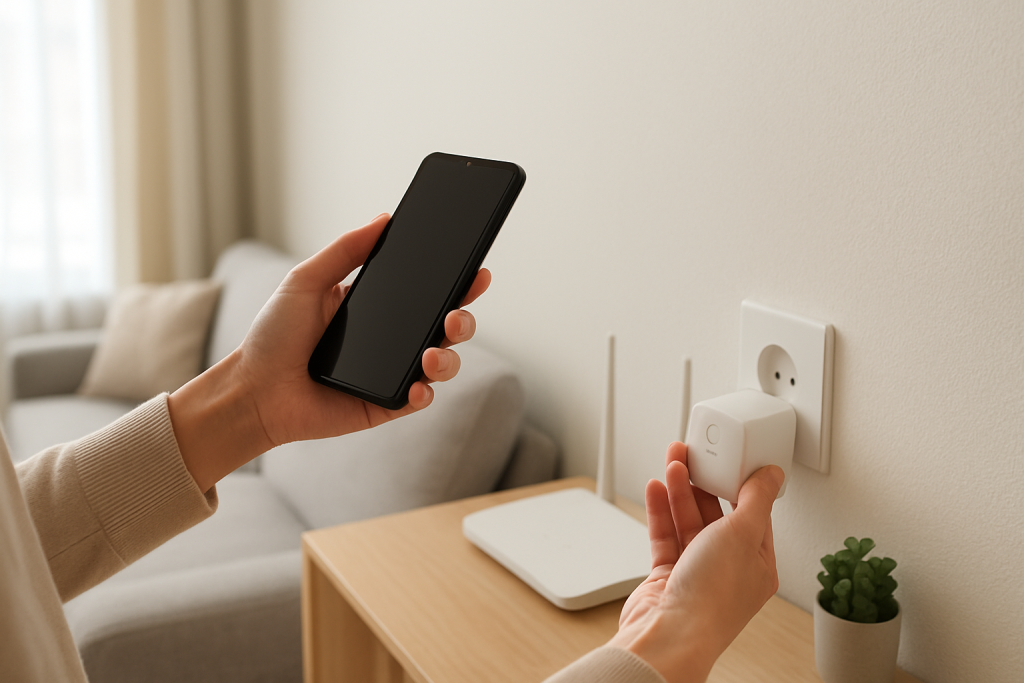
Smart Plug Missing in Google Home? How to Fix Sync
Quick Answer
If your smart plug is missing in Google Home, the plug usually isn’t being discovered during Google’s “sync” process. In most homes, the plug still exists in the manufacturer app (or hub app), but Google Home can’t see it due to a stale account link, the device being assigned to a different “Home,” or the plug being offline at the exact moment Google tries to import it.
This is typically a sync/discovery issue rather than a broken plug. It’s common after router restarts, power outages, app updates, changing WiFi/mesh settings, or when multiple people manage the same home across Google Home, Alexa, Apple Home, or SmartThings.
Do these three actions first: (1) confirm the plug is online and controllable in its own app (or hub app), (2) run “Sync my devices” in Google Assistant and then refresh Google Home, (3) check that you’re in the correct Google Home “Home” and that the plug is assigned to a room (not left unassigned or duplicated).
Why This Happens
Google Home doesn’t directly “search your WiFi” for most smart plugs. In many ecosystems (TP-Link/Kasa/Tapo, Meross, SmartThings, Hue bridges, Zigbee hubs, Matter controllers, and others), Google Home mainly discovers devices by syncing with a linked account or a hub/bridge. If the cloud link is stale, the device is in the wrong place, or the plug is temporarily offline, Google Home may not import it or may hide it behind duplicates.
Common causes tightly tied to sync/discovery include:
First, the linked service session can expire after an app update or password change. Google may still show the service as “linked,” but device discovery silently fails until you relink.
Second, the plug may be online in the manufacturer app but assigned to a different “Home/Location” inside that app. Google often imports only the location you originally authorized, so the plug appears “missing” even though it works elsewhere.
Third, a real-world scenario: after a power outage, a mesh WiFi system may move the plug to a different node with weaker signal, causing brief disconnects. If Google sync runs while the plug is reconnecting, it may not be pulled into Google Home.
One common user mistake is linking the wrong account (for example, a second login used for a spouse, a previous email, or a “shared home” account). Another overlooked technical cause is duplicate device records: the plug was previously imported via a hub integration and later again via a direct cloud integration, so Google Home shows the “wrong copy” while the other copy is hidden or unassigned.
Most Likely Causes in Real Homes
1) The plug is online in its own app, but Google’s link to that account needs a refresh. This is the most common “it worked yesterday” cause.
2) The plug is in a different Home/Location or room structure in the manufacturer app (or hub app) than the one Google synced. Google imports from a specific scope.
3) The plug is actually offline during discovery (often after router/mesh changes), so Google never receives it during sync.
4) Duplicate devices or mixed integrations (cloud + Matter + hub) cause Google Home to display one instance while the working instance is hidden, unassigned, or in another Home.
5) Permissions and sharing issues: the primary owner can see the plug, but another household member can’t because they are in a different Google Home “Home” or the device isn’t shared from the source platform.
Step-by-Step Fix
Check whether the smart plug works in its own app (or hub app) right now. Result meaning: if it’s offline there too, Google Home can’t discover it because the source platform can’t reach it. Next if it fails: do a simple power cycle of the plug (unplug/replug) and wait 60–90 seconds; then confirm the plug reconnects in the manufacturer app before touching Google Home.
Confirm you’re viewing the correct Google Home “Home” and user account. Result meaning: if you’re in the wrong Home (top-left home selector) or signed into a different Google account, the device will look “missing” even though it exists elsewhere. Next if it fails: switch to the correct Home, or ask the household owner to confirm you were added to the same Home with proper access.
Run a manual discovery refresh: say “Hey Google, sync my devices,” then force-close and reopen the Google Home app. Result meaning: if the plug appears after this, the issue was a stale device list rather than a hardware failure. Next if it fails: move on to relinking the service so Google re-imports the device list from the source platform.
Relink the connected service in Google Home (the account or hub integration that provides the plug). Result meaning: a relink forces a fresh device import and resolves expired tokens after password changes or app updates. Next if it fails: remove the service from Google Home, restart the Google Home app, then add the service again using the exact account that sees the plug in the source app.
Check “Home/Location” and room assignment in the source app (manufacturer or hub app). Result meaning: if the plug is assigned to a different location than the one you authorized to Google, it may never appear in Google Home. Next if it fails: move the plug into the correct location/home in the source app (or temporarily place it in the default location), then run “sync my devices” again.
Look for duplicates and hidden devices in Google Home: search by the plug name, check “Devices,” and review any unassigned devices. Result meaning: if you find two versions (often one offline), Google may be showing the wrong instance. Next if it fails: delete the duplicate entry in Google Home (the non-working one) or remove the integration path that created duplicates (for example, keep either the hub integration or the direct cloud integration, not both), then sync again.
Do a targeted network test if the plug is “online” in its app but still won’t import: temporarily place the plug closer to the main router/primary mesh node and retry sync. Result meaning: if it appears only when close to the primary node, discovery is being affected by weak signal or mesh roaming instability. Next if it fails: keep the plug in its original location and try a “hotspot isolation test” by connecting the plug to a phone hotspot (2.4 GHz) just long enough to confirm it can be discovered; then move it back to home WiFi once stable.
Confirm the plug is on 2.4 GHz WiFi if it’s a WiFi smart plug (not Zigbee/Matter). Result meaning: many WiFi plugs can’t join 5 GHz, and band-steering can cause partial setup where the plug works in the vendor app but discovery in Google Home is inconsistent. Next if it fails: temporarily separate SSIDs (or use your router’s “IoT network” option if present) so the plug reliably stays on 2.4 GHz; then re-check sync.
Check for automation conflicts that make the plug seem “missing” or wrong: verify whether routines, schedules, or timers exist in Google Home and in the source app. Result meaning: if the plug appears but behaves strangely (turning on/off unexpectedly or showing wrong state), you likely have duplicate automations across platforms. Next if it fails: disable schedules in one place (either Google or the source app), wait 2–3 minutes, and test again to confirm consistent control.
Advanced Troubleshooting
This section is only needed if basic fixes fail.
Account/cloud issue: if relinking doesn’t help, the source service may be having a cloud outage or your account may be partially authenticated. Log out and back into the manufacturer/hub app, confirm the plug is visible there, then relink again in Google Home. If the manufacturer app shows the plug but also prompts for re-consent, complete that first—Google can’t import devices from an account that’s mid-authentication.
Network issue tied to discovery: some routers isolate clients or block local discovery traffic in “guest,” “AP isolation,” or “client isolation” modes. Even when cloud control works, discovery and status can be unreliable. If your plug is on a guest/IoT network and your phone is on the main network (or vice versa), move them temporarily onto the same network and retry sync; then adjust your network configuration so devices and controllers can communicate as intended.
Firmware/software cause: if the plug recently updated firmware (or the Google Home app updated), device metadata can change and Google may not reconcile it cleanly. Update the manufacturer app, confirm the plug firmware is current, and ensure Google Home and Google Play services are updated. If the plug appears after relinking but disappears again, this often points to a repeated reconnect cycle on the plug (power recovery settings, weak signal, or unstable DHCP leases).
Configuration conflict: if you’ve connected the same plug through multiple paths (for example, a hub integration plus a direct cloud integration, or Matter plus a brand cloud), Google may import duplicates with different capabilities. Choose one “source of truth,” remove the other link, and then sync. This is especially important in homes that also use Alexa, Apple Home, and SmartThings, where sharing/bridging can create extra copies.
Ecosystem sync issue (Matter/bridges): if it’s a Matter plug or a plug exposed via a bridge (Zigbee hub, Hue bridge, SmartThings hub), confirm the hub/controller that “owns” it is online and updated. If the hub is offline or migrated to a new controller, Google may still show old records that won’t refresh until the hub is reachable and the integration is re-authorized.
When to Reset or Replace the Device
A soft restart is simply power-cycling the smart plug (unplug/replug) and then waiting for it to reconnect. This fixes many post-outage reconnect loops without changing settings. A factory reset removes the plug from its network and account so it must be set up again from scratch.
Before you factory reset, know what you may lose: the pairing to WiFi or hub, device name and room assignment, schedules/timers set in the manufacturer app, and any routines that referenced the old device record in Google Home. For energy-monitoring smart plugs, you may also lose historical energy data stored per-device in the manufacturer app.
Reset is reasonable when: the plug is consistently missing from Google Home even after relinking, it won’t stay online in its own app, or it repeatedly fails firmware updates. Replacement is reasonable when: the plug frequently drops offline despite stable WiFi, can’t complete updates after multiple attempts, or the relay behavior becomes unstable (random clicks, won’t hold state). Stop using the device immediately if it overheats, smells like burning, shows discoloration, or has visible damage.
How to Prevent This in the Future
Keep one clear integration path per plug: avoid linking the same device to Google through multiple ecosystems at once (for example, both a hub bridge and a direct cloud link), which reduces duplicates and “missing” devices.
Maintain consistent naming and room organization: use simple unique names and keep the plug assigned to a room in both the source app and Google Home. When you move devices between rooms or homes, run a manual “sync my devices” afterward so Google refreshes its inventory.
Build stable network habits that support discovery: keep IoT devices on a predictable 2.4 GHz setup if they require it, avoid moving plugs between mesh nodes by placing them where signal is stable, and be cautious with guest networks or isolation settings that separate your phone from the plug during setup and syncing.
After power outages or router restarts, use a recovery sequence: wait until WiFi and mesh are fully up, then let plugs reconnect for a minute before opening Google Home and issuing a sync. This prevents Google from importing a partial, “missing” device list.
Keep apps and permissions tidy: update Google Home and the manufacturer/hub app, and if you change passwords, expect to relink. In shared homes, ensure everyone is added to the same Google Home “Home,” and avoid setting competing schedules in multiple apps unless you intentionally want that behavior.
FAQ
Why does the plug work in the manufacturer app but not show up in Google Home?
This usually means Google Home isn’t discovering it from the linked account/hub, even though the device itself is online. A relink of the service and a manual “sync my devices” typically fixes this, especially after password changes, app updates, or moving the device to a different location/home inside the manufacturer app.
Does “Sync my devices” scan my WiFi for the plug?
No. This is a common misconception. In most setups, “sync” asks the linked service (cloud account or hub/bridge) for an updated device list. If the link is stale, the plug is in the wrong location scope, or the hub is offline, Google won’t import it even if it’s powered on.
Why do I see two copies of the same plug in Google Home, and one is missing/offline?
Duplicates usually happen when the plug is exposed to Google through more than one path (for example, direct brand integration plus a hub, or a migration to Matter while the old cloud link still exists). Remove the duplicate and keep only one integration path, then sync again so Google maintains a single, stable device record.
If I factory reset the plug, will my Google routines automatically work again?
Not automatically. After a factory reset, the plug usually appears to Google Home as a “new” device record. Any routines, rooms, or automations that referenced the old device may need to be edited to point to the newly added plug.
It stops being a nag in the background and starts feeling like something you can actually live around. The page turns, and the world keeps doing its thing—only smoother.
What’s left is the everyday payoff: fewer awkward moments, less mental clutter, more room to notice the ordinary good stuff. Not dramatic, just real, like finally finding the missing part you didn’t know you’d been missing.