Smart Bulb Says Wrong WiFi Password Even When Its Correct
Quick Answer
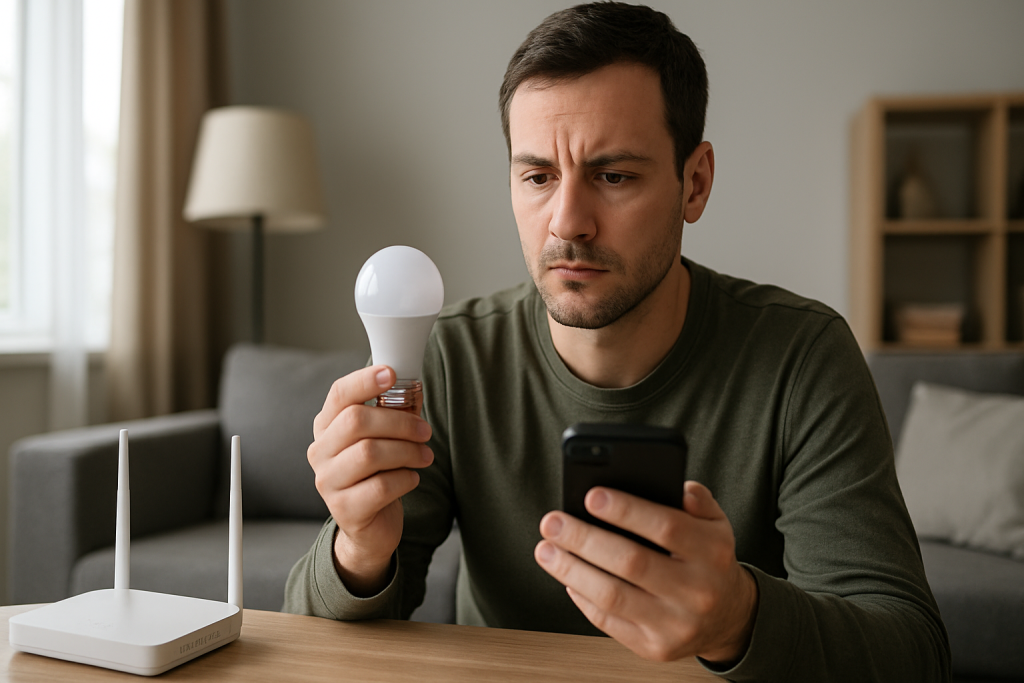
When a smart bulb insists the WiFi password is wrong even though you typed it correctly, the most common real-world cause is not the password itself. It’s a mismatch between what the bulb can join and what your network is actually offering at that moment—most often a 2.4 GHz vs 5 GHz problem, a mesh system steering the bulb to the “wrong” band, or a router security setting the bulb can’t understand.
This shows up a lot with WiFi bulbs (that only support 2.4 GHz), and it can also appear during setup through hubs/bridges or controllers in major ecosystems (Philips Hue via a bridge, Zigbee hubs, Matter controllers, TP-Link apps, and other cloud-linked lighting apps) because the app’s “WiFi join” step still depends on your phone and router behaving predictably.
Do these three quick diagnostics first: (1) Confirm your phone is connected to the 2.4 GHz network you want the bulb to use (not 5 GHz and not cellular). (2) Temporarily turn off VPN/private relay on your phone and disable “auto-join” to other networks. (3) Reboot the router and then power-cycle the bulb using a clean on/off sequence, then try setup again.
Why This Happens
A “wrong password” message is often a generic failure message. Many smart lighting apps and device firmwares use it when the bulb fails to complete the WiFi handshake, even if the password is correct. The handshake can fail because of band steering, incompatible security settings, or because the phone and bulb are not actually trying to join the same network name in the same way.
Here are the most common technical reasons directly tied to this symptom:
1) 2.4 GHz vs 5 GHz mismatch. Most WiFi bulbs only support 2.4 GHz. If your router combines both bands under one network name (SSID), your phone may be on 5 GHz while the bulb can only see 2.4 GHz. The app may pass the “right password” to the bulb, but the bulb is effectively trying to join a different radio environment than your phone is using, and the join fails.
2) Mesh band steering and “smart connect” behavior. Mesh systems and modern routers often steer devices between bands and nodes automatically. During setup, the bulb may start near one node, then try to complete the join on another node, or it may be pushed toward settings it can’t handle. The app reports “wrong password” because the join didn’t complete cleanly.
3) Security mode incompatibility (WPA3, mixed modes, or enterprise settings). Some bulbs cannot join WPA3-only networks, and some struggle with “WPA2/WPA3 mixed” depending on router implementation. If the router is using WPA3-only, the bulb may fail and the app may label it as a password problem.
4) Special characters and saved-password confusion. A common user mistake is copying a password that contains characters that look similar (for example, O vs 0, l vs 1), or relying on autofill that inserts an older saved password for a network with the same name. Another subtle version: the router has two networks with the same displayed name (common after ISP router swaps), and your phone is joining one while the bulb is being told to join the other.
5) Overlooked technical cause: phone privacy features or VPN interfering with local onboarding. Some onboarding methods rely on local network discovery and temporary device WiFi connections. VPNs, “private address” MAC randomization issues, or iOS/Android privacy relays can interfere with the local handoff, causing the app to fail and blame the password.
Real-world scenario: you replaced your router or enabled a mesh system. Your network name stayed the same, so your phone reconnects automatically. The bulb setup starts, but the mesh steers your phone to 5 GHz while the bulb only hears 2.4 GHz. The app keeps insisting the password is wrong because the bulb never finishes joining, even though you typed the correct password every time.
Most Likely Causes in Real Homes
1) Bulb only supports 2.4 GHz, but your phone is on 5 GHz. Setup fails and the app labels it as a password issue.
2) Router security set to WPA3-only (or a mixed mode the bulb can’t handle). The bulb can see the network but can’t authenticate.
3) Mesh/“Smart Connect” band steering during onboarding. The bulb gets bounced between nodes/bands and never completes the join.
4) The app is using an old saved password or the wrong SSID with the same name. You’re entering the right password for the network you think you’re using, but the phone/app is targeting a different one.
5) Phone VPN/private relay or local network permission blocks the setup handoff. The bulb can’t complete the local configuration step.
Step-by-Step Fix
Confirm you’re joining the correct network name (SSID) and that it’s the one you want the bulb on. On your phone, open WiFi settings and verify the exact network name. If you see similar names (for example “HomeWiFi” and “HomeWiFi-EXT”), pick the main router network you intend to use.
What the result means: If the bulb succeeds after selecting the correct SSID, the earlier “wrong password” message was really “wrong network target.”
If it fails: Continue to the next step and focus on band and security compatibility.
Force your phone onto 2.4 GHz for setup. If your router has separate 2.4 GHz and 5 GHz names, connect your phone to the 2.4 GHz one. If it uses one combined name, temporarily disable 5 GHz in the router settings (or move farther from the router so the phone drops to 2.4 GHz), then retry adding the bulb.
What the result means: If setup works only when the phone is on 2.4 GHz, the bulb is 2.4-only and band steering was the real issue.
If it fails: Re-enable your normal settings later, but proceed to security mode checks and mesh behavior tests.
Check router security: use WPA2-Personal (AES) temporarily. In your router WiFi security settings, set the 2.4 GHz network to WPA2-Personal (AES). Avoid WPA3-only during setup. Save settings, wait for WiFi to come back, then try adding the bulb again.
What the result means: If the bulb joins under WPA2 but not WPA3, the password was never the issue—security compatibility was.
If it fails: Put security back to your preferred setting after testing, and continue with power cycle and isolation tests.
Do a clean power cycle sequence for the bulb and router. Unplug the router for 30 seconds and plug it back in. After WiFi is stable, power the bulb off for 10 seconds, then on. If the bulb uses a specific pairing pattern (common with WiFi bulbs), follow the app’s exact on/off timing.
What the result means: If this works, the bulb or router was stuck in a bad state (common after outages or many failed attempts).
If it fails: Proceed to phone-side blockers and app permissions.
Disable VPN/private relay and confirm local network permissions. Turn off any VPN on your phone. On iOS, ensure the app has “Local Network” permission. On Android, ensure location permission is allowed if required for device discovery. Then retry setup.
What the result means: If setup works after this, the “wrong password” message was masking a local onboarding/communication failure.
If it fails: Continue to a hotspot isolation test to separate router issues from bulb/app issues.
Run a hotspot isolation test (quick way to prove whether the router is the problem). Create a 2.4 GHz hotspot from a second phone (or a phone that can force 2.4 GHz). Use a simple SSID and password (letters and numbers only). Try adding the bulb to the hotspot.
What the result means: If the bulb joins the hotspot, your bulb is fine and your home router settings (band steering, security, or filtering) are the likely cause.
If it fails: The bulb may be stuck in a bad pairing state, the app account may be out of sync, or the bulb firmware may be corrupted—continue below.
If you have a mesh system, test node behavior. During setup, place the bulb and your phone close to the main router (not a satellite node). If possible, temporarily power off satellite nodes for setup, then add them back after the bulb is registered.
What the result means: If it works near the main router or with satellites off, the issue is mesh steering/roaming during onboarding.
If it fails: Move on to app/account checks and “already registered” situations.
Check the app’s device status and “already added” lists. In the lighting app, look for the bulb under existing devices, “rooms,” or “offline devices.” In ecosystems that bridge devices (Hue bridge, Zigbee hubs, Matter controllers), also check the hub/controller app for an existing entry.
What the result means: If the bulb appears as offline or partially added, the app may be trying to reconfigure it and failing, reporting “wrong password.” Removing the ghost entry often fixes onboarding.
If it fails: Remove the device entry (if present), then retry setup from scratch.
Verify schedules, groups, and room/location settings that can block onboarding. Some apps apply automations immediately after a device is detected. Temporarily disable lighting schedules, “away mode,” or aggressive scenes in the app during setup. If using a hub ecosystem, ensure the bulb is being added to the correct home/room/location.
What the result means: If setup works only when automations are paused, a configuration conflict was interrupting onboarding.
If it fails: Proceed to firmware/app updates and account sync.
Update the app, controller firmware, and (if possible) the bulb firmware. Update the lighting app and your phone OS. If you use a hub/bridge/controller (Zigbee hub, Hue bridge, Matter controller), update its firmware. Then retry adding the bulb.
What the result means: If it works after updates, the issue was a known onboarding bug or compatibility problem.
If it fails: At this point, a reset is often the fastest next step, especially after many failed attempts.
Advanced Troubleshooting
This section is only needed if basic fixes fail.
Account or cloud issue: Some ecosystems validate device registration through a cloud account even though the bulb joins locally. If the app shows login errors, region mismatches, or repeated “something went wrong,” sign out of the app, reboot the phone, sign back in, and try again. If you have multiple “homes” or “locations” in the app, confirm you’re adding the bulb to the active one. If the bulb was previously registered to another account (common with second-hand bulbs or after family account changes), the app may fail onboarding and show misleading password errors until the old registration is cleared.
Network issue (only where it affects onboarding): Check for MAC address filtering or “access control” lists on the router. If enabled, the bulb may be blocked from joining and the app may report a password failure. Also check if the 2.4 GHz network is set to an unusual mode: very narrow compatibility settings usually help (WPA2-Personal AES, standard channel width). If your router has an “IoT network,” try it, but avoid isolation modes that prevent local device setup if the app requires local discovery.
Firmware/software cause: If the bulb repeatedly enters pairing mode but never completes setup, it may be stuck on an older onboarding method that conflicts with current phone OS permissions. Updating the app and ensuring local network permissions are granted is often the fix. For Matter-capable setups, confirm you are using the correct onboarding method (Matter QR vs vendor cloud pairing). Mixing methods can leave the device half-commissioned and trigger generic errors.
Configuration conflict (groups, scenes, automation, permissions): If the bulb is part of a group (or was previously), group sync can override the bulb’s state during setup. Temporarily disable group-based automations, “power restore” behaviors in the app (if configurable), and any voice-assistant routines that trigger on new devices. If multiple household members manage the same home, confirm you have permission to add devices; insufficient permissions can cause setup to fail with generic messages.
When to Reset or Replace the Device
Soft restart vs factory reset: A soft restart is simply powering the bulb off and on (or using the app’s restart option if available). A factory reset clears the bulb’s stored WiFi credentials and onboarding state so it can be added again from scratch. If you’ve attempted setup many times, a factory reset is often necessary because the bulb can retain partial configuration that keeps failing.
What you lose after a reset: Expect to lose the bulb’s WiFi pairing, its assignment to rooms/groups, custom scenes involving that bulb, and any automations that reference it. In hub ecosystems, you may need to re-add it to the hub and re-link it to voice assistants. If the bulb is part of Matter, you may need to remove it from the controller/home before re-commissioning to avoid “already added” conflicts.
When replacement is more likely than fixing: If the bulb cannot join even a simple 2.4 GHz phone hotspot with a basic password, and it repeatedly drops out of pairing mode or never broadcasts its setup network, the radio or firmware may be failing. Also replace the bulb if you notice physical damage, flickering accompanied by unusual heat, a burning smell, or discoloration. In those cases, stop using it and let it cool before handling.
How to Prevent This in the Future
Keep a stable 2.4 GHz option available. Even if you prefer a single combined network name, make sure you can temporarily force 2.4 GHz during onboarding (separate SSIDs, or a router setting you can toggle). Many smart bulbs depend on 2.4 GHz for reliable setup.
Use simple, consistent WiFi credentials. Long passwords are good, but avoid unusual characters if you frequently add smart devices. If you change your WiFi password, plan to re-onboard WiFi bulbs; many cannot update credentials without a reset.
Place devices for setup first, then move them. Add bulbs close to the main router or primary mesh node, then move them to their final fixtures. This reduces failures caused by weak signal, roaming, or band steering during the critical first join.
Manage automations during onboarding. If you have schedules, “away mode,” or whole-home scenes, pause them when adding new lights. After the bulb is stable and updated, turn automations back on and confirm the bulb stays online.
Recover cleanly after power outages. After an outage, reboot the router first, wait for internet/WiFi to stabilize, then power lights. This prevents bulbs from repeatedly failing to reconnect and ending up in a confused state that later looks like a password problem.
Maintain firmware and apps. Keep the lighting app and any hubs/bridges/controllers updated. Many “wrong password” onboarding loops are fixed by software updates that improve compatibility with newer router security modes and phone OS permissions.
FAQ
Why does it say “wrong password” when the password is definitely correct?
Because many smart lighting apps use “wrong password” as a generic message when the bulb fails to authenticate or complete the join process. The most common underlying reasons are 2.4 GHz vs 5 GHz mismatch, WPA3/security incompatibility, or mesh steering during setup.
My phone is on WiFi and internet works. Doesn’t that prove the bulb should connect?
No. Your phone can use 5 GHz and handle newer security modes that many bulbs cannot. A bulb may only support 2.4 GHz and WPA2. If the router is steering devices or using WPA3-only, the phone will work while the bulb fails and the app may mislabel it as a password issue.
Do Zigbee bulbs and Philips Hue bulbs have this problem too?
Zigbee bulbs paired to a hub/bridge do not join your WiFi directly, so they won’t fail with a WiFi password error at the bulb level. However, you can still see similar messages during account linking or controller setup if the phone app can’t communicate locally with the hub/bridge, or if the hub is on a different network segment than the phone.
Is changing my WiFi name (SSID) the best fix?
Not usually. Changing the SSID can create more confusion because phones and devices may remember old networks and reconnect unexpectedly. It’s typically better to ensure you have a clear 2.4 GHz option, use WPA2-Personal (AES) for compatibility during setup, and confirm the app is targeting the correct existing SSID.
Misconception: “If I type the password slowly and carefully it will eventually work.” Is that true?
Careful typing helps if the password is actually wrong, but repeated failures with a correct password usually point to compatibility or onboarding issues. If a hotspot test works, the bulb is fine and the home router settings (band steering, security mode, filtering) are the real problem to address.
What’s striking is how ordinary the fix feels once everything clicks. No grand spectacle—just the familiar parts lining up the way they should have all along.
Reading this, you don’t need to be convinced; you just need to feel it settle. Relief has a way of looking like nothing at all, until you notice you can finally breathe.