Smart Plug Says Wrong WiFi Password? Even When It Is Correct
Quick Answer
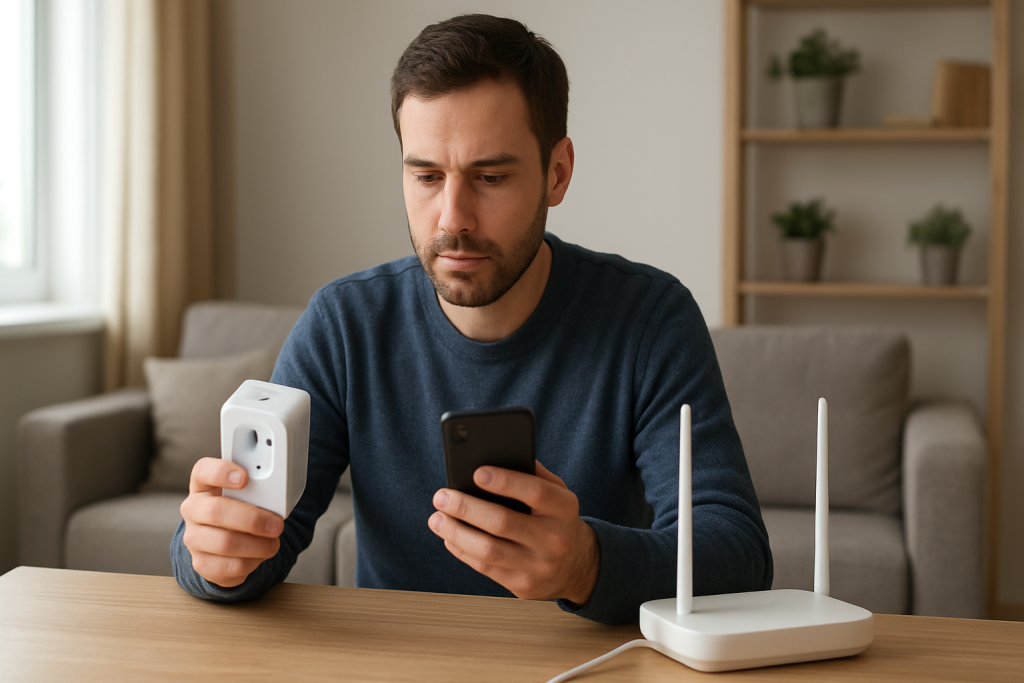
When a smart plug or smart switch insists your WiFi password is wrong even though you’re sure it’s correct, the problem is usually not the password. Most often, the setup app is reusing a cached WiFi profile (wrong network, old credentials, or a hidden “saved” SSID), or your router/mesh is presenting the network in a way the device can’t complete the handshake (band steering, WPA mode mismatch, or “smart connect” behavior).
This is especially common after router changes, power outages, switching Internet providers, app updates, or when multiple household members have different networks saved on their phones. The device fails the connection step, and the app reports the most generic message it has: “wrong password.”
Do these three actions first: 1) In the device app, delete/forget the saved WiFi network selection and reselect the correct SSID from a fresh scan, 2) temporarily force your phone onto 2.4 GHz and retry pairing, 3) verify the router’s WiFi security mode (WPA2-AES is the safest baseline) and disable band steering during setup if available.
Why This Happens
During setup, most smart plugs and smart switches don’t “browse the Internet” like a laptop. They join your WiFi using a short provisioning flow controlled by the app. If the app supplies the wrong SSID, an outdated saved password, or a network configuration the device can’t negotiate, the device fails authentication and the app often simplifies the failure into “wrong password.”
Common, tightly related causes include:
First, app cache and saved WiFi settings: many smart home apps store the last network you used (sometimes per home, per device model, or even from a previous residence). If the app quietly autofills an old SSID or password, you can type the right password for the wrong network and still get the error.
Second, router mode and WiFi security mode mismatches: many plugs/switches still expect 2.4 GHz with WPA2-Personal (AES). If your router is in a mode like WPA3-only, mixed enterprise settings, or a “smart” combined SSID that shifts clients, the device may fail and the app reports it as a password problem.
Third, band steering and mesh behavior: with mesh systems and “one-name” networks, the phone might be on 5 GHz while the device only supports 2.4 GHz, or the mesh might move your phone between nodes mid-setup. Provisioning can break and looks like a password failure.
Real-world scenario: after a power outage, the router reboots with a slightly different configuration (or the mesh controller updates), and your smart plug that used to set up fine now fails with “wrong password” on every attempt.
Common user mistake: selecting the guest network (or an SSID with a similar name) because the app lists multiple networks that look nearly identical, like “HomeWiFi” and “HomeWiFi_EXT” or “HomeWiFi-Guest.”
Overlooked technical cause: the router’s WPA mode changed to WPA3-only or “WPA2/WPA3 mixed” plus a setting like protected management frames or fast roaming that some low-power IoT devices don’t handle well, resulting in misleading password errors.
Most Likely Causes in Real Homes
1) The app is reusing cached WiFi details (wrong SSID or old password) even though you’re typing the current password.
2) Band steering/combined SSID during setup: your phone is on 5 GHz while the device needs 2.4 GHz, and the handoff causes the provisioning step to fail.
3) Router security mode incompatibility (WPA3-only, unusual mixed modes, or non-AES settings) that the plug/switch interprets as authentication failure.
4) You’re trying to join a guest or isolated network where local device discovery/provisioning is blocked, and the app reports “wrong password” instead of “not reachable.”
5) Router mode or DHCP behavior changed (access point mode vs router mode, new mesh controller, or address assignment issues), causing the join to fail and surface as a password error.
Step-by-Step Fix
Confirm you’re selecting the correct WiFi name (SSID) from a fresh scan inside the smart plug/switch app, not from memory.
If the SSID list shows similar names (main, guest, extender), picking the wrong one will reliably produce a “wrong password” message even with the correct password for your main network.
If you’re unsure, rename nothing yet; instead, open your phone’s WiFi settings and verify the exact SSID you’re connected to, then go back and select that exact SSID in the app. If it still fails, continue to the next step.
Clear the app’s saved network selection and retry setup from a clean state (without factory resetting the device yet).
If clearing the selection fixes it, the “wrong password” was caused by cached WiFi data or the app autofilling old credentials from a previous setup.
If the app doesn’t have a clear option, fully close the app, reopen it, and restart the add-device flow so it re-prompts for network choice. If it still fails, move to the next step.
Force 2.4 GHz for the setup attempt.
If your phone is on 5 GHz during provisioning, many 2.4-only devices can fail at the handoff step and the app labels it “wrong password.” A successful setup immediately after forcing 2.4 GHz strongly points to band steering/mesh roaming as the real issue.
If you can’t split bands, try temporarily disabling “smart connect/band steering” in the router settings, or walk closer to the router (not a mesh satellite) so the phone naturally prefers 2.4 GHz. If it still fails, continue.
Check the router’s WiFi security mode and temporarily use a compatibility setting.
If changing security to WPA2-Personal (AES) allows setup, the prior mode (often WPA3-only or an incompatible mixed mode) was being interpreted as a password failure by the device.
If you don’t see these options, look for WiFi “Security,” “Authentication,” or “Encryption” in your router/mesh app. Make one change at a time. If setup still fails, go to the next step.
Try pairing on the main (non-guest) network and disable client isolation for the setup attempt.
If the device pairs on the main network but not on guest, the issue isn’t the password; it’s guest network isolation blocking the local steps the app uses to hand the device your WiFi details.
If you must use guest for IoT, set it up on the main network first to confirm it works, then move it only if your ecosystem supports it reliably. If it still fails even on the main network, proceed.
Run a hotspot isolation test using your phone’s mobile hotspot (2.4 GHz if available) to separate “device/app” from “router” problems.
If the plug/switch connects successfully to your hotspot, the device and app are fine and your home router mode/security/band steering is the cause of the “wrong password” message.
If it fails on the hotspot too, the issue is more likely app permissions, account/session problems, or a device state issue. Continue to the next step.
Check app permissions and phone settings that can break provisioning (local network access, Bluetooth, and location).
If enabling local network permission (iOS) or allowing nearby devices/location (Android) fixes it, the password message was misleading; the app couldn’t complete the local transfer step to the plug/switch.
If permissions are already correct, try the same setup from a different phone/tablet in the household (ideally one that has never set up the device before). If that works, the first phone’s app cache/session is the culprit. If it still fails, continue.
Verify router mode and DHCP basics without changing your whole network design.
If your “router” is actually in access point mode behind another router, or you have two devices both doing routing, provisioning can fail in ways that look like authentication errors. A successful setup after correcting the mode indicates the wrong-password message was masking a network topology problem.
If you’re not sure, check whether you have two WiFi systems connected in series (ISP gateway plus your own router/mesh). If you do, ensure only one is acting as the router. If it still fails, move to the next step.
Re-check for ecosystem conflicts: remove duplicates and ensure you’re pairing in the correct app for your ecosystem path (WiFi app, Matter controller, or hub app).
If you’re adding a Matter-capable plug to Apple Home or Google Home while also trying the manufacturer app, you can end up in a half-provisioned state that throws generic “wrong password” errors on retries.
If removing the partial/duplicate entry and starting the pairing from one controller app fixes it, keep future changes in that same path (for example, add via your chosen Matter controller first, then link to other ecosystems). If it still fails, proceed to advanced troubleshooting.
Advanced Troubleshooting
This section is only needed if basic fixes fail.
Account/cloud session issues: If the app recently updated, you changed your password, or you’re using shared access, your session can be stale. Log out of the device app, log back in, and retry pairing. If that works, the password error was a symptom of a broken app-to-cloud session rather than WiFi authentication.
Network issue (mesh roaming and fast roaming features): Some mesh systems use features like fast roaming (often labeled 802.11r) that can disrupt IoT onboarding. Temporarily disable fast roaming for the 2.4 GHz network during setup. If setup succeeds only with that off, leave it disabled for IoT or create an IoT-only 2.4 GHz network profile if your system supports it.
Firmware/software mismatch: If the plug/switch was previously working and now won’t rejoin after a router change, it may be stuck on older firmware that can’t negotiate newer security defaults. If you can connect it via hotspot, update firmware in the app, then return it to your home WiFi.
Configuration conflicts across ecosystems: If Alexa, Google Home, Apple Home, SmartThings, or a hub integration (including Zigbee bridges for other devices in the home) shows duplicates or “ghost” devices, onboarding can fail because the device identity is partially registered. Remove the device from voice assistants first, then from the manufacturer app, then re-add in one place and re-link assistants afterward.
Matter-specific controller confusion: With Matter smart plugs, pairing must be initiated by a Matter controller (Apple Home hub, Google Home, Alexa, SmartThings, etc.). If the wrong phone is acting as the controller or your “home” is not the one you think, you may see generic credential errors. Confirm you’re adding to the correct home/structure and that your controller/hub is online on the same network.
When to Reset or Replace the Device
Soft restart vs factory reset: A soft restart is simply unplugging the smart plug (or turning the switch off at the breaker only if it is a plug-in device on a controlled outlet) and plugging it back in, then waiting a full minute for it to re-advertise setup mode. A factory reset wipes its pairing state so it can be added again from scratch.
What you may lose after a reset: Expect to lose the device’s pairing to your app and ecosystems, room assignment, names, schedules/timers, automations/routines, and any energy monitoring history the app tracks (smart plugs). You’ll likely need to re-link voice assistants and re-add the device to groups/scenes.
When reset is reasonable: Reset after you’ve ruled out cached app WiFi settings and router mode/security issues, or if the device is stuck in a half-paired state (shows up but won’t complete setup). Reset is also appropriate after a failed migration to Matter or after moving homes.
When replacement is reasonable: Replace if the device repeatedly fails to stay connected across multiple networks (including a hotspot), cannot complete firmware updates even when the network is stable, or shows persistent offline/unreachable behavior that returns immediately after setup.
Safety note: If you notice overheating, buzzing, burning smell, discoloration, melting, or visible damage, stop using the smart plug or switch immediately and replace it. Do not continue troubleshooting a device showing physical signs of failure.
How to Prevent This in the Future
Keep WiFi onboarding predictable: maintain a stable 2.4 GHz option for smart plugs and smart switches, and avoid changing your router’s security mode without a plan for IoT devices. If you use a combined SSID, remember you may need to temporarily disable band steering for onboarding.
Reduce app cache surprises: if multiple people manage the home, agree on one primary setup phone and one primary app path (manufacturer app or Matter controller). After major app updates, log out/in if you see strange setup errors.
Organize ecosystems to avoid conflicts: don’t create duplicate automations across the manufacturer app plus Alexa/Google/HomeKit/SmartThings. Duplicates can cause random on/off behavior and can also complicate re-pairing after outages.
Be consistent with naming and rooms: use unique device names and consistent room assignments across platforms to avoid “ghost” devices and failed re-sync when assistants rediscover devices.
Plan for outages and router restarts: after a power outage, let the router/mesh fully stabilize before retrying onboarding. If you must reboot, do it in a sensible order: modem/gateway, then router/mesh controller, then satellites, then smart devices.
Maintain firmware and apps: update the smart home app and device firmware when things are working, not mid-crisis. Many “wrong password” reports are actually fixed by firmware that improves compatibility with newer router security defaults.
Keep sharing and permissions tidy: remove old household accounts and re-invite users properly instead of sharing passwords. Misaligned permissions can cause apps to fail setup steps and show misleading errors.
FAQ
Why does it say “wrong password” when I can connect to WiFi fine on my phone?
Your phone supports more WiFi modes and can roam between 2.4/5 GHz easily. Many smart plugs/switches are 2.4 GHz-only and more sensitive to router security modes and band steering. If the app also cached an older SSID/password, it can send the device the wrong details even while your phone is online.
Is this always a 2.4 GHz vs 5 GHz problem?
No. It’s common, but the most frequent root cause is the app reusing saved WiFi settings (wrong SSID or outdated password) or a router security/mode mismatch. Forcing 2.4 GHz is a useful test because success strongly points to band steering or mesh roaming issues, not because 5 GHz is “bad.”
Can special characters in my WiFi password cause this?
Sometimes, but it’s less common than app cache and router mode issues. If you suspect this, the best test is the hotspot isolation test: if the device connects to a hotspot with the same password complexity, the password characters aren’t the problem. If it only fails with your router, focus on security mode and band steering.
My smart plug worked before a router change. Do I need to re-add it to Alexa/Google Home/Apple Home?
Not always. First, get the plug stable in its primary app or Matter controller on your WiFi. Once it is reliably online there, then re-sync or rediscover in Alexa/Google Home/Apple Home/SmartThings if needed. Re-linking assistants too early can create duplicates and make troubleshooting harder.
It’s almost funny how quickly the noise fades when the real shape of the problem is finally faced, not danced around. The rest of the work stops feeling like a tug-of-war and starts behaving like something you can actually live with.
Not everything gets magically easier, but the day-to-day friction loosens. You notice it in small moments—less second-guessing, fewer awkward stops, more room to breathe.