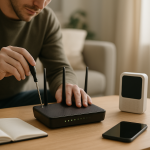
Why Smart Devices Connect to the Wrong Network Guest vs Main
Quick Answer
Most smart devices “choose” the wrong Wi‑Fi (guest instead of main, or vice versa) because they have a saved network profile conflict: the guest and main networks look similar enough to the device (same SSID name, same password, same security type, or the same SSID broadcast on multiple access points). The device then auto-joins whichever signal it sees first or considers “best,” even if that network can’t reach the services it needs.
This is especially common with 2.4GHz-only smart gear (plugs, bulbs, cameras) when the router uses band steering, mesh nodes, or an ISP modem-router combo that broadcasts multiple networks with overlapping names. Fixing it usually means making the two networks unmistakably different and clearing the device’s saved Wi‑Fi credentials so it can’t “guess wrong.”
Why This Happens
Smart devices are designed to stay connected with minimal user input. To do that, they store one or more Wi‑Fi profiles (SSID + security type + password, and sometimes additional metadata). When a device sees a network that matches something it has saved, it may connect automatically without checking whether it is the “right” network for your home setup.
Saved SSID conflict (the dominant cause)
A saved SSID conflict happens when your guest and main networks are not distinct enough from the device’s perspective. Common patterns include:
1) The guest SSID is identical or nearly identical to the main SSID (for example, “MyHomeWiFi” and “MyHomeWiFi-Guest”), and the device or its companion app truncates names, hides suffixes, or displays them similarly. Some apps show only the first part of an SSID, which makes it easy to select the wrong one during setup.
2) The guest and main networks share the same password and security settings. If the device stores credentials and later sees a matching SSID/password combination, it may roam to the wrong network after a reboot, power outage, or router update.
3) Your router or mesh uses the same SSID for 2.4GHz and 5GHz (band steering). Many smart devices are 2.4GHz-only, but your phone may be on 5GHz during setup. If the app tries to “hand off” credentials while your phone is on a different band, the device may latch onto a similarly named guest network on 2.4GHz instead.
Real-world scenario: apartment Wi‑Fi crowding
In an apartment building, you may see dozens of nearby networks. If your guest SSID is weak in the living room but strong near the front door (or vice versa), a camera or smart lock can bounce between them. Thick walls, metal doors, and mirrored closets can attenuate 5GHz more than 2.4GHz, so devices often prefer 2.4GHz signals that “reach farther,” even if that means they grab the guest network that happens to be stronger in that spot.
Common user mistake during setup
A frequent mistake is setting up the device while your phone is connected to the guest network (or a VPN-enabled “IoT” network) and assuming the device will land on the main network. Many smart device setup flows use the phone’s current Wi‑Fi as the default. If you don’t explicitly choose the main SSID, the device will faithfully join the guest SSID and then appear “missing” from your usual control app or local integrations.
Overlooked technical cause: cached network identity and roaming behavior
Some devices cache more than just the SSID. They may remember the router’s BSSID (the radio’s MAC address) or a “preferred” access point. If you recently replaced a router, added a mesh node, or enabled a second access point with the same SSID, the device might roam unpredictably. This can look like it is “choosing the wrong network,” when it is actually choosing the wrong access point that happens to broadcast the guest SSID more strongly.
Router configuration issues that amplify the problem
Guest isolation settings, band steering, and “smart connect” features can make the symptoms worse. If the device lands on guest Wi‑Fi, it may be blocked from reaching local services (like a hub, NAS, or Home Assistant) or blocked from device-to-device discovery (mDNS/SSDP). The device may appear offline even though it is connected. Conversely, if the device lands on the main network but your app expects it on the guest network, you can see duplicate devices, failed pairing, or intermittent control.
Firmware/software factors
Router firmware updates can change how band steering works, how quickly DHCP leases renew, or how guest isolation is enforced. Device firmware updates can also alter roaming thresholds (the signal level at which a device decides to switch networks) or how it stores Wi‑Fi profiles. After an update, a device that was stable for months may suddenly “prefer” the guest SSID because it now treats it as a higher-priority saved profile.
DHCP or IP conflict (less common, but relevant)
Even when the device connects to the correct SSID, it can behave as if it is on the wrong network if it gets a problematic IP address. DHCP is the router feature that hands out local IPs. If the guest network uses a different IP range than the main network (common), your phone may not be able to reach the device locally. If there’s an IP conflict (two devices accidentally using the same IP), the smart device may drop and reconnect, sometimes rejoining whichever SSID it sees first. This is not the dominant cause, but it can mimic it.
Step-by-Step Fix
Confirm which network the device is actually using. In your router app or web interface, find the device in the client list and note: SSID (guest vs main), band (2.4GHz vs 5GHz), signal strength (RSSI), and IP address. If the router doesn’t show SSID per client, temporarily turn off guest Wi‑Fi and see if the device drops.
Practical testing method: power-cycle the device while watching the router’s client list. If it reappears under the guest SSID, you’ve confirmed the behavior without guessing.
Make the guest and main SSIDs clearly different. Rename one of them so there is no ambiguity, even in truncated lists. Good examples: “SmithHome-Main” and “SmithHome-Guest” (avoid names that only differ by a single character). If possible, use different passwords as well. This directly addresses saved SSID conflict by preventing accidental matches.
After renaming, expect all devices to reconnect; you may need to rejoin Wi‑Fi on phones, TVs, and laptops.
Forget the wrong network on the smart device and re-add it. Many smart devices don’t have a “forget network” button, so use the device’s reset network procedure (often holding a button for 5–15 seconds until an LED pattern changes). Then re-run setup and explicitly select the correct SSID.
If the app offers an “auto” option, avoid it and manually pick the main SSID. This prevents the common user mistake where the phone’s current network silently becomes the device’s network.
During setup, force your phone onto 2.4GHz if the device is 2.4GHz-only. If your router uses a single SSID for both bands, temporarily disable 5GHz or band steering, or move far enough from the router that the phone prefers 2.4GHz. Then complete setup. Afterward, you can re-enable 5GHz/band steering.
This reduces the chance that the device will “see” a different SSID variant (guest on 2.4GHz) than the one your phone is using.
Improve signal reliability at the device location. If the device is near thick walls, behind appliances, or at the edge of coverage, it may roam aggressively. Move the router or add a mesh node closer, but avoid placing nodes too close together. For interference, keep the router away from microwaves, cordless phone bases, and dense bundles of cables.
Remember: 2.4GHz travels farther but is more crowded; 5GHz is faster but drops sooner through walls. Many smart devices only use 2.4GHz, so optimizing 2.4GHz coverage matters most.
Check guest network restrictions that break smart-device control. If you intentionally want the device on guest Wi‑Fi, verify what guest isolation does on your router. Many routers block guest clients from reaching other local devices. That can prevent casting, local discovery, or hub connections. If you need local control, keep smart devices on the main network or use a dedicated IoT network (separate SSID/VLAN) that allows access to your hub while still limiting access to personal devices.
Advanced Troubleshooting
If the basic fixes don’t stick, the goal is to eliminate hidden profile matches and router behaviors that cause the device to “prefer” the wrong SSID.
Check for duplicate SSIDs across equipment (ISP combo + your router)
An overlooked cause is having two routers broadcasting similar networks: for example, an ISP modem-router combo still broadcasting “MyHomeWiFi” while your new router also broadcasts “MyHomeWiFi.” Add a guest SSID into the mix and devices can bounce in confusing ways. Put the ISP unit into bridge mode (if supported) or disable its Wi‑Fi radios entirely so only one device is providing Wi‑Fi.
Inspect band steering and roaming settings
Some routers push clients between bands or access points aggressively. If your device is older or has a weak Wi‑Fi chipset, it may interpret steering attempts as disconnects and then reconnect to the guest SSID because it is the next best saved match. Temporarily disable “Smart Connect,” “band steering,” or “fast roaming (802.11r)” and test stability for 24 hours.
Use a controlled test to reproduce the issue
To isolate saved SSID conflict from signal issues, do a controlled test: place the device 6–10 feet from the router, power-cycle it, and watch which SSID it joins. If it still joins the wrong SSID at strong signal, the problem is almost certainly saved profile priority or ambiguous SSID naming, not distance.
Review DHCP behavior and IP ranges
Confirm that the main and guest networks use different IP ranges (common) and that your phone is on the same network you expect to control the device from. If you see frequent reconnects, shorten the DHCP lease time only as a test (some routers allow this) or reboot the router to clear stale leases. If you suspect an IP conflict, look for two clients showing the same IP in the router list or repeated “IP address in use” messages in logs (if available).
Firmware and app updates
Update router firmware and the smart device firmware, but do it deliberately: apply updates, then retest. If the issue began immediately after a router update, check release notes for changes to guest isolation, WPA3 transitions, or band steering. On the device side, update the companion app too; some apps mishandle SSID lists or cached selections until updated.
If your main network is WPA3 or “WPA2/WPA3 mixed” and the guest is WPA2-only, a device that can’t do WPA3 may fail to reconnect to main and then fall back to guest because it’s the only compatible saved profile. For troubleshooting, set the main SSID to WPA2-Personal temporarily and test. If that resolves it, keep WPA2 for the IoT SSID while leaving WPA3 for personal devices (if your router supports separate security per SSID).
When to Reset or Replace the Device
Reset is appropriate when the device repeatedly returns to the wrong SSID even after you rename networks and re-run setup. A full factory reset clears stored Wi‑Fi profiles and any corrupted configuration that can keep resurrecting an old guest profile.
Consider replacement if the device has chronic Wi‑Fi instability across multiple routers, cannot handle modern security settings reliably, or has firmware that is no longer maintained. Some low-cost smart devices have weak antennas and minimal roaming logic; in a home with mesh Wi‑Fi, thick walls, or heavy interference, they may never stay pinned to the intended SSID. If you must keep the device, placing a dedicated access point closer to it can be more effective than repeated resets.
How to Prevent This in the Future
Use unmistakable SSID names and separate passwords. This is the single best prevention for saved SSID conflict. Avoid SSIDs that differ only by “-Guest” if your app truncates names; consider “Home-Control” versus “Home-Visitors” instead.
Create an intentional IoT network strategy. If your router supports it, use a dedicated IoT SSID (separate from guest) with WPA2, 2.4GHz enabled, and clear rules about local access. Keep guest for visitors only. This reduces the temptation to reuse guest for smart devices and avoids discovery/control problems caused by guest isolation.
Plan for 2.4GHz coverage. Since many smart devices are 2.4GHz-only, ensure your router placement and interference environment support stable 2.4GHz signal where devices live (garage door controller, patio camera, hallway thermostat). Router distance matters: a strong, stable signal reduces roaming and reconnection behavior that can trigger a wrong-SSID fallback.
Document changes and update carefully. When you change SSIDs, passwords, or security modes, update your notes and change one thing at a time. After firmware updates, spot-check a few smart devices in the router client list to confirm they stayed on the intended network.
Avoid double-NAT and duplicate Wi‑Fi broadcasting. If you add your own router behind an ISP modem-router combo, put the ISP unit in bridge mode or disable its Wi‑Fi. Two devices broadcasting overlapping SSIDs is a recipe for confusion, especially when guest networks are enabled on both.
FAQ
Why does my smart device work on guest Wi‑Fi but not on the main network (or the reverse)?
Guest and main networks often have different security modes, isolation rules, and IP ranges. A device may connect to both, but control from your phone may fail if your phone is on a different network or if guest isolation blocks local discovery. Also check for saved SSID conflict: the device may be connecting to whichever profile it recognizes first, not the one you intended.
Is it better to put smart devices on the guest network?
Not usually. Guest networks are designed to isolate visitors, which can break smart-home features that rely on local communication (hubs, casting, local discovery). A dedicated IoT SSID is typically better than guest: it can be restricted while still allowing the specific local access your smart devices need.
My router uses one SSID for 2.4GHz and 5GHz. Can that cause wrong-network issues?
Yes. With band steering, your phone may be on 5GHz while a smart device is 2.4GHz-only. During setup, this can lead to selecting the wrong SSID variant (especially if guest is only on 2.4GHz) or the device later choosing a different saved profile. Temporarily forcing setup on 2.4GHz often fixes it.
How can I tell if it’s a signal problem or a saved SSID conflict?
Do a controlled test: place the device close to the router, power-cycle it, and watch the router’s client list to see which SSID it joins. If it still joins the wrong SSID at strong signal, it’s likely a saved profile/SSID naming issue. If it joins correctly up close but not in its normal location, it’s likely coverage or interference.
Could DHCP really make it look like the device is on the wrong network?
Yes. If the device gets an IP that conflicts with another device, or if it’s on a different IP range than your phone expects (common between guest and main), it may appear offline or unreachable even though it is connected to Wi‑Fi. Checking the router’s client list for the device’s IP and which SSID it’s on is the fastest way to confirm what’s happening.
Good, the noise has its proper place now. The subject stops feeling like a foggy headline and starts acting like something you can simply live with.
By the time the last word lands, the whole thing reads cleaner—less urgent, more real. Relief isn’t dramatic; it just shows up quietly, right when you’re done bracing for it.