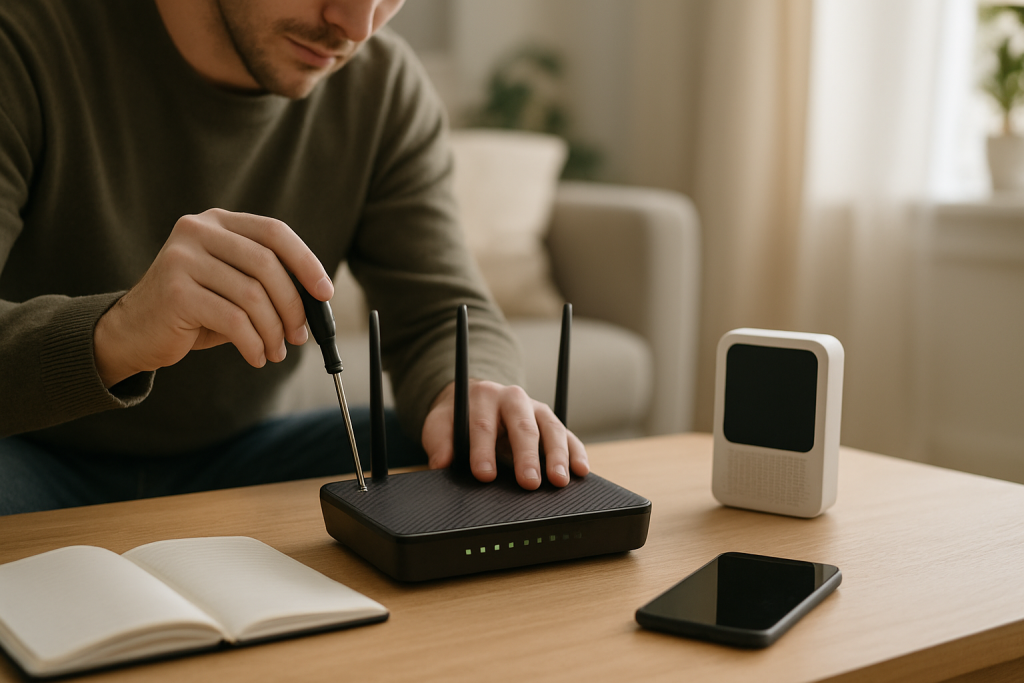
Hidden WiFi Network SSID Breaking Smart Device Setup: How to Fix It
Quick Answer
If your WiFi network name (SSID) is hidden, many smart devices and their setup apps fail during pairing because they can’t reliably discover the network or pass the correct SSID details to the device. The most reliable fix is to temporarily broadcast the SSID, complete setup on 2.4GHz, then decide whether to keep broadcasting or re-hide the SSID afterward.
If you must keep the SSID hidden, you can sometimes succeed by manually entering the SSID exactly (case-sensitive), ensuring the phone is on the same 2.4GHz network, and disabling features like band steering or “smart connect” during setup. Also verify DHCP is working so the device can obtain an IP address after it joins.
Why This Happens
A “hidden” SSID doesn’t truly make WiFi invisible; it simply stops the router from advertising the network name in beacon frames. Many smart devices (and the mobile apps that configure them) depend on those beacons to find the network, confirm security settings, and complete onboarding. When the SSID is hidden, the setup flow often breaks at one of two points: discovery (the app can’t list the network) or association (the device can’t consistently join and stay connected long enough to finish provisioning).
Hidden SSIDs are especially troublesome for low-power IoT radios that prioritize battery life and simplicity over robust roaming and scanning. During setup, many devices briefly create their own temporary WiFi network (an access point) so your phone can send your home WiFi credentials to the device. If your SSID is hidden, the app may not be able to validate the target network, or it may send an incomplete profile that the device can’t use to connect.
Another common factor is 2.4GHz vs 5GHz behavior. Most smart plugs, bulbs, and sensors support only 2.4GHz. If your router uses a single combined name for both bands (often called Smart Connect or band steering), your phone may be on 5GHz while the device can only join 2.4GHz. With a hidden SSID, the app’s band detection and network matching can fail more often, leading to “can’t connect” loops even with the correct password.
A real-world scenario: in an apartment building with dense neighboring networks, interference can cause brief drops during the setup handshake. A hidden SSID can make reconnection slower because the device must actively probe for the network name, increasing setup time and failure rates. Add thick walls or a router placed in a closet, and the device may never maintain a stable connection long enough to complete registration with the cloud service.
One common user mistake is typing the SSID incorrectly when manual entry is required. SSIDs are case-sensitive and may include spaces or special characters. “HomeWiFi” and “homewifi” are different networks. If the SSID is hidden, you won’t get a helpful pick-list, so a single character error can look like a password problem.
An overlooked technical cause is router configuration that blocks onboarding traffic. Some routers isolate clients (AP isolation), block multicast/broadcast discovery, or run WPA3-only mode that older IoT devices can’t handle. Hidden SSID pairing failures can mask these issues because the setup fails early, before the app provides a meaningful error.
Finally, even after a device joins WiFi, it must receive an IP address from your router using DHCP. If DHCP is misconfigured, the pool is exhausted, or there’s an IP conflict (two devices trying to use the same address), the smart device may appear connected but remain unreachable in the app. This can be misdiagnosed as “hidden SSID doesn’t work,” when it’s actually “joined but couldn’t get a valid network address.”
Step-by-Step Fix
Temporarily unhide (broadcast) the SSID on your router.
Log in to your router or ISP modem-router combo and find the WiFi settings. Look for options like “Hide SSID,” “SSID Broadcast,” or “Visibility.” Enable SSID broadcast for the network you want the device to join. Save/apply changes and wait 1–2 minutes for WiFi to stabilize.
Force setup on 2.4GHz and keep your phone on the same band.
If your router has separate 2.4GHz and 5GHz network names, connect your phone to the 2.4GHz SSID. If it uses one shared name, temporarily disable band steering/Smart Connect or disable 5GHz during setup. Many smart devices cannot join 5GHz at all, and a hidden SSID makes band mismatches more likely.
Move the device close to the router and reduce interference during pairing.
For initial setup, place the smart device within 6–10 feet of the router. In apartments or homes with thick walls, this reduces retries during the handshake. If possible, pause heavy streaming or large downloads during setup to avoid congestion.
Confirm WiFi security is compatible (use WPA2-Personal if needed).
In the router’s security settings, select WPA2-Personal (AES) as a safe baseline. Avoid WPA3-only mode for older IoT devices. If your router offers “WPA2/WPA3 mixed,” that can work, but some devices behave better with WPA2-only during onboarding.
Run the smart device’s setup again and allow required phone permissions.
Open the manufacturer’s app and restart the add-device process. On iOS/Android, allow location and nearby devices permissions if prompted; many apps require them to discover the device’s temporary setup network and complete provisioning.
After successful setup, decide whether to re-hide the SSID.
Test the device for at least 10 minutes: control it from the app, power cycle it once, and confirm it reconnects. If everything is stable, you can try hiding the SSID again. Be aware that some devices will disconnect after a reboot or firmware update when the SSID is hidden, requiring you to repeat setup.
If you must keep the SSID hidden, use exact manual entry and keep names simple.
When the app allows manual SSID entry, type the SSID exactly, including capitalization and spaces. Avoid special characters during troubleshooting. If your SSID is long or complex, consider temporarily renaming it to something short (for example, “Home24”) for setup, then change it back later.
Advanced Troubleshooting
If broadcasting the SSID and using 2.4GHz still doesn’t work, the hidden SSID may be only part of the problem. The steps below target common router behaviors and network conditions that block onboarding or cause unstable connections afterward.
Use a practical testing method: verify the device actually got an IP address
After the device claims it connected, log in to your router and check the DHCP client list (sometimes called “Connected devices” or “LAN status”). Look for the device name or MAC address. If it’s missing, the device likely never joined WiFi. If it appears but shows no IP address or keeps changing rapidly, DHCP may be failing or the connection is unstable.
In simple terms, DHCP is the router handing out “network addresses” so devices can communicate. If the DHCP pool is full (too many devices), expand the pool or reboot the router. If there’s an IP conflict, consider clearing old reservations, rebooting, and avoiding manual IP settings on IoT devices.
Check for router configuration issues that break discovery
Some smart device apps use local discovery (multicast/broadcast) to find devices on your network. If you have any of the following enabled, temporarily disable them and retry setup:
AP/client isolation (prevents devices on WiFi from talking to each other), “Guest network” mode (often isolated by design), or strict firewall settings that block local traffic. Also verify you are not attempting setup on a guest SSID; many devices will join but then fail app discovery.
Disable VPNs, private DNS, and aggressive security apps on the phone
A phone VPN or private DNS service can interfere with setup flows that require local network access or domain lookups during registration. Turn off VPN temporarily, disable private DNS/ad-blocking features, and retry. This is especially important when the device must contact a cloud endpoint immediately after joining WiFi.
Update firmware and apps (router and device)
Firmware and software mismatches can cause repeated pairing failures. Update the router firmware (especially on ISP modem-router combos, which may have older WiFi drivers), update the smart device app, and apply any device firmware updates once it’s connected. Some routers have known issues with hidden SSIDs, band steering, or WPA3 transitions that get fixed in firmware releases.
Adjust 2.4GHz channel width and channel selection
In congested areas, 2.4GHz performance can be unstable. Set 2.4GHz channel width to 20 MHz for reliability, then choose a less crowded channel (commonly 1, 6, or 11). This can reduce retries during onboarding. Hidden SSIDs can amplify the impact of interference because devices must probe more actively to find and rejoin the network.
If your router combines bands, temporarily split SSIDs
Band steering is convenient but can confuse onboarding. Create separate SSIDs such as “MyWiFi-2.4” and “MyWiFi-5” and connect your phone to the 2.4GHz SSID during setup. Once the device is stable, you can keep them split (often best for smart homes) or re-enable band steering if you prefer.
When to Reset or Replace the Device
Reset the smart device when you’ve changed WiFi settings (such as un-hiding the SSID, switching security modes, or splitting bands) and the device still remembers the old network profile. Many devices keep prior credentials and won’t fully re-provision until a factory reset is performed. Follow the manufacturer’s reset method exactly; a “soft reset” (power cycle) is not the same as a factory reset.
Consider replacement if the device repeatedly fails to connect even with SSID broadcast enabled, WPA2-Personal, strong signal near the router, and a confirmed working 2.4GHz network. Some older or budget IoT devices have weak radios or outdated WiFi chipsets that struggle in modern environments (dense apartments, mesh systems, WPA3 transitions). If the device also drops offline frequently after successful setup, that’s a sign the hardware or firmware is not coping with your network conditions.
If the device only works when the SSID is broadcast and consistently fails when hidden, that is a compatibility limitation rather than a defect. In that case, decide whether keeping the SSID visible is acceptable or choose a device brand known to support hidden SSIDs reliably (many do not).
How to Prevent This in the Future
Keep your primary smart home network SSID broadcast. Hiding the SSID provides minimal security benefit and commonly reduces reliability for IoT onboarding and reconnection after power outages. A better security approach is a strong WPA2/WPA3 passphrase, updated firmware, and disabling WPS unless you actively use it.
Design your WiFi for stability: keep IoT devices on 2.4GHz where range is better through walls, and reserve 5GHz for high-speed devices. In a home with thick walls or a router located far from the devices, consider a mesh system or a wired access point to reduce dead zones. Distance and interference are frequent contributors to pairing failures, especially during the first-time setup handshake.
Avoid common configuration pitfalls: don’t set WPA3-only unless all devices support it, keep 2.4GHz at 20 MHz in crowded areas, and avoid guest networks for smart devices if you need phone-to-device local control. Maintain a healthy DHCP pool and remove stale reservations if you frequently add and remove devices.
Finally, standardize your SSID and password format. Use a simple SSID without unusual characters and a long, strong password. This reduces manual entry errors when an app can’t list networks, which is exactly what happens with hidden SSIDs.
FAQ
Is hiding my SSID more secure for smart home devices?
Not significantly. Hiding the SSID mainly removes the network name from routine broadcast beacons, but the network can still be detected and targeted. For real security, use WPA2/WPA3 with a strong passphrase, keep router firmware updated, and disable WPS if you don’t need it.
My device connects to WiFi but won’t appear in the app. Is that related to the hidden SSID?
It can be. Hidden SSIDs can cause incomplete provisioning, but a more common reason is local discovery being blocked (guest network isolation, AP isolation) or the device failing to get a valid IP via DHCP. Check your router’s connected device list to confirm the device has an IP address, and ensure your phone is on the same network (not cellular or a VPN).
Why does 2.4GHz work better than 5GHz for smart device setup?
Many smart devices only support 2.4GHz, and 2.4GHz typically has better range through walls. If your phone is on 5GHz during setup, the app may try to provision the device with a network it can’t join. This mismatch is more likely when the SSID is hidden or when bands are combined under one name.
Can I hide the SSID again after setup?
Sometimes, but it’s not guaranteed. Some devices will keep working until a reboot, firmware update, or brief signal drop forces a reconnect, at which point the hidden SSID can cause failures. If reliability matters, leave the SSID broadcast or use a dedicated IoT SSID that remains visible.
What’s the most common mistake when connecting to a hidden SSID?
Entering the SSID incorrectly during manual setup. SSIDs are case-sensitive and may include spaces. If the app doesn’t show a network list, double-check spelling and capitalization, and consider temporarily renaming the SSID to something short and simple to complete onboarding.
The strangest part is how quickly the noise fades when the right pieces are finally in place. After all that build-up, what’s left feels almost ordinary—like you can breathe again without thinking about it.
Maybe that’s the whole point: not a dramatic payoff, just a steadier day. You don’t need fireworks when the path becomes clear enough to walk it.