A Mesh Node Shows Online but Coverage Doesn’t Improve: What to Check
Quick Answer
If your mesh node shows “online” in the app but Wi‑Fi coverage doesn’t improve, the most common cause is unstable or low-quality backhaul (the link between the main router and the node). The node can stay connected and report healthy status while its backhaul is too weak, too noisy, or constantly renegotiating bands—so it can’t reliably carry traffic to extend coverage.
Start by verifying where the node is connecting (wireless vs Ethernet backhaul, 2.4GHz vs 5GHz), then test the backhaul quality from the app and with a simple speed/latency check near the node. Reposition the node to strengthen the backhaul first (not the “dead zone”), and confirm your router settings (band steering, channel width, and firmware) aren’t causing frequent backhaul drops.
Why This Happens
A mesh system is only as good as its backhaul. Even when a node is “online,” it may be operating with a degraded backhaul link that limits throughput and increases latency. In that state, the node can still broadcast a strong Wi‑Fi signal locally, but it cannot pass data back to the main router efficiently—so your smart devices still buffer, disconnect, or fall back to cellular/other networks.
Backhaul instability commonly shows up as:
1) The node connects on a slower band than expected (for example, 2.4GHz backhaul instead of 5GHz), often due to distance or interference.
2) The node constantly switches channels or bands (roaming/steering for the backhaul itself), which looks “online” in the app but behaves like periodic micro-outages.
3) The node is placed too far into the weak-coverage area. This is a common user mistake: placing the node where you want better Wi‑Fi, instead of where it can still maintain a strong, stable backhaul to the main router. A mesh node typically needs a solid link to the main unit (or another node) first, then it can extend coverage beyond that point.
Real-world scenario: in an apartment with thick concrete or brick walls, a node placed in the bedroom may show online, but the backhaul is forced onto 2.4GHz due to heavy 5GHz attenuation through the wall. The bedroom signal bars look great, yet smart plugs and cameras stutter because the node’s upstream link is slow and inconsistent.
An overlooked technical cause is interference that targets the backhaul band specifically. For example, DFS events on 5GHz (radar detection) can force channel changes, or a neighbor’s router on the same 5GHz channel can cause retries and packet loss. Another overlooked cause is an Ethernet backhaul that is “connected” but negotiating at 100 Mbps due to a bad cable or port, limiting performance while still appearing healthy.
Finally, configuration and software can make matters worse. Aggressive band steering, overly wide channel widths (like 160 MHz in a crowded area), or outdated firmware can lead to unstable backhaul behavior. If your ISP modem-router combo is also acting as a router (double NAT), it can add additional complexity, including DHCP conflicts or IP addressing issues that cause devices to behave unpredictably even when Wi‑Fi looks fine.
Step-by-Step Fix
Confirm what “online” actually means in your mesh app.
Open the mesh app and check the node’s connection details. Look for indicators such as “Backhaul: 5GHz,” “Backhaul: 2.4GHz,” “Ethernet,” signal quality (good/fair/poor), or a link rate. If the node is using 2.4GHz backhaul or shows “fair/poor,” treat that as the primary issue even if the node is online.
Move the node to improve backhaul first (then retest coverage).
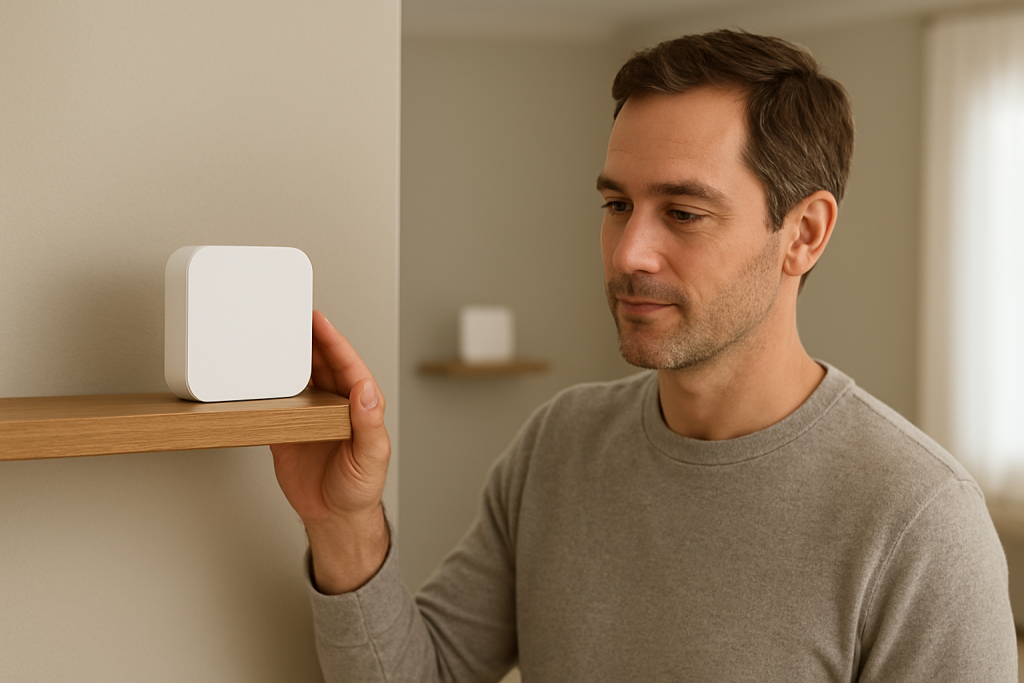
Place the node roughly halfway between the main router and the area with weak coverage, not inside the weakest spot. Aim for a location with fewer walls and less metal in between. Keep it off the floor, away from TVs, microwaves, cordless phone bases, baby monitors, and large mirrors. After moving it, wait a few minutes for the mesh to re-optimize, then re-check backhaul quality in the app.
Run a practical test: speed + latency near the node, then near the router.
Stand within 6–10 feet of the node and run a speed test and a simple latency test (ping from a computer, or use an app that shows latency/jitter). Then repeat near the main router. If speeds near the node are much worse than near the router, or latency/jitter spikes near the node, the node’s backhaul is likely the bottleneck (even if the local Wi‑Fi signal is strong).
Check whether devices are actually using the node (client steering/roaming).
In the app, see which access point each device is connected to. If devices in the problem area are still clinging to the main router, coverage won’t seem improved. Temporarily toggle Wi‑Fi off/on on the device, or reboot the device, to encourage reassociation. If your system has “fast roaming,” “802.11k/v/r,” or “smart connect,” leave it enabled unless it causes obvious instability; steering can help, but it can’t fix a weak backhaul.
Separate the problem: test 2.4GHz vs 5GHz behavior (when possible).
2.4GHz travels farther and penetrates walls better, but it’s slower and more interference-prone. 5GHz is faster but weaker through walls. If your mesh allows separate SSIDs, temporarily split them and test a smart device on 2.4GHz and a phone/laptop on 5GHz near the node. If 5GHz clients are fine but 2.4GHz smart devices drop, you may have 2.4GHz congestion; if 5GHz clients struggle near the node, the backhaul may be falling back or unstable on 5GHz.
Inspect router configuration that can destabilize backhaul.
In the router/mesh settings, check these items:
– Channel width: In dense neighborhoods, 80/160 MHz on 5GHz can be unstable. Try 40 or 80 MHz for consistency.
– DFS channels: If your mesh frequently changes 5GHz channels, try disabling DFS (if your system allows) or selecting a non-DFS channel range to reduce radar-triggered channel moves.
– Band steering/smart connect: If backhaul or clients constantly hop bands, try toggling the feature to see if stability improves.
– Guest network or client isolation: Ensure your smart devices are not on an isolated SSID that prevents local discovery/control if that’s required.
Update firmware on the main router and all nodes.
Backhaul stability is frequently improved in firmware updates. Update the mesh system, then power-cycle the main router and nodes. If the system supports it, confirm all nodes are on the same firmware version. Mixed versions can cause odd “online but not effective” behavior.
If you can, try Ethernet backhaul (even temporarily).
Run a temporary Ethernet cable from the main router to the node (or use existing in-wall Ethernet). If coverage and performance immediately improve, you’ve confirmed the root cause: wireless backhaul instability. If Ethernet backhaul shows “connected” but performance is still poor, swap the cable and verify the port negotiates at 1 Gbps (some apps show this; otherwise, check router port LEDs or status pages).
Advanced Troubleshooting
If the basic steps don’t reveal the issue, focus on proving whether the backhaul is dropping, renegotiating, or being constrained by interference or addressing problems.
Check for backhaul flapping and channel changes
Look in the mesh app for event logs or status history. Signs include frequent “node reconnected,” “uplink changed,” or repeated optimization events. If your system exposes wireless diagnostics, watch RSSI (signal strength) and link rate over time. A backhaul that swings wildly is often caused by interference, marginal placement, or DFS channel events.
Reduce interference and reflections around the node
Move the node away from dense electronics and metal. A node placed behind a TV, inside a cabinet, next to a soundbar, or near a microwave can show online but suffer retries and packet loss. Also avoid placing it near an aquarium (water absorbs RF) or directly against concrete pillars. Even a 2–3 foot move can stabilize the backhaul.
Validate the upstream router mode (ISP modem-router combo issues)
If your mesh is connected to an ISP gateway that also acts as a router, you may be running double NAT and two DHCP servers. This can create confusing symptoms: devices connect to Wi‑Fi but lose control of smart devices, or randomly fail to get an IP address. Ensure only one device is providing DHCP (the service that hands out local IP addresses). The cleanest setup is usually ISP gateway in bridge mode with the mesh as the only router, or the mesh in access point mode with the ISP gateway as the only router.
Watch for DHCP/IP conflicts
A simple explanation: every device needs a unique IP address. If two routers hand out addresses or a device has a manually set IP that overlaps, you can get intermittent connectivity that looks like “Wi‑Fi is connected but nothing works.” If your mesh app shows “IP conflict,” “DHCP error,” or if smart devices frequently go offline after a few hours, check that the DHCP server is enabled on only one router and avoid manually assigned IPs unless you know they’re outside the DHCP range.
Test with a controlled client and forced association
Use a laptop or phone that can display Wi‑Fi details (BSSID/AP name, band, link speed). Stand near the node and confirm you’re connected to the node (not the main router). Then run a continuous ping to the router’s LAN IP and to a public IP. If pings to the router spike or drop while the Wi‑Fi signal is strong, that points to backhaul instability rather than local Wi‑Fi coverage.
Consider tri-band vs dual-band limitations
On many dual-band mesh systems, the same 5GHz radio is shared between client traffic and backhaul. Under load (streaming cameras, video calls, multiple smart devices), the node can remain online but become congested, making coverage feel unchanged. Tri-band systems often dedicate a 5GHz radio to backhaul, improving stability. If your system is dual-band, Ethernet backhaul or better placement becomes even more important.
When to Reset or Replace the Device
Reset is appropriate when configuration drift, corrupted settings, or a bad update leaves the node “online” but ineffective. Replace is appropriate when hardware or radio performance is clearly degraded.
Consider a reset when:
– The node shows online but won’t improve backhaul quality even after multiple placement changes.
– Firmware updated successfully, but the node behaves differently than other nodes (frequent reconnects, odd client steering).
– You changed router modes (bridge/AP/router) and the mesh topology is confused.
Do a full reset of the node (and re-add it) if a simple reboot doesn’t help. If your vendor recommends it, also reboot the main router after re-adding the node so the mesh can rebuild routes cleanly.
Consider replacement when:
– The node overheats, reboots on its own, or drops backhaul regardless of location.
– Ethernet backhaul tests fine with a different node but not with this one (using the same cable/port).
– The node’s radio consistently negotiates much lower link rates than identical nodes in similar locations.
How to Prevent This in the Future
Design around backhaul stability first, then coverage. Place nodes so each hop has a strong, consistent link: fewer walls, shorter distances, and minimal interference sources. If you live in a dense apartment building, prioritize stable channel settings over maximum theoretical speed.
Use these habits to keep smart devices stable:
– Keep the main router in a central, elevated location, not inside a cabinet or behind a TV.
– Prefer Ethernet backhaul for at least one node if you can, especially near smart home hubs, cameras, or streaming devices.
– Avoid overly aggressive 5GHz settings (like 160 MHz) unless you’ve verified your environment is clean and stable.
– Update firmware periodically, but avoid updating right before an important event; after updating, verify node backhaul quality and client distribution.
– If your system supports it, enable notifications for node disconnects so you catch backhaul flapping early.
– Keep DHCP simple: one router hands out IP addresses. If you must use an ISP gateway, use bridge mode or AP mode appropriately to avoid conflicts.
FAQ
Why does my mesh node show strong signal but my smart devices still disconnect?
A strong local signal only means your device can “hear” the node. If the node’s backhaul to the main router is unstable or slow, traffic can stall or drop even while the Wi‑Fi bars look full. Smart devices are especially sensitive because many use 2.4GHz and have weaker radios and simpler roaming behavior.
Should I place the node inside the dead zone to fix coverage?
Usually no. Place it where it still has a strong connection back to the main router (often halfway). Putting a node deep in the dead zone is a common mistake that results in an online node with poor backhaul, so coverage appears unchanged or unreliable.
Is 2.4GHz or 5GHz better for mesh backhaul?
5GHz is usually better for backhaul because it supports higher throughput and lower latency, but it’s more sensitive to walls and distance. If the node is too far away or blocked by thick walls, it may fall back to 2.4GHz, which can be more stable at range but often slower and more congested.
Can router settings cause a node to be online but not help?
Yes. Channel width that’s too wide in a crowded area, DFS-related channel changes, or unstable band steering can cause backhaul renegotiation and packet loss. Also, if an ISP modem-router combo is still routing while your mesh is routing too, DHCP/IP conflicts can create intermittent “connected but not working” behavior.
How can I quickly confirm it’s a backhaul problem and not the device?
Stand close to the node and run a speed test plus a latency/jitter check, then repeat near the main router. If performance near the node is consistently worse, the node’s backhaul is the likely bottleneck. For an even clearer signal, temporarily use Ethernet backhaul; if everything improves immediately, the wireless backhaul was the limiting factor.
That awkward feeling of carrying the problem around in your head starts to loosen. The work isn’t dramatic, just finally placed where it belongs, like keys on the hook instead of the counter.
Nothing magic happens, but the noise fades. From here, it’s easier to get on with the day—quietly, almost smugly, in that calm way that says you’ve got this.