Google Home Stuck on Connecting to WiFi: How to Fix It
Quick Answer
The most common reason Google Home, Nest Mini, Nest Audio, Nest Hub, or Chromecast with Google TV gets stuck on Connecting to WiFi during setup is that onboarding expects a stable 2.4GHz connection with compatible Wi-Fi security settings. If your phone is on 5GHz, your router is steering devices between bands, or the network uses a security mode the device cannot join during setup, the process often hangs at Connecting.
Do these three checks first:
1) Confirm your phone is connected to the 2.4GHz version of your home Wi-Fi (not 5GHz) before starting setup in the Google Home app. If you only see one network name, band steering may be hiding the bands and causing setup instability.
2) Check Wi-Fi security: use WPA2-Personal (AES) for the setup network. Avoid WPA3-only, WPA2/WPA3 mixed mode (on some routers), enterprise authentication, or captive portal/guest networks for onboarding.
3) Move the speaker/display within 6–10 feet of the router (or the primary mesh node) for setup. If it connects only when close, the issue is usually signal quality on 2.4GHz or mesh band steering during onboarding.
Why This Happens
During setup, Google Home devices create a temporary connection with your phone and then switch to your home Wi-Fi. That handoff is sensitive to Wi-Fi band changes and security negotiation. A stable 2.4GHz connection is often required because many smart-home devices onboard more reliably on 2.4GHz, and some models do not handle certain modern security combinations during the initial join even if they work later.
Closely related causes that commonly create the stuck-on-Connecting loop include:
1) Band steering or a single SSID for both 2.4GHz and 5GHz: your phone or the device may hop bands mid-setup. If the phone is on 5GHz while the device expects 2.4GHz, the app can fail to pass credentials correctly.
2) Incompatible security settings: WPA3-only, WPA2/WPA3 mixed mode, or unusual encryption options can block the device from completing the join during onboarding.
3) Guest network isolation: guest Wi-Fi often blocks device-to-device traffic on the local network. Setup may stall because the phone cannot reach the device after it joins the Wi-Fi.
4) Mesh networks with multiple nodes: the device may attach to a distant node with weak 2.4GHz, or the mesh may move it between nodes while it is still finalizing setup.
5) VPNs, private DNS, or security apps on the phone: these can interfere with local discovery and provisioning, especially when the app needs to find the device on the LAN.
Real-world scenario: You have a mesh system with one network name. Your phone is sitting near a node and connects on 5GHz. The Google Home device is farther away and joins 2.4GHz on a different node. The app and device can’t reliably see each other during the final steps, so it stays on Connecting.
Common user mistake: Starting setup while connected to the guest network because it has a stronger signal. Guest isolation frequently blocks the final handshake even if the Wi-Fi password is correct.
Overlooked technical cause: WPA2/WPA3 mixed mode can be “mostly fine” for phones and laptops while still causing onboarding failures for smart speakers. Switching temporarily to WPA2-Personal (AES) is often the difference between stuck and successful setup.
Most Likely Causes in Real Homes
1) Phone on 5GHz while the device onboards on 2.4GHz (or band steering keeps switching bands mid-setup).
2) Wi-Fi security set to WPA3-only or WPA2/WPA3 mixed mode that the device can’t complete during onboarding.
3) Guest network or AP isolation blocking local device discovery.
4) Weak 2.4GHz signal where the device is placed (distance, walls, appliances), especially with mesh nodes competing.
5) Phone-side interference (VPN, private DNS, work profile, or restrictive permissions) preventing the app from finishing provisioning.
Step-by-Step Fix
Confirm you are setting up on a true home network (not guest) and that the Wi-Fi password is correct.
What to do: On your phone, open Wi-Fi settings and verify you are connected to your main home SSID, not a guest SSID. If your router has a guest network, temporarily turn it off or avoid it during setup.
What the result means: If setup succeeds on the main SSID but fails on guest, the issue is guest isolation or blocked local traffic.
If it fails: Continue to the next step and focus on 2.4GHz and security settings.
Force the phone onto 2.4GHz for the setup attempt.
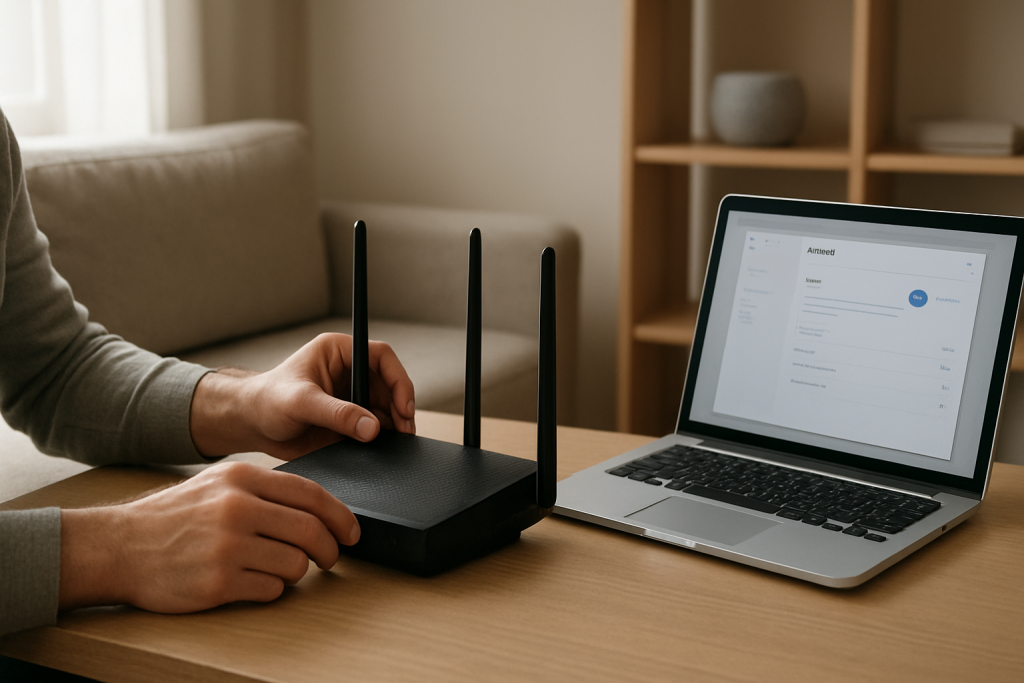
What to do: If your router shows separate network names (for example HomeWiFi and HomeWiFi-5G), connect your phone to the 2.4GHz one. If you only have one name, log in to the router/mesh app and temporarily disable 5GHz or disable band steering during setup (you can turn it back on later).
What the result means: If setup completes when the phone is on 2.4GHz, the original problem was band mismatch or band steering during onboarding.
If it fails: Keep the phone on 2.4GHz and continue; security mode is the next most likely blocker.
Set Wi-Fi security to WPA2-Personal (AES) temporarily.
What to do: In your router settings, set the network security to WPA2-Personal (sometimes shown as WPA2-PSK) with AES. Avoid WPA3-only. If you see WPA2/WPA3 mixed mode, switch to WPA2-only for the setup test. Save settings and reconnect your phone to Wi-Fi if needed.
What the result means: If the device completes setup after switching to WPA2, your previous security mode was not compatible with onboarding (even if other devices worked).
If it fails: Leave WPA2 enabled for now and continue to the next step to rule out signal and mesh behavior.
Move the Google Home device close to the router or primary mesh node for setup.
What to do: Place the device within 6–10 feet of the router (or the main mesh node connected to the modem). Avoid placing it behind a TV, inside a cabinet, or near microwaves and cordless phone bases during setup.
What the result means: If it sets up successfully only when close, the issue is weak 2.4GHz signal, interference, or the device attaching to a poor mesh node.
If it fails: Continue; the problem may be local network discovery, account sync, or a router feature blocking onboarding.
Check the Google Home app status and permissions on your phone.
What to do: Ensure Bluetooth is on (setup uses it for discovery), and allow the Google Home app permission for Nearby devices and Location (required for device discovery on many Android versions). On iPhone, allow Local Network access for Google Home. Then fully close and reopen the Google Home app and try setup again.
What the result means: If the device is discovered reliably after fixing permissions, the issue was phone-side discovery, not the router password.
If it fails: Proceed to a controlled network test using a hotspot to separate router issues from device/account issues.
Run a hotspot test to isolate whether the router is the blocker.
What to do: Create a phone hotspot using a simple name and password. If your phone allows it, set the hotspot to 2.4GHz and WPA2. Then try setting up the Google Home device on the hotspot.
What the result means: If setup works on the hotspot, the device is fine and your home router settings are the problem (usually band steering, WPA3/mixed security, isolation, or filtering).
If it fails: The issue is more likely the device state, the Google account/app state, or a broader connectivity problem. Continue to the next steps.
Verify the device actually joined your Wi-Fi using the router client list.
What to do: Open your router or mesh app and look for a connected client with a name like GoogleHome, Nest, Chromecast, or an unfamiliar device. Check whether it is on 2.4GHz and note its signal strength if shown.
What the result means: If the device appears briefly and disappears, it is failing authentication or losing signal. If it never appears, the Wi-Fi credentials are not being accepted or the security mode is incompatible.
If it fails: If it appears but setup still hangs, you likely have local traffic blocked (guest/isolation) or the phone is on a different network segment. Continue.
Disable isolation and “smart” router features that can break onboarding.
What to do: Temporarily turn off AP isolation, client isolation, “wireless isolation,” or similar settings. If your router has a setting like Protected Management Frames (PMF) set to Required, change it to Capable/Optional for the setup test. Also pause MAC address filtering or access control lists if enabled.
What the result means: If setup succeeds after disabling isolation or PMF requirements, the router was blocking the local handshake or management frame negotiation.
If it fails: Continue with a clean restart order to clear stale sessions and mesh steering issues.
Do a proper restart order: modem → router/mesh → Google Home device.
What to do: Unplug the modem for 60 seconds, plug it back in and wait until it is fully online. Then restart the router/primary mesh node and wait for Wi-Fi to return. Finally, power-cycle the Google Home device and retry setup.
What the result means: If setup works after this order, the issue was likely a stale WAN session, DHCP problem, or mesh node confusion that cleared when the network rebuilt cleanly.
If it fails: Move to account and Home structure checks in the app.
Check Google account, Home structure, and language settings in the app.
What to do: In the Google Home app, confirm you are signed into the correct Google account. Verify you are adding the device into the intended Home (some households have multiple Homes). Ensure the phone language and Google Assistant language are set to a common supported option for your region. If you use Voice Match, you can set it up later; don’t let it derail the Wi-Fi onboarding step.
What the result means: If the device appears in the wrong Home or setup completes only after switching accounts/Homes, the problem was app-side organization or account mismatch, not Wi-Fi strength.
If it fails: At this point, the remaining likely causes are a persistent router compatibility issue or a device state that requires reset. Continue to Advanced Troubleshooting.
Advanced Troubleshooting
Only use this section if the basic fixes above did not resolve the Connecting to WiFi stall. These steps go beyond the usual 2.4GHz and WPA2 adjustments and focus on conflicts that are less common but very real in modern home networks.
Account or cloud issue: If the Google Home app shows delays, can’t load device lists, or setup hangs consistently at the same step even on a hotspot, sign out of the Google Home app, force-close it, sign back in, and confirm your phone has normal internet access without a VPN. If your router blocks certain DNS or uses strict parental controls, temporarily switch DNS back to automatic on the router for the setup attempt.
Network segmentation issue: Some mesh systems create separate network segments depending on node, Ethernet backhaul, or advanced settings. If your phone is on one segment and the device lands on another, the app can’t finalize setup. For the test, connect the phone to the same node area as the device, and avoid Ethernet adapters or secondary routers that might create a double-NAT or separate LAN.
Firmware/software cause: If your router recently updated and setup started failing afterward, revert any newly enabled security features (WPA3-only, PMF required, enhanced IoT protection modes). Also ensure the Google Home app is updated. A mismatch where the app is outdated can cause onboarding to stall even when Wi-Fi is correct.
Configuration conflict: If you have multiple routers broadcasting the same SSID/password (common when an old router is left running), the device may join the wrong access point. Turn off the old router or rename one network temporarily so there is only one clear 2.4GHz network during setup.
When to Reset or Replace
A soft restart is appropriate when the device previously worked on this Wi-Fi and only recently began hanging during reconnection or after a network change. A soft restart means unplugging the device for about 60 seconds and plugging it back in, then attempting setup again after confirming 2.4GHz and WPA2 settings.
A factory reset is appropriate when the device is stuck in a loop, was partially added to the app and can’t be completed, or you changed routers/security settings and the device will not rejoin. Factory reset removes the device from its stored Wi-Fi network, clears local settings, and requires you to set it up again in the Google Home app. It does not delete your Google account, but it does remove the device’s association with your Home until you add it back.
Hardware safety warning: Only use the manufacturer reset method (usually a button press-and-hold sequence). Do not open the device, do not attempt internal repairs, and do not use liquids or sprays to “fix” buttons or ports.
Replacement is rarely needed for a Connecting-to-WiFi setup problem. Consider it only if the device cannot complete setup on a known-good 2.4GHz WPA2 hotspot after a factory reset, or if it repeatedly drops Wi-Fi even when placed close to the router and other devices are stable.
How to Prevent This
Keep a stable 2.4GHz option available. Even if you prefer a single combined Wi-Fi name, make sure your router can temporarily separate bands or disable 5GHz when you add smart-home devices. This avoids onboarding failures caused by band steering.
Use compatible security settings for smart-home onboarding. WPA2-Personal (AES) is still the most universally compatible choice. If you want WPA3 for newer devices, consider enabling it only after your Google Home/Nest devices are fully set up and stable, and be prepared to revert if onboarding new devices becomes unreliable.
Plan placement for 2.4GHz reliability, not just convenience. Smart speakers often end up in kitchens, hallways, or corners where 2.4GHz interference is higher. If setup only works near the router, treat it as a placement or coverage problem and relocate the device or adjust mesh node placement so the device has a strong 2.4GHz signal where it will live.
Keep your Home structure and account clean. Use one primary Google account for setup, keep device names consistent, and avoid creating multiple Homes unless you truly need them. This reduces confusion when the app tries to finalize setup and assign rooms.
Be cautious with isolation features. Guest networks are great for visitors, but they often block local discovery. For smart-home devices, use the main network (or a dedicated IoT network that still allows your phone to reach devices during setup).
FAQ
Do I really need 2.4GHz to set up Google Home?
For many homes, yes during onboarding. Even if the device can use 5GHz later (model-dependent), setup is most reliable when your phone is on a stable 2.4GHz connection and the router is not steering between bands. If your network combines both bands under one name, temporarily separating them or disabling 5GHz often resolves the Connecting stall.
My Wi-Fi password is correct. Why does it still say Connecting?
Connecting can fail after the password step if the security mode is incompatible (WPA3-only or certain mixed modes), if the device joins but the phone can’t reach it due to guest isolation, or if band steering moves the phone/device mid-setup. The password can be correct and the join can still fail for these reasons.
Will switching to WPA2 make my network unsafe?
WPA2-Personal (AES) is still widely used and is typically acceptable for home networks when paired with a strong Wi-Fi password. Many households temporarily switch to WPA2 to complete onboarding and then decide whether to re-enable WPA3 features. If enabling WPA3 again causes setup problems for new devices, keep WPA2 available for onboarding.
Common misconception: If my phone has internet, the Google Home device should connect too. Is that true?
Not necessarily. Your phone can have excellent internet access on 5GHz while the Google Home device is trying to join 2.4GHz with different signal conditions and different compatibility requirements. Setup also depends on local network discovery between the phone and the device, which can be blocked on guest networks or by isolation settings even when the internet is working.
What if it connects to a hotspot but not my home Wi-Fi?
That strongly points to a home router setting: band steering, WPA3/mixed security, PMF required, isolation, MAC filtering, or multiple routers broadcasting similar network names. Keep the hotspot result as your proof that the device hardware is fine, then adjust the home Wi-Fi to a simple 2.4GHz WPA2-Personal configuration for setup and reintroduce advanced features one at a time afterward.
What’s left now is less drama than relief. The noise can finally fade, and the days can move without that familiar mental sidestep.
Not everything will be perfect, but it doesn’t have to be. A clean path feels almost boring—in the best way—and that’s when you realize you’ve been carrying less than you thought.