Google Home Timers or Alarms Not Working: How to Fix It
Quick Answer
The most common real-world reason Google Home, Nest speakers/displays, or Google Assistant timers and alarms fail is that alerts are being blocked or mis-timed by Do Not Disturb, an incorrect time zone, or a clock sync problem on the speaker/display. When the device clock is wrong or notifications are suppressed, the timer can appear to start but never audibly ring.
Do these three checks first:
1) Check Do Not Disturb and Night Mode on the specific speaker/display that should ring (these can mute alarm/timer sounds or reduce volume to near-silent).
2) Confirm the device time zone and time are correct in the Google Home app (a wrong time zone can make alarms ring at the wrong time or not when expected).
3) Verify the device is actually the one receiving the timer/alarm (Assistant may place it on a different speaker in the home, especially with multiple devices, speaker groups, or a phone nearby).
Affected devices include Google Nest Mini, Nest Audio, Nest Hub, Nest Hub Max, older Google Home speakers, and Assistant-enabled displays. The same logic also applies when you set timers/alarms from an Android phone but expect a nearby speaker to ring.
Why This Happens
Timers and alarms are simple features, but they depend on two things working perfectly: the device must keep accurate time, and it must be allowed to play audio at the moment the alert triggers. When either is disrupted, you get common symptoms like a timer that shows as running but never rings, an alarm that rings silently, or an alarm that rings on the wrong device.
The dominant root cause is alert suppression or time mismatch: Do Not Disturb/Night Mode can mute or reduce alert volume, and incorrect time zone or clock sync can cause alerts to trigger at unexpected times or not at all.
Closely related causes that often look like the same problem:
1) The timer/alarm was created on a different device than you think (for example, your phone or another speaker in the home heard the command).
2) The device is linked to the wrong home/room or the wrong Google account, so Assistant routes alarms/timers somewhere else.
3) A brief cloud/account sync issue prevents the device from registering the timer/alarm correctly, especially right after changing Wi‑Fi, moving homes, or changing Google account settings.
4) Language or region settings mismatch can cause Assistant to misunderstand the command, create the wrong type of alert, or place it on the wrong device.
5) Network conditions that affect time sync (intermittent connectivity, captive portals, or aggressive router features) can leave the speaker with an out-of-date clock, even if music sometimes still plays.
A real-world scenario: You set an alarm for 7:00 AM on a Nest Hub in the kitchen. Overnight, Night Mode lowers the volume and Do Not Disturb is enabled on that Hub. The alarm technically triggers, but it is inaudible or suppressed, so it feels like it never rang.
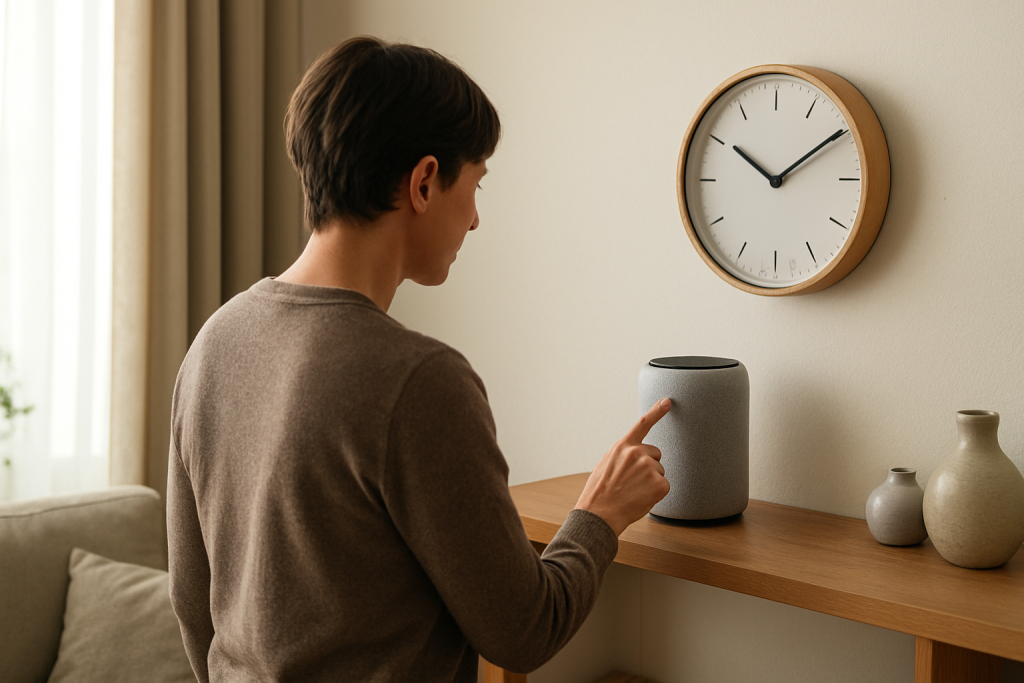
A common user mistake: Saying set a 10 minute timer while standing between two devices. The farther device hears you and starts the timer there. Ten minutes later, you wait for the nearby speaker to ring, but it is silent because the timer is ringing in a different room.
An overlooked technical cause: The device time zone is set incorrectly after a move or after changing the Home address. Timers may still count down correctly, but alarms tied to clock time can be off by hours, and routines scheduled by time can misfire.
Most Likely Causes in Real Homes
1) Do Not Disturb or Night Mode is enabled on the speaker/display that should ring, muting or reducing alert volume.
2) Incorrect time zone or clock/time sync issue on the device, often after moving, changing the Home address, or changing Wi‑Fi.
3) The timer/alarm was created on a different device (another speaker, a display, or your phone), so the expected device never rings.
4) Account or Home structure mismatch (device is in the wrong Home, linked to a different Google account, or Voice Match routes results unexpectedly).
5) Network conditions interfere with reliable time sync or command delivery (intermittent Wi‑Fi, band steering issues, or a router feature that isolates clients).
Step-by-Step Fix
-
Confirm where the timer/alarm actually exists.
What to do: Say to the device you expect to ring: Hey Google, what timers are set? and Hey Google, what alarms are set? Then ask the same question on your other nearby speakers/displays and your phone (Assistant).
What the result means: If another device reports the timer/alarm, the issue is routing, not the timer feature itself.
What to try next if it fails: If no device reports the timer/alarm, continue to the next step to check suppression and time settings.
-
Check Do Not Disturb and Night Mode on the specific device that should ring.
What to do: Open the Google Home app, select the speaker/display, open its settings, and look for Do Not Disturb and Night Mode. Turn Do Not Disturb off. For Night Mode, confirm it is not scheduled during the time you expect alarms, and confirm the minimum volume is not set too low.
What the result means: If turning these off restores alarms/timers, the device was blocking alerts rather than failing to set them.
What to try next if it fails: If alerts are still missing, move to time zone and clock checks.
-
Verify the device time zone and home address, then confirm the device time is correct.
What to do: In the Google Home app, open Home settings and confirm the Home address is correct. Then open the device settings and confirm the time zone matches your location. On a Nest Hub, check the on-screen time. If the displayed time is wrong, that is a direct clue.
What the result means: A wrong time zone or incorrect displayed time can cause alarms to ring at the wrong time or not when expected.
What to try next if it fails: If the time zone looks correct but the on-device time is still wrong, continue to the network/time sync tests below.
-
Run a controlled test alarm and listen for volume behavior.
What to do: Set the device volume to a clearly audible level. Then say: Hey Google, set an alarm for two minutes from now. Also set a timer for two minutes. Stay near the device and watch for the visual countdown (on displays) and listen for the alert.
What the result means: If the timer rings but the alarm does not, the issue is more likely time/clock scheduling or an alarm configuration conflict. If neither rings but you see them set, the issue is more likely suppression (Do Not Disturb/Night Mode) or audio output/volume behavior.
What to try next if it fails: If alerts do not play, proceed to check account/device assignment and language settings.
-
Confirm the device is in the correct Home and room, and that you are speaking to the intended device.
What to do: In the Google Home app, confirm the device appears in the correct Home and room. Rename the device to a unique name (for example, Kitchen Hub) and use that name when setting alarms: Set an alarm on Kitchen Hub for 7 AM.
What the result means: If explicitly naming the device fixes it, the problem was device selection (multiple devices hearing you or Assistant choosing a different target).
What to try next if it fails: If the device still does not hold the alarm/timer, check account and Voice Match behavior next.
-
Check which Google account is controlling the device and whether Voice Match is routing commands unexpectedly.
What to do: In the Google Home app, open the device settings and confirm it is linked to your intended Google account. In Assistant settings, check Voice Match for household members. If multiple people use the home, temporarily disable Voice Match for a test, or have only one person set the alarm/timer during troubleshooting.
What the result means: If alarms/timers work reliably only when one account is used, the issue is account routing or Voice Match confusion, not the speaker hardware.
What to try next if it fails: If account routing looks correct, test whether the device is losing time sync due to network behavior.
-
Perform a hotspot test to isolate home network time sync and connectivity issues.
What to do: Create a temporary hotspot from your phone (with a simple name and password). Connect the Google speaker/display to the hotspot Wi‑Fi. Then set a 2-minute alarm and a 2-minute timer again.
What the result means: If alarms/timers work on the hotspot but fail on your home Wi‑Fi, the device is fine and your home network is interfering with reliable time sync or command delivery.
What to try next if it fails: If it fails on both hotspot and home Wi‑Fi, focus on device settings, account sync, and firmware/app issues in the next steps.
-
If the hotspot test points to your home network, check for band steering and client isolation symptoms.
What to do: Log into your router and look at the connected client list while the device is powered on. Confirm the device stays connected and does not rapidly reconnect. If your router uses a single Wi‑Fi name for 2.4 GHz and 5 GHz with band steering, watch whether the device flips bands frequently. Also check that features like AP isolation, guest network isolation, or device isolation are not enabled for the speaker/display.
What the result means: Frequent reconnects or isolation can interrupt time synchronization and cause missed alerts, even if basic voice commands sometimes work.
What to try next if it fails: If you cannot change these settings, temporarily move the device closer to the router and test again. If that helps, placement or Wi‑Fi planning is the next focus.
-
Use a reboot order only as a clock-sync reset, not as a generic fix.
What to do: If the device time is wrong or the device is frequently reconnecting, restart in this order: modem (if separate) first, then router, then the Google speaker/display last. After everything is back online, wait a few minutes to allow time sync, then test an alarm and timer.
What the result means: If this fixes it, the issue was likely a temporary time sync or connectivity state problem, not a broken alarm feature.
What to try next if it fails: If time remains incorrect or alerts still do not sound, proceed to language, app status, and firmware checks.
-
Check Assistant language and region consistency.
What to do: In Assistant settings, confirm the primary language matches what you speak to the device. Avoid mixing multiple languages during troubleshooting. Also confirm your phone and the Google Home app are not set to a conflicting region/time format that could affect scheduling.
What the result means: If changing to a single consistent language fixes misheard timer/alarm commands, the issue was command parsing rather than alert playback.
What to try next if it fails: If commands are understood but alerts still fail, check for app/device sync and software updates next.
-
Confirm device status in the Google Home app and apply pending updates.
What to do: In the Google Home app, open the device and confirm it shows as online. Check for any prompts indicating setup is incomplete or attention required. For displays, open settings and check for system updates. Also update the Google Home app on your phone.
What the result means: If the device was partially set up or stuck in an update/pending state, it may accept commands but fail to execute timing reliably.
What to try next if it fails: If the device is online, updated, and still fails, move on to Advanced Troubleshooting.
Advanced Troubleshooting
Use this section only if the basic fixes above did not restore reliable timers and alarms.
Account or cloud sync issue: If your device shows online but alarms/timers do not persist (you set one, then it disappears), remove and re-add the device to the Home in the Google Home app. This forces a fresh link between the device, your Home structure, and your Google account. If multiple accounts are in the home, confirm the primary account that owns the Home is the one configuring device settings like time zone and Do Not Disturb.
Network issue (when hotspot test succeeds but home Wi‑Fi fails): Focus on stability, not speed. Reduce frequent band changes by placing the device where it gets a stronger signal. If you use mesh Wi‑Fi, ensure the device is not sitting on the edge between nodes where it roams often. If your router has options that restrict local device communication or uses a guest network, place Google devices and your phone on the same main network.
Firmware/software cause: Rarely, a software update can leave a device in a state where it responds to voice but has delayed or missing alerts. If the device time is correct and Do Not Disturb is off, but alerts still fail, check for a pending system update on displays and ensure the device has been online long enough to complete background updates.
Configuration conflict: Scheduled routines can change volume, enable Night Mode, or set Do Not Disturb at times you forgot about. Review your Google Home routines, especially bedtime or good night routines, and look for actions that change volume or silence devices. If disabling a routine restores alarms, the routine is the conflict.
When to Reset or Replace
Try a soft restart first when the device clock is wrong, the device is stuck offline/online, or the Google Home app shows the device but settings do not apply. A soft restart (power off for about 30 seconds, then power back on) can clear a temporary time sync state without removing your Home configuration.
Consider a factory reset only when: Do Not Disturb is off, time zone is correct, the device time is correct, hotspot testing does not help, and alarms/timers still fail consistently. A factory reset removes the device from your Google Home, clears Wi‑Fi credentials, unlinks it from your account and rooms, and erases device-specific settings like Night Mode schedules and custom names. You will need to set it up again in the Google Home app.
Hardware safety warning: Only use the official reset method for your model (button sequence or reset pinhole if present). Do not open the device, do not attempt internal repairs, and do not use liquids or sprays to fix buttons or microphones.
Replacement is rarely needed for this issue. Consider it only if the device cannot maintain correct time even on a stable network and after a factory reset, or if the speaker cannot play any alert sounds despite normal media playback and correct settings.
How to Prevent This
Keep alert-silencing features intentional: If you use Night Mode or Do Not Disturb, set a clear schedule and verify the minimum volume is still audible for your household. If you rely on alarms for waking up, avoid schedules that silence the same device overnight.
Maintain account stability: Keep the same primary Google account owning the Home, and avoid frequently moving devices between Homes. If multiple people use the home, review Voice Match and agree on which device is responsible for critical alarms.
Support reliable time sync: Place speakers/displays where Wi‑Fi is strong and stable, not on the edge of coverage. In mesh systems, avoid placing the device in a spot where it frequently roams between nodes.
Use clear device targeting in multi-device homes: Give devices unique names and use them when setting important alarms. This prevents a nearby phone or another room speaker from accidentally receiving the alarm.
Review routines periodically: Bedtime routines and scheduled actions can change volume or silence devices. A quick review every few months helps prevent a forgotten schedule from blocking alerts.
FAQ
Why does my timer show on the screen but never makes a sound?
This usually points to alert suppression rather than a failed timer. Check Do Not Disturb and Night Mode on that specific device, and verify the device volume is high enough for alerts. If the device is a display, also confirm it is not dimming and lowering volume as part of a nighttime schedule.
My alarm went off in a different room. How do I stop that?
It happens when another device hears you or Assistant chooses a different target. Rename your devices uniquely and set alarms with the device name included. You can also reduce confusion by standing closer to the intended device and lowering background noise when issuing the command.
Do timers and alarms require Wi‑Fi to ring once they are set?
Common misconception: People assume a set alarm is fully local and will always ring even if Wi‑Fi drops. In practice, reliable time sync and consistent device state depend on connectivity. A brief outage may not always break an existing countdown, but recurring Wi‑Fi instability can cause missed alerts or incorrect time, especially for alarms tied to clock time.
Why are alarms wrong by exactly one hour?
An off-by-one-hour pattern almost always indicates a time zone or daylight saving time mismatch. Confirm the Home address and time zone in the Google Home app, then check the displayed time on the device. Correcting the time zone typically resolves the one-hour shift immediately.
If I set an alarm on my phone, should my Google speaker ring?
Not automatically. An alarm set on your phone usually rings on the phone unless you explicitly target a speaker/display. If you want a speaker to ring, set the alarm by speaking to that speaker or by specifying the device name when you create it.
If your voice assistant is still not working, you can follow our complete voice assistant troubleshooting guide to identify the issue step by step.
There’s a quiet relief in seeing it laid out plainly—no drama, no endless backstory. The point lands, and the noise drops away.
What’s left feels almost ordinary, which is exactly the best kind of change. It doesn’t demand attention forever; it just settles into the day.