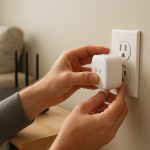
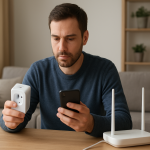
Smart Plug Won’t Connect During Setup? Try These WiFi Fixes First
Quick Answer
Most smart plug and in-wall smart switch setup failures happen during the WiFi “handshake” (the first connection and authentication step). The device may power on and blink like it’s ready, but the app can’t complete the initial join to your network because something blocks or confuses that first exchange—most often 2.4 GHz band steering, a mesh node hop, or a phone-to-device connection issue during provisioning.
If the device can’t finish that handshake, it usually looks like one of these: the app hangs on “Connecting,” fails at “Registering,” loops back to “Select WiFi,” or the device appears briefly and then disappears. That pattern usually means the plug/switch and your phone never complete the full chain: phone → device setup WiFi/Bluetooth → home router 2.4 GHz → cloud/account registration (or Matter controller pairing).
Do these three checks first: (1) Put your phone on the 2.4 GHz WiFi name you want the smart plug or smart switch to use, (2) move the device and phone within a few feet of the main router (not a far mesh node) to reduce handshake dropouts, and (3) turn off VPN/iCloud Private Relay/“Private DNS” on the phone for the setup attempt so the app can reach required services.
Why This Happens
During setup, a smart plug or smart switch has to complete a short but picky process: it starts in a temporary setup mode, your phone connects to it (by Bluetooth and/or a temporary WiFi network), the app passes your home WiFi credentials, the device joins your router on 2.4 GHz, gets an IP address, and then finishes registration (either with the device’s cloud service, your hub, or a Matter controller such as Apple Home, Google Home, Alexa, or SmartThings).
Handshake failures usually mean that one link in that chain is unstable for just a few seconds. In real homes, that instability is often caused by network “helpfulness” (band steering, mesh roaming, security filtering) rather than a broken plug.
Tightly related causes that commonly break the first connection:
1) Band steering or mixed SSIDs confuse the device. Many WiFi smart plugs only join 2.4 GHz. If your router uses one WiFi name for both 2.4 and 5 GHz, your phone may hop to 5 GHz while the device can only see 2.4 GHz, and the app loses the thread mid-handshake.
2) Mesh WiFi roaming disrupts the first join. During setup, the device may start the handshake near one node but then try to associate with another node or the phone switches nodes. That tiny change can break provisioning even if your WiFi is “strong” overall.
3) The phone can’t reliably talk to the device during provisioning. If the app depends on Bluetooth or a temporary device WiFi, phone features like VPN, Private Relay, “Auto-Join” behavior, cellular assist, or aggressive battery/data restrictions can interrupt the communication at the exact wrong moment.
Real-world scenario: After a router restart, your phone reconnects to the strongest mesh node in the hallway, but you’re setting up the plug in the garage near a different node. The app starts setup, then the phone silently roams nodes and the handshake fails at “Connecting to device.”
Common user mistake: Selecting the “correct” WiFi name in the app while the phone itself is actually connected to a different band or a guest network with the same name (or a similarly named network).
Overlooked technical cause: Router features that isolate devices (guest network isolation, AP isolation, client steering, or certain “IoT security” modes) can block the app from discovering the plug after it joins—even though the plug successfully connected to WiFi.
Most Likely Causes in Real Homes
1) The phone is on 5 GHz while the device needs 2.4 GHz. The app can start setup, but the final WiFi join fails or the device vanishes right after joining.
2) Mesh node proximity/roaming causes a handshake timeout. Setup works only when you’re close to the main router, or it fails repeatedly in one room but works elsewhere.
3) Guest WiFi or isolation blocks local discovery. The plug joins WiFi but never shows as “found” or “online” in the app or in Alexa/Google/Apple Home afterward.
4) Saved WiFi credentials or auto-fill passes the wrong password. The app reports “incorrect password” even though you’re sure it’s right, or it fails instantly after entering credentials.
5) Cloud/account or ecosystem handshake fails after WiFi connects. The device joins your router, but setup fails at “Registering,” “Binding,” “Adding to home,” or “Linking,” especially after app updates or when multiple family members manage the same home.
Step-by-Step Fix
Confirm what part of setup is failing (WiFi join vs account registration). In the setup flow, note the exact screen where it fails: “Connecting to device,” “Connecting to WiFi,” “Obtaining IP,” “Registering,” or “Adding to Home/Matter.”
What the result means: If it fails before “Connecting to WiFi,” your phone-to-device provisioning link is unstable. If it fails at “Connecting to WiFi/Obtaining IP,” it’s usually a 2.4 GHz, password, or router compatibility issue. If it fails at “Registering/Adding,” WiFi may be fine but the cloud/account or ecosystem handshake is failing.
If it fails: Continue to the next step and treat it as a handshake problem, not a “bad plug,” until proven otherwise.
Put your phone on the 2.4 GHz network you want the device to use (not just the right WiFi name). If your router offers separate names for 2.4 and 5 GHz, connect to the 2.4 GHz one. If it uses one combined name, temporarily turn off 5 GHz (or use a router setting that pauses band steering) for setup, then turn it back on later.
What the result means: If setup suddenly completes, the failure was the WiFi handshake getting confused by band steering or the phone hopping bands during provisioning.
If it fails: Keep the phone on 2.4 GHz and go to the next step—mesh behavior and local discovery are the next most common blockers.
Do a “main router proximity” test (bypass mesh roaming during setup). Plug the smart plug (or power the smart switch circuit normally) within 6–10 feet of the main router for the setup attempt. Keep your phone near the router as well. If you have a mesh system, avoid setting up while standing next to a satellite node unless you’re sure it’s wired backhaul and stable.
What the result means: If it works near the main router but not in the original location, you’re dealing with a handshake timeout caused by mesh roaming, weak 2.4 GHz signal quality, or interference—not a defective device.
If it fails: Move to the next step to rule out phone-side interruptions (VPN/relay/cellular switching) that commonly break provisioning.
Remove phone-side blockers during setup (temporarily). Turn off VPN, iCloud Private Relay (if used), Private DNS/secure DNS apps, and any ad-blocking DNS profiles. Also disable “Wi‑Fi Assist”/“Switch to mobile data” features so the phone doesn’t jump to cellular mid-handshake. Keep the setup app open and avoid switching apps during provisioning.
What the result means: If the device now completes setup, the WiFi join was fine but the app’s handshake with the device and/or registration services was being interrupted or rerouted.
If it fails: Go to the next step and verify you aren’t accidentally using an isolated network (guest WiFi) or a router mode that blocks discovery.
Check that you’re not on a guest network (and avoid “device isolation” modes for setup). Make sure your phone is on the main home WiFi, not a guest SSID. If your router has a setting like “Guest network isolation,” “AP isolation,” “client isolation,” or an IoT network that blocks devices from talking to each other, do setup on a network that allows local device discovery.
What the result means: If setup completes only on the main network, the original problem wasn’t signal strength—it was the handshake needing local LAN access to discover and finalize pairing.
If it fails: Proceed to the next step to eliminate credential and router authentication edge cases.
Re-enter the WiFi password manually and avoid special “saved network” surprises. When the app asks for WiFi credentials, type the password carefully rather than using auto-fill. Confirm you’re selecting the exact SSID you intend (some homes have similarly named networks or extenders). If your WiFi uses WPA3-only, temporarily switch to WPA2/WPA3 mixed mode for setup if your router allows it.
What the result means: If manual entry fixes it, the handshake was failing because the device was receiving the wrong credential string or couldn’t complete authentication due to incompatible security settings.
If it fails: Continue—at this point it’s often an app/account handshake issue or an ecosystem controller conflict (especially with Matter).
Identify whether this is a cloud/app handshake problem vs a local WiFi problem. If the device joins WiFi (router shows it connected, or the setup gets past “Connecting to WiFi”) but fails at “Registering/Binding/Adding,” switch your phone temporarily to cellular data and try again (some networks/DNS settings block registration). Then switch back to WiFi after setup.
What the result means: If cellular completes registration, your home network’s DNS/security filtering is interfering with the app’s service handshake, not the device’s WiFi join.
If it fails: Go to the next step to check for ecosystem/controller conflicts and duplicates.
For Matter devices: verify you’re pairing with one controller first, then sharing later. Pair the Matter smart plug/switch to a single ecosystem first (Apple Home, Google Home, Alexa, or SmartThings) using the correct home and the right phone account. After it’s stable, use the ecosystem’s “Share/Pair to another app” flow to add it elsewhere.
What the result means: If it succeeds in one controller but fails when trying multiple at once, the handshake is being disrupted by competing onboarding attempts or the device is already claimed to another home.
If it fails: Proceed to Advanced Troubleshooting—this is where account sync, hub/bridge state, and firmware/app mismatches matter most.
If you’re using a hub (Zigbee or bridge integration), confirm you’re not accidentally doing WiFi setup. Some smart switches/plugs are Zigbee and must be paired to a hub (SmartThings hub, Hue bridge for compatible devices, or other supported hub) and then exposed to Alexa/Google/Apple Home through that hub. Use the hub’s app for pairing, not a generic WiFi add-device flow.
What the result means: If hub pairing works immediately, your “WiFi setup failure” was actually using the wrong onboarding method for the device type.
If it fails: Move to Advanced Troubleshooting for hub status and ecosystem sync checks.
Advanced Troubleshooting
This section is only needed if basic fixes fail.
Account/cloud issues: If setup consistently fails at “Registering,” log out of the device manufacturer’s app (or the platform app), then log back in. In shared homes, confirm you’re using the primary account that owns the home/household. If a family member set it up first, you may be hitting a “device already bound” condition that looks like a WiFi failure.
Network issues that specifically break the setup handshake: Disable custom DNS (including router-level “family safety” filters) briefly and retry. Some routers also block “mDNS/Bonjour” or “multicast” features that discovery relies on (especially for Apple Home, Google local discovery, and some Matter onboarding flows). If you changed router settings recently, undo the change temporarily for setup.
Firmware/software causes: Update the setup app before trying again. If the device was previously paired, it may need a firmware update after re-adding; a partially completed onboarding can leave it in an in-between state where it joins WiFi but drops during registration. Also ensure your phone OS is current enough for Matter commissioning if applicable.
Configuration conflicts (groups, scenes, automations, permissions): If the device appears twice in an app or assistant, delete the duplicate entry before retrying setup. Duplicates can cause “already exists” or “not responding” behavior during the final handshake step, especially when Alexa/Google Home/Apple Home is also attempting to discover it automatically.
Ecosystem sync issues (Alexa / Google Home / Apple Home / Matter bridge/controller): If the device adds successfully in the manufacturer app but won’t show in Alexa/Google/Apple, run the assistant’s device discovery again, verify the correct home and room, and confirm the account link is still active. If the assistant shows it but says “unresponsive,” that points back to local network discovery being blocked rather than a failed WiFi password.
When to Reset or Replace the Device
Soft restart vs factory reset: A soft restart is simply removing power from the smart plug (or toggling power to the switch at the breaker only if it’s safe and you’re comfortable doing so) and then trying setup again after the router and phone are settled. A factory reset wipes the pairing state so the device can be onboarded from scratch.
What you may lose after a factory reset: You typically lose room assignment, device name, schedules/timers, automations, assistant links, and any custom settings. For energy-monitoring smart plugs, you may also lose historical usage data stored in the app or cloud account.
When a reset is reasonable: Reset if the device previously worked on this network and now fails at the same setup step repeatedly, or if it appears “already registered/bound” and you can’t clear it from the app. Reset is also appropriate after changing routers/SSIDs where the device still tries to join the old network.
When replacement is reasonable: Consider replacement if the device cannot stay connected long enough to complete setup even right next to the main router on a simple 2.4 GHz network, if firmware updates repeatedly fail after successful pairing attempts, or if it frequently drops offline and never recovers after power/router restarts. Stop using the device and replace it immediately if you notice overheating, a burning smell, discoloration, cracking, or any visible damage.
How to Prevent This in the Future
Keep onboarding predictable: When adding new smart plugs or smart switches, do setup near the main router first, then move the device to its final location after it’s fully registered and updated.
Manage band steering deliberately: If your network combines 2.4/5 GHz under one name, remember that many smart plugs need 2.4 GHz. A temporary “2.4 GHz-only” setup window prevents handshake failures and saves time.
Reduce mesh surprises: Place mesh nodes so 2.4 GHz coverage is stable where your plugs/switches live. The goal is consistent signal quality, not just “full bars” in one spot.
Avoid duplicate automations across apps: If you create schedules in the manufacturer app and also in Alexa/Google/HomeKit/SmartThings, you can trigger odd behavior that looks like connectivity trouble later (random on/off, status mismatch). Pick one place for schedules whenever possible.
Keep naming and room assignments consistent: Name devices clearly and keep them in the right home/room. Misplaced devices are easier to “lose” during re-pairing, especially in shared households.
Build an outage recovery habit: After power outages or router restarts, give your network a few minutes to stabilize before trying to add devices. If a device goes offline after an outage, confirm it reconnects to WiFi before you start removing and re-adding it.
Maintain apps and permissions: Keep the relevant apps updated and review phone permissions (local network access, Bluetooth, nearby devices). Setup handshakes often fail simply because a permission prompt was denied once and forgotten.
FAQ
Why does my smart plug connect to the device’s setup WiFi but fail when joining my home WiFi?
That usually means the phone-to-device step is working, but the device can’t complete authentication with your router or can’t stay connected long enough to obtain an IP address. The most common reasons are 2.4 GHz requirements, band steering interference, or an incompatible security mode (often WPA3-only). Focus on keeping your phone on 2.4 GHz and doing the setup close to the main router.
My app says “connected,” but the plug shows offline right after setup. What does that indicate?
If it flips to offline immediately, the device likely joined WiFi but the final handshake (local discovery and/or cloud registration) didn’t complete. Guest network isolation, router client isolation, VPN/Private Relay, or blocked multicast can cause this. The fix is usually changing the network used during setup (main LAN), then re-running setup or re-registering in the app.
Do I need to reset the smart plug every time setup fails?
No. Resetting is commonly overused and often doesn’t address the real problem. If the failure is caused by band steering, mesh roaming, or guest isolation, a reset just repeats the same failed handshake. Try the 2.4 GHz and main-router proximity tests first; reset only after you’ve ruled those out.
Will a Zigbee smart plug have the same WiFi setup problems?
No—Zigbee plugs don’t join your WiFi at all. They pair to a hub, and the hub connects to your network. If a Zigbee plug won’t pair, the troubleshooting focuses on the hub being online, pairing mode, distance to the hub, and interference—not 2.4 vs 5 GHz WiFi credentials.
If my smart plug works in the manufacturer app, why won’t it show up in Alexa/Google Home/Apple Home?
That points to an ecosystem sync issue, not a basic WiFi password problem. The device may be online, but the assistant link is stale, the device is in a different “home,” or discovery is blocked on the network. Re-run device discovery, confirm the correct account and home/room, and check that local network permissions are enabled for the assistant app.
There’s a point where the noise finally stops sounding like noise, and the whole thing feels less dramatic than it did on the first read. That shift is real, even if nobody can put a ribbon on it.
After that, the days get their shape back—less friction, fewer detours, more room for ordinary life to happen. Not perfect, maybe, but noticeably lighter.