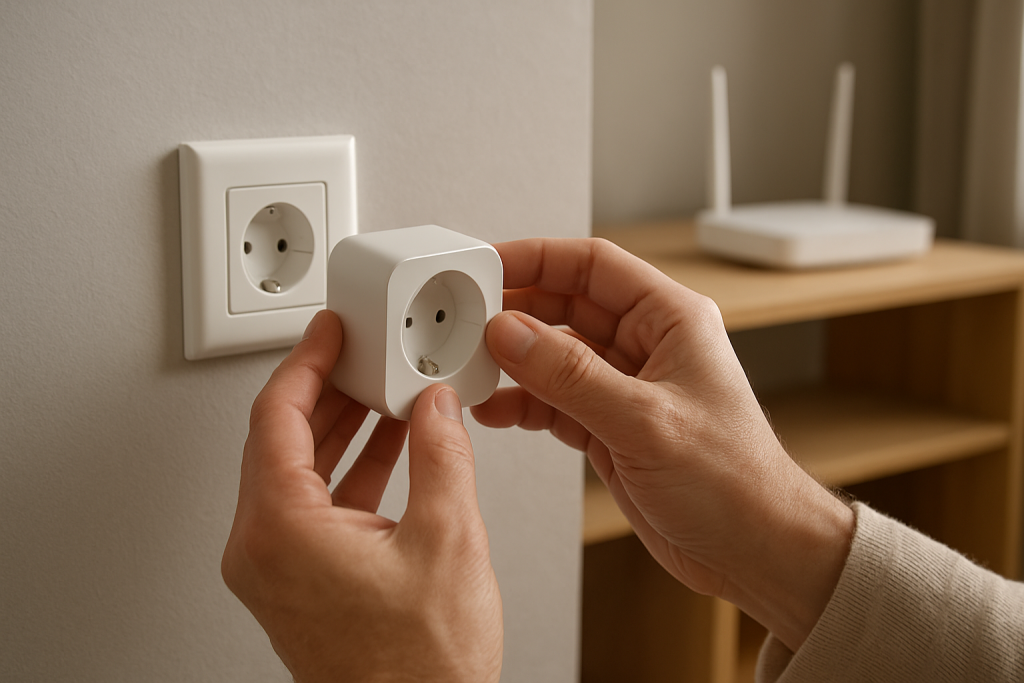
Smart Plug Keeps Going Offline? What to Check First
Quick Answer
When a smart plug or smart switch keeps going “Offline,” the most common reason is intermittent WiFi dropout: the device briefly loses a stable connection and doesn’t recover cleanly. This often happens even when phones and laptops seem fine, because smart home devices use smaller antennas, are more sensitive to signal changes, and may struggle with mesh roaming, band steering, or crowded 2.4 GHz conditions.
Start by proving whether it’s a WiFi stability problem (not a “bad plug” or app glitch). In real homes, the pattern is usually: it works for hours or days, then drops after a router reboot, power blip, or when the device connects to a different mesh node.
Do these three actions first: (1) Check the plug’s signal/connection details in its app (RSSI/signal quality, connected band, and last-seen time). (2) Move the plug (temporarily) to an outlet closer to the router/primary mesh node and see if the dropouts stop. (3) Run a short “hotspot isolation” test by connecting the plug to a phone hotspot for an hour; if it stays stable there, your home WiFi is the cause.
Why This Happens
“Offline” typically means the plug can’t maintain a reliable path between the device and the controller you’re using (its own app, Alexa, Google Home, Apple Home, SmartThings, or a Matter controller). With WiFi smart plugs/switches, that path depends on stable 2.4 GHz connectivity, consistent IP addressing, and a router/mesh system that doesn’t constantly move the device between access points or change settings it relies on.
Common dropout causes that closely match real smart plug behavior include:
1) Mesh roaming and band steering: the plug gets pushed between nodes or between 2.4/5 GHz behavior rules and ends up disconnected. Real-world scenario: you add a mesh satellite near the kitchen, and the plug that was stable for months starts going offline every evening because it now “prefers” a farther node with weaker signal.
2) Congested 2.4 GHz: neighbors, cameras, and older IoT gear compete for airtime; the plug’s small radio times out and appears offline even though the WiFi network name looks “up.”
3) Router features that break IoT reconnect: client steering, “smart connect,” aggressive power-saving, or firewall isolation can prevent the plug from rejoining after a brief signal dip.
4) A common user mistake: accidentally pairing the plug to a guest network, a second router, or an extender that uses a different subnet. It may work initially, then go offline when the phone switches back to the main network or when the extender reboots.
5) An overlooked technical cause: unstable DHCP/IP assignment after reboots. If the router reassigns the plug a new IP and something in the ecosystem caches the old one (or the plug reconnects slowly), the app/assistant may show “Offline” until discovery refreshes.
Most Likely Causes in Real Homes
1) Weak or fluctuating 2.4 GHz signal at the outlet: even a small move or a door closing can change signal enough to cause periodic disconnects.
2) Mesh node selection problems: the plug “sticks” to a distant node or bounces between nodes, which looks like random offline/online behavior.
3) Band steering / “smart connect” edge cases: the network tries to manage bands automatically, but the plug only works reliably on 2.4 GHz and reconnects poorly when the system is optimizing.
4) Post-outage or post-router-restart reconnect failures: the plug powers up quickly, but the WiFi and cloud services aren’t ready yet, so it fails to re-register and stays unreachable.
5) App/ecosystem sync lag (Alexa/Google/HomeKit/SmartThings/Matter): the plug is actually online in its manufacturer app, but the assistant still shows offline due to a stale link, duplicate device, or delayed discovery.
Step-by-Step Fix
Check whether the plug is truly offline or only “offline” in one ecosystem: open the manufacturer app first (for example, TP-Link/Kasa/Tapo, Meross, or the device’s own app), then check Alexa/Google Home/Apple Home/SmartThings/Matter controller. If the device is online in the manufacturer app but offline in the assistant, it usually means a sync/link issue rather than WiFi dropout. Next if it fails: if it’s offline in all apps, continue to Step 2 to focus on WiFi stability.
Look at the connection details in the device app (signal strength/RSSI, WiFi band, and last-seen time) and compare to when it drops. If you see weak signal or “connected 2.4 GHz” with poor quality right before dropouts, it usually means the outlet location is marginal or interference is spiking at certain times. Next if it fails: if the app doesn’t show signal details, go straight to Step 3 and test by changing location and access point behavior.
Run a proximity test: temporarily plug it into an outlet closer to the router or the primary mesh node (not a distant satellite). If the offline problem stops when closer, the likely cause is intermittent WiFi dropout at the original location (weak signal, interference, or bad mesh roaming). Next if it fails: if it still drops even near the router, continue to Step 4 to isolate band steering and network configuration.
Force a clean 2.4 GHz setup path: ensure you’re pairing/using the plug on a stable 2.4 GHz network (many plugs and WiFi switches are 2.4-only). If your router uses a single combined name for 2.4/5 (“smart connect”), temporarily disable band steering during testing or use a dedicated 2.4 GHz SSID if available. If stability improves, the problem was band steering or roaming behavior. Next if it fails: move to Step 5 to rule out mesh node bouncing and DHCP issues.
Mesh roaming check: if you have mesh WiFi, try locking the plug to the nearest node (some systems allow this) or temporarily power down non-primary satellites for 30–60 minutes. If the plug stays online with fewer nodes active, it usually means it was roaming poorly or connecting to a weak node. Next if it fails: proceed to Step 6 to isolate your entire home WiFi from the equation.
Hotspot isolation test: connect the plug to a phone hotspot for an hour or two (only as a test). If it stays stable on the hotspot, your home network is the root cause (interference, steering, DHCP, or mesh behavior). Next if it fails: if it also drops on the hotspot, the plug may be failing or there may be a power-related issue at the outlet; continue to Step 7.
Do a correct power and reboot sequence after outages: unplug the smart plug/switch (or turn it off at the app if it’s a switch controlling a load), reboot the router/mesh first, wait until internet is fully back, then power the device back on and give it a few minutes to reconnect. If this resolves it, the issue was a timing/reconnect problem after network restarts. Next if it fails: go to Step 8 for software/automation conflicts and sync problems.
Check for automation conflicts that look like “offline”: review schedules, timers, routines, and scenes across all apps you use (manufacturer app plus Alexa/Google Home/Apple Home/SmartThings). If the plug toggles unexpectedly or status seems wrong, you may have duplicate automations fighting each other, making the device appear unreliable. If removing duplicates stabilizes behavior, the cause was conflicting control rather than WiFi. Next if it fails: proceed to Step 9.
Update and re-authenticate: confirm the plug firmware and the controlling app are up to date, then sign out/in if the app supports it. If the device is online locally but the app shows offline, a stale session or cloud token can cause false offline status. Next if it fails: move to Advanced Troubleshooting for deeper network and ecosystem checks.
Advanced Troubleshooting
This section is only needed if basic fixes fail.
Account/cloud issues (common when assistants say offline but the device app works): If Alexa, Google Home, SmartThings, or another platform shows “Device Unresponsive” while the manufacturer app works, unlink and relink the device account in the assistant (or re-add the integration). If relinking fixes it, the issue was cloud token/sync failure, not WiFi.
Network issues that cause intermittent reachability: Check whether your router is changing IP addresses often. If your router supports DHCP reservations, reserving an IP for the plug can reduce “offline after reboot” events. If the plug drops at the same time each day, look for scheduled router reboots, ISP modem resets, or mesh optimization routines.
Firmware/software behavior after updates: If the problem began right after a router firmware update, app update, or Matter migration, treat it as a compatibility/regression issue. If rolling back settings (like re-enabling band steering) brings the problem back, keep the “stable” configuration and wait for a device/app update before changing it again.
Configuration conflicts (groups, scenes, permissions, shared users): If multiple household members control the same plug from different apps, ensure everyone is in the same “Home/Household” with correct permissions. If one person sees online and another sees offline, it usually means a home/room assignment mismatch or the device was added under a different account.
Ecosystem sync issues (Alexa/Google Home/Apple Home/Matter): Matter devices can appear offline if the wrong controller is “primary” or if the phone is on a different network segment. If the device works in the manufacturer app but not via Matter, re-run device discovery in the controller and confirm your phone is on the same WiFi as the home hub/controller. For Zigbee-based systems (for example, plugs paired to a hub and exposed to assistants), an “offline” report often points to the hub being offline or the Zigbee mesh being weak near the plug; check hub connectivity and distance to repeaters rather than WiFi settings.
When to Reset or Replace the Device
A soft restart is simply power-cycling the plug or switch (turn it off, wait 10–20 seconds, turn it back on) or rebooting the controlling hub/router in a controlled order. This keeps your pairing and usually fixes temporary reconnect problems caused by brief WiFi dropouts.
A factory reset wipes the device’s pairing and configuration. After a reset, you may lose: the device name, room/home assignment, schedules/timers in the manufacturer app, assistant links (Alexa/Google/HomeKit/SmartThings), Matter pairing, and for smart plugs with energy monitoring, some or all historical energy data depending on how the app stores it.
Reset is reasonable when: the plug cannot stay connected even when very close to the router, it fails the hotspot isolation test, it won’t complete firmware updates, or it repeatedly appears as a “duplicate” device that won’t sync cleanly across apps.
Replacement is reasonable when: the device continues to go offline across multiple networks after resets, it consistently fails updates, or it shows unstable switching behavior (for example, rapid clicking or repeated self-restarts) that isn’t explained by automations. Stop using the device immediately and replace it if you notice overheating, a burning smell, discoloration, melting, or any visible damage.
How to Prevent This in the Future
Keep 2.4 GHz stable for IoT: avoid frequent SSID/password changes, minimize aggressive band steering changes, and try not to place smart plugs behind dense obstacles (appliances, metal backsplashes, or crowded power strips) that can weaken signal.
Be intentional with mesh: place nodes so coverage overlaps gently rather than creating “equal strength” deadlocks that cause roaming. If your mesh system offers it, keep IoT devices on the nearest stable node instead of letting them roam.
Avoid duplicate control: pick one place for schedules (either the manufacturer app or a single ecosystem like Alexa/Google/HomeKit/SmartThings) and disable duplicates elsewhere. Duplicate automations often look like connectivity problems because the device state becomes unpredictable.
Use consistent naming and room organization: keep one device per physical plug/switch name across apps, and remove old/unused duplicates after migrations (especially after Matter onboarding or assistant relinks).
Plan for outages: after a power outage or router reboot, give the network time to come fully online before toggling lots of devices. If you must reboot, do it in order: modem/router/mesh first, then hubs, then endpoints like plugs and switches.
Maintain software gently: update apps and firmware, but if everything is stable, avoid changing advanced router WiFi features without a reason. If you do change them, test one change at a time so you can identify which setting affects dropouts.
Keep sharing clean: ensure household members are added properly to the same home, and avoid having the same plug added under multiple accounts unless the platform is designed for it.
FAQ
Why does my smart plug show offline, but the button still works?
The button controls the relay locally, so it can still switch power even if WiFi is dropping. If the app shows offline but manual control works, the most likely cause is intermittent WiFi dropout or a cloud/app sync issue. Check whether it’s online in the manufacturer app and then resync/relink the voice assistant if needed.
Is this usually a 5 GHz vs 2.4 GHz problem?
Often, yes—but the key issue is stability, not speed. Many smart plugs and WiFi smart switches are 2.4 GHz only. If your router uses one combined network name and steers devices automatically, the plug may reconnect poorly after brief dropouts. A stable 2.4 GHz path is typically more important than strong 5 GHz performance for phones.
Common misconception: “If my phone has WiFi, the plug should too.” Is that true?
No. Phones have stronger antennas, roam better between mesh nodes, and tolerate brief signal dips without appearing “offline.” A plug can drop with the same network conditions and then fail to rejoin cleanly, especially in marginal locations or on busy 2.4 GHz channels.
My plug is online in its app, but Alexa/Google Home/Apple Home says it’s offline. What should I do?
That usually means the ecosystem link is stale, not that the plug lost WiFi. Run device discovery/sync in the assistant, check for duplicate devices, and if needed unlink and relink the manufacturer account (or re-add the Matter device to the correct controller). Once the assistant refreshes its device list, “offline” often clears without changing WiFi.
After all the noise, it feels almost boring in the best way—like the problem finally stopped taking up space in the room.
The last push is just a breath out, and then you can get back to whatever you were doing with your day, minus the mental clutter.