Smart Plug Makes Clicking Sounds? Is It Normal or a Problem?
Quick Answer
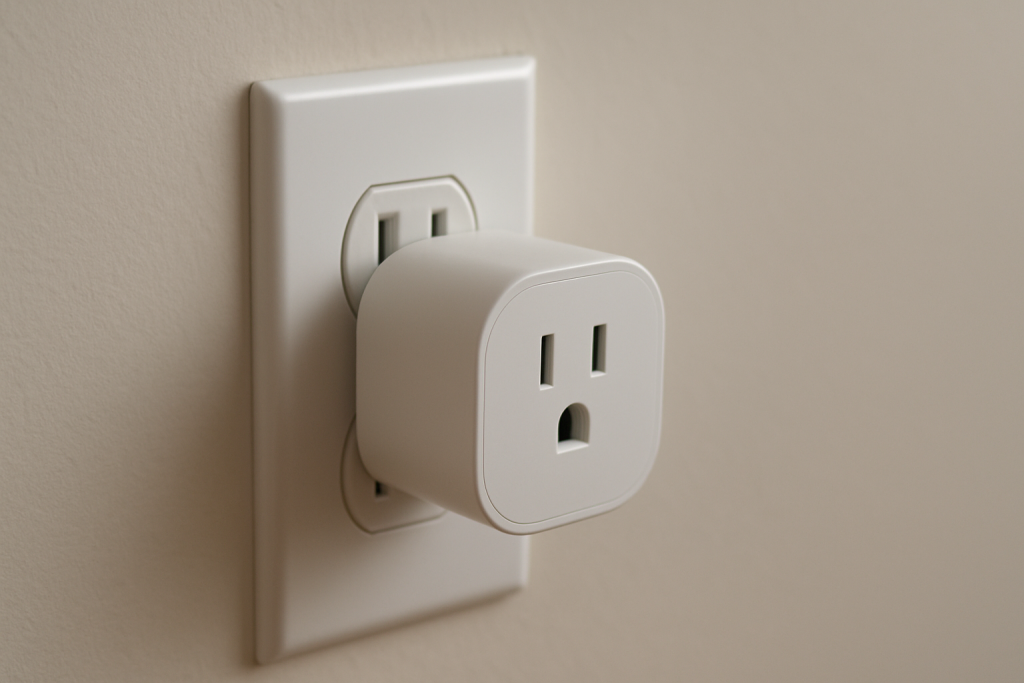
A smart plug (and many smart switches) often uses a small internal relay to physically connect and disconnect power. That relay can make a distinct “click” when the device turns on or off. One click that matches an on/off command, schedule, or automation is usually normal switching behavior.
Clicking becomes a problem when it happens repeatedly without a clear reason, when the plug’s status in the app doesn’t match what’s actually happening, or when the clicking is tied to power dropouts (relay “chatter”). In real homes this is frequently caused by overlapping automations across apps/assistants, WiFi/Matter/Zigbee reconnect loops after router or power events, or an overloaded/unstable load making the plug cycle.
Do these three immediate checks: (1) watch the plug’s on/off status in its primary app while the clicking occurs to see if the relay is actually toggling, (2) temporarily disable schedules/routines in every ecosystem you use (Alexa/Google/HomeKit/SmartThings/manufacturer app) to see if the clicking stops, and (3) test the plug in a different outlet with nothing plugged into it to separate “device control issue” from “load/power issue.”
Why This Happens
Most smart plugs and many smart switches use a relay: a mechanical switch controlled by electronics. When it changes state, you may hear a click. If you hear a single click exactly when you tap ON/OFF in the app, press the button on the device, or a scheduled automation runs, that sound is typically just the relay doing its job.
Clicking becomes concerning when the relay is being commanded to toggle repeatedly, or when it can’t hold a stable state. The most common causes stay tightly tied to relay behavior: the device is receiving repeated on/off commands (intentional or accidental), it’s rebooting and applying a “power recovery” setting, it’s briefly losing network/mesh connectivity and re-registering, or it’s reacting to load conditions that make it reset or drop power.
Real-world scenario: after a router restart or a brief power outage, a smart plug reconnects, cloud services resync, and multiple platforms “catch up” at once—one app thinks it should be ON, another automation thinks it should be OFF—so you hear several clicks over a minute as commands collide.
Common user mistake: setting a schedule in the manufacturer app and also creating a routine in Alexa/Google/HomeKit for the same device and time. Each platform can independently send commands, leading to unexpected toggles (clicks) even though you only remember setting “one schedule.”
Overlooked technical cause: DHCP or mesh roaming behavior can cause brief disconnect/reconnect loops. Some devices apply last-known state after reconnect, some re-run an automation, and some briefly toggle the relay as they restore state—especially in Matter setups with more than one controller, or Zigbee plugs paired through a hub that is itself reconnecting.
Most Likely Causes in Real Homes
These are ordered by how often they explain repeated or “mysterious” clicking.
Overlapping schedules/automations across apps: The relay is fine; it’s simply being told to switch multiple times by different rules (manufacturer app + Alexa/Google/HomeKit/SmartThings, or multiple household members).
Power recovery behavior after brief outages: The plug may be set to “Restore last state,” “Always on,” or “Always off,” and quick power blips can trigger an extra relay toggle as it reboots.
Unstable network causing reconnect loops: WiFi band steering, mesh node roaming, or hub/controller reconnections can cause the device to re-sync and receive repeated state commands.
Status mismatch leading to corrective toggles: The app/cloud thinks the plug is ON while the device is OFF (or vice versa), so automations repeatedly “correct” it—clicking each time.
Load-related instability: Some loads (especially ones with motors, compressors, or certain power supplies) can cause brief dips or noise that makes the plug reset or cycle, creating repeated clicks that stop when the load is removed.
Step-by-Step Fix
Confirm what the click corresponds to. Open the device in its primary control app (the manufacturer app for WiFi plugs, or the hub app for Zigbee/Matter setups) and watch the on/off state while the clicking occurs. If the state flips each time you hear a click, the relay is being commanded to toggle (likely automation/conflict). If the state does not change but you still hear clicks, it may be rebooting or failing to hold state—continue to the next step. If you can’t see live updates (device shows offline), go to step 3.
Remove the load and re-test. Unplug whatever is connected to the smart plug (leave the smart plug itself in the outlet) and listen for clicking for a few minutes. If clicking stops with no load, the device is likely receiving valid on/off commands that were triggered by the appliance use-case (automation), or the appliance/load is contributing to instability. Next, jump to step 4 to check automations, then step 6 to test the load again. If it still clicks with nothing plugged in, the issue is more likely network/control-state related—go to step 3.
Check if the problem is “offline/reconnect” related. In the app, look for “Offline,” “Unreachable,” or delayed response. Also note if the clicking happens right after router restarts, power outages, or mesh changes. If the device frequently goes offline, the relay may click when it reconnects and state is restored. Next, do a targeted network test in step 5. If it stays online but clicks anyway, it’s more likely automation conflicts—go to step 4.
Isolate automation conflicts across ecosystems. Temporarily disable all schedules/timers for this device in every place it may exist: the manufacturer app, Alexa routines, Google Home automations, Apple Home automations, SmartThings routines, and any Matter controller automations. Also check for “Away/Home” automations and energy-based rules (if your plug supports energy monitoring). If the clicking stops, you’ve confirmed the relay is normal and the cause is conflicting commands. Next, re-enable automations one platform at a time until the clicking returns to identify the specific rule. If it continues, go to step 5.
Do a focused connectivity test (without generic “restart everything”). For WiFi plugs, ensure the plug is on 2.4 GHz if required (many are), and watch for band steering causing it to bounce. If you use mesh WiFi, temporarily move the plug closer to the main router (or temporarily power down nearby mesh nodes so the plug stays on one access point) and retest. If clicking reduces/stops, the relay is likely responding to reconnect/state-sync events; keep the plug in a spot with more stable signal or adjust mesh placement. If there’s no change, go to step 6.
Test with a simple, steady load and re-check state accuracy. Plug in a basic lamp (no smart bulb) or another steady device and toggle ON/OFF from one control source only (the primary app). If it clicks once per command and stays stable, the relay is behaving normally; your original appliance or automation setup is the trigger—revisit step 4 and any power recovery settings in the device app. If it still chatters (multiple clicks) or won’t stay on, proceed to step 7.
Check device settings that intentionally toggle the relay. Look for power-on behavior (“restore last state”), auto-off timers, away mode, “smart” energy rules, or button-lock features that may change how the device responds after outages. If changing these stops the clicking, the relay is fine and the behavior was configuration. If you can’t find these settings or they don’t help, continue to step 8.
Verify app/firmware alignment and re-sync the ecosystem link. Update the manufacturer app and confirm the plug’s firmware is current (if the app shows a firmware option). Then re-sync the device list in your voice assistant (run device discovery in Alexa/Google Home; in Apple Home confirm the correct home/room; in SmartThings refresh devices). If clicking was tied to repeated “catch-up” commands, this often stabilizes it. If clicking still happens, move to the reset/replace guidance below.
Advanced Troubleshooting
This section is only needed if basic fixes fail.
Account/cloud sync issues: If the plug works locally in the manufacturer app but clicks or toggles when cloud automations run, you may have a cloud account session problem or duplicated device entries. Log out/in of the controlling app, confirm you’re using one account per household for automation ownership, and remove duplicate device entries (especially after migrations or re-pairing).
Network edge cases (WiFi, mesh, and DHCP): Repeated clicking shortly after reconnect can happen if the device repeatedly gets a new IP address or flips between mesh nodes. If your router has a way to keep the plug consistently connected (stable 2.4 GHz, consistent node, or consistent addressing), that reduces state resync events that can trigger relay toggles.
Firmware/software behavior changes after updates: Sometimes an app update changes how schedules are stored (device vs cloud). If clicking started right after an update, review schedules that may have been re-imported or duplicated. Also verify time zone and location settings in each ecosystem; a time shift can cause routines to fire unexpectedly.
Configuration conflicts (groups/scenes/permissions): A plug in a group (e.g., “Living Room”) might be toggled by a scene you forgot about. Check scenes in Alexa/Google/HomeKit/SmartThings and any manufacturer “tap-to-run” buttons. In shared homes, confirm who has permission to control the device and whether another user created routines.
Ecosystem sync issues (Matter, bridges, hubs): With Matter, you can have multiple controllers (e.g., Apple Home and Google Home) sending commands. If they disagree about state, you may hear extra clicks as the plug is commanded twice. Temporarily control from only one ecosystem to confirm, then remove duplicate automations and ensure the plug is assigned to the correct home/room in each controller.
When to Reset or Replace the Device
Soft restart vs factory reset: A soft restart is simply removing power from the smart plug for about 20–30 seconds and plugging it back in, then waiting a minute for it to reconnect. This is useful if the device is stuck in a temporary state-sync loop. A factory reset wipes pairing and configuration and should be used only after you’ve ruled out automation conflicts and connectivity loops.
What you may lose after a factory reset: You’ll typically lose the pairing to your WiFi/hub/Matter controller, device name, room assignment, schedules/timers, and any automations tied to that specific device entry. For energy-monitoring smart plugs, you may also lose historical energy data and any energy-based rules.
When reset is reasonable: If the plug stays online but the app state is consistently wrong, or if it repeatedly appears twice in an ecosystem and you can’t remove the duplicate cleanly, a reset and clean re-add can stop “double-command” clicking.
When replacement is reasonable: Replace the device if clicking becomes rapid relay chatter that continues with no load and stable network, if it frequently fails firmware updates, or if it can’t stay connected even in strong signal conditions. Also stop using it and replace it if you notice overheating, a burning smell, discoloration, melting, crackling, or any visible damage.
How to Prevent This in the Future
Keep automations in one “source of truth” when possible: Choose where schedules live (manufacturer app or one ecosystem) and avoid duplicating the same on/off rule in multiple places. If you do use multiple platforms, document what controls the plug.
Stabilize connectivity to reduce resync clicking: For WiFi plugs that require 2.4 GHz, keep them on a stable 2.4 GHz connection and avoid placing them where mesh roaming is aggressive (edges of coverage). If a plug is in a garage/outdoor outlet, signal stability often matters more than raw speed.
Use consistent naming and room assignments: Clear names reduce accidental toggles (“Heater Plug” vs “Plug 1”). Keep the same room/home assignments across Alexa/Google/HomeKit/SmartThings to avoid controlling the wrong device or a duplicate.
Plan for outages: After power outages, give the router/mesh/hub a few minutes to fully stabilize before troubleshooting. If your plug has a power recovery setting, set it intentionally so you’re not surprised by toggles after a brief outage.
Maintain apps and firmware thoughtfully: Keep the device app and ecosystem apps updated, but if clicking starts after an update, immediately check for duplicated routines, time zone changes, or re-imported schedules.
Keep sharing tidy: In shared homes, limit who can create automations, and remove access for old household members. Many “mystery clicks” are simply a routine created under another user’s account.
FAQ
Is one loud click when turning a smart plug on or off normal?
Yes. A single click that happens exactly when the plug changes from OFF to ON (or ON to OFF) is usually the relay switching power. That’s expected for many smart plugs and smart switches.
My plug clicks several times quickly (chattering). What does that usually mean?
Rapid clicking usually means the relay is being toggled repeatedly or can’t hold a stable state. The most common causes are automation conflicts (multiple apps issuing commands), reconnect/state-sync loops after network instability, or a problematic load that causes the plug to reset or drop out.
Misconception: “Clicking means the plug is defective.” Is that always true?
No. Clicking is often a sign the relay is working normally. It becomes a defect concern when the clicking is frequent, happens with no commands or schedules, continues with no load attached, or is paired with overheating, burning smells, or visible damage.
Why does it click more often after a power outage or router restart?
After an outage or network change, the plug may reboot, reconnect, and then receive “catch-up” commands from the cloud and your smart home ecosystems. If two platforms disagree about whether it should be on or off, you can hear multiple clicks as they send competing commands. Disabling duplicate routines and keeping the connection stable usually fixes it.
It’s a strange relief when the noise finally stops and the day can move on without the same old tug-of-war. Even better, the work feels less dramatic than it sounded—like finding the right key and realizing it was always in the same drawer.
From here, the world doesn’t suddenly become perfect, but it does become steadier. The best part is how ordinary the change looks, right where you live.