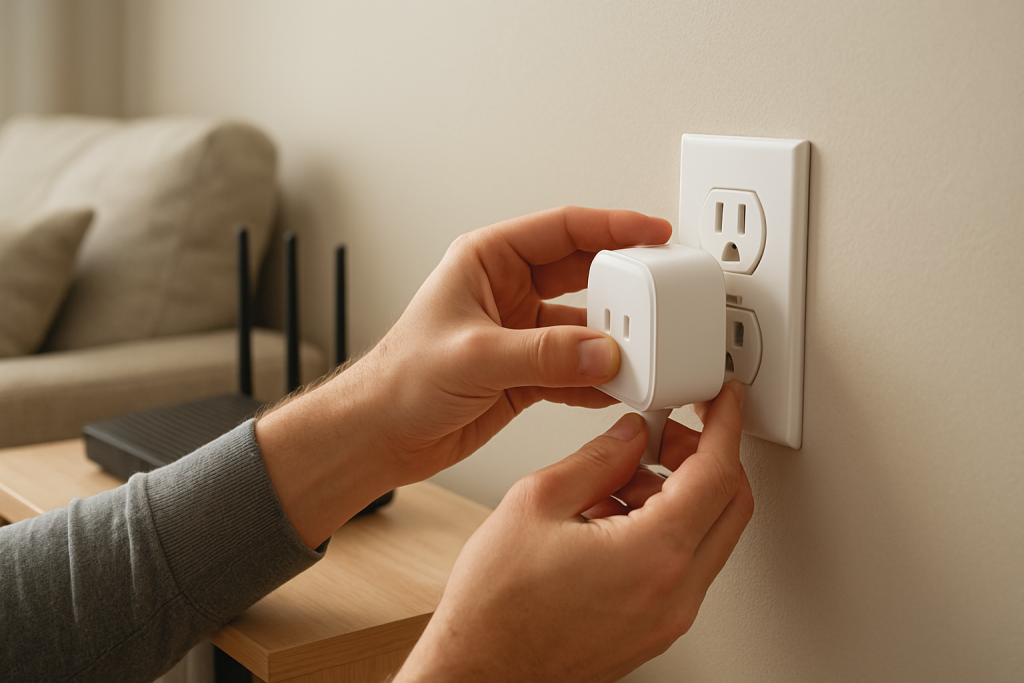
Smart Plug Setup Fails at the Final Step? Try These Fixes
Quick Answer
When a smart plug or smart switch “almost finishes” setup but fails at the last screen (often “Registering,” “Saving,” “Linking,” or “Adding to Home”), the device usually connected locally, but the final cloud registration or local handoff didn’t complete. In plain terms: your phone and the device talked, but the account, cloud service, or home ecosystem didn’t accept the handoff.
This is common after router changes, app updates, or in homes with mesh WiFi where your phone hops to a different node mid-setup. It can also happen when the plug joins 2.4 GHz successfully but the phone/app session can’t finalize the device-to-account binding.
Try these three diagnostic actions immediately: (1) keep your phone on the same 2.4 GHz WiFi and temporarily disable mobile data, (2) confirm the device appears in the brand app but shows “offline/unreachable,” and (3) sign out and back into the device app (or relink the skill/integration) to refresh cloud authentication.
Why This Happens
The final setup step typically does two things: it registers the device to your cloud account (so you can control it from anywhere and through assistants) and it hands the device off from “temporary setup mode” to “normal operation” on your home network. If either part fails, you’ll see a last-step error even though earlier steps looked successful.
Common causes tightly tied to this final-stage handoff include:
First, a cloud registration hiccup: the app can’t finish binding the device to your account due to a stale login session, a temporary cloud outage, or blocked network access. This is why you may see “Device added” briefly, then it disappears or shows offline.
Second, local handoff trouble: the device joins WiFi, but your phone switches networks (mesh roaming or band steering) and can’t complete the final local confirmation step. A real-world scenario is walking to another room during setup; your phone roams to a different mesh node and the handoff fails even though the plug is already connected to the original node.
Third, a common user mistake: setting up the plug while connected to a guest network, VPN, or “WiFi Assist/Smart Network Switch” behavior that silently moves the phone between WiFi and cellular. The app needs consistent local connectivity at the exact moment it finalizes.
Fourth, an overlooked technical cause: router security features (AP isolation, client isolation, or certain “IoT protection” modes) that let the device reach the internet but prevent the phone from reaching the device locally for the final confirmation.
Most Likely Causes in Real Homes
1) Phone network switching during setup (mesh roaming, band steering, or mobile data fallback). The final handshake is time-sensitive and breaks if your phone changes paths.
2) Cloud/account session problems (expired login token, pending terms/permissions, or partial account migration after an app update). The device connects, but can’t be claimed.
3) Local network isolation (guest WiFi, AP/client isolation, some “private WiFi” modes). The plug is online, but the app can’t finish local verification.
4) Duplicate or conflicting “homes” and controllers (Apple Home vs brand app vs Matter controller vs SmartThings). The device may register to one place but the app you’re looking at is waiting for a different handoff.
5) DHCP/IP changes right after router restart or power outage. The device joins, gets an IP, then changes, and the app’s last step points at the wrong address.
Step-by-Step Fix
Do this: Keep the phone on your main WiFi (not guest), force 2.4 GHz if possible, and temporarily disable mobile data for the duration of setup. Stay within the same room as the plug and your main router or closest mesh node.
What it means: If the final step completes now, the failure was caused by network switching (band steering/mesh roaming) or the phone jumping to cellular at the critical handoff moment.
If it fails: Move to the next step to check whether the device is actually online but not properly registered to the cloud/account.
Do this: After the failure, look in the brand’s device app for the plug/switch entry. If it appears, tap it and check whether it says “offline,” “unreachable,” or “not responding,” and try an in-app refresh or pull-to-refresh.
What it means: If the device entry exists but is offline, the device likely joined WiFi but the cloud registration or local verification didn’t finish. If it doesn’t exist at all, the setup didn’t fully create an account binding.
If it fails: If it’s offline or missing, continue to step 3 to fix cloud session and authorization issues that commonly block final registration.
Do this: Sign out of the device app and sign back in. If you’re using Alexa, Google Home, Apple Home, SmartThings, or a Matter controller, also refresh the integration: disable/enable the linked service (skill/works-with link) or re-authorize the connection in the ecosystem app.
What it means: If the device completes setup afterward, the root cause was a stale authentication token or a cloud/account sync problem preventing the final “claim” step.
If it fails: Proceed to step 4 to rule out local isolation (your phone can’t reach the device on the LAN during the handoff).
Do this: Verify you are not on a guest network and that “client isolation/AP isolation” is not enabled for the SSID you’re using (common on guest WiFi). If you can, temporarily connect both your phone and the plug to the same simple network name (single SSID) used for general devices, not an IoT-only isolated network.
What it means: If setup completes when both are on the same non-isolated network, the last-step failure was due to local reachability being blocked. The cloud might be reachable, but the app needs a local confirmation step.
If it fails: Move to step 5 to test whether your mesh or router is causing the handoff to break.
Do this: If you use mesh WiFi, temporarily perform setup near the primary router (or temporarily pause additional nodes if your system allows). Keep the phone stationary. Avoid walking around during the final “registering” stage.
What it means: If this fixes it, the issue is mesh roaming during the last step. The plug may join one node while your phone talks through another, and the app’s final local check times out.
If it fails: Continue to step 6 to isolate the router entirely using a phone hotspot test (a strong indicator of whether the failure is cloud vs local network behavior).
Do this: Run a hotspot isolation test. Enable a phone hotspot (2.4 GHz if configurable), connect your setup phone to that hotspot, and attempt setup again (some devices support this; some do not). If you cannot use a hotspot for the device, use a second phone as the hotspot and your primary phone for setup.
What it means: If setup succeeds on the hotspot, your home router/mesh is the blocker (isolation settings, DNS filtering, band steering behavior, or DHCP quirks). If it still fails, the problem is more likely cloud/account-related or a device firmware/app compatibility issue.
If it fails: Go to step 7 to check for firmware/app version mismatches and ecosystem controller conflicts that block final registration.
Do this: Update the device app and your phone OS, then check for a device firmware update path (some devices update only after partial pairing). Also confirm you’re adding the device in the correct place: brand app first (common for WiFi plugs), hub app for Zigbee devices, or your chosen Matter controller for Matter devices.
What it means: If an update or changing the “pairing owner” fixes it, the last-step failure was due to a compatibility issue (app version vs firmware) or a controller ownership conflict (for example, adding in Apple Home first when the device expects initial claiming in the brand app, or vice versa for some Matter flows).
If it fails: Continue to step 8 to eliminate conflicts from duplicated devices, homes, rooms, or automations that can make the final step appear to fail even though the device is added elsewhere.
Do this: Check for duplicates across apps. Look in the brand app, Alexa, Google Home, Apple Home, SmartThings, and any hub app (including Zigbee bridges) for a “ghost” device that got added but is stuck offline. Remove the duplicate entry and retry setup with only one “owner” app open.
What it means: If you find a ghost/duplicate, the device probably registered, but the app you were watching didn’t receive the final confirmation (cloud sync delay or ecosystem mismatch). Cleaning duplicates allows a clean re-claim.
If it fails: Move to advanced troubleshooting, focusing on cloud reachability and controller-specific issues.
Advanced Troubleshooting
This section is only needed if basic fixes fail.
Account/cloud issue: If setup consistently fails at “registering” across multiple devices, check whether your account needs re-verification, updated permissions, or acceptance of new terms. Also consider a temporary cloud outage: if the app can’t load device lists quickly or errors on login, wait and try again later rather than repeatedly resetting.
Network issue: Some routers block the exact traffic needed for the local handoff (multicast/Bonjour-like discovery, local device discovery, or device-to-app direct communication). If the device works on a hotspot but not at home, review router features like “AP/client isolation,” “IoT network isolation,” “security scanning,” custom DNS filtering, or VPN at the router level. If you have multiple access points, aim for a single SSID and consistent 2.4 GHz behavior during setup, then re-enable advanced features after the device is fully registered.
Firmware/software cause: A partially completed setup can leave the plug in an awkward state: joined to WiFi but not properly claimed. If the app shows the device briefly, then it disappears, clear the app cache (or reinstall the app) and try again. App updates sometimes change pairing flows, and an older app version can fail at the final registration step even when WiFi joining works.
Configuration conflict: Conflicting automations can make you think setup failed because the device turns on/off unexpectedly right after pairing. Check for schedules in the brand app and routines in Alexa/Google/HomeKit/SmartThings that target the same device name. If manual control works but automations don’t, confirm time zone and “home” location settings in the app; a wrong time zone can make schedules appear broken.
Ecosystem sync issue (Alexa/Google Home/Apple Home/Matter): If the device completes setup in the brand app but fails to appear in a voice assistant, run a device discovery/resync and confirm it is assigned to the same “Home/Household” and the correct user account. For Matter devices, ensure you are using one primary controller and that your phone is on the same network; Matter handoff failures at the last step often come from trying to add with a different controller than the one that owns your home, or from switching networks mid-flow.
When to Reset or Replace the Device
A soft restart is simply removing power from the smart plug (unplug/replug) or toggling the switch’s breaker off/on only if it’s a plug-in device on a safe outlet and you’re comfortable doing so; otherwise use the app’s restart option if available. A factory reset wipes the device’s pairing state and forces a full re-add.
Reset is reasonable when the device appears in the app but stays stuck on “registering,” repeatedly creates ghost entries, or remains offline after you’ve ruled out phone network switching and account relink issues. Keep in mind what you may lose after a factory reset: room assignment, device name, schedules/timers, automation bindings, voice assistant links, and for energy-monitoring plugs, historical energy data and calibration history (if your platform stores it per-device).
Replacement becomes reasonable if the device can’t hold a stable connection after successful registration, repeatedly fails firmware updates, or shows unstable relay behavior (random clicking or repeated on/off) that persists even with automations disabled. Stop using the device immediately and replace it if you notice overheating, a burning smell, discoloration, cracking, or any visible damage at the plug, outlet, or switch plate.
How to Prevent This in the Future
Keep setup conditions stable: do initial pairing near the primary router or a reliable mesh node, and keep your phone on a consistent 2.4 GHz connection until setup fully completes. Avoid walking around during the final “registering” screen.
Maintain clean ecosystem ownership: pick one “source of truth” for setup (brand app, hub app for Zigbee, or one Matter controller) and then link assistants afterward. This prevents duplicate devices and reduces last-step handoff confusion.
Avoid duplicate automations across apps: if you schedule the plug in the brand app, don’t create a second schedule for the same behavior in Alexa/Google/SmartThings unless you’re intentionally coordinating them. Duplicate routines are a major cause of “random” behavior that looks like setup failure.
Use consistent naming and room assignments across platforms: mismatched rooms/homes (especially in shared households) can make it seem like a device didn’t add when it actually landed in a different “Home” or under a different user.
Plan for outages: after a power outage or router reboot, give the router a few minutes to stabilize before opening apps and triggering device control. If you routinely reboot network gear, do it in order (modem/router first, then mesh nodes), so plugs don’t reconnect during an unstable DHCP window.
Keep apps and firmware current, but avoid updating everything at once right before you need it. If an update coincides with setup failures, re-authenticate (sign out/in) and relink integrations to refresh cloud permissions.
Use good sharing hygiene: in multi-user homes, confirm the device is shared correctly and that the person doing setup is an admin of the home/ecosystem. Non-admin users often hit silent final-step failures when the cloud won’t allow device claiming into the home.
FAQ
My plug connected to WiFi, so why does the app still fail at the last step?
Because “connected to WiFi” is only the middle of the process. The last step is usually account claiming (cloud registration) plus a final local confirmation. If cloud claiming fails or your phone can’t reach the device locally for that final handshake, setup can fail even though the plug is on your network.
If I can control it locally, does that mean the cloud is the problem?
Often, yes. If the device works while you’re on the same WiFi but fails remotely or won’t appear in Alexa/Google/HomeKit/SmartThings, the device likely isn’t properly registered to the cloud account or the integration link is stale. Relinking the integration and signing out/in of the device app are the fastest checks.
Common misconception: “A factory reset always fixes final-step setup failures.” Is that true?
No. A reset can help if the device is stuck in a partial state, but many final-step failures are caused by phone network switching, guest network isolation, or account authorization issues. If you reset without fixing those, you usually get the same last-step failure again and you lose your settings in the process.
Why does setup work in the brand app but not show up in my voice assistant?
That usually means registration succeeded, but ecosystem sync didn’t. Check that you linked the correct account, the device is in the correct “Home/Household,” and run a device discovery/resync. Also look for duplicates with the same name; assistants may hide one device if they detect a conflict.
For a while, it feels like the same irritation keeps showing up in different outfits. Now it just… stops. Not dramatically, not with fanfare—more like the room finally goes quiet.
What’s left is oddly simple: less noise, fewer side quests, more time to live your actual day. The change doesn’t ask for attention, it just holds steady in the background, doing its job.