Alexa Says Your Device Is Not Registered: How to Fix It
Quick Answer
“Device not registered” almost always means the link between your Echo device and your Amazon account isn’t complete anymore. The device may still power on and even connect to Wi-Fi, but Amazon’s servers don’t recognize it as properly attached to the account currently signed into your Alexa app.
Start by confirming you’re signed into the correct Amazon account in the Alexa app, then check whether the device shows as registered (not “unresponsive” or “offline”). If the device appears in the app but still says it’s not registered, re-register it by removing it from the Alexa app and setting it up again. This rebuilds the device-to-account registration link.
Why This Happens
Alexa devices don’t just “work on Wi-Fi.” They must be registered to a specific Amazon account so Amazon’s cloud can authorize voice requests, sync settings, and apply your device profile. When that registration link is broken or only partially completed, the device can’t authenticate properly, and you’ll hear “your device is not registered.”
Common causes that fit this pattern include:
1) You’re signed into the wrong Amazon account in the Alexa app. If the device was originally set up under a different account (a spouse’s account, an old account, or a previous homeowner’s account), the current app session can’t manage it, and the device can’t verify ownership.
2) The device was deregistered remotely or during an account change. Changing the Amazon password, enabling/disabling certain account security features, or removing a device from “Your Devices” on Amazon can invalidate the registration token the Echo uses.
3) Setup was interrupted, leaving a partial registration. This can happen if the app was closed mid-setup, the phone switched networks, Bluetooth permissions were denied, or the Echo lost connectivity during the final “register and sync” step.
4) Household/Profile confusion. If you use Amazon Household, multiple profiles, or a shared phone/tablet, it’s easy to set up a device under one profile and then try to manage it from another. The device may appear inconsistent across profiles, which looks like a registration problem.
5) Time/date or captive portal interference (overlooked). If your network requires a sign-in page (some apartment/guest networks) or if the device can’t reach Amazon long enough to confirm registration, it may connect locally but fail cloud authorization. This is often misread as “Wi-Fi is fine,” because the device appears connected, but registration still fails.
Real-world scenario: After a power outage, a homeowner’s mesh system comes back online slowly. The Echo reconnects to Wi-Fi quickly, but the mesh is still stabilizing DNS and internet access. During that window, the Echo tries to validate its registration and fails. Later, it stays stuck in a “not registered” state until the account link is refreshed.
Common user mistake: Trying to fix it by repeatedly unplugging the Echo without checking the Alexa app account first. Power-cycling can help in some cases, but it won’t fix a device that’s registered to a different Amazon account than the one you’re currently using.
Step-by-Step Fix
Confirm the Amazon account in the Alexa app is the one you want the device registered to.
What to do: Open the Alexa app and check which account is signed in. If you have multiple family members, confirm you’re not signed into a secondary or old account. If needed, sign out and sign back in with the correct account.
What the result means: If the device suddenly appears normally (or you can control it again), the issue was an account mismatch—your app was managing the wrong account.
If it fails: If the device still says “not registered,” continue to the next step to verify whether the device is currently listed and how it’s labeled.
Check the device’s status in the Alexa app and look for duplicates.
What to do: In the Alexa app, go to Devices and find your Echo. Note whether it shows as “Offline,” “Unresponsive,” or if there are two entries with similar names (for example, “Living Room Echo” and “Living Room Echo (2)”). Tap into the device settings if it opens.
What the result means: If you see duplicates, it often means a previous setup partially completed. The app may be pointing at an old registration record while the speaker is trying to register again (or vice versa).
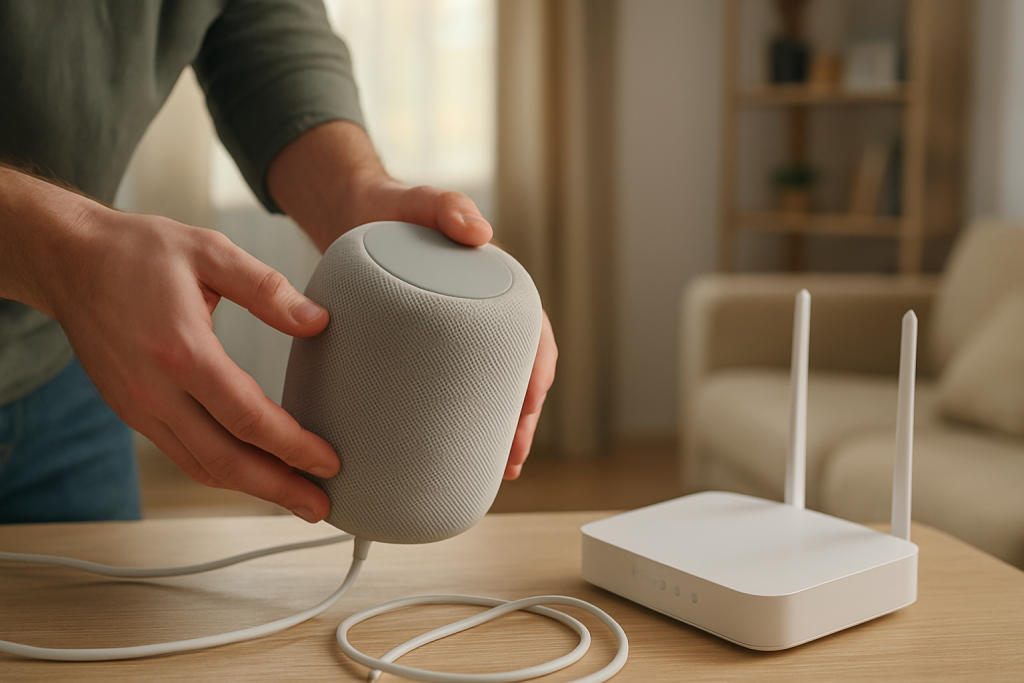
If it fails: If the device isn’t listed at all, or the settings page won’t load, move to removing and re-adding the device to rebuild the registration link.
Remove the device from the Alexa app, then set it up again (re-register).
What to do: In the Alexa app, open the device, choose the option to remove/deregister it, then start Add Device and follow the setup prompts. Stay on the same phone, keep Bluetooth and local network permissions allowed, and avoid switching Wi-Fi networks mid-setup.
What the result means: If setup completes and the device responds normally, the broken registration link was the problem and is now rebuilt.
If it fails: If setup can’t complete or you get the same “not registered” message immediately after setup, test whether the issue is your network path to Amazon (next step) or an account/cloud issue.
Run a quick “different internet” test using a mobile hotspot (temporary test).
What to do: Create a mobile hotspot on your phone (or another phone) and connect the Echo to that hotspot during setup. This is not a permanent recommendation—just a clean test path to the internet.
What the result means: If registration works on the hotspot, your Echo and Amazon account are fine. The problem is your home network path (often DNS filtering, a captive portal, or a router setting that blocks cloud access during registration).
If it fails: If it still won’t register on a hotspot, the issue is more likely account-related (wrong account, device still tied to another account) or a device software/firmware problem.
Check whether the device is still registered to a different Amazon account.
What to do: If the Echo was purchased used, gifted, or previously set up by someone else, it may still be attached to another account. In that case, removing it in your Alexa app won’t fully clear the prior ownership record. If possible, have the previous owner deregister it from their Amazon account (from their device list). Then try setup again on your account.
What the result means: If it registers immediately after the prior account removes it, the problem was an ownership/registration lock.
If it fails: If you can’t contact the prior owner or you’re sure it was yours, move on to checking cloud and app conditions that can block registration.
Verify the Alexa app has the permissions it needs to complete registration.
What to do: On your phone, ensure the Alexa app has permission for Bluetooth and Local Network (and location if your phone requires it for Wi-Fi scanning). Then try setup again.
What the result means: If setup completes after enabling permissions, the earlier registration attempt likely failed mid-stream, leaving the device in a partially registered state.
If it fails: Continue to the next step to check your router’s view of the device and confirm it’s actually reaching the internet cleanly.
Check your router’s client list to confirm the Echo is connected and getting a normal IP address.
What to do: Log into your router and open the connected devices/client list. Look for the Echo by name or manufacturer entry. Confirm it has an IP address and is not being blocked by parental controls, access control lists, or a “paused” device setting.
What the result means: If the router shows the Echo connected but blocked/paused, registration will fail because the device can’t reach Amazon’s servers to confirm the account link.
If it fails: If you can’t find it, the Echo may not be joining Wi-Fi correctly; rerun Wi-Fi setup. If it is connected and not blocked, proceed to a controlled restart sequence to clear stale sessions.
Do a proper restart sequence (network first, then Echo) to clear stale authentication sessions.
What to do: Restart in this order: modem (if you have one) → router/mesh main unit → wait for internet to fully return → then power the Echo off and back on. Give the Echo a few minutes after it boots to re-check registration.
What the result means: If the message disappears after the network stabilizes, the Echo was likely stuck with a failed registration check caused by temporary internet/DNS issues.
If it fails: If it still says “not registered,” move to advanced troubleshooting focusing on account/cloud and configuration conflicts.
Advanced Troubleshooting
Account and cloud issues that block registration
If the device repeatedly fails right at the end of setup (or registers and then immediately “unregisters”), suspect an account-side problem rather than Wi-Fi strength.
Things to check:
1) Make sure you can sign into Amazon normally on a web browser using the same account. If your account is locked, needs verification, or is prompting for security confirmation, the Echo may not be able to complete registration until the account is fully accessible.
2) If you use multiple profiles (Amazon Household), switch profiles in the Alexa app and confirm you’re not trying to manage the device from the wrong profile. A device can appear inconsistent if the app is viewing a different profile context than the one that completed setup.
Network conditions that specifically interfere with registration
This error is not usually caused by weak Wi-Fi alone. It’s more often caused by the device being unable to reach Amazon’s registration services reliably.
Common culprits:
1) Captive portals or “sign-in required” networks. If your internet requires a web login page, an Echo can’t complete that sign-in step, so registration won’t stick.
2) DNS filtering or security features that block Amazon endpoints. If registration works on a hotspot but not at home, review router security/filtering settings and temporarily disable them to test.
3) Mesh band steering during setup (overlooked). Some mesh systems move devices between bands aggressively. If setup keeps failing, temporarily split 2.4 GHz and 5 GHz (if your system allows) or temporarily disable band steering long enough to register the device, then re-enable it afterward.
Firmware/software causes
If the Echo has been offline for a long time, it may need time to update after it connects. During that period, it can behave strangely, including registration errors.
What to do:
Leave the Echo powered on and connected to stable internet for at least 30 minutes, then try again. If you removed and re-added it, complete setup and then allow time for background updates before changing more settings.
Sometimes the device registers, but specific features fail and the app shows confusing status messages. Watch for these conflicts:
1) A device name collision (two devices with the same name) can make it seem like the “wrong” device is responding or not responding. Rename the Echo to a unique name after registration.
2) Child profiles or restricted profiles can limit device management actions. If a family member’s phone is using a restricted profile, it may not be able to complete setup steps even though it can see devices.
3) Skills or routines tied to an old device entry can behave as if the device is missing. After re-registering, check routines that reference the old device and update them to the newly registered one.
When to Reset or Replace the Device
Try a soft restart first when the Echo was working recently and the error started after an outage, router change, or account sign-in change. A restart is appropriate when the device still appears in the Alexa app and you can access its settings.
Use a factory reset when the device is stuck in a loop (won’t complete setup), shows duplicates you can’t remove cleanly, or keeps saying “not registered” immediately after you re-add it. A factory reset clears local configuration so the device can rebuild registration from scratch.
What you lose with a factory reset: the device’s Wi-Fi settings, its local configuration, and its association in rooms/groups. You may need to re-add it to speaker groups, reselect preferences, and update routines that referenced the old device entry.
Replace or stop using the device if you notice overheating, a burning smell, crackling from the power adapter, or the device repeatedly powers off unexpectedly. Unplug it and discontinue troubleshooting in that case. Hardware faults can mimic software problems, and it’s not worth the risk.
How to Prevent This in the Future
1) Keep account ownership clear. If multiple people manage the home, choose one primary Amazon account for device registration and document it. Most “not registered” cases in shared homes come from switching accounts on the Alexa app without realizing it.
2) Avoid interrupted setup. During registration, keep your phone close to the Echo, allow Bluetooth/local network permissions, and don’t switch Wi-Fi networks or enable a VPN mid-setup. Registration is a handshake; interruptions often create partial records.
3) After router or mesh changes, verify devices in the Alexa app. If you rename Wi-Fi networks, replace routers, or rebuild a mesh, plan a short check afterward: confirm each Echo shows online and responds in the app. Catching a broken registration early prevents a bigger cleanup later.
4) If you use mesh Wi-Fi, reduce band-steering problems during setup. When adding new devices, temporarily use the most stable node and avoid placing the Echo on the edge of coverage until registration is complete.
5) Manage routines and skills after re-registering. If you remove and re-add a device, revisit key routines that use it (wake-up routines, announcements, smart home triggers). Updating those references prevents “ghost device” behavior that can look like registration trouble.
FAQ
Does “device not registered” mean my Wi-Fi password is wrong?
Not usually. A wrong Wi-Fi password typically prevents the Echo from connecting at all. “Not registered” more often means the Echo can’t complete (or keep) its account authorization with Amazon, even if Wi-Fi looks connected.
I can see the Echo in the Alexa app, so why does it still say it’s not registered?
The app can show an old device record even when the speaker’s registration token is invalid. If the device appears but can’t be controlled, remove it from the app and add it again to rebuild the device-to-account link.
Will factory reset fix it every time?
Factory reset fixes cases where the Echo is stuck with partial setup data, but it won’t fix an account mismatch or a device still registered to someone else’s Amazon account. Confirm the correct account first, then reset only if re-registration won’t complete.
Can a used Echo be “locked” to the previous owner?
Yes. If it’s still registered to the previous owner’s Amazon account, you may not be able to complete registration under your account until the previous owner deregisters it from their Amazon device list.
Misconception: If Alexa can hear me, the device must be registered. Is that true?
No. The microphones and wake word detection can still function locally, but most actions require cloud authorization tied to registration. A device can appear to “listen” while still being unable to authenticate requests because the account link is broken.
By now the shape of it should be clear, like the last piece clicking into place. Relief has a way of sneaking in—quiet, almost smug—right after the noise fades.
Nothing dramatic to perform, just the steady exhale of a problem that stops taking up so much mental shelf space. The rest is the kind of everyday calm you notice only because it finally stays.