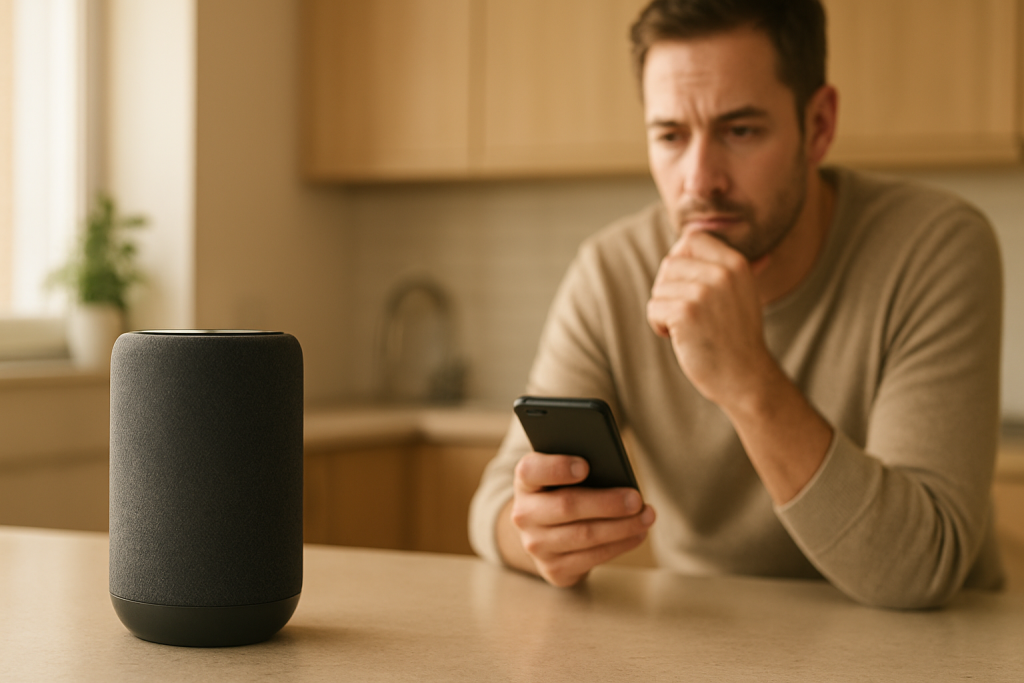
Alexa Keeps Turning On Brief Mode or Other Settings by Itself
Quick Answer
When Brief Mode (or other Alexa preferences) keeps switching back on, the most common cause is account and profile syncing conflicts. Your Echo isn’t “deciding” to change settings; it’s usually receiving updated preferences from the Alexa cloud because the device is tied to the wrong Amazon account, a different household profile, or multiple phones are managing the same home with different settings.
Start by confirming which Amazon account the Echo is registered to, then check whether Amazon Household, voice profiles, or multiple Alexa apps are signed in and making changes. After that, look for routines or skills that can overwrite preferences.
Why This Happens
Alexa settings live in two places: on the device and in your Amazon account (in the cloud). Many preferences—including Brief Mode behavior, announcements, language, and some privacy and communication settings—are designed to sync across devices. That’s convenient until two different “sources of truth” start competing.
If a device is registered to one account but controlled day-to-day by someone signed into a different account (or a different household profile), the cloud can keep pushing the “other” person’s preferences back down. You change a setting, it looks right for a while, and then it flips back after a few minutes or overnight when sync catches up.
Common causes tightly tied to profile/account syncing include:
1) Multiple phones signed into different Amazon accounts controlling the same Echo. If one phone is signed into an old account (or a spouse/roommate’s account) and changes a setting, Alexa will sync that preference back to the device later.
2) Amazon Household or user switching. In homes using Amazon Household, different adults can have different Alexa preferences. If the device (or the Alexa app) switches “who is speaking” or which profile is active, the device can inherit that profile’s settings.
3) Device registered to the wrong account after a move, sale, or “helpful setup.” This is especially common when someone sets up the Echo using their own Amazon login “temporarily,” or when an Echo is moved between homes and not fully deregistered first.
4) Shared devices and voice profiles. If Voice ID is enabled and Alexa identifies different speakers, some experiences can shift based on the recognized profile. It’s not that Brief Mode is per-person in every case, but profile switching can trigger a broader resync that makes it feel random.
5) Routines, skills, or permissions overwriting settings. Some skills and routines can change device behavior (volume, Do Not Disturb, announcements, etc.). If a routine runs daily, it can look like Alexa “keeps changing” things by itself.
6) Overlooked technical cause: delayed cloud sync after connectivity changes. If your Echo briefly loses internet (not just Wi-Fi), it may accept a local change, then later reconnect and pull the “cloud version” of the setting—overwriting what you just set.
Real-world scenario: In an apartment, one adult sets up the Echo on their Amazon account. Later, the other adult installs the Alexa app and signs in with their own Amazon account (or switches to a different household adult). Both can see some devices, both can issue commands, and settings changes start “bouncing” back and forth depending on which phone last synced.
Common user mistake: changing a setting in the Alexa app while logged into a different account than the Echo is registered to. The app may still show devices nearby or previously used, and it’s easy to miss that you’re not controlling the device you think you are.
Step-by-Step Fix
Confirm the Echo is registered to the correct Amazon account.
What to do: Open the Alexa app on the phone you normally use. Go to Devices > Echo & Alexa > select the problem device. Look for registration/account info (often under Device Settings or similar). Also check the Amazon account email currently signed into the Alexa app (menu/profile area).
What the result means: If the device is registered to a different person’s account, that account’s cloud settings can overwrite yours—especially after sync events.
If it fails / next: If you can’t find the registration details, use the next step to identify who else is controlling it, then plan to deregister and re-register the device to the correct account (covered later under resets).
Check for multiple Alexa apps (multiple phones) managing the same home.
What to do: Think through every phone/tablet in the home that has the Alexa app installed. On each one, open the Alexa app and verify the signed-in Amazon account. If someone is signed into an old account, sign out or remove the app temporarily for testing.
What the result means: If settings stop changing after you remove/disable the extra controller, you’ve confirmed a sync conflict. The “other” app was pushing different preferences.
If it fails / next: If settings still change, move to Household/profile checks and routine checks next.
Check Amazon Household and profile switching behavior.
What to do: In the Alexa app, review whether Amazon Household is enabled and which adult accounts are included. Then check whether the app or device is switching profiles. If you use voice profiles, confirm they are set up correctly and not duplicated or incomplete.
What the result means: If you see multiple adult profiles or frequent switching, your Echo may be receiving preferences from a different household adult’s cloud profile.
If it fails / next: If you don’t use Household features, disable them for a week as a test. If you do use them, make sure only the intended adult account manages device settings, and avoid “account hopping” inside the Alexa app.
Run a controlled test: change Brief Mode, then watch for the “flip back.”
What to do: Change Brief Mode (and only that one setting). Note the time. Leave the Alexa app closed on all devices for 30–60 minutes. Then check the setting again.
What the result means: If it flips back while no one is actively using the app, the change is being overwritten by a cloud sync, a routine, or another signed-in device you missed.
If it fails / next: If it stays stable during the test but changes later (often overnight), look for scheduled routines or periodic sync triggers (connectivity drops, app updates, or profile switching).
Check routines and scheduled actions that can mimic “settings changing.”
What to do: In the Alexa app, go to Routines. Look for anything scheduled (morning/night routines) that changes sound/notifications, Do Not Disturb, volume, announcement behavior, or device modes. Disable suspicious routines for 48 hours.
What the result means: If the issue stops, it wasn’t random—an automation was applying a preference on a schedule.
If it fails / next: If no routines apply, check skills next, especially those that manage device behavior or “modes.”
Temporarily disable or remove recently added skills (especially “utility” skills).
What to do: In the Alexa app, review enabled skills. Disable any added around the time the problem started, particularly those that manage notifications, voice responses, smart home modes, or daily briefings. Keep the test simple: disable a few, wait a day, and re-check.
What the result means: If settings stop changing, one of those skills was triggering a configuration update or routine-like behavior.
If it fails / next: If disabling skills doesn’t help, focus on connectivity and sync timing next (not general Wi-Fi quality—specifically whether cloud sync is delayed and overwriting your changes).
Practical network test: use a temporary mobile hotspot to rule out delayed cloud sync behavior.
What to do: Create a mobile hotspot on your phone (with a simple name/password). Connect the Echo to that hotspot (in the Alexa app Wi-Fi setup). Change the setting again and observe for an hour.
What the result means: If the setting stays put on the hotspot but flips on your home network, your home network is likely causing intermittent internet reachability or DNS issues that delay sync and then “snap back” to the cloud version.
If it fails / next: If it still flips on the hotspot, the cause is much more likely account/profile conflict or an automation rather than your home network.
Verify the device is not being managed by a second “home” or leftover registration.
What to do: If you’ve ever moved, sold devices, or used a friend/family member’s Amazon account, check your Amazon account’s device list and remove old Echos you no longer own. Also check that the problem Echo is not listed under an old household setup.
What the result means: Old registrations can cause confusing sync behavior, especially if another account still has partial control or if the device was never fully removed.
If it fails / next: If you can’t confidently confirm clean ownership and control, plan for a factory reset and fresh registration to the correct account (see below).
Advanced Troubleshooting
Use these when the basic checks point to syncing but you still can’t find the “other source” changing your settings.
Account/cloud: check for account switching inside the Alexa app
If you frequently switch Amazon accounts in the Alexa app (for shopping, Prime Video, or another household adult), treat that as a prime suspect. The Alexa app can look normal while it’s signed into the wrong account for device management. Pick one primary account for Alexa device administration and keep the app signed into it consistently. If you must use multiple accounts, do it on separate devices and avoid changing settings from the “secondary” login.
Configuration conflict: voice profiles, recognized speakers, and permissions
Voice profiles can make Alexa behave differently depending on who it thinks is speaking. If recognition is inconsistent (for example, similar voices, background TV noise, or a device placed in a hallway), the device can bounce between profiles. As a test, temporarily disable voice recognition features and see whether settings remain stable. If stability improves, rebuild voice profiles carefully and keep the Echo in a spot where it can hear clearly (not inside a cabinet, not directly beside a TV speaker).
Network-related (relevant to sync conflicts): intermittent internet reachability
This is not about “weak Wi-Fi bars.” It’s about whether the Echo can reliably reach Amazon services. Mesh systems, DNS filtering, or router security features can cause brief blocks that delay syncing. The pattern is: you change a setting, it appears to work, then later the device reconnects cleanly and pulls the old cloud preference back down. If the hotspot test improved things, review any router features that filter or “protect” devices, and ensure the Echo isn’t being paused by parental controls or a scheduling feature.
Firmware/software: delayed updates and app version mismatches
If your phone’s Alexa app is out of date, it can show stale toggles or fail to commit a change cleanly, especially when multiple phones are involved. Update the Alexa app on all devices that manage the home. Also check whether the Echo is receiving updates; if it’s rarely online overnight, it may lag behind and re-sync oddly when it finally updates. The key clue is timing: changes revert after an update window or after the device has been idle for hours.
Routines, device groups, and “modes” that look like settings
Some behaviors people describe as “Brief Mode turning on” are actually a routine changing response style (short responses), volume, or announcement behavior at certain times. Also check device groups (like a “Bedroom” group) where multiple Echos are controlled together; a change intended for one device can be applied to the group and then appear to “come back” on the original device.
When to Reset or Replace the Device
Use a soft restart (power off for about 30 seconds, then back on) when the Alexa app shows the device as unresponsive, settings won’t save at all, or the device is stuck mid-sync. A restart can clear a temporary software hang, but it won’t solve true account/profile conflicts by itself.
Use a factory reset when you have strong signs of wrong-account registration or persistent sync conflicts you cannot untangle (for example, you’ve confirmed multiple accounts were involved, or the device was previously owned/managed elsewhere). Factory reset is also appropriate if the Alexa app shows duplicated devices or you cannot reliably control settings from the correct account.
What you lose with a factory reset: The Echo will be removed from your account and must be set up again. You’ll need to reconnect it to Wi-Fi, re-add it to groups, reconfigure device-specific settings, and re-link certain smart home devices or preferences that were tied to that Echo. Your Amazon account and most skill installations remain, but device-level configuration will need rebuilding.
Replace (or stop using) the device if you notice overheating, a burning smell, crackling from the power adapter, swelling, or any physical damage. Unplug it and do not continue troubleshooting a device that seems unsafe.
How to Prevent This in the Future
Keep one “admin” account for Alexa device management. Decide which Amazon account owns the Echos and keep them registered there. If you use Amazon Household, be intentional about which adult manages device settings and try not to change core preferences from multiple accounts.
Limit how many phones can change settings. It’s fine for multiple people to use Alexa, but reduce the number of devices that can edit settings. If a guest or old phone has the Alexa app signed in, it can quietly reintroduce old preferences.
Be careful when moving or gifting Echos. Before moving an Echo to a new home or giving it away, deregister it properly. That prevents lingering cloud ties that can cause confusing sync behavior later.
Keep routines and skills tidy. If you like automations, name routines clearly and avoid duplicates that do similar things. After adding a new skill, watch for a day or two to confirm it isn’t changing device behavior unexpectedly.
Reduce profile confusion. If voice recognition is important, redo voice profiles when household members change, and place Echos where they can hear cleanly. If recognition is unreliable, consider turning off voice recognition features that trigger profile switching until things stabilize.
Keep internet reachability stable for the Echos. If you use a mesh system or advanced router features, avoid pausing Echos on schedules or filtering them aggressively. The goal is consistent cloud access so your changes don’t get overwritten later by delayed syncing.
FAQ
Is Alexa being hacked if Brief Mode turns on by itself?
Usually not. The most common explanation is that another signed-in Alexa app, another household adult profile, or a previously registered account is syncing a different preference back to the device. Treat it like a “multiple controllers” problem first, not a security incident.
Why does the setting change back hours later, not immediately?
That timing often points to cloud sync catching up after the device reconnects cleanly, after an overnight update window, or after another phone opens the Alexa app and syncs its stored preferences. Immediate flip-backs are more typical of routines or a second controller making the change right away.
Can routines really change settings like this?
Routines can’t toggle every single Alexa preference, but they can change behaviors that feel like a preference changed (volume, Do Not Disturb, announcements, and other response-related actions). If the “change” happens on a schedule, routines are a strong suspect.
Common misconception: “It’s the Wi-Fi signal strength.” Is that the real cause?
Weak Wi-Fi can cause general reliability problems, but settings flipping back is more often about account/profile sync conflicts. Network issues matter mainly when they interrupt cloud reachability, causing your local change to be overwritten later by the cloud version once the Echo reconnects properly.
If I factory reset, will it permanently stop the settings from changing?
It will stop the problem if the root cause is wrong-account registration or a messy history of multiple accounts controlling the device. If you reset but then sign in with the same conflicting accounts again (or re-enable the same routines/skills), the behavior can return. The reset works best when followed by clean, single-account registration and careful re-adding of routines and skills.
It’s a strange feeling, seeing the fog clear without the drama—like finally finding your keys where they’ve been all along. The hard part has already been named, and the rest reads almost like a formality.
Not everything changes at once, but the pressure does. The day keeps moving, and that makes the difference feel real rather than theoretical.