Alexa Wont Respond After a Power Outage: What to Do
Quick Answer
After a power outage, many Echo speakers and displays stop responding because they come back up in a “half-ready” state: the device boots, but its time sync and cloud session don’t fully re-establish. Alexa relies on accurate time and a clean connection to Amazon’s servers to process voice requests, run routines, and authenticate skills.
The fastest fix is a clean restart in the right order: get your internet stable first, then restart the Echo so it can resync time and re-register with the Alexa cloud. If you restart the Echo while your router is still recovering, it may stay stuck with a bad time or a stale connection.
Start by confirming the Echo has power and is actually online in the Alexa app, then do a proper power cycle of your modem/router and Echo in sequence.
Why This Happens
Alexa devices are small computers that depend on two things immediately after boot: a stable network path to the internet and correct time. After an outage, it’s common for one or both to be wrong for a while. When time sync is off or the cloud session is stale, the device may look “on” (lights, screen, or wake word tone) but won’t answer, won’t run routines, or says it’s having trouble connecting.
Here are the most common, tightly related causes after a power event:
1) Time sync fails during boot. Echo devices use internet time (NTP) and Amazon services to validate secure connections. If the device boots while the router’s DNS or internet link is still unstable, it may not set time correctly. That can break secure authentication in the background, leading to silence or generic “I’m having trouble” responses.
2) Stale cloud registration. After a sudden power loss, the Echo may come back with a cloud session that doesn’t fully refresh. The device can appear connected to Wi-Fi but not fully registered to your account services until it reconnects cleanly.
3) Router recovery lag. Many routers take longer than people expect to fully recover after an outage. Wi-Fi may come up quickly, but DNS, routing, and internet access can take additional minutes. If the Echo boots during that window, it may “learn” a bad state and stick with it.
4) IP address or DHCP confusion. After power is restored, multiple devices reconnect at once. Occasionally the router assigns a new IP to the Echo or briefly conflicts with an old lease. The Echo may show as connected but not reliably reach cloud services until it renews cleanly.
5) Mesh handoff/band steering at the wrong moment. In mesh systems, nodes may reboot out of order. The Echo can latch onto a weak node or get bounced between 2.4 GHz and 5 GHz during its first minutes, interrupting the time sync and cloud handshake it needs right after boot.
6) Overlooked cause: captive portal or ISP “walled garden” state. After outages, some internet providers temporarily require the modem/router to re-authenticate. Your Wi-Fi works locally, but the internet is blocked until the modem fully re-registers. Alexa will fail because it can’t reach Amazon services to sync time and authenticate.
A real-world scenario: In an apartment with a mesh Wi-Fi system, the power flickers. The main router comes back first, but the mesh node in the living room takes longer. The Echo in the kitchen boots immediately, connects to the nearest node that’s still unstable, and never completes time sync. It lights up and hears you, but it won’t respond or it responds inconsistently until you restart it after the network is fully stable.
A common user mistake is restarting the Echo repeatedly while the router is still coming back. That can keep the Echo stuck in the same failed boot-and-sync loop. The better approach is to stabilize the internet first, then restart the Echo once, cleanly.
Step-by-Step Fix
-
Confirm what “not responding” means (and note the light pattern).
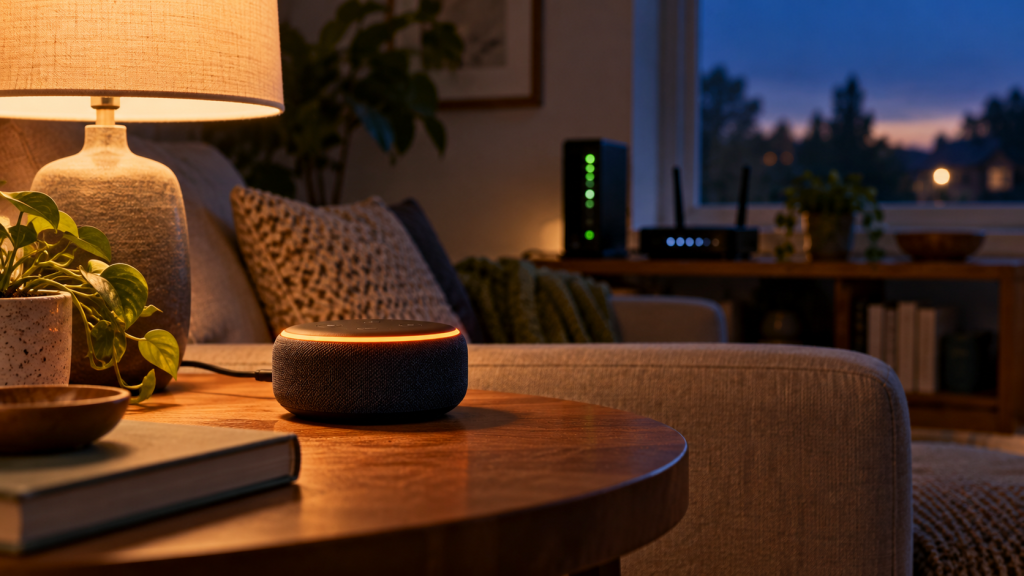
What to do: Say “Alexa, what time is it?” and “Alexa, volume 5.” Watch for a response, a spinning blue light, a red ring (mic off), or an orange/pulsing indicator (setup/connection mode). On Echo Shows, check whether the home screen looks normal or stuck.
What the result means: If it changes volume or reacts but won’t answer questions, that often points to cloud/time sync rather than a dead device. If there’s a red ring, the microphone is muted. If it’s orange, it may not be connected or may be stuck trying to connect.
If it fails: Move to the Alexa app check next to confirm whether the device is online from Amazon’s side.
-
Check the device status in the Alexa app (this is your quickest truth test).
What to do: Open the Alexa app > Devices > Echo & Alexa > select your Echo. Look for “Online” vs “Offline,” and try a simple action like changing volume from the app or using “Play music” (even if you don’t keep it playing).
What the result means: If the app shows Offline, the Echo isn’t fully connected to your network or can’t reach Amazon. If it shows Online but voice requests fail, that strongly supports the “boot state/time sync/cloud session” problem and a clean restart/resync is the right next move.
If it fails: If the app can’t see it or shows Offline, proceed to the network-first reboot sequence so the Echo can reconnect cleanly.
-
Do a clean reboot sequence in the correct order (internet first, then Alexa).
What to do: Unplug power from your modem (if separate), router, and any mesh nodes. Wait 60 seconds. Plug in the modem first and wait until it shows a stable internet connection (this can take 2–5 minutes). Then plug in the router and wait until Wi-Fi is stable. Finally, plug in the Echo and let it fully boot for a couple of minutes.
What the result means: If Alexa starts responding after this, the outage likely left the Echo with bad time sync or a stale cloud session because it booted before your network was truly ready.
If it fails: Continue to the next steps to force a fresh network handshake and confirm the Echo is reaching the internet reliably.
-
Force the Echo to rejoin Wi-Fi (without factory resetting).
What to do: In the Alexa app, open the device > Settings > Wi-Fi Network > Change. Re-select your Wi-Fi and enter the password again if prompted. Keep the Echo near the router during this test.
What the result means: This refreshes the network connection and often triggers a clean resync of time and cloud registration. If it fixes the issue, the outage likely caused a partial reconnect or DHCP/DNS confusion.
If it fails: Try the hotspot test next to separate “Echo issue” from “home network recovery issue.”
-
Run a temporary mobile hotspot test (fast way to isolate the problem).
What to do: Enable a hotspot on your phone. In the Alexa app, change the Echo’s Wi-Fi to the hotspot. Then try “Alexa, what time is it?” and a basic question.
What the result means: If Alexa works on the hotspot, the Echo hardware is fine and the problem is your home network’s post-outage recovery (DNS, routing, mesh stability, or ISP re-authentication). If it still fails on the hotspot, the Echo may be stuck in a corrupted boot/cloud state and needs deeper recovery steps.
If it fails: Move to checking your router’s client list and then advanced steps for account/cloud and firmware recovery.
-
Check your router’s connected client list for the Echo.
What to do: Log into your router/mesh app and look at connected devices. Confirm the Echo appears and has a current IP address. If your router shows it repeatedly connecting/disconnecting, place the Echo closer to the main router temporarily.
What the result means: A stable entry suggests Wi-Fi association is okay and points back to time sync/cloud session. Frequent drops suggest the Echo can’t maintain a clean connection long enough to resync after the outage.
If it fails: Proceed to Advanced Troubleshooting to address mesh steering, DNS, and account/cloud registration issues.
Advanced Troubleshooting
Account and cloud registration issues (post-outage “stale session”)
If the Echo is online but acts “deaf” to requests or routines don’t run, the device may not be fully registered back to your Amazon account services. In the Alexa app, confirm you’re signed into the correct Amazon account (Settings > Your Profile). If you recently changed your Amazon password, enabled extra sign-in verification, or removed/re-added household members, a power outage can expose that mismatch because the Echo needs to re-authenticate after reboot.
What to try: In the Alexa app, disable and re-enable one affected skill (not all at once). If a single skill starts working again, the core device is fine and the outage likely disrupted cloud tokens for that service. If nothing works, focus on network stability and firmware completion next.
Network issues that directly affect time sync and cloud handshakes
Alexa’s first minutes after boot are sensitive to DNS and stable routing. If your router offers “DNS filtering,” “ad blocking,” or “parental controls,” those can accidentally block time and authentication endpoints after a reboot when policies reload. If you have those features enabled, temporarily disable them and restart the Echo once more (after the network is stable). If Alexa immediately starts responding, re-enable features one at a time to find the conflict.
If you use mesh Wi-Fi, try a simple stability test: temporarily turn off band steering or “smart connect” (if your system offers it) and connect the Echo to a single band/SSID for the test. The goal is to prevent the Echo from bouncing between bands/nodes during its time sync and cloud registration.
Firmware/software completion after an outage
After power returns, some Echo devices will silently resume or verify firmware. During this period, the device may respond slowly, fail requests, or appear online but unreliable. Leave the Echo powered on and connected for at least 30 minutes after you’ve restored stable internet, then test again. If it improves over time, it was likely finishing background recovery tasks.
If the Echo Show screen is stuck or unresponsive, unplug it for 60 seconds and plug it back in only after your router is fully stable. A clean boot with good internet is what allows firmware checks and time sync to complete correctly.
Configuration conflicts (routines, profiles, permissions)
Outages can make a device look “broken” when the real issue is that time-based routines or location-based actions are failing due to incorrect time or a temporary loss of location services. If routines are the main problem, test a simple direct command first (like “Alexa, set a timer for 1 minute”). If timers work but routines don’t, review one routine that failed and look for time conditions, “Wait” steps, or actions tied to a specific device group.
Also check Do Not Disturb and microphone status. After an outage, people sometimes press the mic button while troubleshooting and forget it’s muted. If the device has a red ring or mic-off indicator, unmute it and retest.
When to Reset or Replace the Device
Try a soft restart first when the Echo is mostly functional but unreliable after the outage (online in the app, reacts to wake word, but fails requests). A soft restart means unplugging the Echo for 60 seconds, then plugging it back in after the router is stable. This is specifically aimed at clearing the corrupted boot/time sync/cloud state without wiping your setup.
Consider a factory reset only if all of the following are true: the router and internet are confirmed stable, the Echo remains offline in the Alexa app (or repeatedly drops), the hotspot test fails, and multiple clean restarts did not restore normal behavior. A factory reset forces a full re-provisioning and fresh cloud registration.
What you lose with a factory reset: The Echo will forget Wi-Fi credentials, device-specific settings, and some local preferences. You’ll need to set it up again in the Alexa app and re-assign it to rooms/groups. Your Amazon account, purchased content, and most skill configurations typically remain tied to your account, but you may need to re-link or re-authorize some skills.
Safety note: If the device is unusually hot, smells like burning plastic, makes crackling sounds, or the power adapter is discolored, stop using it and unplug it. That points to a hardware or power-adapter failure after the outage, and it’s not something to troubleshoot by opening the device or attempting repairs.
How to Prevent This in the Future
Let the network settle before the Echo boots. After any outage, give your modem/router a few minutes to fully recover before powering the Echo. If everything comes on at once, you can still fix it later with the reboot sequence, but preventing the failed time sync is easier than correcting it.
Keep the Echo on a stable Wi-Fi connection. If you have mesh Wi-Fi, place the Echo where it gets a consistently strong signal from one node, not a borderline spot between nodes. Borderline placement increases the chance of band/node hopping during boot, which is when time sync and cloud registration are most sensitive.
Minimize “network filtering” surprises. If you use DNS filtering, ad blocking, or parental controls on the router, make sure they don’t intermittently block core Amazon endpoints after reboots. If you notice Alexa failures only after outages, that’s a clue those services aren’t restoring cleanly.
Keep your Amazon account sign-in stable. Big account changes (password changes, household changes, enabling/disabling certain security settings) can combine with an outage to cause re-authentication issues. If you make account changes, verify Alexa works afterward while everything is calm, not during a power recovery.
Review routines and device groups occasionally. If you rely on time-based routines, confirm they still run after any significant outage. If a routine fails, test a direct voice command first; if direct commands work, the issue is likely routine conditions or timing rather than the Echo “not responding.”
FAQ
Why does Alexa light up when I talk, but nothing happens?
If the Echo reacts to the wake word but doesn’t answer, it usually means the microphone and local processing are fine, but the device can’t complete the cloud request. After an outage, the most common reason is incomplete time sync or a stale cloud session. Use the modem/router-then-Echo reboot sequence so it can resync cleanly.
Is this always a Wi-Fi password problem?
No. A wrong Wi-Fi password typically prevents the Echo from connecting at all (often showing an orange indicator or appearing Offline in the app). After a power outage, it’s more often a “connected but not fully working” state caused by time sync and cloud registration failing during boot while the network was unstable.
My internet works on my phone. Why is Alexa still offline?
Your phone may be using cellular data, or it may tolerate brief DNS/routing issues better than an Echo trying to establish secure cloud sessions. Confirm your router actually has internet (not just Wi-Fi) and then restart the Echo after the router is stable. The hotspot test is a quick way to prove whether the home network is the blocker.
Do I need to factory reset my Echo after every outage?
No. Most post-outage failures clear with a clean restart and resync once the network is stable. Factory reset is a last resort when the device won’t stay online even on a hotspot, or it remains stuck after multiple correct reboot attempts.
Why did my routines stop working, but basic commands still work?
If basic commands (timers, volume, simple questions) work, the Echo is likely synced and online. Routine failures are often due to timing conditions, device group changes after reconnect, or a routine step that depends on another device that didn’t recover cleanly. Test the routine’s steps one by one and re-save the routine if needed.
If your voice assistant is still not working, you can follow our complete voice assistant troubleshooting guide to identify the issue step by step.
It’s one of those problems that stops being dramatic the moment you treat it like a real, everyday thing. The noise fades, the middle ground returns, and suddenly you can breathe without constantly keeping score.
There’s room again for ordinary life to do its job. Not everything feels solved forever, but it feels manageable—like finally getting the last sock to match.