Alexa Keeps Saying “I Can’t Understand That”: Why It Happens
Quick Answer
When Alexa keeps responding with “I can’t understand that,” the most common cause is a mismatch between your language/region settings and the conditions Alexa’s speech recognition expects. That can mean the device is set to the wrong language, the wrong regional variant (for example, English (UK) vs English (US)), or your Amazon account/device location doesn’t match what you’re actually speaking and asking for.
Start by confirming the device language and your Alexa app language match what you speak at home, then verify the device address/time zone and your Amazon account region. After that, improve recognition conditions: reduce competing audio, reposition the Echo away from reflective surfaces, and re-run Voice Training so Alexa learns your voice in the correct language profile.
Why This Happens
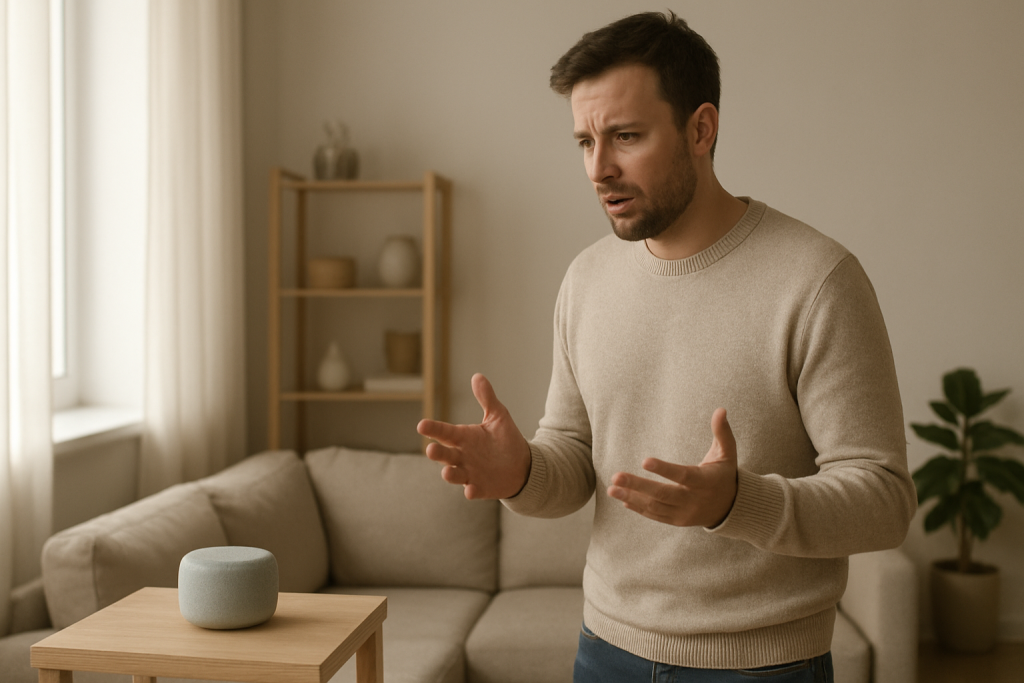
Alexa doesn’t “hear” words the way people do. It converts sound into text using a speech recognition model that is tuned for a specific language and regional pattern. If your device is set to a different language, or even a different regional version of the same language, the model can misinterpret common phrases, names, and pronunciation. The result is a generic “I can’t understand that,” even when you’re speaking clearly.
Here are the most common causes that stay tightly connected to language/region mismatch and speech recognition conditions:
1) Device language doesn’t match what you’re speaking. If the Echo is set to Spanish but you speak English (or vice versa), Alexa may catch the wake word but fail on the command. This can also happen if you recently changed the language in the Alexa app for another household member.
2) Regional variant mismatch (same language, different region). English (US), English (UK), English (Australia), and English (India) are not identical to Alexa. Differences in pronunciation, common phrasing, and local services can cause repeated misunderstandings, especially for music requests, addresses, and names.
3) Account region and device location don’t line up. Your Amazon account country/region, device address, and time zone influence what Alexa expects for local results. If your account region is set to one country while you live in another, Alexa can struggle with local place names and may fail to interpret requests that depend on regional context.
4) Speech recognition conditions are poor (echo, noise, or competing audio). A device set to the correct language can still fail if it’s near a TV, a loud fan, a kitchen vent, or a reflective corner that causes reverb. Alexa may “hear” extra syllables or lose the beginning of your request.
5) Multiple Alexa devices hear you at once. If two Echos are within range, they may compete. One device may capture the wake word, while the other tries to parse the command from farther away. That can lead to inconsistent “I can’t understand that” responses.
6) Overlooked technical cause: Voice ID or profile confusion. If Voice ID is enabled but was trained in a different language setting (or multiple people use the device with different languages), Alexa can misclassify the speaker and apply the wrong recognition expectations. This is subtle because the device still responds, just poorly.
Real-world scenario: After an account change (new phone, new Amazon sign-in, or a move), the Alexa app may default to a different region. In an apartment, you might also move the Echo closer to a TV to save space. Now Alexa is set to English (UK), you’re speaking English (US), and the TV audio is competing. The wake word works, but commands fail repeatedly.
Common user mistake: Changing language on one Echo and assuming it changes all devices the same way. Each device can have its own language setting, so one room works and another doesn’t.
Step-by-Step Fix
Confirm the Echo’s language (per device) in the Alexa app.
What to do: Open the Alexa app > Devices > select your Echo > Settings (gear icon) > Language. Choose the language you actually speak most often. If you use a regional variant, pick the one closest to you (for example, English (US) vs English (UK)).
What the result means: If Alexa improves immediately, the problem was a language/region mismatch at the device level.
If it fails: Continue to step 2. The issue may be account region, device location, or recognition conditions.
Verify device address, time zone, and your Amazon account region.
What to do: In the Alexa app, open the device settings and confirm the device address and time zone are correct for your home. Then check your Amazon account country/region settings (in your Amazon account settings) and make sure they match where you live.
What the result means: If local requests (weather, nearby places, “what time is it,” local radio) start working and Alexa stops failing on basic questions, the mismatch was affecting recognition and local interpretation.
If it fails: Go to step 3 and focus on speech recognition conditions and competing audio.
Run a clean “quiet-room” voice test to separate settings issues from noise issues.
What to do: Turn off the TV/music, pause dishwashers/fans if possible, and stand 6–8 feet from the Echo. Say: “Alexa, what time is it?” then “Alexa, set a timer for one minute.”
What the result means: If these simple commands work in quiet conditions but fail during normal household noise, your main problem is recognition conditions (not Wi-Fi and not the microphone being “dead”).
If it fails: If Alexa still can’t understand in a quiet room, move to step 4 to check voice history and step 5 to check device placement and multi-device interference.
Check Voice History to see what Alexa thought you said.
What to do: Alexa app > More > Activity (or Alexa Privacy) > Voice History. Tap a failed request and review the transcription.
What the result means: If the transcription is in the wrong language or shows wildly incorrect words, that points back to language/region mismatch or heavy echo/noise.
If it fails: If there’s no recording at all, the device may not be capturing audio reliably (mute button on, mic issue, or severe interference). Confirm the mic is not muted and proceed to step 6.
Fix placement to reduce echo and improve speech pickup.
What to do: Place the Echo away from corners, glass, and directly beside a TV speaker. Aim for a stable surface, with at least a few inches of space around it. In kitchens, keep it away from the sink and vent hood area where noise and reflections are worst.
What the result means: If Alexa stops asking you to repeat yourself and “I can’t understand that” becomes rare, the microphone was hearing too much reflected sound or competition.
If it fails: Continue to step 6 to address multiple-device pickup and voice profile training.
Reduce multi-device confusion and retrain your voice in the correct language.
What to do: If you have multiple Echos close together, temporarily unplug the nearest “extra” device and test again. Then, in the Alexa app, find Voice ID/Voice Training and retrain your voice after confirming the device language is correct.
What the result means: If recognition improves with one device powered off, you likely had competing pickups. If voice retraining helps, the prior voice model didn’t match your current language/region settings or household usage.
If it fails: Go to step 7 to rule out network/account sync issues that can make Alexa behave inconsistently.
Do a targeted network test only to confirm cloud reachability (not general Wi-Fi guessing).
What to do: Check the Alexa app device status (online/offline). If it shows online but behavior is erratic, try a temporary mobile hotspot test: connect the Echo to your phone’s hotspot for a few minutes and repeat the same basic commands.
What the result means: If Alexa suddenly understands you on the hotspot, your home network may be delaying or filtering Alexa’s cloud requests, which can surface as “I can’t understand that” when the real issue is the request not completing cleanly.
If it fails: If there’s no change, the problem is more likely language/region/profile configuration or a device software issue. Move to Advanced Troubleshooting.
Advanced Troubleshooting
Account and cloud issues that affect recognition
Multiple Amazon accounts in one home: If different devices are registered to different Amazon accounts (or a device was recently deregistered and re-registered), language and region can diverge. Confirm each Echo is registered to the intended household account and that Household/Family settings are consistent.
Skills and services tied to region: Some skills, music services, and local providers behave differently by country. When a request triggers a region-limited service, Alexa may fail in a way that sounds like misunderstanding. As a test, try a plain command that doesn’t rely on third-party services (timers, volume, time). If only skill-based requests fail, review recently enabled skills and disable any you don’t use.
Network-related issue (relevant to the primary angle)
DNS or filtering causing incomplete responses: If your router uses strict filtering, custom DNS, or parental controls, Alexa may have trouble reaching the speech services that confirm and process what you said. This can present as “I can’t understand that” even when the transcription looks correct in Voice History. If the hotspot test worked, review filtering settings and allow Alexa traffic, or temporarily relax restrictions to confirm the cause.
Firmware/software causes
Stuck update or partial configuration sync: After a power outage or router change, the Echo may reconnect but not fully sync settings. Check for pending updates in device settings. If the device has been online for hours and still behaves oddly, a controlled restart (unplug for 30 seconds, plug back in, wait a few minutes) can force a clean reconnect and settings sync. The point is not “reboot because reasons,” but to refresh the device’s connection to the speech services after settings changes.
Voice ID and profiles: If Voice ID is enabled for multiple people and the language was changed later, retrain Voice ID after the language/region settings are finalized. Mixed-language households may do better by setting a primary language on the most-used device and keeping other devices consistent, rather than switching back and forth frequently.
Routines with similar phrases: A routine triggered by a phrase that sounds like a common request can cause unexpected behavior. If Alexa fails on one specific phrase, check Routines for a similar trigger. Rename the routine trigger to something less ambiguous and test again.
When to Reset or Replace the Device
Try a soft restart first when: the language/region settings are correct, the device is online, and the problem started after a power outage, router change, or app/account update. Unplug the Echo for 30 seconds, plug it back in, and wait for it to fully reconnect before testing.
Consider a factory reset when: Voice History shows consistent gibberish despite correct language settings and quiet-room testing, or the device refuses to keep the correct language/region settings after you save them. A factory reset clears device-specific configuration and forces a clean setup.
What you lose with a factory reset: The Echo will be removed from your home setup and must be set up again in the Alexa app. You’ll need to reconnect it to Wi-Fi, reassign it to rooms/groups, and reconfigure device-specific preferences. Your Amazon account content remains, but the device’s local configuration does not.
Replace or stop using the device immediately if you notice overheating, a burning smell, crackling sounds from the power adapter, or visible damage. Those are hardware safety concerns. Do not open the device or attempt internal repairs.
How to Prevent This in the Future
Lock in consistent language/region settings across devices: If you have more than one Echo, verify each device language matches your household’s primary spoken language. Avoid changing languages frequently unless you truly need a bilingual setup.
Keep device address and time zone accurate: After moving, changing internet providers, or changing Amazon account settings, revisit the device address/time zone. Mismatches quietly cause “local” requests and place names to fail more often.
Train Voice ID after major changes: If you change language settings, move the device to a new room, or add a new primary user, retrain Voice ID so recognition matches the current environment and language profile.
Place Echos for clean audio: Keep them away from TV speakers, corners, and echo-prone shelves. A small placement change can make a bigger difference than most settings tweaks because it improves the signal Alexa is trying to interpret.
Manage routines and skills deliberately: Remove unused skills and avoid routine trigger phrases that sound like normal requests. This reduces cases where Alexa “hears” you correctly but routes the request somewhere unexpected.
Plan multi-device coverage: If two devices are within easy hearing range, assign them to different rooms and avoid stacking them in open-plan spaces where both can hear the same command clearly. This reduces competing pickups that lead to inconsistent understanding.
FAQ
Why does Alexa understand the wake word but not my command?
The wake word is a simpler detection task than understanding a full sentence. If the language/region setting is mismatched, or the room has echo/competing audio, Alexa may reliably detect “Alexa” but fail to convert the rest into accurate text.
Is “I can’t understand that” always a Wi-Fi problem?
No. That’s a common misconception. Wi-Fi issues can cause inconsistent behavior, but repeated misunderstandings are more often caused by language/region mismatches or poor speech conditions (TV noise, echo, two devices hearing you). Use a quiet-room test and Voice History transcription to confirm before chasing network settings.
Why did this start after I moved or changed my Amazon account settings?
Moves and account changes often reset or alter region-related settings like device address, time zone, or account country/region. That can change how Alexa interprets local names and services, and it can also shift the language model variant being applied.
What if only music requests fail, but timers and weather work?
That usually points to a service/skill or region availability issue rather than basic speech recognition. Test with simple built-in commands first. If those work, review music service settings, recently enabled skills, and confirm your account region matches your location.
Can having two Echos in the same area cause this message?
Yes. If two devices hear you, the one farther away may try to interpret a weaker, more echo-filled version of your voice. Temporarily unplug one device and retest. If the problem improves, separate the devices by room or increase distance so only one reliably hears you.
After all the noise, it’s strangely calming to sit with something that actually clicks. The problem isn’t mysterious anymore, and the path forward isn’t foggy—it’s just there.
So the rest feels less like a big announcement and more like a quiet exhale. Nothing dramatic, just a little more room to breathe in the day-to-day.