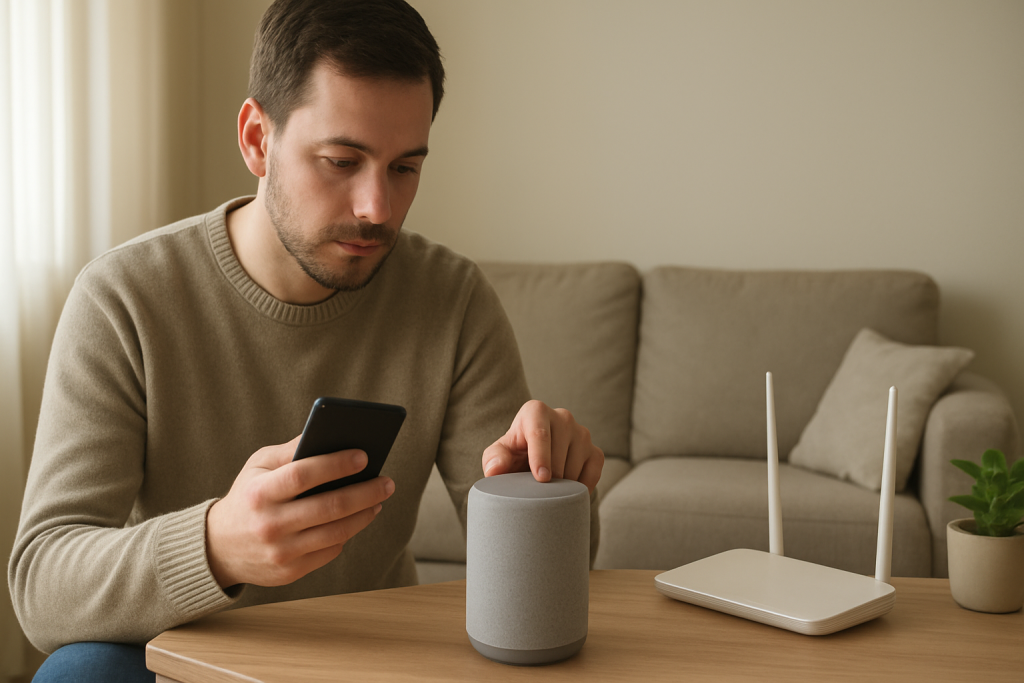
When Alexa Calls or Drop In won’t connect, the most common cause is not Wi-Fi “strength,” but permissions and account settings (who is allowed to call whom, and which devices are allowed to receive Drop In). The next most common cause is the home network blocking the connection with NAT/firewall behavior that prevents Alexa from traversing the router cleanly.
Start by confirming you’re signed into the same Amazon account on the Echo and the Alexa app, then verify Communication and Drop In permissions for the specific device and contact. If that checks out, run a quick network test by temporarily using a mobile hotspot; if Calls/Drop In work on the hotspot, your router/firewall/NAT settings are the blocker.
Why This Happens
Alexa Calls and Drop In are permission-based features that rely on Amazon’s cloud plus a stable, two-way network path. Even if music and weather work, Calls/Drop In can fail because they’re more sensitive to account identity, contact permissions, and how your router handles inbound/outbound session traversal.
Here are the most tightly related causes:
1) Communication permissions are off or incomplete. Alexa Calling/Messaging must be enabled in the Alexa app, and your phone number (in supported regions) may need verification. If this is off, Alexa may say it can’t place the call, or the call never rings on the other end.
2) Drop In permissions are not set for the device or contact. Drop In has multiple gates: the feature must be enabled globally, enabled on the receiving device, and allowed for the specific household/contact. If any gate is closed, you’ll see “Drop In isn’t available” or the device won’t appear as a target.
3) Wrong Amazon account, wrong household, or profile confusion. If an Echo is registered to a different Amazon account than the Alexa app you’re using, you can control basic features but communications won’t match your contacts/permissions. This also happens after an account password change, adding a second adult to an Amazon Household, or switching profiles on an Echo Show.
4) Router NAT/firewall traversal is blocking the session. Some routers (or ISP gateways) use strict NAT, SIP/ALG features, “advanced security,” or double-NAT setups that interfere with real-time calling connections. The symptom is often: the call starts, then fails immediately, or connects with no audio, or Drop In spins and times out.
5) DNS or time sync issues that break secure connections. If your router’s DNS is failing intermittently, or the router time is wrong after a power outage, Alexa may struggle to establish secure sessions used for calling. This is easy to miss because other Alexa features may still work.
6) An overlooked cause: “Do Not Disturb” or Quiet Hours blocking the receiving device. This doesn’t always announce itself clearly. The caller may think Drop In is broken, when the receiving Echo is set to not ring or not allow Drop In at that time.
Real-world scenario: In an apartment with an ISP-provided gateway plus your own router, you may accidentally create double NAT (gateway is routing and your router is routing). Music streams fine, but Drop In fails because the session negotiation can’t reliably traverse both NAT layers.
Common user mistake: Enabling Drop In “for the household” but forgetting to enable it on the specific Echo that should receive it (or leaving it set to “Off” on that device).
Step-by-Step Fix
Confirm you’re using the same Amazon account on the Alexa app and the Echo.
What to do: Open the Alexa app and go to Settings, then check which account is signed in (often shown at the top of Settings). Then, in the Alexa app, select the Echo device and confirm it’s registered under the same account (Device Settings typically shows registration/owner details). If you have multiple adults in a household, also check which profile the Echo is currently using (voice profile/profile switching can change what you see for contacts).
What the result means: If the app and Echo are on different accounts, Calls/Drop In targets and permissions won’t line up. You may see missing devices, missing contacts, or “not available.”
If it fails: Sign out/in on the Alexa app, and if the Echo is registered to the wrong account, deregister it and register it to the correct account (do this only after you’ve confirmed the correct account credentials).
Enable Alexa Communication (Calling/Messaging) and verify your phone number if prompted.
What to do: In the Alexa app, go to the Communication section (often the speech-bubble icon). Look for Calling & Messaging settings and ensure they’re enabled. If the app asks to verify a phone number, complete that step. Also check that the Alexa app has permission to access your phone contacts if you’re calling contacts.
What the result means: If Communication is disabled or not verified, Alexa may not be allowed to initiate or receive calls, even though the device works for other tasks.
If it fails: If verification texts/calls don’t arrive, try temporarily disabling VPN on your phone and retry. If contacts aren’t showing, confirm your phone’s OS permissions for the Alexa app include Contacts.
Check Drop In permissions at all three levels: global, contact/household, and device.
What to do: In the Alexa app, find Drop In settings and confirm it’s enabled. Then check the contact/household permissions (who is allowed to Drop In). Finally, open the receiving Echo’s Device Settings and ensure Drop In is set to allow it (not Off). If you’re trying to Drop In between your own devices, make sure they are in the same “household” and allowed for your account.
What the result means: If the target device doesn’t appear as an option, it’s usually a permissions gate (device-level Drop In off, wrong account, or contact not allowed). If it appears but fails to connect, it’s more likely network traversal or a cloud/session issue.
If it fails: Toggle Drop In off and back on for the specific device, then try again. If you have multiple Echo devices with similar names, rename them clearly to avoid selecting the wrong target.
Check “Do Not Disturb,” Quiet Hours, and parental/profile restrictions on the receiving device.
What to do: In the Alexa app, open the receiving device and look for Do Not Disturb or any scheduled quiet settings. If you use Amazon Kids or restricted profiles on a device, confirm communications features are allowed for that profile.
What the result means: If calls never ring or Drop In seems ignored, the device may be intentionally suppressing alerts or blocking communications under a restricted profile.
If it fails: Turn off Do Not Disturb temporarily and retry Drop In. If it works, re-enable it and adjust schedules rather than leaving it off permanently.
Run a quick NAT/firewall test using a temporary mobile hotspot.
What to do: Turn on your phone’s hotspot and connect the Echo to the hotspot Wi-Fi (in the Alexa app: Devices > your Echo > Change Wi-Fi network). Then try a Drop In or Alexa call again.
What the result means: If Calls/Drop In work on the hotspot, your Echo hardware and account permissions are probably fine. The problem is likely your home network: router firewall settings, double NAT, ISP gateway settings, or a security feature blocking traversal.
If it fails: If it still fails on hotspot, the issue is more likely account/permissions, an Alexa service outage, or a device software issue. Continue to the next steps.
Check for double NAT or “advanced security” features that interfere with calling.
What to do: If you have an ISP gateway plus your own router, confirm whether the gateway is in bridge mode (so only your router does routing) or whether both are routing (double NAT). Also look in your router app for features like SIP ALG, “advanced security,” “threat protection,” or strict firewall modes and temporarily disable them for a test.
What the result means: If disabling a security feature or eliminating double NAT fixes the issue, the call setup was being blocked or altered in transit.
If it fails: Re-enable any security feature you turned off, then move to the reboot sequence step and firmware checks. If you suspect double NAT but can’t change gateway settings, you may need to put one device into bridge/AP mode (choose only one device to do routing).
Use a proper reboot sequence to clear stale NAT sessions and cloud tokens.
What to do: Power off in this order: modem (or ISP gateway) first, then router, then Echo devices. Wait about 60 seconds. Power on modem/gateway and wait until it’s fully online. Power on router and wait until Wi-Fi is stable. Then power on the Echo.
What the result means: This clears stuck sessions and forces fresh network negotiation. If Calls/Drop In start working after this, the cause was likely a stale NAT/firewall state or a temporary cloud authentication hiccup.
If it fails: Continue to Advanced Troubleshooting for account and firmware checks.
Advanced Troubleshooting
Account and cloud checks (permissions and identity)
Look for blocked contacts or consent requirements. Drop In between two households typically requires explicit permission. If you recently reinstalled the Alexa app, changed your phone number, or changed your Amazon password, re-check Communication settings and contact permissions. If one side can call but not receive, it often points to receiving-side permissions or Do Not Disturb rather than the caller.
Check for profile mismatch on Echo Show devices. If a display is switched to a different profile, it may show a different contact list and different Drop In permissions. If the device works for one family member but not another, that’s a strong sign the issue is profile/account-scoped rather than network.
Network-related issues (NAT/firewall traversal)
Double NAT confirmation. If your router’s “Internet/WAN IP” looks like a private address (commonly starting with 10., 172.16–172.31, or 192.168.), your router is likely behind another router. That often breaks or destabilizes real-time calling features. The clean fix is to have only one router doing NAT/routing.
DNS reliability. If Drop In fails randomly (works sometimes, then fails), DNS instability can be a culprit. A quick test is to reboot the router (with the proper sequence already described) and see if stability returns. If your router allows it, you can also switch to a well-known public DNS provider for consistency, but only change one setting at a time and retest.
Firmware/software causes
Echo software updates and stuck updates. Calls/Drop In can fail if the device is mid-update or stuck in a partial update state. In the Alexa app, check the device status. If the device shows as unresponsive or frequently “offline,” resolve that first. If it’s online but communications fail, leave the Echo powered on and connected for a while to allow updates to complete, then retest.
Alexa app cache/permission drift. If you can Drop In from one phone but not another, the phone app may be the problem. Confirm the Alexa app has microphone permission (for calling), contacts permission (if calling contacts), and that the app is updated. If the app behaves oddly (missing devices/contacts), signing out and back in can refresh tokens.
Configuration conflicts (permissions, routines, and device settings)
Wrong device targeted due to naming or room grouping. If you have multiple Echos named similarly (for example “Kitchen Echo” and “Kitchen Show”), you may think Drop In is failing when you’re actually connecting to a different device or a device with Drop In disabled. Rename devices clearly and try again.
Routines or schedules that change volume or Do Not Disturb. A routine that sets volume to 0 or enables Do Not Disturb at night can make it seem like calls don’t arrive. If calls “connect” but nobody hears anything, check volume and any routines tied to time of day.
When to Reset or Replace the Device
Try a soft restart first if the Echo is online but communications are inconsistent, or if the Alexa app shows the device as “unresponsive” intermittently. A restart clears temporary states without erasing settings.
Consider a factory reset if you’ve confirmed: (1) the correct Amazon account is used, (2) Communication and Drop In permissions are correct, and (3) Calls/Drop In work on a hotspot but not reliably on your home network after you’ve corrected double NAT and firewall conflicts. Also consider reset if the device is stuck in a weird state after an account change and won’t accept updated permissions.
What you lose with a factory reset: the device will be removed from your account until set up again, and you’ll need to re-join Wi-Fi, re-apply device settings (name, room, Drop In setting, Do Not Disturb), and re-link any preferences tied to that device. Your broader Amazon account and skills remain, but device-specific configuration is rebuilt.
Replace or stop using the device immediately if you notice overheating, a burning smell, buzzing from the power adapter, or physical damage. Unplug it and use a different outlet only after the issue is resolved. Communications problems alone rarely indicate hardware failure, but safety symptoms should be treated as hardware-related.
How to Prevent This in the Future
Keep permissions intentional and documented. Decide which devices should allow Drop In and set those explicitly. For privacy and reliability, avoid enabling Drop In on every device by default; enable it only where it’s needed (for example, a kitchen or living room device).
Stabilize your account setup. If multiple adults use Alexa, keep track of which account owns which devices and avoid frequent deregistration. After password changes or phone upgrades, re-check Communication settings and contact permissions before assuming the network is at fault.
Avoid double NAT in your home network. If you use an ISP gateway plus your own router, configure only one device to do routing/NAT. This prevents hard-to-diagnose calling failures and also reduces random connectivity issues across smart home devices.
Be cautious with router “security” features that modify traffic. Some settings are helpful, but if they interfere with real-time services, you may need to adjust them or add exceptions. Change one setting at a time and retest Calls/Drop In so you know what actually fixed it.
Review routines that affect volume and Do Not Disturb. If you rely on Drop In for family check-ins, make sure routines don’t mute the device or block calls during the hours you expect it to work.
FAQ
Why does music work but Drop In fails?
Music streaming is mostly outbound traffic and is tolerant of typical home NAT. Drop In and calling require a more interactive session and correct permissions on both ends. If music works but Drop In times out, it often points to a permissions gate (device/contact not allowed) or a router/NAT/firewall traversal issue.
Do I need “good Wi-Fi” for Drop In, or is this an account problem?
You need a stable connection, but most “Drop In not working” cases come down to account/permission settings or the network blocking the session, not raw signal strength. A hotspot test is the fastest way to separate “my home network is blocking it” from “my account/device settings are wrong.”
Can Drop In fail because the other person didn’t do anything wrong?
Yes. If the receiving device has Drop In turned off, Do Not Disturb enabled, or is signed into a different Amazon account/profile than expected, your call can fail even if your settings are correct. When only one direction fails (you can call them, but they can’t call you), check the receiving side first.
Misconception: “Drop In is just like an intercom, so it shouldn’t need permissions.” Is that true?
No. Drop In is permission-based by design. It must be enabled and allowed at the device level and for the specific household/contact. If you don’t see a device as a Drop In option, it’s usually because permission hasn’t been granted or the device is registered under a different account.
What does it mean if Drop In works on a hotspot but not on my home Wi-Fi?
That strongly suggests your router or ISP gateway is blocking or altering the connection (double NAT, strict firewall, SIP/ALG, or a security feature). Focus on simplifying routing (one device doing NAT), temporarily disabling traffic-altering security features to test, and then retesting Drop In.
After all the noise, the real payoff is quieter than expected: everything stops feeling like it’s hanging in the balance. The tension drops, and you can finally read the day without squinting.
It doesn’t feel dramatic, but it lands the way a good exhale does. This is the part where things look obvious—not because they were easy, but because they’ve been put where they belong.