Alexa Wont Connect to Bluetooth Speaker: How to Fix It
Quick Answer
Most Alexa-to-Bluetooth speaker failures happen because the Bluetooth pairing “handshake” doesn’t complete. That handshake includes the speaker being in the correct pairing mode, Alexa selecting the right saved device, and both sides agreeing on a compatible audio profile. If any part of that negotiation fails, Alexa may say it connected but no audio plays, or it may refuse to connect at all.
Start by putting the Bluetooth speaker into true pairing mode (not just “on”), then remove the old pairing from both Alexa and the speaker, and pair again with the devices within a few feet of each other. If it still fails, the next high-impact fix is to clear stale Bluetooth devices from Alexa and confirm you’re controlling the right Echo in the Alexa app.
Why This Happens
When an Echo connects to a Bluetooth speaker, it doesn’t just “find it.” The devices exchange information and agree on an audio profile (typically A2DP for music) and a control method (often AVRCP for play/pause/volume). If the speaker isn’t in the correct mode, if Alexa tries to reconnect to an old saved record, or if the signal is weak during the negotiation, the handshake can fail even though both devices appear to be working.
Common causes that are tightly tied to handshake/profile negotiation include:
1) The speaker is in the wrong mode. Many speakers have separate modes for pairing, reconnecting, AUX input, or “TWS/stereo pair.” If it’s not in active pairing mode, Alexa may see it briefly but fail to complete the connection.
2) Stale pairing records on Alexa or the speaker. If the speaker was previously paired to a phone, TV, tablet, or a different Echo, it may auto-connect to that device and refuse a new handshake. Alexa can also hold onto an old Bluetooth record that no longer matches the speaker after a firmware update or name change.
3) Distance and interference during pairing. Bluetooth pairing is most reliable at close range. Pairing across a room, through a cabinet, or near a Wi-Fi router can cause the handshake to time out. Once paired, range can improve, but the first negotiation is the fragile part.
4) The speaker is already connected to something else. Many speakers only support one active Bluetooth connection. If it’s connected to a phone in another room, Alexa’s handshake will fail or connect without audio.
5) Profile mismatch or limited speaker behavior. Some speakers behave differently depending on their mode (for example, “call mode” vs “music mode”), or they expose unusual Bluetooth services. Alexa expects a straightforward audio sink. If the speaker is in a special mode, the profile negotiation can fail.
6) An overlooked cause: multiple Echos competing. If you have more than one Echo in the home, it’s easy to tell one Echo to pair while another Echo is the one you’re actually hearing. The “wrong Echo” can pair successfully, making it look like the speaker won’t connect when it actually connected to a different Alexa device.
Real-world scenario: after a power outage, your speaker comes back on and automatically reconnects to a phone that was previously paired. At the same time, your Echo tries to reconnect using its saved Bluetooth record. Because the speaker is already busy, the handshake fails, and Alexa reports it can’t connect.
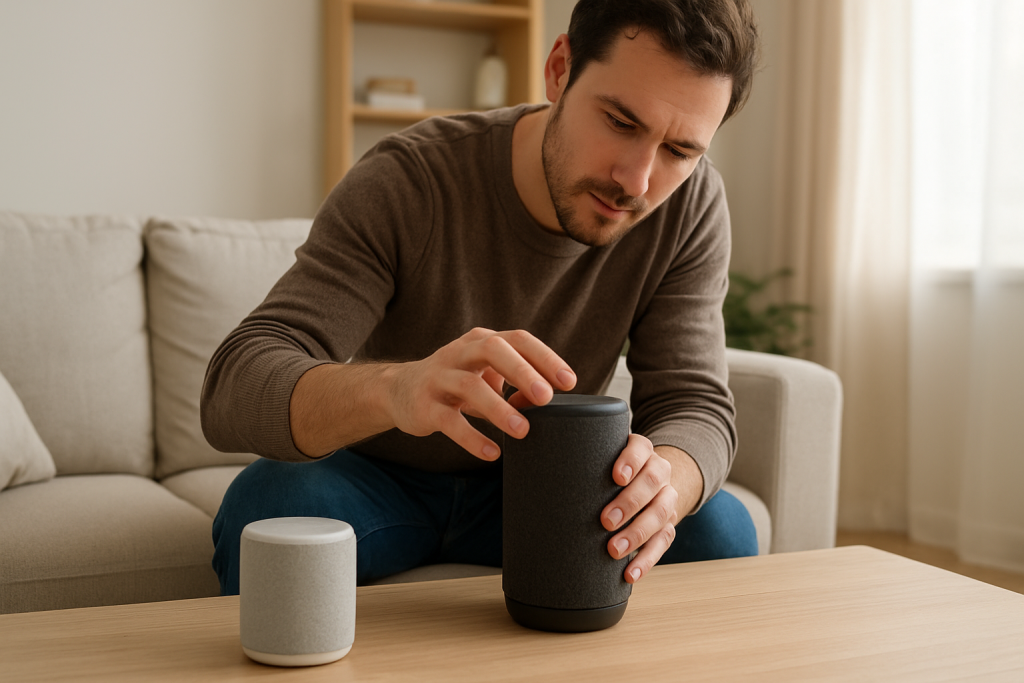
Common user mistake: tapping the speaker’s Bluetooth button once (which often triggers “reconnect” mode) instead of holding it long enough to enter true pairing mode (usually indicated by a fast blinking light or a distinct tone).
Step-by-Step Fix
Confirm you’re pairing the correct Echo device.
What to do: Open the Alexa app, go to Devices > Echo & Alexa, and select the Echo you’re speaking to. Check its name and location (for example “Kitchen Echo”).
What the result means: If you were viewing a different Echo than the one you’re talking to, you can end up pairing the wrong unit, which looks like a failed connection.
If it fails, try next: Temporarily mute or unplug other Echos, then try pairing again from the one remaining device so there’s no confusion about which Echo is responding.
Put the Bluetooth speaker into true pairing mode (not reconnect mode).
What to do: Turn the speaker on, then activate pairing mode using the speaker’s documented method (often holding the Bluetooth button for several seconds). Watch for the pairing indicator (commonly a rapidly flashing light or a repeating tone). Keep the speaker within 3–6 feet of the Echo.
What the result means: If the speaker isn’t actively advertising for pairing, Alexa’s handshake can’t complete. Close distance reduces negotiation timeouts and interference.
If it fails, try next: Turn the speaker off, wait 10 seconds, turn it back on, and re-enter pairing mode. Also check that the speaker is not in AUX mode or a stereo-pair mode that changes Bluetooth behavior.
Forget the old Bluetooth pairing on the Echo, then pair again.
What to do: In the Alexa app, open your Echo device page, find Bluetooth Devices, and remove/forget the problem speaker. Then say, “Alexa, pair” and select the speaker when it appears (or complete pairing from the app if prompted).
What the result means: Removing the saved record forces a fresh handshake and profile negotiation instead of trying to reuse a stale connection.
If it fails, try next: Also clear pairing memory on the speaker (see the next step). If Alexa still sees the speaker but won’t connect, the speaker may be auto-connecting elsewhere or the handshake is timing out.
Clear the speaker’s Bluetooth memory so it stops auto-connecting elsewhere.
What to do: Use the speaker’s “clear paired devices” or “reset Bluetooth” function (often a long-press combination). If you’re not sure, check the speaker’s manual for “Bluetooth reset” or “pairing list.” Also, on nearby phones/tablets, temporarily turn off Bluetooth to prevent the speaker from grabbing them during pairing.
What the result means: If the speaker was clinging to an old device, clearing the list removes that conflict so Alexa can complete the handshake.
If it fails, try next: Move to a quieter radio environment: pair in the same room, away from the Wi-Fi router, microwave, cordless phone base, or a TV streaming box.
Run a close-range handshake test (distance and interference check).
What to do: Place the Echo and speaker on the same table. Keep them at least a foot away from the Wi-Fi router. Try pairing again. After it connects, play audio for one minute, then move the speaker back to its normal location.
What the result means: If it pairs and plays correctly at close range but fails in the normal spot, the issue is usually interference, a cabinet/metal obstruction, or the speaker being too far away during the handshake.
If it fails, try next: Try pairing with the speaker in a different room to rule out a local interference source. If it only fails near one area, relocate either the Echo or the speaker slightly (even a few feet can matter).
Check whether Alexa “connects” but audio still comes from the Echo.
What to do: After pairing, say “Alexa, connect to Bluetooth,” then say “Alexa, volume 5,” and play a known source (for example, “Alexa, play music”). Listen: does the speaker play, or does the Echo still play?
What the result means: If Alexa reports it’s connected but audio stays on the Echo, that often points to a profile negotiation problem or the speaker not accepting the audio stream (A2DP) even though the connection exists.
If it fails, try next: Disconnect and reconnect: “Alexa, disconnect,” then “Alexa, connect.” If that doesn’t move audio, forget the device again and re-pair. Also verify the speaker isn’t in a call/voice mode or a special low-latency mode that changes its Bluetooth services.
Use the Alexa app status as a practical test (is it actually connected?).
What to do: In the Alexa app, open the Echo device page and look under Bluetooth Devices. It should show the speaker as connected. If it shows “Saved Devices” only, it isn’t truly connected.
What the result means: This separates “Alexa heard my command” from “Bluetooth handshake completed.” A saved-but-not-connected state usually means the handshake failed or the speaker refused the connection.
If it fails, try next: If it never shows connected, repeat steps 2–4 with all other Bluetooth-capable devices nearby set to Bluetooth off for five minutes, so the speaker can’t connect to them first.
Update software on both sides (because it affects negotiation).
What to do: In the Alexa app, check for device updates by leaving the Echo powered on and connected to the internet for at least 30 minutes. If your speaker has a companion app, open it and check for firmware updates.
What the result means: Bluetooth handshake behavior is controlled by firmware. Updates can fix compatibility issues where connection succeeds but audio fails, or where reconnect loops happen.
If it fails, try next: If updates aren’t available or don’t help, continue to Advanced Troubleshooting to isolate account and configuration conflicts that can look like Bluetooth problems.
Advanced Troubleshooting
Account and cloud issues that can interfere with the process
If your Echo shows as offline in the Alexa app, Bluetooth pairing can still sometimes work by voice, but management from the app (forgetting devices, confirming connection state) becomes unreliable. Also, if the Echo is registered to a different Amazon account than the phone running the Alexa app, you may be editing Bluetooth settings for a different household device.
What to do: In the Alexa app, confirm you’re signed into the same Amazon account that the Echo is registered to. If you recently changed accounts, moved homes, or bought the Echo used, deregistering and registering to the correct account can stabilize Bluetooth device management.
Network-related issues (only where they affect Bluetooth troubleshooting)
Bluetooth itself doesn’t use Wi-Fi, but Alexa’s control layer does. If the Echo has a weak or unstable internet connection, you may see confusing behavior: the Echo responds slowly, the app shows stale status, or the Echo doesn’t reliably remember the new pairing.
What to do: In the Alexa app, check the Echo’s Wi-Fi signal quality. If it’s poor, move the Echo slightly or reduce congestion. In mesh systems, band steering can cause brief drops during setup; if your mesh allows it, temporarily place the Echo near a mesh node for a stronger connection while pairing and saving the Bluetooth device record.
Firmware/software causes that look like “Bluetooth won’t connect”
If the Echo or speaker recently updated, the stored Bluetooth record can become incompatible. Symptoms include: it connects once but won’t reconnect later, it connects with no audio, or it repeatedly connects/disconnects.
What to do: Remove the pairing from both sides and re-pair from scratch. If the speaker supports multiple Bluetooth modes (standard vs low-latency vs party mode), set it to the most basic music playback mode before pairing.
Configuration conflicts: multi-room audio, speaker groups, and routines
Some Alexa configurations can confuse troubleshooting because they change where audio is supposed to play. If the Echo is set as part of a speaker group, or a routine is redirecting playback, you may think Bluetooth failed when audio is actually being routed elsewhere.
What to do: Temporarily disable routines that trigger music playback. Also try a direct command to the specific Echo name, such as “Alexa, play music on Kitchen Echo.” Then connect Bluetooth and try again. If it works only when groups/routines are disabled, rebuild the routine or group after Bluetooth is stable.
When to Reset or Replace the Device
Use a soft restart (power off and back on) when the Echo or speaker is acting “stuck” (pairing mode won’t start, the speaker won’t drop an old connection, or Alexa won’t respond normally). A soft restart is appropriate after you’ve forgotten the device and cleared the speaker’s pairing list, because it forces both devices to restart their Bluetooth services cleanly.
Use a factory reset only when you’ve confirmed the basics: correct pairing mode, close-range pairing attempt, old pairings cleared on both sides, and you still cannot complete a fresh handshake. Factory reset is also reasonable if the Echo was previously owned by someone else or has persistent configuration issues that survive normal troubleshooting.
What you lose with a factory reset: the Echo will be removed from your home setup and you’ll need to set it up again in the Alexa app. You may lose device-specific settings such as Wi-Fi credentials on the device, Bluetooth pairings, alarms, and custom device options. (Account-level items like many routines and smart home links are often stored in the account, but expect to re-check settings after reset.)
Safety note: If the speaker or Echo is overheating, smells like burning plastic, makes crackling electrical noises, or the battery is swelling, stop using it and unplug it. Do not attempt to open the device or repair internal parts.
How to Prevent This in the Future
Keep Bluetooth pairing stable by treating the first handshake as a “close-range setup step.” Pair with the speaker within a few feet of the Echo, then move it to its final location after it’s proven to play audio reliably.
Limit competing connections. If you regularly use the same Bluetooth speaker with a phone, decide which device “owns” it. A speaker that constantly auto-connects to the phone will frequently block Alexa’s handshake. Turning off Bluetooth on the phone when you want Alexa to use the speaker prevents most reconnect battles.
Manage saved devices occasionally. If you’ve paired many speakers or headphones over time, remove old entries from the Echo’s Bluetooth device list. Fewer stale records means fewer wrong-device reconnect attempts.
Place devices with interference in mind. Avoid pairing (and ideally avoid permanent placement) right next to a Wi-Fi router, inside a metal cabinet, or behind a TV where multiple radios compete. Small placement changes can prevent handshake timeouts.
Keep account ownership consistent. If you change Amazon accounts, rename household profiles, or move devices between homes, plan to re-pair Bluetooth afterward. That’s when stale records are most likely to cause negotiation failures.
FAQ
Why does Alexa say “connected” but the sound still comes from the Echo?
That usually means the Bluetooth connection exists, but the audio profile negotiation didn’t complete correctly, or the speaker didn’t accept the audio stream. Forget the speaker in the Alexa app, clear the speaker’s paired-device list, then pair again at close range. Also confirm the speaker isn’t in a special mode (AUX, party/stereo pair, or call mode) that changes Bluetooth behavior.
Do I need Wi-Fi for Alexa to connect to a Bluetooth speaker?
Bluetooth audio itself doesn’t require Wi-Fi, but Alexa’s control and device management often do. If the Echo is offline, pairing can be inconsistent and the Alexa app may not accurately show connection status. For best results, make sure the Echo is online while you pair and test playback.
My speaker pairs to my phone fine. Doesn’t that prove Alexa is the problem?
Not necessarily. A speaker can pair fine with a phone but still fail with an Echo if it’s auto-connecting to the phone first, if it’s in a different Bluetooth mode, or if the saved pairing record on the Echo is stale. Clearing pairings on both sides and pairing fresh is the most reliable way to compare fairly.
Can I connect one Bluetooth speaker to multiple Echo devices?
Most Bluetooth speakers only support one active connection. You can pair it with multiple devices over time, but only one can be connected at a time. If another Echo (or your phone) connects first, the handshake from the Echo you’re using will fail until the speaker is disconnected from the other device.
Is “pairing mode” the same as “Bluetooth on”?
No. “Bluetooth on” can mean the speaker is ready to reconnect to a previously paired device, not accept a new one. Pairing mode is a specific state where the speaker advertises itself for a new handshake. If you don’t see the pairing indicator (like a fast blink), Alexa may never complete the connection.