Alexa Keeps Disconnecting Bluetooth Fixes That Actually Help
Quick Answer
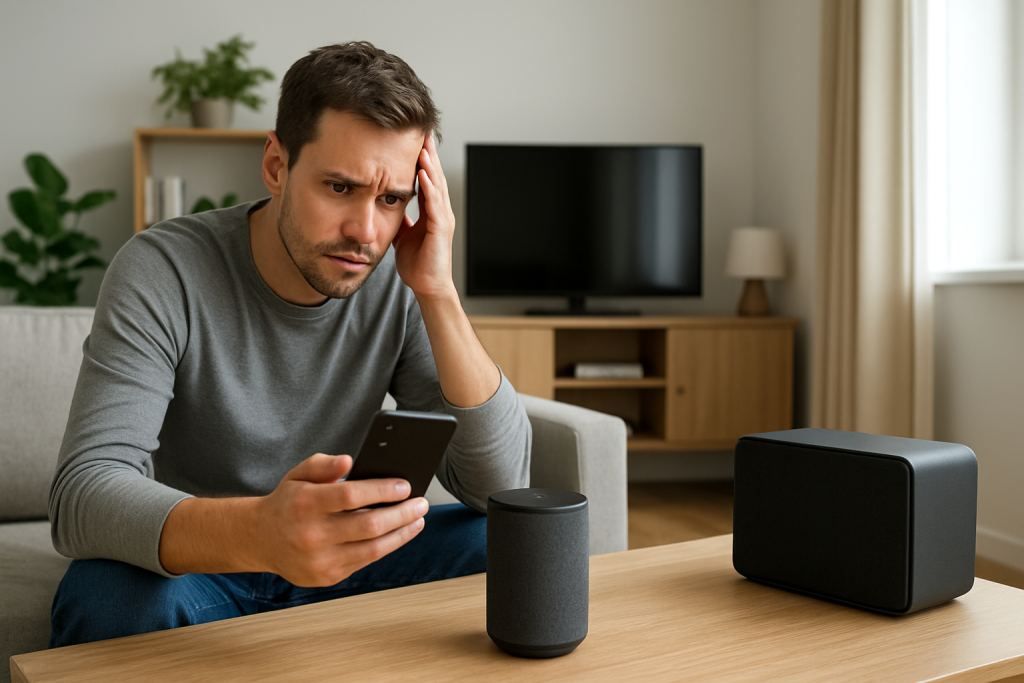
Most “Alexa Bluetooth keeps disconnecting” problems are not random failures. They’re usually a reconnect loop caused by interference, power-saving behavior on the phone/tablet, or Alexa auto-switching audio back to its own speaker (or to another output) after a brief drop.
The fastest fixes are: move the phone and Echo closer and away from common interference sources, stop other devices from trying to steal the Bluetooth connection, and turn off battery optimization for the Alexa app and your phone’s Bluetooth stack. Then remove the Bluetooth pairing and re-pair cleanly so the connection isn’t fighting old profiles.
Why This Happens
Bluetooth audio is designed for short-range, low-power connections. That makes it convenient, but also easy to disrupt. When an Echo loses the Bluetooth link for even a moment, it often tries to reconnect automatically. If something keeps causing brief drops, you get a loop: connect, play a second, disconnect, reconnect.
In homes, the dominant triggers are interference and automatic switching. Bluetooth shares the 2.4 GHz radio space with many everyday devices. On top of that, phones and tablets aggressively save battery by putting background connections to sleep, and some devices will “helpfully” switch audio outputs when they think a better option is available.
Tightly Related Causes That Create a Reconnect Loop
1) 2.4 GHz interference and congestion. Microwaves, baby monitors, some cordless devices, crowded apartment buildings, and even a busy Wi-Fi environment can raise noise on the same spectrum Bluetooth uses. The result is short dropouts that trigger reconnect attempts.
2) Phone/tablet power-saving or app sleep. When the screen turns off or Low Power Mode is enabled, some phones reduce Bluetooth activity or pause background audio. Alexa stays ready to reconnect, so it looks like the Echo is “disconnecting,” but the source device is actually dropping the link.
3) Auto-switching between outputs. Your phone may switch audio to a car system, earbuds, a watch, or another speaker it considers “preferred.” The Echo sees the connection vanish and tries to reclaim it.
4) Multiple Echos or multi-room audio confusion. If you have more than one Echo nearby, you may accidentally connect to one device while speaking to another, then “fix” it by reconnecting—creating a pattern that feels like instability.
5) Old Bluetooth profiles and duplicate pairings. If the Echo and phone have been paired multiple times (especially after device renames or OS updates), the phone may keep stale entries. That can cause repeated connect/disconnect behavior.
6) An overlooked cause: audio session conflicts. If another app on the phone grabs audio focus (calls, voice assistants, alarm apps, navigation prompts), Bluetooth audio can pause or renegotiate. Some phones handle this smoothly; others briefly drop the connection.
Real-World Scenario
In an apartment building, your Echo is in the kitchen near a microwave and a mesh Wi-Fi node. In the evening, neighbors’ networks and devices increase 2.4 GHz traffic. Your phone is in Low Power Mode. The Echo connects, then drops every minute or two—especially when the microwave runs or the phone screen locks. That pattern strongly points to interference plus power-saving, not a “broken Echo.”
Common User Mistake
Leaving the phone paired to multiple Bluetooth audio devices and expecting it to “stick” to the Echo. Phones often reconnect to the last-used device automatically (car, earbuds), which can yank the audio away from Alexa and trigger the loop.
Step-by-Step Fix
Confirm what’s actually disconnecting (Echo vs phone output switching).
What to do: Start music to the Echo over Bluetooth. When it “disconnects,” immediately check your phone’s Bluetooth/audio output selector and see where audio is going (speaker, earbuds, car, another device). Also ask, “Alexa, what am I connected to?”
What the result means: If audio jumps to another output, the phone is switching, not the Echo failing. If the phone still shows the Echo connected but audio stops, it’s likely an audio focus/power-saving issue.
If it fails, try next: Continue to step 2 to reduce interference and distance variables.
Do a clean proximity and interference test.
What to do: Place the phone/tablet within 3–6 feet of the Echo. Temporarily move the Echo away from microwaves, cordless bases, baby monitors, and mesh nodes (even a few feet helps). If the Echo is behind a TV, inside a cabinet, or next to a metal appliance, move it into open air for the test.
What the result means: If the connection becomes stable at close range, you’re dealing with interference/attenuation. The “disconnect” is a signal quality problem, not a pairing problem.
If it fails, try next: Go to step 3 to eliminate stale pairings and auto-reconnect confusion.
Remove the pairing on both sides, then re-pair once.
What to do: On your phone, forget the Echo in Bluetooth settings. In the Alexa app, open the Echo device settings and remove the Bluetooth device if it’s listed. Then say, “Alexa, pair Bluetooth,” and pair again from the phone. Keep only one entry for that Echo.
What the result means: If this fixes it, the loop was caused by a stale profile or duplicate pairing records.
If it fails, try next: Step 4 focuses on power-saving and background restrictions that commonly drop Bluetooth audio.
Disable battery optimization that can drop Bluetooth audio.
What to do: Temporarily turn off Low Power Mode/Battery Saver. Also allow the Alexa app to run in the background and disable any “sleep” or “deep sleep” behavior for it. If your phone has adaptive battery or app optimization controls, exempt the Alexa app and your music app.
What the result means: If disconnects happen mainly when the screen locks or after a few minutes, and this stops them, power management was suspending the connection.
If it fails, try next: Step 5 addresses auto-switching to other Bluetooth devices.
Stop other devices from stealing the connection.
What to do: Turn off Bluetooth on nearby devices that might auto-connect (tablets, laptops, watches). If you use earbuds or a car system, make sure they’re not powering on and reconnecting in the background. For the test, keep only the phone and Echo with Bluetooth enabled.
What the result means: If stability returns, the issue is auto-switching or device priority behavior on the phone, not the Echo.
If it fails, try next: Step 6 checks whether the Echo is actually online and healthy in the Alexa app (a quick sanity check that prevents chasing the wrong problem).
Check the Echo’s status in the Alexa app and confirm you’re using the right account.
What to do: Open the Alexa app and confirm the Echo shows as online and responsive. Verify you’re signed into the same Amazon account that owns the device (especially after phone changes, shared households, or adding a second adult profile).
What the result means: If the device appears offline or registered to a different account, Bluetooth pairing can behave inconsistently because control commands and device settings aren’t being applied correctly.
If it fails, try next: Step 7 isolates the source device by testing a different phone/tablet.
Test with a second source device (simple isolation test).
What to do: Pair a different phone or tablet to the Echo and stream audio for at least 10 minutes in the same room.
What the result means: If the second device works fine, the problem is your original phone’s Bluetooth behavior (power saving, OS bug, or competing connections). If both devices disconnect, focus on Echo placement/interference or Echo software.
If it fails, try next: Step 8 focuses on Echo audio settings that can force output changes.
Make sure Alexa isn’t being pulled into another audio mode.
What to do: If your Echo is part of a speaker group or home theater setup, temporarily remove it from groups and disable any features that reroute audio (for example, TV audio modes on compatible setups). Then retest Bluetooth streaming.
What the result means: If Bluetooth becomes stable after removing group/home theater ties, the disconnects were caused by output switching or mode changes, not Bluetooth range.
If it fails, try next: Proceed to Advanced Troubleshooting for deeper causes like firmware, account sync, and configuration conflicts.
Advanced Troubleshooting
Account/Cloud Issues That Can Affect Bluetooth Behavior
Household profiles and device ownership changes: If the Echo was moved between accounts, deregistered/re-registered, or added to an Amazon Household, settings can partially apply while the app shows a different owner context. That can lead to confusing behavior when you try to manage Bluetooth devices from the app. Confirm the Echo is registered to the account you actively use on the phone, then remove and re-add the Bluetooth pairing once.
Alexa app permissions: If the Alexa app lacks Bluetooth or nearby device permissions on your phone, it may not manage connections reliably. Re-check permissions, then re-pair. This is especially relevant after OS updates that reset permissions.
Network-Related (Only Where It Ties to the Main Problem)
Bluetooth itself doesn’t use your Wi-Fi, but your Echo still uses Wi-Fi for control, voice processing, and mode changes. If the Echo’s Wi-Fi connection is unstable, it can appear “glitchy” and may drop out of certain states while you troubleshoot Bluetooth.
Quick check: If the Echo frequently says it’s having trouble connecting or you see it going offline in the Alexa app, stabilize Wi-Fi first (move it closer to the router/mesh node, or reduce dead zones). Then retest Bluetooth. This isn’t about streaming over Wi-Fi; it’s about keeping the Echo stable so it doesn’t constantly change state while you’re pairing and playing audio.
Firmware/Software Causes
Pending Echo updates: Echo devices update automatically, and a pending update can temporarily disrupt responsiveness. Leave the Echo powered on and connected to Wi-Fi for a while, then re-test Bluetooth later. If disconnects happen at similar times of day, it may coincide with update windows.
Phone OS Bluetooth bugs: If the issue started right after a phone update, test with a second device (from the steps above). If only one phone has the problem, resetting that phone’s network/Bluetooth settings can help, but do it only if you’re comfortable rejoining Wi-Fi networks and re-pairing devices afterward.
Routines that change volume or start/stop audio: A routine that triggers at a certain time (morning briefing, sleep sounds, do-not-disturb changes) can interrupt Bluetooth audio and cause reconnection attempts. Temporarily disable routines that run around the time you notice disconnects, then test again.
Do Not Disturb and communication features: Calls, announcements, and drop-in can interrupt audio sessions. If your phone receives frequent call notifications or your household uses announcements heavily, test Bluetooth playback during a quiet window to see whether interruptions correlate with disconnects.
When to Reset or Replace the Device
Try a soft restart (power cycle) when: the Echo becomes unresponsive, Bluetooth pairing won’t start, or the device shows as online but ignores “pair Bluetooth.” Unplug the Echo for 30 seconds, plug it back in, wait for it to fully boot, then re-test. This is not a generic “reboot it” step; it clears temporary Bluetooth and audio states that can get stuck after interruptions.
Consider a factory reset when: you have repeated disconnect loops with multiple phones, after clean re-pairing, with the Echo placed in an open low-interference spot, and after confirming the Echo is online and updated. Factory reset is a last resort because it wipes local settings.
What you lose with a factory reset: the Echo is removed from your account and must be set up again in the Alexa app. You’ll need to rejoin Wi-Fi, re-add it to groups, reconfigure device-specific settings, and re-pair Bluetooth devices. Some routines and smart home devices remain in your account, but the Echo’s role in them may need to be reselected.
Replace or stop using the device immediately if: you notice overheating, a burning smell, crackling from the power adapter, swelling, or discoloration. Unplug it and do not continue troubleshooting. Those are safety issues, not connectivity issues.
How to Prevent This in the Future
Keep Bluetooth paths short and clear: Place the Echo in open air, not behind a TV or inside a cabinet. Avoid placing it right next to a microwave, cordless base station, or dense cluster of electronics. A few feet of separation can prevent frequent dropouts.
Reduce auto-switching surprises: If you regularly use earbuds, a car system, or another speaker, get in the habit of turning those off (or disabling their Bluetooth) when you want the Echo to stay connected. The fewer “preferred” devices competing, the fewer reconnect loops you’ll see.
Manage phone power saving intentionally: If you often stream to Alexa over Bluetooth, avoid aggressive battery saver modes during playback, and allow your music app and Alexa app to run in the background. If disconnects only happen when the screen locks, that’s a strong sign your phone is suspending the connection.
Keep device naming simple: If you rename Echos often, remove old Bluetooth pairings afterward so your phone doesn’t keep multiple entries that point to the same speaker. One Echo should have one Bluetooth entry on the phone.
Review routines after changes: After adding a new Echo, changing groups, or setting up TV audio features, re-test Bluetooth once. Output-routing features are useful, but they can unintentionally pull audio away from Bluetooth if they’re configured to take priority.
FAQ
Why does Alexa reconnect to Bluetooth but drop again after a few seconds?
That pattern usually means the connection is being interrupted repeatedly: interference at 2.4 GHz, the phone going into a power-saving state, or the phone switching audio to another device. Test by moving the phone within a few feet of the Echo and turning off battery saver. If it stabilizes, you’ve confirmed a reconnect loop trigger rather than a broken speaker.
Is this caused by my Wi-Fi?
Not directly. Bluetooth audio does not travel over your Wi-Fi. However, the Echo still needs stable Wi-Fi for normal operation and control. If the Echo is frequently offline in the Alexa app, fix that first so the device isn’t constantly changing state while you’re pairing and streaming.
Do I need to unpair every other Bluetooth device in my house?
No. You only need to prevent active competition during testing and during the times you want the Echo to stay connected. Start by turning off Bluetooth on nearby devices and powering down the devices most likely to steal the connection (earbuds, car system in range, tablets). Once stable, you can re-enable others and watch for the one that triggers switching.
Common misconception: “If Bluetooth disconnects, the Echo must be defective.” Is that true?
Usually not. Most disconnect loops are caused by environment and behavior: interference, phone power saving, or auto-switching outputs. If two different phones both disconnect in the same spot, then it’s more likely an interference/placement issue. If only one phone disconnects, it’s usually that phone’s settings or OS behavior.
Why does it work fine during the day but disconnect at night?
Even without changing anything, the 2.4 GHz environment can get noisier in the evening (neighbors home, more devices active). Also, phones are more likely to enter low power states at night. If the timing is consistent, test in a different room and disable battery saver to see whether congestion or power management is the real trigger.