Google Home Stops Playing Music After a Few Minutes: Fixes That Work
Quick Answer
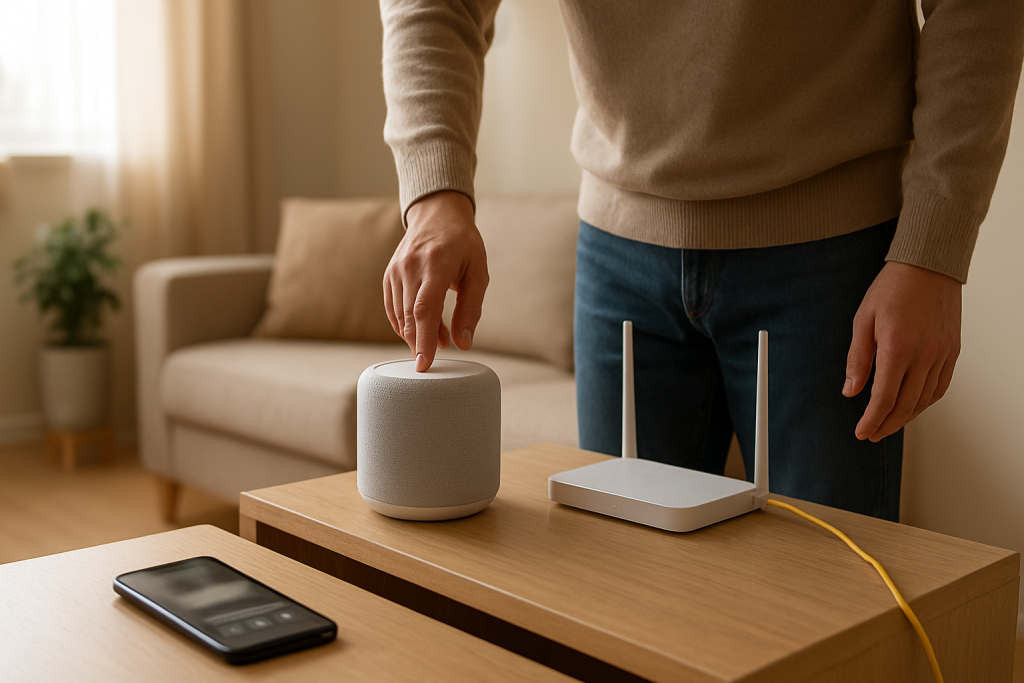
The most common real-world cause is an unstable streaming session: your Google Home/Nest speaker starts playback fine, but the connection quality (jitter, packet loss, or a Wi‑Fi node/band switch) degrades a few minutes later and the stream drops. This is especially common on mesh Wi‑Fi, band steering networks, and busy evening networks.
Three immediate diagnostic checks:
1) Check if the stop happens at the same time interval every time (for example 2–5 minutes). If it is consistent, it often points to a network roam/band change or power-saving behavior rather than the music service itself.
2) In the Google Home app, open the device and watch its connection details while music plays. If the device changes access point/node or shows weak signal right before stopping, the stream is being interrupted.
3) Run a hotspot test: connect the speaker to your phone hotspot and play the same music for 10–15 minutes. If it stays stable on hotspot, your home network is the cause.
Affected devices: Google Home, Home Mini, Nest Mini, Nest Audio, Nest Hub/Hub Max, and Chromecast/Google TV when used as an audio target.
Why This Happens
Music playback is a live streaming session. Unlike a downloaded file, it depends on a steady flow of small packets arriving on time. If the stream experiences jitter (variable packet timing), packet loss (missing packets), or a brief disconnect, the speaker may not recover cleanly and will stop playback rather than continuing with glitches.
Causes tightly related to unstable sessions include:
1) Wi‑Fi roaming or node switching on mesh systems. The speaker may move between nodes even when it has not physically moved, especially if the network is steering clients aggressively.
2) Band steering between 2.4 GHz and 5 GHz. Some routers try to push devices to 5 GHz; if the signal is marginal, the device may bounce between bands and interrupt the stream.
3) Congestion and interference. Evening usage, neighboring Wi‑Fi, microwaves, baby monitors, and crowded channels can increase retransmissions and jitter.
4) Router power-saving or airtime fairness behavior. Some routers deprioritize devices they consider slow, which can hurt steady audio streams.
5) Device power-saving on the phone that is acting as the controller. If you start playback from a phone and the phone’s background restrictions interfere with control updates, it can look like the speaker stopped “randomly,” even though the stream was interrupted earlier.
Real-world scenario: a Nest Mini in a kitchen plays for about three minutes, then stops. The router is in a back bedroom. The speaker initially connects to a far mesh node on 5 GHz, then the mesh decides to move it to another node or to 2.4 GHz. That handoff causes a few seconds of packet loss and the music session ends.
Common user mistake: assuming this is always a music service problem and repeatedly restarting the speaker. If the stream is dropping due to roaming or interference, the same pattern returns until the network behavior changes.
Overlooked technical cause: multiple Google/Nest devices with similar names in the same Home, leading to casting to one device while another device is actually connected more reliably. It feels like the speaker is stopping, but the stream may have moved or the wrong target was selected.
Most Likely Causes in Real Homes
1) Mesh node switching or band steering causing brief disconnects during playback.
2) Weak or variable Wi‑Fi signal at the speaker location (not always “low bars,” but unstable timing and retries).
3) Router features that reshape traffic (client steering, airtime fairness, smart connect) interacting poorly with always-on audio streams.
4) Account/session handoff issues when multiple phones/users control playback (Voice Match/account mismatch can trigger a stop when the controlling session changes).
5) Out-of-date firmware or a stuck service session on the device (less common, but can amplify the impact of minor network instability).
Step-by-Step Fix
Confirm the pattern and isolate the trigger.
What to do: Play music and note the exact time until it stops. Try two sources: a music app cast to the speaker and a voice request (for example, ask the speaker to play a station). Also note whether it stops only on one speaker or on all Google/Nest speakers.
What the result means: If it stops at a similar time interval each time, it usually points to a network roam/band change or a session timeout. If it only happens on one speaker, suspect that speaker’s Wi‑Fi conditions or placement.
If it fails: If behavior is random and across all speakers, skip ahead to the hotspot test in step 3 and the router checks in step 6.
Check the device connection details during playback.
What to do: Open the Google Home app, select the affected speaker, and look for device information/connection details (Wi‑Fi network, signal strength, and if shown, the access point/node). Start music and keep the screen open until it stops.
What the result means: If the connected node/access point changes around the time playback stops, or the signal is weak/poor, the stream is being interrupted by roaming or unstable Wi‑Fi timing.
If it fails: If the app does not show enough detail, continue to step 3 for a clean isolation test.
Run the hotspot test to prove whether the home network is the problem.
What to do: Create a phone hotspot with a simple name and password. In the Google Home app, move the speaker to that hotspot (change Wi‑Fi network). Play music for 10–15 minutes.
What the result means: If playback is stable on hotspot, the speaker and music service are usually fine; your home Wi‑Fi is interrupting the streaming session. If it still stops on hotspot, suspect account/session issues or device firmware and continue to step 8.
If it fails: If you cannot move the speaker to hotspot, use another phone or temporarily bring the speaker closer to the router and test on your normal Wi‑Fi (step 4).
Test placement and signal stability without changing anything else.
What to do: Move the speaker within 10–15 feet of the main router (not a mesh satellite) with a clear line of sight if possible. Play the same music for 10–15 minutes.
What the result means: If the problem disappears near the router, the original location is experiencing unstable Wi‑Fi (often jitter/packet loss rather than total disconnection). This points to interference, distance, or mesh steering.
If it fails: If it still stops near the router, proceed to step 5 and step 8 to check session/account and device software.
Lock down band switching: use 2.4 GHz for stability when 5 GHz is marginal.
What to do: If your router combines 2.4 GHz and 5 GHz under one name (smart connect), temporarily separate them into two Wi‑Fi names (2.4 and 5). Connect the speaker to 2.4 GHz and test again.
What the result means: If 2.4 GHz fixes it, the original problem was likely 5 GHz instability or band steering. 2.4 GHz is slower but often more stable through walls, which helps continuous audio.
If it fails: If separation is not available, disable band steering/client steering temporarily if your router offers it, then retest. If you cannot change these settings, continue to step 6.
Check for node switching and client steering on mesh networks.
What to do: In your router/mesh app, find the client list and locate the speaker. Watch which node it connects to during playback. If your mesh offers options like client steering, fast roaming, or “optimize” features, temporarily disable them or reduce aggressiveness. Then retest.
What the result means: If the speaker keeps hopping nodes, the stream is being interrupted. Stabilizing the connection to one node usually fixes the stop-after-a-few-minutes symptom.
If it fails: If you cannot control steering, try relocating the speaker or the nearest mesh node so the speaker clearly prefers one node (strong signal from one, weaker from others). Then retest.
Use a correct reboot order to clear stale sessions and re-establish clean network timing.
What to do: Power off the modem (if separate) and router/mesh. Wait 60 seconds. Power on the modem first and wait until it is fully online. Then power on the router/mesh and wait until Wi‑Fi is stable. Finally, power cycle the speaker.
What the result means: This clears stuck routing/NAT states and forces fresh Wi‑Fi association, which can reduce intermittent packet loss that only shows up during sustained streaming.
If it fails: If the issue returns quickly, it is likely not a one-time glitch; continue to step 8 (account/session) and step 9 (configuration conflicts).
Verify the speaker is using the intended Google account and Home, and that Voice Match is not causing a handoff.
What to do: In the Google Home app, confirm the speaker is in the correct Home and room. Check which account is active on the phone controlling playback. If multiple household members use the speaker, confirm Voice Match is set up for each person who requests music, and test by asking the speaker to play music using one person’s voice only.
What the result means: If music stops only when a different person speaks or when control switches phones, it can be a session ownership issue (the stream starts under one account and gets interrupted when another account takes over).
If it fails: If Voice Match is already correct, continue to step 9 to look for router features that disrupt steady streams.
Check router features that can interrupt continuous audio streams.
What to do: In router settings, look for and temporarily disable features such as airtime fairness, “smart” QoS that auto-prioritizes, client isolation, or aggressive power-saving/eco Wi‑Fi modes. If you have a guest network, ensure the speaker is not on a network that blocks local discovery or has time limits.
What the result means: If disabling one feature stabilizes playback, that feature was reshaping traffic or deprioritizing the speaker enough to cause jitter/packet loss during streaming.
If it fails: Re-enable features one by one after testing so you know what actually mattered. If nothing changes, continue to step 10.
Confirm language and Home structure are consistent across devices.
What to do: In Google Home app settings, confirm the Assistant language is the same on the speaker and on the phones used to control it. Also confirm the speaker is not duplicated in multiple Homes or linked to an old Home. Rename the speaker uniquely (for example, Kitchen Mini Left) and test casting again.
What the result means: Mismatched language and duplicated Home structure can cause control confusion where the stream starts on one target and then loses control updates, appearing as a stop.
If it fails: If structure is clean and the issue remains, proceed to Advanced Troubleshooting.
Advanced Troubleshooting
Only use this section if the basic fixes above did not change the behavior, or if the hotspot test showed the issue is not your home network.
Account/cloud issue: If playback stops on hotspot and on your home Wi‑Fi, test with a different music source (for example, a free radio station versus a subscription stream) and test from a different household account. If one account consistently fails and another works, the issue is likely account authorization or a corrupted service link. Remove and re-link the music service in the Google Home app, then test again.
Network issue (deeper): If hotspot is stable but home Wi‑Fi is not, check whether the speaker is frequently changing IP addresses or being “paused” by parental controls. In the router client list, confirm the speaker remains connected and is not being reassigned or blocked after a few minutes. If your router has logs, look for repeated deauth/disconnect events for the speaker.
Firmware/software cause: Ensure the Google Home app is updated on the controlling phone. Device firmware updates are automatic, but they apply more reliably when the device has a stable connection and is left idle overnight. If the device is on marginal Wi‑Fi, it can get stuck in a cycle where it never fully stabilizes. After improving Wi‑Fi stability (steps 4–6), leave the speaker powered on overnight and retest the next day.
Configuration conflict: If you use both Bluetooth and Wi‑Fi casting, test Wi‑Fi casting only. Bluetooth can introduce its own power-saving and reconnection behavior, especially if the phone moves out of range. Also check if the speaker is part of a speaker group; group playback is more sensitive to jitter. If solo playback is stable but group playback stops, focus on the weakest-connected device in the group and stabilize that device first.
When to Reset or Replace
Try a soft restart (power cycle) when the problem started recently and your hotspot test indicates the speaker is fine. A soft restart clears temporary network states but keeps all settings.
Consider a factory reset only when: the speaker fails on both hotspot and home Wi‑Fi, the problem affects only that one device while others are stable, or the device behaves inconsistently in ways that do not match network changes. A factory reset removes the device from your Google Home, clears Wi‑Fi credentials, unlinks local settings, and requires full setup again.
Hardware safety warning: do not open the device, puncture, heat, or attempt internal repairs. If the device is physically damaged, has a swollen enclosure, smells of burning, or becomes unusually hot, unplug it and stop using it.
Replace is rarely necessary for this symptom. Consider it only if the device cannot maintain a connection even near the router and on hotspot after a factory reset, indicating a failing Wi‑Fi radio or power issue.
How to Prevent This
Prioritize stream stability over peak speed. For speakers, a steady connection is more important than the fastest band. If 5 GHz is unreliable in the room, keep the speaker on 2.4 GHz or adjust placement so one access point is clearly strongest.
Keep mesh behavior predictable. Place mesh nodes so coverage overlaps gently, not aggressively. When two nodes are equally strong, devices are more likely to roam. A clear “best node” reduces mid-song switching.
Reduce interference where the speaker lives. Avoid placing the speaker right next to a microwave, cordless phone base, baby monitor hub, or behind a TV. Even small moves can reduce retries and jitter.
Maintain account stability in shared homes. Set up Voice Match for each person who requests music. Keep the speaker in the correct Home and avoid duplicate device names so casting targets are unambiguous.
Manage groups carefully. Speaker groups are sensitive to the weakest link. If you regularly use groups, make sure each member has stable Wi‑Fi and does not roam between nodes during playback.
FAQ
Why does it always stop after about 3–5 minutes, not immediately?
That timing often matches a network event rather than a music service failure. Mesh systems may reassess the best node after a short period, routers may steer clients between bands, or power-saving features may change how traffic is handled once the stream is established. Those changes can cause a brief disconnect or packet loss spike that ends the streaming session.
If my Wi‑Fi shows full bars, can the stream still be unstable?
Yes. Full bars mainly reflect signal strength, not timing quality. Streaming audio is sensitive to jitter and brief packet loss. You can have strong signal but still see interference, retransmissions, or roaming between nodes that interrupts the session.
Is this usually a problem with Spotify, YouTube Music, or the speaker itself?
Most of the time, it is the connection path, not the service. A hotspot test is the quickest way to separate them: if hotspot playback is stable, the service and speaker are generally fine and the home network is interrupting the stream.
Common misconception: resetting the speaker fixes it permanently.
A reset can clear a stuck configuration, but it does not change the underlying network conditions that cause jitter, packet loss, or node switching. If the stream drops because the device roams or the signal is unstable in that room, the problem will return after setup unless the Wi‑Fi behavior is stabilized.
Why does group playback fail more than playing on one speaker?
Groups require tighter timing across multiple devices. If one speaker has unstable Wi‑Fi or roams between nodes, the group can lose synchronization and stop. Test each speaker solo, identify the one that drops first, and stabilize that device’s connection and placement before using the group again.
It’s a weird relief, realizing how much attention we’ve been handing out to the problem when the shape of the fix was already sitting right there. The clutter clears, the noise fades, and you get to feel like a person again instead of a spectator.
Not every day gets dramatically better, but the daily friction loosens its grip. After all this reading, the real payoff is simple: the world stops tugging at the same loose thread.