Alexa Stops Playing Music After a Few Minutes: How to Fix It
Quick Answer
When Alexa stops playing music after a few minutes, the most common cause is that the streaming session is getting interrupted. In homes, that usually comes down to network jitter (tiny bursts of delay or packet loss) or a power-saving behavior that briefly suspends Wi-Fi or the speaker’s connection.
Start by confirming whether it happens on all music services and all Echo devices, then run a quick “network stability” test: play music while your phone is on a mobile hotspot (or move the Echo temporarily closer to the router). If the problem disappears, you’re chasing a network timing issue, not a music app problem.
Why This Happens
Music streaming to an Echo is not a simple “download the whole song” process. It’s a continuous session that depends on steady timing. If your Wi-Fi connection has jitter—brief spikes in delay—or short dropouts, the stream can stall. Some services will recover; others will stop playback entirely after a short buffer runs out.
Power-saving behavior can create the same symptom. If the router or access point is trying to “optimize” airtime, or if it’s aggressively steering devices between bands/nodes, the Echo may briefly disconnect and reconnect. That reconnection can be enough to break the streaming session even though Wi-Fi looks “connected” again.
Common, tightly related causes include:
1) Wi-Fi jitter from congestion: Busy evenings, neighbors’ networks, or multiple video calls can create short bursts of delay that audio streaming is sensitive to.
2) Mesh handoffs and band steering: Mesh systems may move an Echo between nodes (or between 2.4 GHz and 5 GHz). A handoff that seems seamless for web browsing can still interrupt a live stream.
3) Router features that pause or deprioritize traffic: Some routers have “smart” QoS, airtime fairness, or client power-saving features that can unintentionally starve a small streaming device.
4) Weak signal with retries: Even if the Echo shows Wi-Fi connected, a marginal signal can cause constant retransmissions. That looks like jitter to the stream.
5) Brief internet drops that other devices hide: Phones and laptops may silently switch to cellular or retry quickly. The Echo may not recover the stream session the same way.
6) Overlooked technical cause: A DNS hiccup or router DNS filtering can cause periodic failures when the stream refreshes its session token or endpoint. The audio stops “randomly,” often after a few minutes.
Real-world scenario: In an apartment with a mesh Wi-Fi system, an Echo in the kitchen plays fine late at night but stops after 3–7 minutes during dinner. At that time, the mesh is busy, neighbors’ Wi-Fi is crowded, and the mesh decides to move the Echo to a different node. That node switch interrupts the stream session.
Common user mistake: Assuming “Wi-Fi works on my phone” means the network is stable enough for uninterrupted streaming. Phones are better at masking brief interruptions; continuous audio sessions are less forgiving.
Step-by-Step Fix
Confirm the pattern (service, device, and timing).
What to do: Try the same request on two different services if you have them available (for example, one music service and a radio station). Also try on a second Echo if you have one. Note whether it stops at a similar time interval (like 2–5 minutes).
What the result means: If it happens across services and devices, it points to network timing/jitter or a router behavior. If it only happens on one service, it may be account/session related for that service.
If it fails: If you can’t test another service, test a different type of audio: “Alexa, play a radio station” or “Alexa, play white noise.” Then continue to the next step.
Check the Alexa app device status right after it stops.
What to do: Open the Alexa app and select the Echo device. Look for indicators like “Device is unresponsive,” “Offline,” or a Wi-Fi/network warning. Also check the “Activity” or “History” to see whether Alexa thinks playback ended normally.
What the result means: If the device shows offline/unresponsive at the moment music stops, that’s almost always a connection interruption (jitter/dropout, mesh handoff, or router behavior). If the device stays online and Alexa shows an error about the service, it’s more likely a cloud/account/session issue.
If it fails: If the app can’t reach the device reliably, treat that as a strong network sign and go to the hotspot test in step 3.
Run a mobile hotspot test (fastest way to prove jitter vs. device/service).
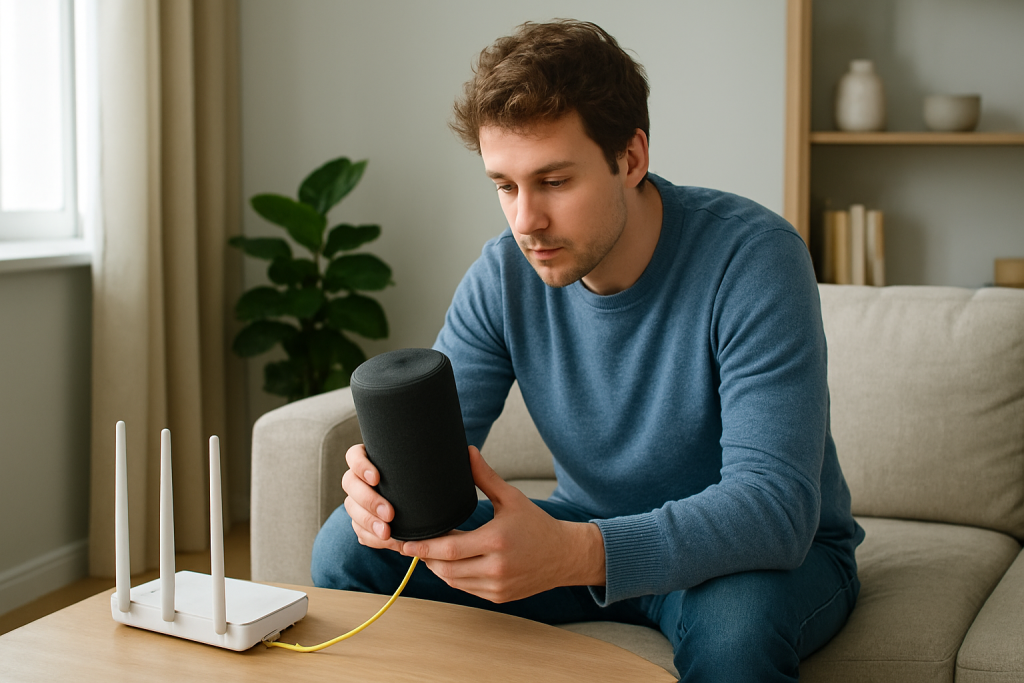
What to do: Enable your phone’s mobile hotspot. Connect the Echo to the hotspot Wi-Fi (in the Alexa app: device settings > Wi-Fi network > change). Then play music for 10–15 minutes.
What the result means: If music no longer stops, your Echo is fine and the issue is your home network stability (jitter, band steering, mesh handoffs, or router features). If it still stops on the hotspot, focus on account/service/firmware steps later.
If it fails: If you can’t use a hotspot, do a distance test: move the Echo within one room of the router and test again. If it improves, you’re still looking at signal quality/jitter.
Reduce mesh/band-steering interruptions (temporary test, then make it permanent if it helps).
What to do: If you use a mesh system, temporarily place the Echo close to the main router/node and power it off/on (unplug for 20 seconds, then plug back in) so it reconnects strongly. If your system allows it, temporarily disable band steering or “smart connect,” or create separate 2.4 GHz and 5 GHz network names and connect the Echo to one network consistently.
What the result means: If playback becomes stable, the stream was being interrupted by handoffs or band switching. Keeping the Echo on a consistent band/node usually fixes “stops after a few minutes.”
If it fails: If there’s no change, continue to step 5 and focus on jitter from congestion or router features.
Check for Wi-Fi congestion and jitter in the simplest practical way.
What to do: While music is playing, pause heavy network activity for 10 minutes (4K streaming, large downloads, cloud backups). If you can, test at a quieter time (late night) and compare.
What the result means: If it only fails during busy times, your network is experiencing congestion-related jitter. The Echo’s stream buffer runs out and the session ends.
If it fails: If it fails even when the network is quiet, go to step 6 to check router/client behavior and DNS stability.
Check the router’s client list and look for “disconnect/reconnect” behavior.
What to do: Log in to your router/app and find the connected devices list. Watch the Echo while you start music and wait for it to stop. See if the Echo disappears and reappears, or if it changes connection details.
What the result means: If the Echo drops off and comes back, that’s a direct sign of Wi-Fi interruption (jitter, weak signal, mesh handoff, or router power-saving features). If it stays connected the entire time, the interruption may be upstream (internet/DNS) or account/session related.
If it fails: If you can’t access the router, proceed to step 7 and use a controlled restart sequence to clear stuck sessions and renegotiate a clean connection.
Do a proper restart sequence (internet first, then Wi-Fi, then Echo).
What to do: Power off your modem (or gateway) for 60 seconds, then power it on and wait until it fully reconnects. Then power off the router/mesh main node for 30 seconds and power it back on. Finally, unplug the Echo for 20 seconds and plug it back in.
What the result means: This clears stale routes, DNS issues, and “half-broken” sessions that can cause periodic stream interruptions. The order matters because the router needs a stable internet connection before clients reconnect.
If it fails: If the problem returns quickly, go to Advanced Troubleshooting to address account/session refresh, firmware, and configuration conflicts.
Advanced Troubleshooting
Account and cloud session issues (music service authentication)
If the Echo stays online but music stops and Alexa reports an error, the stream may be ending when the service refreshes authorization. In the Alexa app, disable and re-enable the music service (or relink it) so a fresh token is issued. If you recently changed your Amazon password, enabled extra sign-in verification, or changed the default music service, those changes can invalidate older sessions and cause playback to stop mid-stream.
Network-related issue: DNS instability or filtering
Some routers use custom DNS settings, parental controls, or security filtering that can intermittently block the domains used for streaming endpoints. The symptom can look like “plays for a few minutes, then stops” when the stream rotates servers or renews the session. If you’re using custom DNS, temporarily switch the router back to automatic DNS from your internet provider and retest. If that fixes it, the issue isn’t Wi-Fi strength—it’s name resolution timing and reachability.
Firmware/software causes (Echo or router updates)
Echo devices update automatically, and routers/mesh systems often do too. A buggy update can show up as periodic disconnects or audio sessions that won’t stay alive. Check in the Alexa app for any device warnings, and check your router/mesh app for a recent firmware update history. If an update happened around the time the problem started, retesting after a full power cycle (modem/router/Echo in order) is especially important because it forces clean reconnections after new firmware.
Configuration conflicts: routines, multi-room groups, and voice profiles
If music stops only when you start it a certain way (for example, “play everywhere,” a routine that sets volume and starts music, or a multi-room music group), the interruption may be caused by group synchronization failing when one speaker has a weaker connection. Test by playing on a single Echo only. If single-device playback is stable but group playback stops, the “weakest link” speaker or its Wi-Fi path is interrupting the session. Also check routines that include “Stop audio” actions or bedtime routines that trigger after a few minutes due to an incorrect schedule.
When to Reset or Replace the Device
Use a soft restart (unplug for 20 seconds, plug back in) when the Echo is responsive but playback is inconsistent. This clears temporary Wi-Fi and streaming state without changing your settings.
Use a factory reset when: (1) the Echo fails the hotspot test (it still stops on a known-good connection), (2) the device frequently shows offline/unresponsive even when close to the router, or (3) the Alexa app can’t keep the device registered correctly. A factory reset removes the device from your account and erases Wi-Fi credentials, device groups, routines tied to that device, and smart home assignments that depend on that specific device entry. You’ll need to set it up again in the Alexa app.
Replace or stop using the device if you notice overheating, a burning smell, visible damage, crackling unrelated to the stream, or the power adapter becomes excessively hot. In those cases, discontinue use and address it through normal support channels. Do not open the device or attempt internal repairs.
How to Prevent This in the Future
Keep streaming stable by reducing the chances of jitter and unintended disconnects:
Place Echo devices where they get a consistent Wi-Fi signal. Avoid tucking them behind TVs, inside cabinets, or near dense metal appliances that can cause retries and jitter. A “connected” device with lots of retries behaves like an unstable device during streaming.
If you use mesh Wi-Fi, aim for consistency over constant optimization. If your system supports it, keep the Echo on a single band (often 2.4 GHz for longer range) or ensure the nearest node is clearly the best choice so the system doesn’t keep moving it. Avoid placing an Echo in a “border zone” between two nodes where it may bounce.
Be cautious with router features that change traffic behavior. If enabling QoS, parental controls, or security filtering coincides with the start of the issue, test with those features temporarily disabled to confirm whether they are introducing timing problems.
Keep account changes predictable. After changing your Amazon password or music service password, relink the music service in the Alexa app so the device isn’t trying to stream with an expired session. If multiple household members use voice profiles, make sure the default music service is set clearly to avoid playback starting under one profile and failing when it switches context.
Review routines that affect audio. A routine that lowers volume, changes speaker groups, or starts/stops playback can look like a “network problem” when it’s actually an automation firing at the wrong time.
FAQ
Why does Alexa play for exactly a few minutes and then stop?
A consistent short time window often points to a stream session being interrupted during a renewal or buffer cycle. Network jitter, mesh handoffs, or DNS hiccups can break the session even though the Echo reconnects quickly afterward.
Is this usually a Wi-Fi strength problem?
Not always. A strong signal can still have jitter if the network is congested or if the router is steering devices between bands/nodes. The hotspot test is the quickest way to separate “Echo problem” from “home network timing problem.”
My phone streams music fine on the same Wi-Fi. Doesn’t that prove the network is okay?
No. Phones and tablets are better at hiding brief interruptions by buffering more aggressively and retrying quickly. An Echo streaming session can stop when it hits a short dropout or timing spike that your phone would simply mask.
Why does it happen more with multi-room music?
Multi-room playback requires tighter timing between speakers. If one Echo has a weaker or more jittery connection, the group can lose synchronization and playback may stop. Test single-speaker playback to confirm.
Will a factory reset fix it if it’s network jitter?
A factory reset can help if the Echo’s configuration is corrupted, but it won’t cure jitter caused by congestion, mesh handoffs, or router behavior. If the hotspot test works and home Wi-Fi fails, focus on stabilizing the network path rather than resetting the Echo.
There’s a kind of calm that comes from seeing the whole shape instead of wrestling with it in pieces. The noise fades, not all at once, but enough that you can breathe without thinking about it.
What’s left feels almost ordinary—in the best way. After all that staring and second-guessing, the next moments don’t ask for as much patience as they used to.