Alexa Keeps Cutting Off Mid Sentence: Common Causes and Fixes
Quick Answer
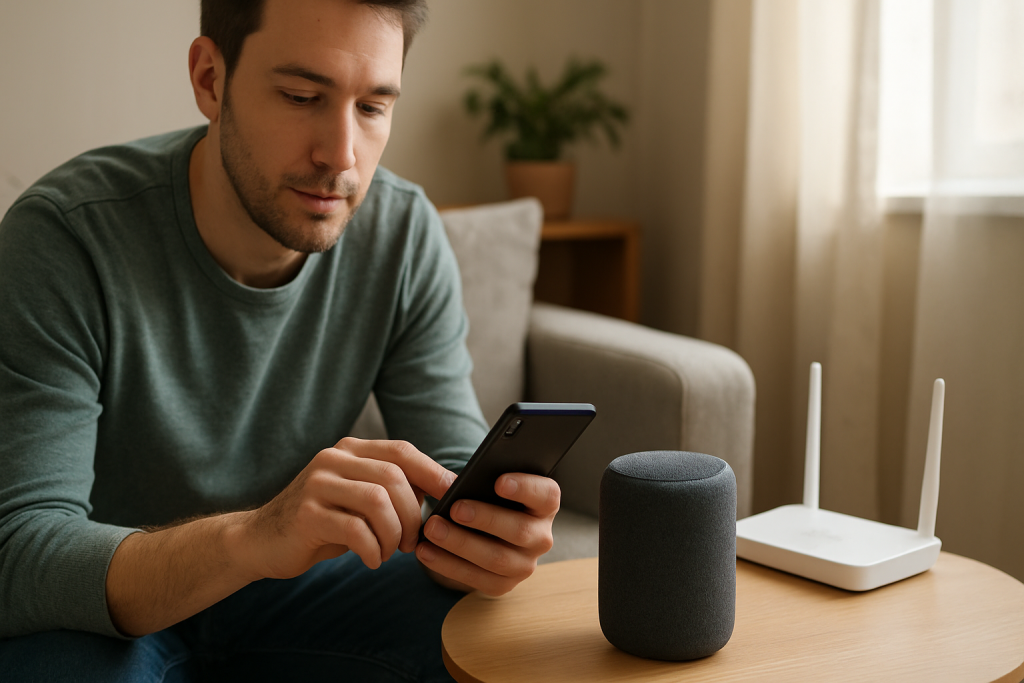
When Alexa cuts off mid sentence, the most common reason is that the audio stream is being interrupted. Even though it sounds like “speech,” Alexa’s replies are delivered through an audio pipeline that depends on steady, low-latency connectivity to Amazon’s services. If your network has brief latency spikes, packet loss, or a momentary handoff between access points, the stream can stall and the device stops talking.
Start by confirming whether the cut-offs happen only during streaming-style responses (news, long answers, skills) and not on short local actions (like “volume up”). Then run one fast isolation test: move the Echo closer to the router or try a temporary mobile hotspot. If the problem disappears, you’re dealing with unstable streaming conditions rather than a “bad Alexa.”
Why This Happens
Alexa’s voice response isn’t simply “played from the device.” Most responses are generated or retrieved from the cloud, then delivered as a stream to your Echo. That stream has to arrive smoothly. If the connection stutters for even a second, Alexa may pause, skip words, or stop mid sentence. The device often doesn’t announce a network error because the dropout is too brief to count as “offline,” but it’s long enough to break the audio pipeline.
Here are the most common causes that fit this pattern:
1) Latency spikes on Wi-Fi (brief delays, not total disconnects). This can happen when the router is busy, when a neighbor’s network causes interference, or when multiple devices are uploading at the same time (cloud cameras, phone backups, game updates). Alexa may start speaking normally, then cut out as the stream buffer runs dry.
2) Mesh Wi-Fi roaming or band steering. In mesh systems (or routers that combine 2.4 GHz and 5 GHz under one name), devices may be nudged between bands or nodes. That handoff can be seamless for web browsing but still disrupt a real-time audio stream. The result is “it always cuts off in the same room” or “it happens when I walk past it with my phone.”
3) Router QoS or “smart” traffic features behaving badly. Some routers try to prioritize traffic automatically. If the router misclassifies Alexa’s stream or deprioritizes it during uploads, you can get short dropouts without a full disconnect.
4) Skill or content source delays. When Alexa is reading a long response from a skill (news briefings, radio, podcasts, third-party content), that skill may deliver audio in chunks. If the skill’s server is slow or the connection is jittery, Alexa can stop mid sentence even though your Wi-Fi looks “fine” for other tasks.
5) DNS hiccups or ISP micro-outages (overlooked). Your Wi-Fi can be strong while your internet path is unstable. A brief DNS delay or a short ISP routing issue can interrupt the stream. This often shows up as “everything seems connected, but streaming is flaky.”
6) Device power-saving or congested power strip. If the Echo is on a smart plug, switched outlet, or an overloaded power strip that sags briefly, it can cause audio glitches that look like network cut-offs. It’s less common, but it’s worth checking because it’s easy to miss.
Real-world scenario: In an apartment building, your Echo works most of the day, but in the evening Alexa starts cutting off mid sentence during long answers and news. That’s a classic sign of congestion and interference: more neighbors are online, latency rises, and the audio stream becomes less stable.
Common user mistake: Assuming “Wi-Fi bars look full” means the connection is stable. Signal strength and streaming stability are different. Alexa needs consistency (low jitter), not just a strong signal.
Overlooked technical cause: An Echo that is frequently roaming between mesh nodes because it’s placed in a “border area” (hallway, stairwell, far corner). It may show as connected, but the roaming events interrupt streaming long enough to cut off speech.
Step-by-Step Fix
Confirm the pattern: does it cut off only on longer responses or streaming content?
What to do: Ask three things in a row: (1) “Alexa, what time is it?” (2) “Alexa, tell me a fun fact.” (3) “Alexa, play the news” or “Alexa, read my Flash Briefing.” Note which ones cut off.
What the result means: If short responses are fine but longer/streaming responses cut off, that strongly points to an interrupted audio stream (latency spikes, roaming, or content delivery issues). If even “what time is it” cuts off, the device may be losing connectivity more severely or restarting.
What to try next if it fails: If everything cuts off, skip ahead to Step 5 to check power and device status, then return to the network isolation steps.
Check the device status in the Alexa app (quick health check).
What to do: Open the Alexa app, select the affected Echo, and look for indicators like “Device is unresponsive,” “Offline,” or delayed control (volume changes that take several seconds). Also check that the Echo is on the expected Wi-Fi network (not a guest network you don’t normally use).
What the result means: If the app shows delays or intermittent unresponsiveness, the device is likely experiencing unstable connectivity that can interrupt audio mid sentence. If the app is instant and stable, the issue may be more specific (mesh roaming, skill streaming, or ISP jitter).
What to try next if it fails: If the app can’t reach the device reliably, go to Step 4 (hotspot test) to isolate whether your home network is the cause.
Run a fast isolation test: temporary mobile hotspot.
What to do: Enable a mobile hotspot on your phone (with a simple network name and password). In the Alexa app, update the Echo’s Wi-Fi to connect to the hotspot. Then ask Alexa for a longer response (news, story, or a multi-sentence question).
What the result means: If Alexa stops cutting off on the hotspot, the Echo is fine and your home network/internet path is the problem (latency spikes, roaming, DNS, or router behavior). If it still cuts off on the hotspot, the issue is more likely device software, account/cloud, or a specific skill/content problem.
What to try next if it fails: If the hotspot test fixes it, proceed to Step 6 (mesh/roaming and router settings). If it doesn’t, jump to Step 8 (skills, firmware, and account checks).
Move the Echo and re-test (stability over signal strength).
What to do: Temporarily place the Echo within the same room as the router (or the nearest mesh node) and test the same long response again.
What the result means: If the problem improves close to the router, you likely have roaming/interference issues in the original location. If it doesn’t improve, the issue may be upstream (ISP jitter, DNS, router load) or content/skill related.
What to try next if it fails: If location helps, keep the Echo in a more central spot or adjust mesh placement (see Step 6). If location doesn’t help, continue to Step 5 and Step 7.
Check power stability (because brief power dips mimic “stream interruptions”).
What to do: Plug the Echo directly into a wall outlet for testing (not a smart plug, not a switched outlet, not a heavily loaded strip). Make sure the power adapter is firmly seated at both ends.
What the result means: If cut-offs stop, the device wasn’t getting stable power. That can interrupt audio playback without a full reboot you’d notice.
What to try next if it fails: If power isn’t the issue, continue to Step 6 for network stability tuning.
Mesh and band-steering test: reduce roaming events.
What to do: If you use mesh Wi-Fi or a single network name for both 2.4 GHz and 5 GHz, try one of these tests (whichever your system supports): (a) temporarily disable band steering, or (b) temporarily connect the Echo to a dedicated 2.4 GHz SSID, or (c) temporarily power off the nearest mesh node to force the Echo to stay connected to one access point.
What the result means: If Alexa stops cutting off when roaming is reduced, the audio stream was being interrupted during handoffs. This is especially likely if the problem happens in one room or at certain times.
What to try next if it fails: If it makes no difference, proceed to Step 7 to check for router load and internet jitter signs.
Check for congestion during cut-offs (latency spikes from busy uploads).
What to do: When Alexa cuts off, look for common triggers: cloud camera uploads, phone photo backups, large downloads, or video calls. If your router has a client list, check whether a device is actively uploading. Then repeat the Alexa test while pausing heavy uploads for a few minutes.
What the result means: If cut-offs correlate with heavy network activity, your issue is likely latency spikes starving the audio stream. This is different from “weak Wi-Fi” and usually shows up as brief stutters rather than full disconnects.
What to try next if it fails: If pausing other traffic doesn’t help, continue to Step 8 to rule out content, skills, and software causes.
Rule out a skill/content problem (stream source vs. device).
What to do: Try multiple content types: a built-in response (“Alexa, what’s the weather?”), a different music service or radio station if you use them, and a different skill-based source (Flash Briefing vs. a third-party skill). Note if the cut-off happens only with one source.
What the result means: If only one skill or one content source cuts off, the underlying issue may be that service timing out or delivering unstable audio chunks. Your network can still be a contributor, but the fix often involves disabling/re-enabling the skill or changing the briefing order.
What to try next if it fails: If all sources cut off, move to Advanced Troubleshooting for account/cloud, firmware, and configuration conflicts.
Advanced Troubleshooting
Account and cloud issues that interrupt responses
If Alexa starts speaking and then stops, it can be a cloud-side interruption rather than Wi-Fi alone. In the Alexa app, confirm the Echo is registered to the correct Amazon account and that Household/Profiles haven’t recently changed. Account changes can affect permissions for content (news providers, music services, explicit filter settings), causing playback to start and then end when authorization fails mid-stream.
If the cut-off happens mainly with personal content (calendars, calling, announcements, or a specific music service), re-check linked services in the Alexa app and sign in again. If re-linking fixes it, the stream was being interrupted by an expired token rather than raw Wi-Fi strength.
Network issues tied specifically to streaming stability
Focus on what breaks streams: jitter, packet loss, and brief routing stalls. If the hotspot test helped, consider these targeted checks:
DNS reliability: If your router/ISP DNS is slow at times, Alexa can stall fetching the next audio segment. If your router allows it, try switching DNS to a well-known public DNS service for a day and observe whether cut-offs stop. If that helps, the issue was name resolution delays, not the Echo itself.
Router “smart” features: If your router has traffic prioritization, “AI QoS,” or automatic optimization, try disabling it temporarily. If Alexa becomes stable, the feature was reshaping traffic in a way that caused micro-interruptions.
Firmware and app software causes
Echo devices update automatically, but updates can lag if the device is rarely idle or has intermittent connectivity. In the Alexa app, check for any prompts related to setup completion or Wi-Fi updates. Also ensure your Alexa app is updated; app-side issues can cause configuration drift (for example, Wi-Fi credentials not fully applied across devices), which can lead to repeated reconnect events that interrupt audio.
If you have multiple Echos, compare them. If only one device cuts off in the same location where others are fine, that device may have a corrupted network profile. A controlled reset (see next section) is more effective than repeated power cycling because it forces a clean Wi-Fi and cloud registration.
Configuration conflicts (routines, profiles, and audio settings)
Routines can interrupt speech without it being obvious. For example, a routine that triggers at a certain time (or on a motion/contact sensor) can start another audio action, cutting off the current response. If cut-offs happen at predictable times, review Routines and temporarily disable any that play audio, change volume, or start announcements.
Also check Do Not Disturb and communication settings if the cut-off happens during announcements or calls. A permission or profile mismatch can cause a stream to start and then stop when the device can’t complete the action.
When to Reset or Replace the Device
Use a soft restart when the Echo is generally stable but started cutting off recently, especially after a network change or power outage. A soft restart is appropriate if the Alexa app shows the device online and responsive, but streaming is glitchy.
Use a factory reset when the hotspot test still cuts off, the device frequently shows as “offline” despite stable internet, or the problem affects all content types and persists after you’ve ruled out routines and linked-service issues. A factory reset clears the device’s Wi-Fi profile, device settings, and local configuration so it can re-register cleanly.
What you lose with a factory reset: You’ll need to set up Wi-Fi again, reassign the device to rooms/groups, and re-check preferences like default speaker groups and any device-specific settings. Your Amazon account and most skills remain on the account, but device-level associations often need to be rebuilt.
Replace or stop using the device immediately if you notice overheating, a burning smell, crackling from the power adapter, a swollen adapter, or the device randomly powering off. In those cases, do not troubleshoot further with extended operation; focus on safety and discontinue use.
How to Prevent This in the Future
Keep the Echo out of roaming “border zones.” Place it where it can clearly “see” one strong access point rather than bouncing between two. If you use mesh, avoid placing an Echo exactly halfway between nodes or in a hallway where signals overlap unpredictably.
Reduce latency spikes during busy times. Schedule large uploads (phone backups, computer cloud sync) for overnight if possible. If your router supports it and you understand the settings, prioritize real-time audio traffic or reduce aggressive “smart” optimization features that can cause jitter.
Stabilize your account and services. If you frequently change passwords or swap linked services, expect occasional authorization hiccups. After changing account credentials, revisit linked services in the Alexa app and confirm they still show as connected.
Keep routines tidy. Remove or disable routines you no longer use, especially ones that play audio or change volume. When troubleshooting, having fewer automatic audio triggers makes it easier to confirm whether a cut-off is network-related or simply an automation interrupting playback.
Maintain clean power. Use a stable outlet and avoid putting the Echo on smart plugs or switched outlets unless you have a specific reason. A brief power dip can look exactly like a streaming cut-off.
FAQ
Why does Alexa cut off but my Wi-Fi shows full bars?
Wi-Fi bars mainly reflect signal strength, not streaming quality. Alexa needs consistent delivery (low jitter and low packet loss). You can have strong signal and still get brief latency spikes from congestion, roaming between mesh nodes, or ISP hiccups that interrupt the audio stream.
Is this a microphone problem?
Usually not. A microphone problem affects what Alexa hears (misheard commands, “I’m having trouble understanding”), not what Alexa says. Cutting off mid sentence is typically a playback/stream interruption, meaning the reply audio isn’t arriving smoothly.
Why does it happen more with news or Flash Briefing than simple questions?
News and briefings are longer, more stream-like, and often involve third-party sources. That makes them more sensitive to small network stalls and to content authorization or server timing. Short built-in responses can complete before a brief latency spike becomes noticeable.
Will factory resetting always fix Alexa cutting off mid sentence?
No. A factory reset helps when the device has a corrupted Wi-Fi profile, registration issue, or configuration conflict. If the underlying cause is unstable internet (latency spikes) or mesh roaming, the cut-offs will return unless the network stability issue is addressed.
Can another device in my home cause Alexa to cut off mid sentence?
Yes. Devices that upload continuously or in bursts (cloud backups, cameras, large file sync) can create short congestion events that interrupt real-time audio streaming. If Alexa cuts off at the same time each day, look for scheduled uploads or updates happening in the background.
After all the noise, the real work feels almost mundane—like finally putting your keys in the same place every time. The issue and the solution stop circling each other and start lining up.
Maybe that’s the quiet relief: not fireworks, just a cleaner rhythm. You can keep moving without constantly bracing for the next unnecessary snag.