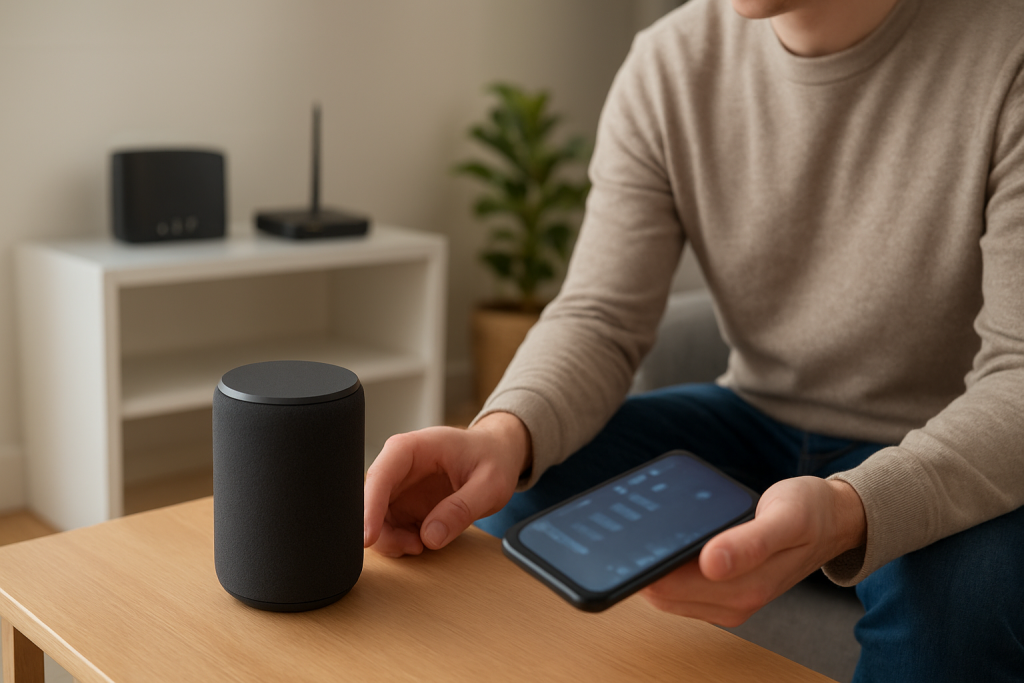
Alexa Responds Slowly or With Delay: How to Fix It
Quick Answer
When Alexa takes a long time to respond, the most common cause is extra delay between your Echo device and Amazon’s servers. That delay is usually network latency and, very often, slow DNS lookups (the “phone book” step that turns a service name into an IP address). Even if your Wi-Fi signal looks strong, Alexa can still lag if the path to the internet is slow or your DNS is stalling.
Start by confirming whether the delay happens on every request or only certain ones. Then do two high-impact checks: test Alexa on a phone hotspot (to separate home network issues from device issues), and switch your router’s DNS to a faster, more reliable provider (or to your ISP’s default if you’ve customized it). If the hotspot is fast but home Wi‑Fi is slow, you’ve proven it’s network/DNS latency, not the Echo itself.
Why This Happens
Alexa is a cloud-based assistant. Your Echo records your request, sends it to Amazon’s servers, waits for processing, then receives the response and plays it back. If any part of that round trip is slow, you feel it as a pause after the wake word, a long “thinking” time, or delayed smart home actions.
Here are the most common latency/DNS-related reasons:
1) DNS lookups are slow or failing over repeatedly. If your router is using an overloaded DNS service, a misconfigured custom DNS, or a DNS server that’s intermittently unreachable, Alexa may pause before it can even contact the right cloud endpoint. This often feels like “Alexa heard me, then waited.”
2) High latency to the internet (not just weak Wi‑Fi). You can have excellent Wi‑Fi signal but still have slow upstream routing, congestion, or bufferbloat (latency spikes when someone streams or uploads). Alexa’s small requests are sensitive to delay spikes, so the response time can jump from instant to several seconds.
3) Mesh Wi‑Fi steering or roaming delays. Some mesh systems move devices between nodes or bands. That can briefly interrupt traffic, causing Alexa to stall mid-request, especially if the Echo is near the edge of two nodes’ coverage.
4) Router features that inspect or rewrite DNS. Parental controls, “safe browsing,” DNS filtering, VPN features, or security gateways can add extra hops or timeouts. If the router tries one DNS method, times out, then tries another, Alexa will feel slow.
5) IPv6 or dual-stack oddities. Some networks advertise IPv6 but route it poorly. Devices may try IPv6 first, stall, then fall back to IPv4. The symptom is inconsistent delays: sometimes fast, sometimes a long pause.
Real-world scenario: after a neighborhood power outage, the modem comes back online but the router’s DNS or WAN settings don’t fully recover. Everything “works,” but Alexa responses become sluggish, especially for weather, timers, and skills. Web browsing may seem fine because your phone and computer cache DNS results, while Alexa makes fresh lookups more often.
Common user mistake: changing DNS to a random value found online (or copying a “fast DNS” suggestion) without confirming it’s reachable and stable from your ISP. A DNS server that’s fast for someone else can be slow or unreliable for your location.
Overlooked technical cause: multiple routers (double NAT) or a router behind an ISP gateway doing its own DNS and filtering. This can create extra latency and confusing DNS behavior, especially if both devices try to “help” with DNS or security features.
Step-by-Step Fix
Identify the pattern of the delay. Ask Alexa three different types of requests: “What time is it?” (simple), “What’s the weather?” (cloud), and a smart home command like “Turn on the living room lights.”
What the result means: If simple requests are fast but cloud/skills are slow, it points strongly to internet latency/DNS. If smart home is slow but time/weather are fine, the delay may be with the smart home hub/skill path, not general Alexa.
If it fails: If everything is slow (including basic responses), jump to step 4 to check device connectivity and router client status.
Run a quick hotspot test to separate “device” from “home network.” Enable a mobile hotspot on your phone, connect the Echo to it (Alexa app > Devices > your Echo > Change Wi‑Fi Network), and try the same three requests again.
What the result means: If Alexa becomes noticeably faster on the hotspot, your Echo is fine. The delay is coming from your home network path (DNS, router features, ISP latency, or mesh steering).
If it fails: If Alexa is still slow on the hotspot, skip ahead to step 7 (software/account checks) and step 9 (reset criteria). This points away from your router/DNS and toward device configuration or cloud/account issues.
Change DNS on your router (or revert to default if you customized it). In your router’s internet/WAN settings, look for DNS. If you previously set custom DNS, temporarily switch back to “Automatic/ISP.” If you are already on automatic and suspect DNS slowness, switch to a well-known public DNS provider. Save settings, then reconnect the Echo (or wait a minute for renewal) and test again.
What the result means: If responses become snappier, DNS was a major contributor. Alexa depends on timely lookups to reach cloud services reliably.
If it fails: If there’s no change, keep the DNS setting that is most stable for your household and continue to step 4. The issue may be latency spikes, mesh roaming, or router features adding delay.
Confirm the Echo has a clean connection in the Alexa app and on the router client list. In the Alexa app, open the device and check its status (online/offline), Wi‑Fi network name, and signal quality if shown. Then log into your router and find the connected clients list to confirm the Echo is connected only once and has a normal IP address.
What the result means: If the Echo is frequently dropping offline or appears with multiple entries, it can indicate roaming issues, duplicate names, or a network conflict that creates retries and delays.
If it fails: If you can’t find the Echo in the client list, it may be connecting to a different router (guest network, extender, or old network). Correct the Wi‑Fi network and retest.
Reduce latency spikes: pause heavy uploads/streams and retest. For five minutes, stop large uploads (cloud backups, security camera uploads) and pause 4K streaming. Then ask Alexa to do weather and a skill request.
What the result means: If Alexa speeds up during the quiet period, your issue is likely latency under load (bufferbloat). Alexa is sensitive to those spikes even when “speed tests” look fine.
If it fails: If there’s no difference, continue. The delay may be DNS, roaming, or a configuration conflict rather than congestion.
If you use mesh Wi‑Fi, test for band steering/roaming delays. Temporarily place the Echo closer to the main router/node and test again. If your system allows it, temporarily disable band steering or “smart connect,” or create separate 2.4 GHz and 5 GHz names and connect the Echo to one consistently.
What the result means: If the delay improves when the Echo is closer or locked to a band, the lag was likely caused by roaming/steering interruptions.
If it fails: If nothing changes, restore your preferred mesh settings and move on. The problem may be DNS routing or cloud/account behavior.
Use the correct reboot sequence when network gear is involved (modem → router → Echo). Unplug the modem for 30 seconds, plug it in and wait until it is fully online. Then restart the router and wait for Wi‑Fi to return. Finally, power the Echo off and back on.
What the result means: This sequence forces a fresh WAN connection and DNS assignment before the Echo reconnects. It can clear “half-broken” internet sessions that cause repeated retries and slow cloud handshakes.
If it fails: If the delay returns quickly, treat it as a persistent latency/DNS issue and continue to step 8 for router feature conflicts.
Check for a skill-specific delay versus general Alexa delay. If the lag happens mostly with one skill (music service, trivia, smart home brand), disable that skill temporarily and test general questions again.
What the result means: If general Alexa is fast but that skill is slow, the delay may be on the skill provider’s side or in the skill’s account linking, not your network.
If it fails: If everything is still slow, continue to step 9 and then Advanced Troubleshooting.
Check time zone, language, and household profile settings. In the Alexa app, confirm your device location, time zone, and language match your region. If you use Voice Profiles, test with them temporarily disabled.
What the result means: Mismatched region settings can add extra cloud routing steps or cause repeated clarification prompts that feel like “delay.” Voice Profiles can also add processing time, especially if recognition is struggling.
If it fails: If settings are correct and delays persist, proceed to Advanced Troubleshooting for deeper network and account checks.
Advanced Troubleshooting
Account and cloud issues that create “thinking” time
If Alexa is slow across multiple networks (including the hotspot test), look at account-level causes. Sign out of the Alexa app and sign back in, then confirm the Echo is registered to the correct Amazon account. If you recently changed your Amazon password, enabled extra sign-in verification, or moved the device to a different household, re-registration can get partially stuck and cause repeated cloud retries.
Also check for service status problems: if delays are sudden and affect multiple devices at once, it may be a temporary cloud-side slowdown. In that case, local changes won’t fully fix it, but DNS reliability and clean connectivity still help reduce the impact.
Network path issues closely tied to latency and DNS
If the hotspot test was fast but home is slow, focus on the router’s internet path. Disable router features that intercept DNS or add filtering (parental controls, “safe search,” DNS proxying, VPN client mode). These features can introduce timeouts and retries that look exactly like Alexa hesitation.
If your router offers IPv6, test by temporarily disabling IPv6 and retesting Alexa for a few minutes. If performance improves, your ISP’s IPv6 routing may be inconsistent, causing slow fallbacks. If disabling IPv6 makes things worse, turn it back on.
Firmware/software causes
Outdated router firmware can cause DNS forwarding bugs, memory leaks, or unstable latency under load. Check for router firmware updates and apply them during a quiet time. For the Echo, keep it connected overnight; Echo devices typically update automatically when idle. If you suspect the Echo is stuck, a power cycle after the router is stable can help it re-check for updates.
Configuration conflicts (routines, permissions, and smart home links)
Routines can make Alexa feel slow because one voice command triggers multiple actions, some of which wait on cloud confirmations. If the delay happens mainly when you say a routine name, open the routine and look for steps that depend on external services (music, announcements to other devices, smart home scenes). Temporarily remove one step at a time to find the slow link.
For smart home delays, re-check device groups and room assignments. If a command targets a group with mixed device types or duplicate device names, Alexa may spend extra time resolving what you meant.
When to Reset or Replace the Device
Try a soft restart first when Alexa is only occasionally slow, especially after network changes. A soft restart (power off/on) is appropriate if the hotspot test shows the device is generally fine but it sometimes gets “stuck” after a router change.
Consider a factory reset if all of these are true: Alexa is slow on both your home network and a hotspot, the device frequently shows as offline in the app, and software/firmware updates and account sign-in checks did not help. A factory reset removes Wi‑Fi settings, device name customizations, and local device configuration. You will need to set it up again in the Alexa app and re-add it to groups and routines.
Replace or stop using the device immediately if you notice overheating, a burning smell, crackling from the power adapter, swelling, or physical damage. Unplug it and contact support. Do not open the device or attempt internal repairs.
How to Prevent This in the Future
Keep your network’s “name resolution” stable. If you change DNS, write down the old setting and test for a day before committing. Stable DNS is often more important than theoretical speed.
Plan for low-latency internet use, not just high download speed. If your router has quality-of-service settings designed to reduce latency under load, enable them and prioritize real-time traffic. If you notice Alexa slows down when someone uploads video or backs up photos, schedule those tasks for overnight when possible.
For mesh systems, place nodes so the Echo doesn’t sit on the border between two nodes. A slightly stronger, consistent connection is better than a device that constantly roams. If you separate Wi‑Fi bands, keep the Echo on the band that stays stable in its location.
Limit “helper” features that intercept DNS unless you truly need them. Parental controls and filtering can be useful, but they should be configured carefully and tested. If Alexa becomes slow right after enabling a filtering feature, that’s a strong clue.
Keep routines and skills tidy. Remove unused skills and simplify routines that trigger many cloud actions. If a routine is important, test it after any network or account change so you catch delays early.
FAQ
Why is Alexa slow even though my Wi‑Fi signal is strong?
Signal strength only describes the link between the Echo and your router. Alexa can still be slow if the router’s path to the internet has high latency, if DNS lookups are slow, or if your connection has delay spikes during streaming and uploads. The hotspot test is the quickest way to confirm this.
Is a slow Alexa response usually the Echo device “getting old”?
Usually not. Most slow-response complaints trace back to network latency, DNS delays, or cloud/skill issues rather than the Echo’s hardware. If the device is fast on a hotspot but slow at home, the Echo is doing its job and the home network path is the bottleneck.
Will a faster internet plan fix Alexa delays?
Not always. Alexa needs low latency and reliable DNS more than high download speed. A plan upgrade can help if your connection is congested, but many delays come from router settings, DNS problems, or latency spikes that can occur even on fast plans.
My smart home commands are delayed, but questions like “What time is it?” are fast. What does that mean?
That usually means the delay is in the smart home path: the skill, the linked account, or the smart home device’s cloud service. Test by disabling the specific skill briefly, checking account linking, and simplifying routines or groups that might be adding extra steps.
Misconception: “If Alexa heard me, the internet must be fine.” Is that true?
No. Hearing the wake word is local, but understanding and responding requires a fast round trip to the cloud. Your Echo can hear you perfectly while DNS lookups or internet latency add several seconds before it can respond.
What’s striking is how the conversation finally feels less like a battle and more like breathing room. The facts are already in place; the rest is just choosing not to let it linger.
There’s a quiet relief in that—like closing a drawer that never really shuts. The problem doesn’t vanish magically, but it stops taking up space in your head.