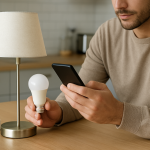
Google Home Is Offline but WiFi Works: How to Fix It
Quick Answer
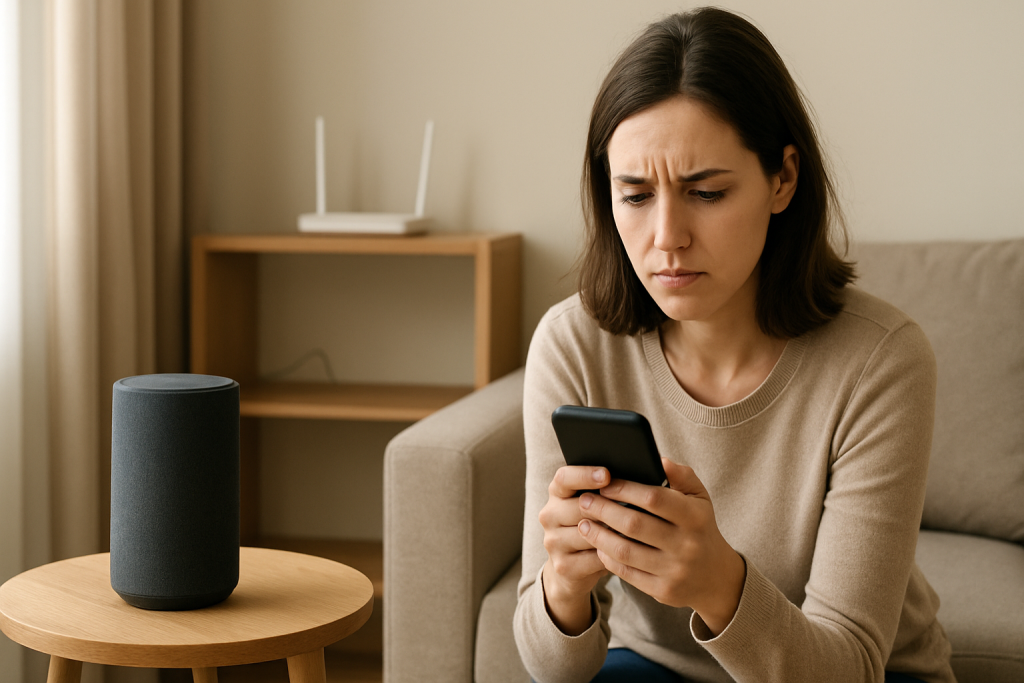
The most common real-world cause is that your Google Home or Nest speaker is not staying associated to Wi‑Fi (it briefly connects, then drops), even while phones, laptops, and TVs keep working. This makes the network look fine, but the speaker goes Offline in the Google Home app.
Do these three checks first:
1) Check the device status in the Google Home app: tap the speaker → Settings → Device information. If it shows a different Wi‑Fi name than you expect, or shows Not connected, it is dropping association or joining the wrong band/network.
2) Check your router client list: log into your router and look for the speaker in Connected devices. If it appears and disappears, or shows weak signal, the speaker is losing Wi‑Fi association.
3) Do a quick hotspot test: temporarily connect the speaker to your phone hotspot. If it stays online on the hotspot, the speaker is fine and your home Wi‑Fi setup is the trigger (band steering, mesh roaming, WPA mode, or signal quality).
Affected device types: Google Home Mini, Nest Mini, Nest Audio, Nest Hub/Hub Max, and older Google Home models can all show this behavior, especially when they are far from the router or near interference.
Why This Happens
When a Google Home device shows Offline while your Wi‑Fi works, the key detail is that Wi‑Fi is not one single thing: your network can be healthy overall while one specific client (the speaker) repeatedly drops its Wi‑Fi association. The speaker then cannot reach Google services reliably, so the app reports Offline.
Common, tightly related causes that lead to the speaker dropping association include:
1) Band steering or smart roaming: the router or mesh system pushes the speaker between 2.4 GHz and 5 GHz (or between mesh nodes). Some speakers handle these transitions poorly and end up disconnected.
2) Weak or unstable signal at the speaker: not necessarily “no signal,” but enough packet loss or retries that the speaker gives up and disconnects.
3) Security/mode mismatch: WPA3-only, certain mixed WPA2/WPA3 modes, or enterprise-style settings can cause intermittent reconnect loops.
4) DHCP or IP conflicts: the speaker associates, but loses its IP lease or gets a conflicting address, so it looks Offline even though Wi‑Fi is present.
5) Router features that isolate clients: guest network, AP isolation, or some firewall settings can block local discovery and control, which can look like Offline in the app.
Real-world scenario: a Nest Mini works for months, then a router update enables band steering more aggressively. Phones roam fine, but the speaker starts flipping between bands and disappears from the client list every few minutes. The app shows Offline, and voice commands fail or time out.
Common user mistake: setting up the speaker on the guest network or a second Wi‑Fi name, then later renaming the main Wi‑Fi or changing passwords. The rest of the home reconnects, but the speaker keeps trying the old network and appears Offline.
Overlooked technical cause: the speaker is connected to Wi‑Fi but cannot reach the internet reliably due to DNS filtering, IPv6 issues, or a router bug. In that case, the router may show it connected, yet the Home app still reports Offline because cloud connectivity is failing.
Most Likely Causes in Real Homes
1) Band steering / mesh roaming instability causing the speaker to drop Wi‑Fi association.
2) Weak signal or interference at the speaker location (kitchen appliances, thick walls, metal backsplashes, entertainment centers).
3) Speaker joined the wrong network (guest Wi‑Fi, extender network, or an old SSID with the same name).
4) Security mode or router compatibility problem (WPA3-only or buggy mixed mode).
5) IP/DHCP issues (lease conflicts, exhausted DHCP pool, or reserved IP mismatch).
Step-by-Step Fix
Confirm what Offline means for your device in the Google Home app.
What to do: Open Google Home → select the speaker/hub tile. If it is Offline, go to Settings → Device information and note the Wi‑Fi network name, MAC address (if shown), and the room/home it belongs to.
What the result means: If the Wi‑Fi name is not your current home Wi‑Fi, the device is trying to use the wrong network. If it shows Not connected, it is dropping association or never completing connection.
What to try next if it fails: If you cannot open device settings because it is completely unreachable, skip to the hotspot test step to separate device vs network.
Check whether the speaker is actually staying connected on the router side.
What to do: Log into your router/mesh app and open the connected clients list. Look for the speaker using its name or MAC address. Watch it for 2–3 minutes.
What the result means: If it appears briefly then disappears, the Wi‑Fi association is dropping. If it stays connected but still shows Offline in the Home app, the issue is more likely discovery/account/home structure, DNS, or a cloud reachability problem.
What to try next if it fails: If you cannot find it at all, it may be connected to a different Wi‑Fi (guest/extender) or not connected. Continue to the band/SSID checks and hotspot test.
Rule out band steering issues by temporarily forcing a stable band.
What to do: If your router uses a single Wi‑Fi name for both 2.4 GHz and 5 GHz, temporarily split them into two names (for example, HomeWiFi-2G and HomeWiFi-5G) in the router settings, if your system allows it. Then connect the speaker to the 2.4 GHz network (2.4 GHz is usually more stable at distance).
What the result means: If the speaker stays online after moving to 2.4 GHz, the Offline problem was likely caused by band steering or unstable 5 GHz coverage at the speaker.
What to try next if it fails: If splitting bands is not possible (some mesh systems hide it), move to the hotspot test and placement checks, then consider creating a dedicated IoT network if your router supports it.
Run the hotspot test to separate a speaker problem from a home Wi‑Fi problem.
What to do: Enable a hotspot on your phone (use a simple name and password). In Google Home, add or set up the device again and choose the hotspot Wi‑Fi. Keep the speaker within a few feet of the phone for 5 minutes.
What the result means: If it stays online and responds reliably on the hotspot, the speaker hardware is likely fine and your home Wi‑Fi environment is the cause (roaming, security mode, interference, DHCP/DNS). If it still drops offline on the hotspot, the issue is more likely device firmware, account, or a failing Wi‑Fi radio.
What to try next if it fails: If hotspot is stable, return the speaker to home Wi‑Fi after you apply the next network-focused steps. If hotspot is unstable, jump to Advanced Troubleshooting and then Reset criteria.
Check for wrong network or isolation (guest Wi‑Fi, extender Wi‑Fi, or separate VLAN).
What to do: Verify your phone and the speaker are on the same Wi‑Fi name during setup and daily use. Avoid guest networks for Google Home devices unless you understand the limitations. If you use a Wi‑Fi extender that creates a second network name, do not mix devices across the router SSID and extender SSID.
What the result means: If the speaker is on guest Wi‑Fi or a different SSID, the Home app may not discover or control it consistently, and it may appear Offline even though it has internet.
What to try next if it fails: Put both phone and speaker on the main Wi‑Fi SSID, then re-link the device to that network in the Home app.
Stabilize signal quality at the speaker location.
What to do: Move the speaker temporarily to the same room as the router (or nearest mesh node) and test for 10 minutes. If it stays online there, move it back and test again. Also keep it away from microwaves, cordless phone bases, baby monitors, dense metal surfaces, and behind TVs.
What the result means: If it only goes Offline in its original spot, the problem is coverage or interference causing Wi‑Fi association drops.
What to try next if it fails: If you need it in that spot, reposition the nearest mesh node/router for a clearer path, or relocate the speaker slightly (even 3–6 feet can change stability).
Verify router security mode and compatibility settings.
What to do: In router Wi‑Fi security settings, use WPA2-Personal (AES) or WPA2/WPA3 mixed if your system is stable with it. Avoid WPA3-only for troubleshooting. Ensure the password does not contain unusual characters if you recently changed it.
What the result means: If switching to WPA2 stabilizes the speaker, the previous security mode was triggering reconnect loops or failed re-authentication.
What to try next if it fails: If you must keep WPA3, update router firmware and then try again. If instability persists, keep the speaker on a WPA2 IoT network if available.
Check DHCP/IP behavior to stop “connect then disappear” cycles.
What to do: In the router client details for the speaker, note its IP address. If it changes frequently or duplicates another device, set a DHCP reservation for the speaker (reserve an IP for its MAC address). Also confirm your DHCP pool is not tiny (for example, only a handful of addresses).
What the result means: If reserving an IP stops the Offline behavior, the issue was likely lease conflicts or unstable addressing that made the speaker unreachable even when associated.
What to try next if it fails: If you cannot reserve IPs, reboot the router after clearing old leases, and reduce complexity (disable secondary DHCP servers on extenders).
Use the correct reboot order only after you have evidence of association drops.
What to do: If the router client list shows the speaker dropping, reboot in this order: modem (if separate) → router/mesh → wait until Wi‑Fi is fully back → then power-cycle the speaker. This order matters because it forces the router to rebuild WAN, DHCP, and Wi‑Fi cleanly before the speaker tries to reconnect.
What the result means: If the speaker stays online afterward, the issue was likely a router state problem (stuck Wi‑Fi process, DHCP oddness, or roaming table issues).
What to try next if it fails: If it goes Offline again within hours, focus on band steering, placement, and security mode rather than repeating reboots.
Confirm Home structure, account, and Voice Match are not masking a connectivity issue.
What to do: In Google Home, confirm you are signed into the correct Google account, and that the speaker is assigned to the correct Home. If multiple household members manage devices, verify the device is not duplicated in another Home. For voice-related failures, check Assistant settings → Voice Match and make sure your profile is linked to the device.
What the result means: If the device is online but you cannot control it from one phone, the problem is often account/home membership, not Wi‑Fi. If it is genuinely Offline from all accounts, it is still a network association issue.
What to try next if it fails: Remove the device from the wrong Home, then add it back to the correct Home while your phone is on the same Wi‑Fi.
Check language and region settings if the device connects but behaves like it is unreachable.
What to do: In Google Home → Assistant settings, confirm Assistant language matches what you use. Also confirm your phone OS language and Google account region are consistent.
What the result means: Language mismatches do not usually cause Offline status, but they can look like the device is not responding when it is actually online.
What to try next if it fails: If the device still shows Offline, return to the router-side evidence (client list stability) and proceed to Advanced Troubleshooting.
Advanced Troubleshooting
Use this section only if the basic fixes above do not stop the Offline behavior, or if the router shows the speaker connected but the Home app still reports Offline.
Account/cloud issue: If multiple Google services are having trouble (speaker Offline, routines not running, device controls delayed), verify your internet connection is stable for more than just browsing. Try switching DNS to your ISP default temporarily if you use custom DNS or filtering. If the speaker works on hotspot but not on home Wi‑Fi even after band/security changes, the home network may be blocking required outbound traffic.
Network issue (specific to association drops): On mesh systems, check whether the speaker is hopping between nodes. If your mesh app shows frequent node changes for that device, try locking it to a closer node if your system supports it, or move the node to reduce overlap and “ping-pong” roaming. If your router has an option like Airtime Fairness, Fast Roaming (802.11r), or Smart Connect, test with it disabled for a day to see if the speaker becomes stable.
Firmware/software cause: Ensure your router firmware is current. Router updates sometimes fix client compatibility problems, and sometimes introduce them; if the issue started immediately after an update and nothing else helps, check whether your router supports rolling back or whether a newer patch is available. For the speaker, leave it powered on overnight on a stable network (hotspot or the most stable band) so it can complete updates.
Configuration conflict: If you have multiple routers (for example, an ISP gateway plus your own router), double NAT and competing Wi‑Fi networks can cause devices to join the wrong access point or get inconsistent addressing. Put the ISP gateway into bridge mode if appropriate, or disable its Wi‑Fi so there is only one Wi‑Fi system serving the home.
When to Reset or Replace
Try a soft restart first when the device is generally stable but temporarily stuck: unplug the speaker for 60 seconds and plug it back in. This is appropriate if the router client list shows it connected with a steady signal, but the Home app control is glitchy.
Factory reset is appropriate when the speaker repeatedly drops association after you have confirmed the Wi‑Fi environment is stable (hotspot test passes, strong signal, WPA2 works) or when the device is stuck in a bad configuration (wrong Home, wrong Wi‑Fi, setup loops). A factory reset removes the device from your Google Home setup, clears saved Wi‑Fi credentials, and requires full setup again in the app.
Hardware safety warning: do not open the device, puncture, heat, or attempt internal repairs. If the speaker fails the hotspot test and continues to drop offline even very close to the phone/router, replacement may be the practical next step after a factory reset attempt.
How to Prevent This
Keep the speaker on a stable Wi‑Fi environment: if your home has a combined 2.4/5 GHz name and you notice repeated Offline events, consider keeping smart speakers on 2.4 GHz for range and stability, while phones and laptops can use 5 GHz.
Plan placement for consistency, not just convenience: place speakers where they have a clear path to the router or nearest mesh node. Avoid tight corners behind TVs, inside cabinets, or next to appliances that generate interference.
Maintain account stability: avoid frequently switching the managing Google account, and keep devices in the correct Home. If multiple people manage the home, standardize on one Home structure and invite others rather than creating duplicates.
Mesh/Wi‑Fi planning: reduce roaming confusion by placing mesh nodes with moderate overlap (not too far, not too close). If your system supports device prioritization or node preference, use it for speakers that tend to roam poorly.
Routine management: after major network changes (new router, renamed SSID, password change), update Google Home devices promptly rather than letting them repeatedly attempt the old network. This prevents long periods of reconnect attempts that can look like random Offline behavior.
FAQ
Why does my Google Home say Offline but my phone on the same Wi‑Fi works?
Your phone can tolerate roaming and brief drops better than a speaker. The most common difference is that the speaker is losing Wi‑Fi association (disconnecting and reconnecting), often due to band steering, weak signal, or mesh roaming. Confirm by watching the router client list to see if the speaker appears and disappears.
Is Offline always a Wi‑Fi password problem?
No. A wrong password usually prevents connection entirely. The more common case is that the speaker connects successfully, then drops association later due to roaming decisions, interference, or a compatibility setting like WPA3-only. That is why the router client list and hotspot test are so useful.
My router shows the speaker connected, but Google Home still says Offline. What does that mean?
If the router shows a stable connection, the issue is often not association but reachability: DNS problems, blocked outbound connectivity, or a Home/app/account mismatch. Confirm your phone and speaker are in the same Google Home structure and on the same Wi‑Fi, then test by temporarily using your phone hotspot to see whether cloud connectivity becomes reliable.
Do I need to split 2.4 GHz and 5 GHz permanently?
Not always. Splitting bands is a diagnostic tool to prove that band steering is causing drops. If the speaker becomes stable on 2.4 GHz, you can either keep it there permanently or re-enable a combined name after adjusting placement, mesh node layout, or roaming features so the speaker no longer bounces between bands.
Common misconception: If other devices work, the router cannot be the problem. Is that true?
It is not true. A router can be “fine” for phones and laptops while still being a bad match for a particular client type. Smart speakers are sensitive to roaming, security mode changes, and marginal signal. That is why troubleshooting should focus on whether the speaker stays associated and reachable, not just whether the internet works for other devices.
There’s a kind of weight lifted when the right words finally fit. The mess stops feeling so personal, and the next day looks a little more normal.
What’s left is just life doing its usual juggling—only now you’re not constantly sidestepping the same potholes. Quiet confidence has a funny way of showing up, even when nobody claps.