Smart Plug Power Monitoring Is Wrong? What to Check First
Quick Answer
When a smart plug’s power monitoring looks “wrong,” the most common reason is not a broken plug—it’s how energy data is measured and reported. Many plugs update wattage and kWh on a delay, round numbers, or estimate at low loads, so the app can briefly show values that don’t match what you expect in the moment.
It also happens when the plug is measuring a type of load it doesn’t track well (very low power, rapidly changing power, or devices with standby spikes), or when an app/ecosystem is showing cached or delayed data after a router restart, power outage, or account sync hiccup.
Do these three checks first: (1) compare the plug’s live watts to a simple, steady load for 2–3 minutes, (2) confirm you’re looking at the correct time range and time zone in the app’s energy chart, and (3) refresh the device state by closing/reopening the app and checking whether the plug is controlled through another ecosystem (Alexa/Google Home/Apple Home/SmartThings/Matter) that may be displaying delayed readings.
Why This Happens
Smart plug energy monitoring is usually based on internal sensing and periodic reporting, not a lab-grade meter. That means “instant watts” may actually be a sampled value, and “today’s kWh” can lag behind reality—especially if your home network or cloud connection is unstable.
Common, tightly related causes include:
First, reporting delay and app caching: the plug may only send updates every few seconds or minutes, and some apps keep the last known value until a refresh. A real-world scenario: after a router restart, the plug reconnects, but the app shows yesterday’s last reading for a while, making it look like usage is frozen or wrong.
Second, load type and measurement limits: many plugs are least accurate at very low wattage (like phone chargers, LED night lights, or devices mostly in standby) and can look “off by a lot” when the true number is small.
Third, changing power draw: appliances with compressors, heaters, motors, or variable speed (fridges, dehumidifiers, fans) ramp up and down quickly. If the plug samples intermittently, you may catch a peak or miss it, so your snapshot doesn’t match expectations.
Fourth, a common user mistake: comparing “instant watts” to “energy today” without realizing kWh is cumulative. A device can show 0–2 W now but still have meaningful kWh accumulated earlier.
Fifth, an overlooked technical cause: time zone or “day boundary” mismatch in the plug’s app or ecosystem. If the plug thinks it’s in a different time zone, daily totals can appear shifted, doubled, or reset at odd times.
Most Likely Causes in Real Homes
1) Reporting delay or stale data in the app: The plug is measuring correctly, but the app is showing an older reading or only updating at intervals.
2) The load is too small or too “bursty”: Small standby loads and devices that pulse (chargers, smart speakers, some LEDs) often look inconsistent.
3) You’re viewing the wrong chart range or the time zone is off: “Today” vs “This month,” or a shifted midnight, can make totals look wrong.
4) Multiple apps/ecosystems are involved: If the plug is linked to Alexa, Google Home, Apple Home, SmartThings, or a Matter controller, one interface may display delayed or rounded data compared to the manufacturer app.
5) Post-outage/router changes affecting sync: After power outages, mesh roaming changes, or router updates, the plug may reconnect but delay uploading energy history until cloud sync stabilizes.
Step-by-Step Fix
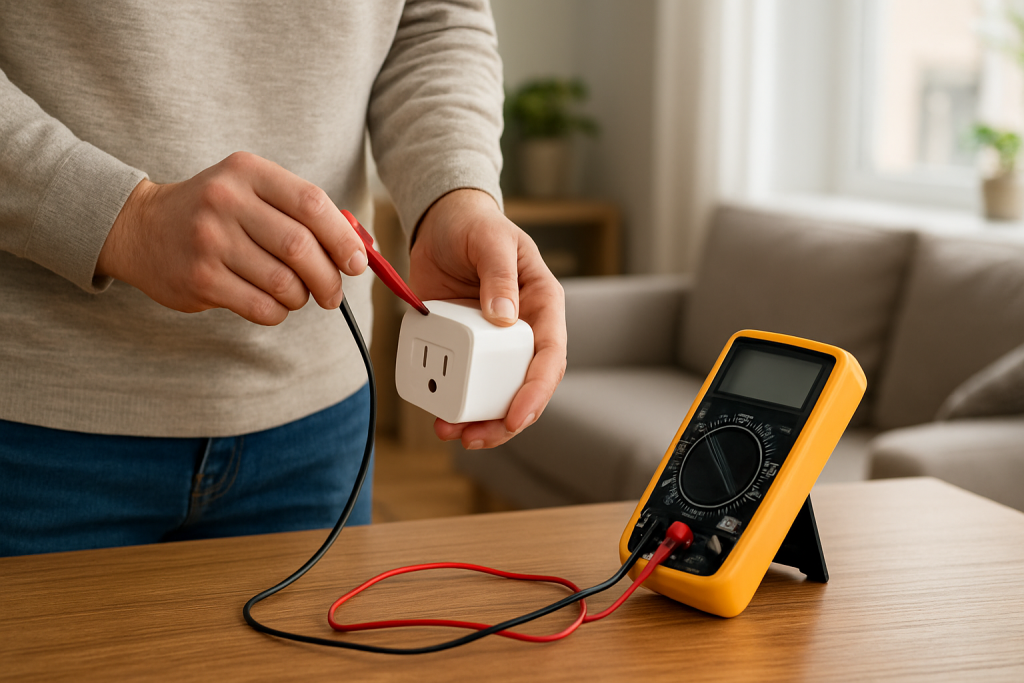
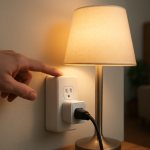
Do a “steady load” sanity check. Plug in a simple, steady device (for example, a lamp with a non-dimmable bulb or a small space heater on a fixed setting) and watch live watts for 2–3 minutes. If the wattage is stable and roughly consistent each time you repeat the test, the plug is likely measuring normally and the issue is how your original appliance behaves or how the app reports data. If the number jumps wildly or stays at 0 W even though the device is clearly on, move to the next step and focus on app/state sync.
Verify you’re reading the right metric and time window. In the plug’s app, confirm whether you’re viewing live watts (W) or energy (kWh), and check the chart range (today/week/month) and the app’s time zone/location settings if available. If correcting the range or time zone makes the totals “snap” into place, your issue was display logic, not measurement. If the time window is correct but the value still looks wrong, continue to the next step.
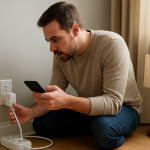
Force a clean refresh of the reading. Fully close the app (not just minimize), reopen it, and pull-to-refresh if the app supports it; then toggle the plug off/on once from the app to confirm it’s communicating. If the numbers update after a refresh, you were seeing cached data or delayed reporting. If the plug controls fine but energy data still won’t update, go to the next step and isolate ecosystem versus device reporting.
Compare the manufacturer app versus your ecosystem (Alexa/Google Home/Apple Home/SmartThings/Matter). Check energy/power in the plug’s own app first, then compare to what your voice assistant or hub shows (if it shows energy at all). If the manufacturer app looks reasonable but the ecosystem view is wrong or delayed, the problem is likely integration sync/refresh limits, not the plug’s measurement. If both are wrong in the same way, continue to the next step.
Check for post-outage or router-change side effects (without doing a “reset everything”). If you recently had a power outage, router reboot, mesh changes, or ISP maintenance, power-cycle in a controlled order: unplug the smart plug for 10 seconds, plug it back in, then wait 2–5 minutes for energy data to repopulate. If readings return after a few minutes, the plug likely needed to re-register and upload data. If readings remain frozen or obviously incorrect, proceed to the next step.
Look for low-load and standby behavior that creates “wrong-looking” numbers. Test your original appliance in three states if possible: fully off, standby, and actively running. If the plug shows near-zero in standby but you expected more, the appliance may truly be drawing very little most of the time, or the plug may not resolve tiny loads well. If the device is known to cycle (fridge/dehumidifier), watch for 10–15 minutes; if you only check during quiet periods, you’ll underestimate. If this explains the mismatch, your plug is probably fine; if not, continue.
Check for duplicate devices, wrong room assignment, or a “ghost” plug in another home. In your app and in any connected ecosystems, confirm you’re viewing and controlling the same physical plug (names and rooms match, no duplicates). If you find two entries with similar names, you may be reading energy from one plug while looking at another. If cleaning up duplicates fixes the issue, it was a management/sync problem. If everything is clearly mapped and the data is still wrong, go to the next step.
Confirm firmware/app versions and energy feature availability. Update the plug’s firmware (from its app) and update the phone app. If an update corrects the energy graph or stops “stuck” readings, the issue was software reporting. If updates fail or the device won’t stay connected long enough to update, move to Advanced Troubleshooting because the remaining causes are usually cloud/account or network stability related.
Advanced Troubleshooting
This section is only needed if basic fixes fail.
Account/cloud sync issue: If energy history is missing, frozen, or resets unexpectedly across multiple phones, sign out of the manufacturer app and sign back in to refresh your session. If the plug is shared with another household member, confirm they didn’t remove/re-add it; that can split energy history or create duplicates. If re-authentication restores charts, the cloud session was stale.
Network behavior that specifically affects reporting: Energy data is often uploaded periodically; a plug can still respond to on/off locally while failing to reliably upload monitoring data. If you use mesh WiFi, test by temporarily placing the plug closer to the main router node (or the usual strongest signal area) for a few hours. If energy reporting becomes consistent, the issue is likely roaming or marginal signal that affects background uploads more than simple control commands.
Firmware/software reporting bug: If readings are consistently off by a similar percentage or “snap” to odd rounded values after an update, check the app’s release notes if available and look for energy-monitoring fixes. As a workaround, rely on longer averaging windows (daily/weekly totals) rather than instant watts until the next firmware/app update stabilizes reporting.
Configuration conflicts across automations and integrations: Automations can change the load profile and confuse expectations. For example, a routine might turn a device off at night, making “daily kWh” suddenly drop. Check automations in the plug app and in any connected ecosystems (Alexa routines, Google Home automations, Apple Home automations, SmartThings routines). If disabling a routine makes monitoring “make sense” again, your issue was not measurement error but unexpected device behavior.
Ecosystem sync issues (Alexa/Google Home/Apple Home/SmartThings/Matter): Some platforms don’t pull energy data frequently, or they display a simplified value. If your plug is exposed through Matter, verify which controller is the primary one and whether the energy feature is supported in that path. If the manufacturer app is correct but a hub/assistant is wrong, unlink and relink the integration (or re-run device discovery) rather than chasing the plug’s hardware.
When to Reset or Replace the Device
A soft restart is simply unplugging the smart plug for about 10 seconds and plugging it back in, then waiting a few minutes for reconnection and data refresh. This is safe and often fixes stuck reporting after outages or router changes without losing settings.
A factory reset is a full wipe that removes the plug from your account and all ecosystems. After a reset you may lose pairing information, room assignments, schedules, automations, permissions/sharing, and potentially energy history depending on how the app stores it. Use a factory reset when the plug repeatedly reports impossible values, refuses firmware updates, won’t stay connected long enough to report, or shows persistent “offline” behavior across different networks and phones.
Replacement is reasonable when the plug cannot complete updates, repeatedly drops offline in a stable network, or behaves unpredictably (relay clicking, random on/off not tied to automations) even after a reset and clean re-pair. Stop using the plug immediately if you notice overheating, a burning smell, discoloration, warping, or any visible damage, and treat it as a safety issue rather than a troubleshooting project.
How to Prevent This in the Future
Keep expectations aligned with how monitoring works: treat instant watts as a snapshot and rely on longer time windows for meaningful accuracy, especially for cycling appliances and standby-heavy electronics.
Maintain stable network conditions that affect reporting: avoid frequent router renames or password changes, and after planned router or mesh changes, give plugs time to reconnect and upload history before judging energy totals. If your mesh frequently moves devices between nodes, placing high-reporting devices (like energy-monitoring plugs) where they have consistently strong signal reduces delayed uploads.
Avoid duplicate automations across apps: choose one “home” for schedules (either the plug app or your main ecosystem), and keep other platforms for simple voice control. Duplicate routines can change the device’s real usage and make energy graphs look “wrong.”
Use consistent names and room assignments across platforms. When the plug appears in multiple places (manufacturer app plus Alexa/Google Home/Apple Home/SmartThings), consistent naming helps you avoid checking the wrong device’s data.
Build an outage recovery habit: after a power outage, check that the plug is online and wait a few minutes for energy history to catch up before assuming the monitor is broken. If you rely on energy tracking, periodically confirm firmware and app versions are current so known reporting bugs don’t linger.
Keep sharing/permissions tidy: in shared homes, ensure everyone uses the same “home” and account structure, and remove old duplicates after phone changes or re-pairing. Duplicate devices are a common reason people read the wrong energy chart.
FAQ
Why does my smart plug show 0 W when the device is clearly on?
This usually happens with very low-power loads (or devices spending most of their time in standby), or when the plug/app is showing a delayed sample. Test with a steady, higher load for a few minutes. If higher loads read normally, the plug may not resolve tiny wattage accurately, and your original device may not be drawing much power at that moment.
My kWh “today” is lower than expected, but the live watts look fine. What does that mean?
It typically means the daily total hasn’t refreshed yet, the app is showing a different time window than you think, or the plug’s time zone/day boundary is off. Live watts can be correct while the cumulative chart lags behind or resets at the wrong “midnight.”
Does connecting the plug to Alexa/Google Home/Apple Home make energy monitoring more accurate?
No. Integrations mainly provide control and basic status, and any energy display is often delayed, rounded, or limited by what the ecosystem supports. For the most accurate and timely energy data, compare against the plug manufacturer’s app first.
Is it normal for watts to jump around a lot on appliances like fridges or dehumidifiers?
Yes. Those appliances cycle compressors and fans and can have brief startup spikes. If the plug samples periodically, you may see jumps that are real. For these loads, weekly or monthly kWh is usually a better indicator than trying to interpret minute-by-minute wattage.
Relief is a strange feeling when it comes so quietly, like noticing the noise has finally stopped. The problem stops taking up space in the day, and the world feels a little more normal again.
Now the only thing left is to live with the difference. Not every moment gets fixed, but the small pressure eases, and that counts more than it should.