Smart Switch Automation Not Triggering? Fixes to Try First
Quick Answer
When a smart switch or smart plug automation won’t trigger, the most common real-world cause is not the switch itself—it’s the automation rule failing to evaluate correctly because the app’s logic or the cloud sync state is stale. The rule may look enabled, but the platform (Alexa, Google Home, Apple Home, SmartThings, Matter controller, or the device maker’s app like Kasa/Tapo, Meross, or Hue integration) isn’t actually using the latest version of the conditions, time zone, or device status.
This is especially likely after an app update, router reboot, power outage, changing phones, or using multiple ecosystems at once (for example: a WiFi switch set up in the manufacturer app, then controlled through Alexa and Google Home). In those cases, the automation engine can “think” a condition is false even when it’s true, so the trigger never fires.
Do these 3 actions first: (1) open the app where the automation was created and toggle the automation off/on to force a cloud refresh, (2) open the device details page and confirm it shows current status (not “offline,” “unreachable,” or delayed), and (3) temporarily remove conditions (like location, sunset, sensor state, or “only if”) and test with a simple time-based trigger.
Why This Happens
Automation triggers are evaluated by an automation engine—sometimes locally (on a hub), but often in the cloud. If the rule’s conditions or device state don’t sync cleanly, the engine never sees the “true” moment to fire the action. With smart switches and smart plugs, this often shows up as “manual control works, but schedules/routines don’t,” or “works in one app, fails in another.”
Tightly related causes include:
1) Cloud-to-app sync drift: the automation you edited on your phone didn’t fully publish to the cloud, or the cloud didn’t push it back to all controllers (common when switching phones, reinstalling apps, or logging in/out).
2) Condition logic mismatch: the trigger is fine, but a condition blocks it (for example, “Only if someone is home,” “Only at night,” or “Only if switch is off”). If the platform has stale presence, wrong sunrise/sunset, or a wrong device state, the condition never passes.
3) Ecosystem overlap: the same switch appears through multiple paths (native integration, Matter, or a bridge like Hue/SmartThings). A routine may point at a duplicate device entry that no longer receives state updates.
4) Overlooked technical cause: time zone/location settings changed on the phone or hub/controller, but the automation engine kept the old schedule window. This is common after travel, daylight saving time changes, or changing the “Home” address in Apple Home/Google Home.
Real-world scenario: after a router reboot, your WiFi smart plug reconnects, but its cloud session renews later than expected. The app shows it online, yet the automation engine still sees it as offline for a while, so the “at 7:00 PM” routine silently skips.
Common user mistake: editing the automation in one app (for example, Alexa) while the same behavior also exists as a schedule in the device maker’s app. One of them “wins,” and the other appears broken.
Most Likely Causes in Real Homes
1) The automation is blocked by a condition that isn’t currently true (presence, time window, “only if,” sunrise/sunset, or device state), often due to stale cloud state.
2) The device is online, but its status updates are delayed or out of sync in the platform that runs the automation (common with cross-platform setups and bridges).
3) Duplicate routines or competing schedules exist across apps (manufacturer app schedule vs Alexa routine vs SmartThings automation), creating “random” results or apparent no-trigger events.
4) Time zone, location, or Home assignment mismatch causes schedules and sunrise/sunset triggers to evaluate at the wrong time.
5) Post-update or post-outage authentication drift: the account link needs a refresh, or the controller/hub needs to re-register the device list and permissions.
Step-by-Step Fix
Open the app where the automation was created (Alexa, Google Home, Apple Home, SmartThings, or the device maker app) and check the automation details for any “Only if,” “When,” location, or time-window conditions. Temporarily remove all conditions and test with a simple trigger (for example, “At the next minute, turn on the switch”).
If the simplified automation works, the trigger was fine and a condition was blocking it due to stale presence/time/device state. Re-add conditions one at a time to find the blocker.
If the simplified automation still doesn’t run, move to the next step to confirm the platform is seeing live device state.
Confirm live status in the same automation app: open the device tile, then open the device details page and toggle it on/off. Watch whether the app updates instantly and whether the physical switch/plug responds.
If control is slow, shows “offline/unreachable,” or the state flips back after a second, the automation engine likely isn’t receiving reliable state updates, so triggers/conditions won’t evaluate correctly.
If the device responds instantly and status is accurate, continue to the next step to force a cloud rules refresh.
Force a cloud sync refresh for the automation: toggle the automation off, wait 10 seconds, toggle it on, then edit and save a small change (rename it or change a time by one minute and change it back).
If the automation starts working afterward, you had a cloud publication/sync issue where the rule looked enabled but wasn’t fully committed to the engine.
If it still fails, move next to isolate cross-app conflicts and duplicates.
Check for duplicates and conflicts across apps: look for schedules in the device maker app (Kasa/Tapo, Meross, Hue plugs via bridge), plus routines in Alexa/Google Home/SmartThings/Apple Home that control the same switch/plug. Temporarily disable all other schedules/routines except one test routine.
If the test routine works once conflicts are disabled, the “not triggering” symptom was actually a conflict (another automation turning it back, or a different routine targeting a duplicate device entry).
If it still doesn’t work, continue to verify the correct device entry is being targeted.
Verify the routine targets the correct device instance: in the automation action list, remove the device and re-add it from the device picker. Watch for similarly named duplicates (often caused by Matter + native integration, or a device exposed through both a hub and direct cloud).
If re-adding fixes it, the automation was pointing to a stale/duplicate device record that no longer receives updates.
If the problem persists, proceed to account/link refresh steps.
Refresh the account link and permissions for the controlling platform: in Alexa/Google Home/SmartThings, disable and re-enable the device/service link (or “Reconnect account”), then run device discovery/sync. In Apple Home, confirm you’re in the correct Home and that the active Home Hub (if present) is online.
If devices re-import or permissions refresh and the automation starts triggering, the issue was cloud authentication or stale permissions blocking rule execution.
If this fails, move to time zone/location and controller integrity checks.
Check time zone, location, and Home/Room assignment: confirm the phone and the smart home platform have the correct Home address, time zone, and daylight saving settings. Also confirm the switch/plug is assigned to the same Home/Structure where the automation lives.
If fixing location/time zone resolves it, the automation was firing at the wrong time or sunrise/sunset was calculated incorrectly, making it seem like it didn’t trigger.
If this doesn’t help, continue to a focused network isolation test (without general “restart everything”).
Do a targeted connectivity test that affects sync reliability: if it’s a WiFi switch/plug, temporarily turn off mobile data and ensure your phone is on the same WiFi as the device, then test control. If you have a mesh network, temporarily connect your phone near the main router (not a distant node) and test again.
If it works reliably only near the main router or only under certain WiFi conditions, the device may be roaming poorly or intermittently losing cloud connectivity—enough for automations to miss triggers even when manual control sometimes works.
If it fails everywhere, go to Advanced Troubleshooting to check platform-side and firmware/app issues.
Advanced Troubleshooting
This section is only needed if basic fixes fail.
Account/cloud issue: If automations fail across multiple devices at once (not just one switch/plug), it often points to a platform-side sync problem. Log out and back into the controlling app, confirm you’re using the same account on all household phones, and verify the Home/Structure didn’t split (for example, two “Homes” created accidentally after an app reinstall).
Network issue affecting cloud sync (not just signal strength): Some routers handle many small IoT connections poorly after an uptime stretch or after a firmware update. If automations only fail after router restarts/power outages, check whether the device gets a new IP each time and takes a long time to reappear in the platform. The symptom is “device controllable, but routine missed its trigger window.” A simple mitigation is to reboot in order: modem/router first, then hubs/bridges, then switches/plugs (by turning power off/on at the outlet), giving each layer time to re-register.
Firmware/software cause: If the device maker app shows a pending firmware update, apply it, then re-test automations. Also check for app updates for the automation platform. Version mismatches can break rule publication or device state reporting, especially after major platform updates.
Configuration conflict: Groups, scenes, and “set state” actions can override each other. If the automation turns on a group that includes the switch, but another routine later sets a scene that turns it off, it looks like the trigger failed. Test by making the automation control only one device directly (not a group/scene), then reintroduce groups later.
Ecosystem sync issue (Alexa / Google Home / Apple Home / Matter): With Matter or bridge integrations, the controller that owns the device can matter. If you paired the switch as Matter to one platform and also linked it through the manufacturer cloud, you may have two device records with different state freshness. Choose one primary path and remove the duplicate from routines (or temporarily remove one integration) so automations reference the consistently updated endpoint.
When to Reset or Replace the Device
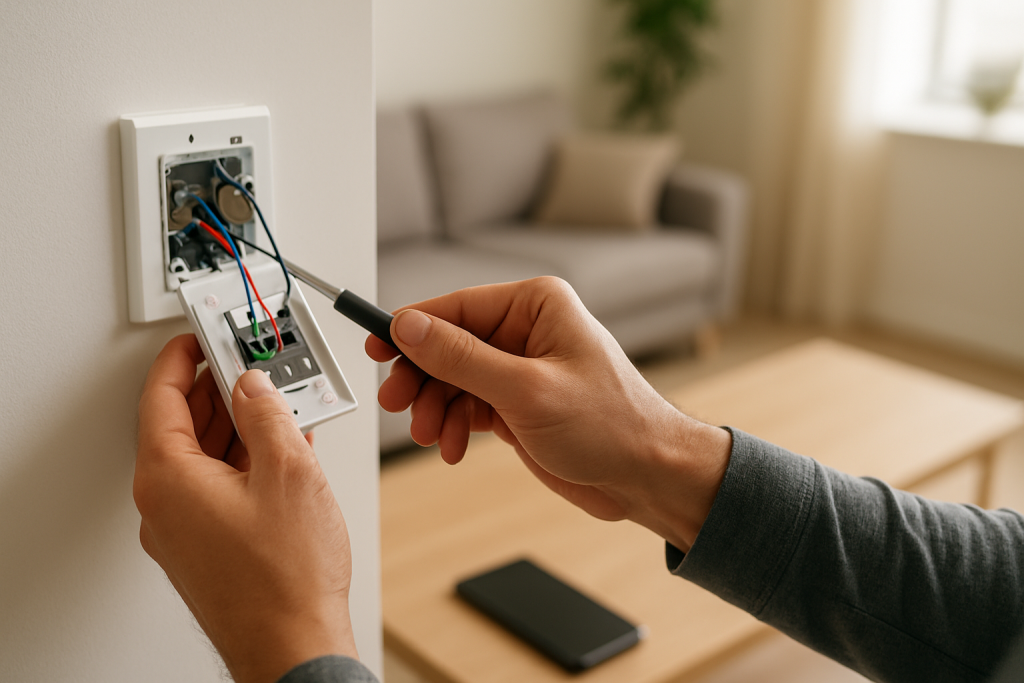
A soft restart is simply power-cycling the smart plug/switch (turn it off from the app if possible, or unplug/replug a smart plug; for a smart switch, use the air-gap switch if your model has one, or turn the circuit off/on only if you’re comfortable doing so safely without touching wiring). This often clears a stuck cloud session and restores normal state reporting.
A factory reset removes the device from its ecosystem and requires re-pairing. You will usually lose: device pairing, room/home assignment, names, schedules, automations tied to that device, and in the case of energy-monitoring plugs, historical energy data in the app. Reset is reasonable when the device won’t stay online, won’t accept firmware updates, or continues to show duplicated/ghost entries after you’ve cleaned up automations and re-linked accounts.
Replacement becomes reasonable if the device repeatedly disconnects despite stable conditions, fails updates consistently, or shows unstable on/off behavior that isn’t explained by automation conflicts. Stop using the device and replace it immediately if you notice overheating, burning smell, discoloration, buzzing, or any visible damage.
How to Prevent This in the Future
Keep automations “owned” by one primary app when possible. If you create schedules in the device maker app, avoid duplicating the same behavior in Alexa/Google Home/SmartThings/Apple Home. One clear source of truth prevents silent conflicts.
Maintain naming and room organization consistency. Rename devices once and keep them in the correct Home/Room so routines don’t end up targeting old device records or the wrong home structure after changes.
After outages or router restarts, give the system time to re-sync before relying on time-critical routines. Many smart switches/plugs reconnect to WiFi quickly but take longer to re-register with cloud services; a missed trigger can happen during that window.
Be deliberate with mesh WiFi and roaming. If a device frequently appears offline in the app but still works sometimes, it may be bouncing between nodes or struggling with band steering. Keeping key WiFi switches/plugs within strong, stable coverage reduces state-reporting gaps that break condition-based automations.
Keep apps and firmware current, but after major updates, re-check automation conditions (presence, sunrise/sunset, time zone) and run a quick test routine. Updates are a common moment for cloud sync and permission tokens to refresh imperfectly.
In shared homes, review permissions when someone changes phones or leaves the household. Automations that depend on presence can fail if the wrong person is marked as the presence source, or if home access is split across multiple accounts.
FAQ
My switch works manually, so why would an automation fail?
Manual control can succeed even when automations fail because automation engines rely on timely state reporting and correct condition evaluation. If the cloud or app logic has stale presence/time zone/device state, the rule never “qualifies,” even though the device itself still responds to direct commands.
Do I need to reset the switch every time an automation stops triggering?
No. Resetting is usually unnecessary and costs you re-pairing and rebuilding automations. Most trigger failures are fixed by simplifying the rule to identify a blocking condition, forcing a cloud refresh (toggle off/on and re-save), and cleaning up duplicate routines or device entries.
Why does it fail in Alexa but work in the manufacturer app (or vice versa)?
That typically means the automation is running in one ecosystem but the device status, permissions, or device record in the other ecosystem is out of sync. Re-linking the account, re-discovering devices, and re-adding the device action inside the routine usually fixes routines that point at a stale or duplicate device entry.
Is “check WiFi” really relevant if the device shows online?
Yes, but specifically for sync reliability. A device can appear online while still having brief cloud disconnects or delayed state updates—often enough to miss a trigger window or fail a condition like “only if the switch is off.” The useful test is whether status updates are instant and consistent in the same app that runs the automation, especially after router/mesh changes or power outages.
For once, the story doesn’t drag on. The messy part has room to be messy, and the rest of it just… settles.
It’s a relief, honestly—like taking your shoes off and realizing you’ve been standing wrong all day. The change is quiet, but it lands where it needs to.