Smart Switch Responds Slowly? Why It Happens and How to Fix It
Quick Answer
A smart switch or smart plug that reacts slowly (1–10+ seconds) is usually waiting on something outside the device itself: WiFi latency, a cloud round-trip delay, or an app-to-account sync lag. Even if your internet “works,” a busy router, a mesh node handoff, or a temporarily slow cloud service can add noticeable delay between your tap/voice command and the switch actually toggling.
This is most common with WiFi-based switches/plugs and with ecosystems that route commands through the cloud (many Alexa/Google Home skills and some manufacturer apps). Zigbee/Matter setups can still feel slow when the controller (hub/phone) or integration is syncing poorly.
Do these 3 actions first: (1) trigger the switch from the manufacturer’s app and from a voice assistant to compare where the delay starts, (2) check whether the device shows “offline/unreachable” or needs a manual refresh in the app, and (3) run one quick network isolation test by temporarily turning off WiFi on your phone and controlling it over cellular (to see if the slowdown is inside your home WiFi or in cloud/app sync).
Why This Happens
When you press a button in an app (or speak to a voice assistant), your command may travel through several hops: phone to WiFi, WiFi to router, router to internet, internet to a cloud server, cloud to the device account, and finally back to your switch/plug. If any hop is slow or out of sync, the switch responds late—even though it eventually works.
Common causes tied to WiFi latency, cloud delay, and app sync include:
1) Cloud round-trip delay: many devices wait for a cloud confirmation before they act or before the app updates the status, making the response feel “laggy.”
2) Local WiFi latency or retransmissions: the device is connected, but packets are being retried due to weak signal, interference, or mesh roaming, adding seconds of delay.
3) App session or account sync lag: the app is logged in but stale (expired token, background restrictions, or cached state), so commands queue or status updates arrive late.
4) Integration syncing issues: Alexa/Google Home/Apple Home/SmartThings may be issuing the command through a linked cloud skill, a Matter controller, or a bridge (like a hub) that’s temporarily behind.
Real-world scenario: after a router restart or brief power outage, your phone reconnects instantly but the smart switch/plug reconnects slowly, then spends extra time re-registering with the cloud. For a while, commands feel delayed or status mismatches appear.
Common user mistake: controlling the same switch from multiple apps (manufacturer app plus Alexa/Google Home/SmartThings) with overlapping routines. The command may be sent twice, retried, or “corrected” by a second automation, making it look like the device is slow or confused.
Overlooked technical cause: band steering and mesh roaming. Many smart switches/plugs prefer 2.4 GHz, but your phone may be on 5 GHz and your mesh may keep moving the device between nodes. The device stays “connected” yet responds slowly due to roaming or weak backhaul between nodes.
Most Likely Causes in Real Homes
1) Cloud delay or partial outage: if delays happen across multiple devices or only through Alexa/Google Home, the cloud service or integration path is often the bottleneck.
2) Mesh WiFi node handoff or weak signal at the switch location: the device connects, but latency spikes when it roams or when the nearest node has a weak backhaul.
3) App sync/session problems: the app shows wrong status until you pull-to-refresh, or it feels slow only on one phone (often background restrictions, stale login, or cached data).
4) Router load or airtime congestion: busy evenings, many cameras/streams, or guest WiFi usage can increase latency even if speed tests look fine.
5) Automation/routine conflicts: schedules in the manufacturer app plus routines in Alexa/Google Home/SmartThings can collide, causing delayed “final” state changes.
Step-by-Step Fix
Compare control paths: manufacturer app vs voice assistant vs physical control.
What it means: If the physical switch paddle/button is instant but app/voice is slow, the hardware is fine and the delay is in WiFi/cloud/app sync. If the manufacturer app is fast but Alexa/Google Home is slow, the integration sync path is the culprit.
If it fails: If everything (including the manufacturer app) is slow, continue to the network and cloud checks in the next steps.
Check the device state and refresh behavior in the app (online/offline/status mismatch).
What it means: If the device frequently shows “offline” or only updates after a manual refresh, you’re seeing app-to-cloud sync lag or unstable connectivity. If it’s “online” but takes seconds to react, that points to latency rather than total disconnect.
If it fails: If the app looks normal but response is still slow, proceed to isolate whether the delay is your WiFi or the cloud route.
Run a quick isolation test: control the device while your phone is on cellular (WiFi off).
What it means: If it becomes faster on cellular, your home WiFi path (mesh roaming, router congestion, DNS issues) is likely adding delay. If it’s still slow on cellular, the delay is more likely cloud-side or account/app session related.
If it fails: If results are mixed, test at two times (peak evening vs daytime). Consistent slowness at all times leans toward app/account sync or a firmware/integration issue.
Confirm the device is on 2.4 GHz and not bouncing between mesh nodes.
What it means: Smart switches/plugs commonly perform best on stable 2.4 GHz. If your router uses a single combined name (band steering), the device may reconnect unpredictably, causing latency spikes. Mesh systems can also steer devices to a farther node with weaker signal.
If it fails: If you can’t see band/node details, do a practical test: temporarily move a mesh node closer (or remove one node for a day if safe to do so) and see if responsiveness improves. If it does, the issue is roaming/backhaul rather than the switch itself.
Power cycle in a clean sequence: device first, then network, then app.
What to do: Turn the switch/plug off at its normal control (or unplug a smart plug), wait 10 seconds, turn it back on. If multiple devices are affected after an outage, reboot the router/mesh (one time), wait for WiFi to fully return, then power the device again.
What it means: This clears stuck WiFi sessions and forces a fresh cloud registration, which often fixes “slow but not offline” behavior after a restart/power blip.
If it fails: If it improves briefly then slows again, look for router load, mesh roaming, or cloud/integration issues in later steps.
Check for duplicate automations and conflicting schedules across apps.
What to do: Look in the manufacturer app plus Alexa routines, Google Home automations, Apple Home automations, and SmartThings routines. Temporarily disable anything that references the switch/plug (especially “turn on at sunset,” “turn off after X minutes,” or motion-based rules).
What it means: If responsiveness returns and the “delay” was actually a second rule firing later, you’ve found an automation conflict.
If it fails: If no conflicts exist, focus on account links and ecosystem sync.
Re-sync the ecosystem link (without resetting the device): relink skills/integrations and re-discover devices.
What to do: In Alexa/Google Home/SmartThings, disable and re-enable the linked service (or reauthorize the account), then run device discovery/sync. For Apple Home, ensure the correct home hub/controller is active and that the accessory is assigned to the right Home and room.
What it means: Slow response only through a voice assistant often comes from an expired token or a stuck cloud integration, not from the switch itself.
If it fails: If the manufacturer app is also slow, move to firmware/app checks and cloud status considerations.
Update the manufacturer app, device firmware, and confirm time zone/location settings.
What to do: Update the app, then check for firmware updates for the switch/plug. Verify the app’s home location/time zone (and your phone’s time zone) are correct, especially if schedules seem delayed.
What it means: Firmware/app mismatches can cause slow acknowledgments and delayed status reporting. Wrong time zone often looks like “slow response” when it’s really a schedule firing at the wrong time.
If it fails: If updates won’t apply or the device keeps falling behind, you may need the reset guidance below.
Advanced Troubleshooting
This section is only needed if basic fixes fail.
Account/cloud issue: If multiple devices from the same account are slow across different networks (home WiFi and cellular), the manufacturer’s cloud or your account session is likely the bottleneck. Log out of the manufacturer app and log back in to refresh the session, then re-check response time in the manufacturer app before involving voice assistants.
Network issue (latency, not speed): Slow response with normal streaming often points to latency spikes, not low bandwidth. If your router has a “client connection quality” view, look for high retry rates on the switch/plug. If you have a mesh system, check whether the node serving that device has a weak connection to the main node (poor backhaul) and consider repositioning nodes for a stronger link.
Firmware/software cause: If the device became slow right after an app update or firmware update, it may be stuck completing migration tasks in the background. Give it 10–15 minutes after power-up, then test again. If it remains slow, updating again (or finishing an incomplete update) can restore normal responsiveness.
Configuration conflict: Groups/scenes can introduce delays because the platform waits to confirm multiple devices. Test by controlling the single switch/plug directly (not through a group/scene). If single-device control is fast but groups are slow, rebuild the group or remove duplicate devices (for example, the same switch appearing twice via Matter and via a cloud integration).
Ecosystem sync issue (Alexa/Google Home/Apple Home/Matter): If response is slow only in one ecosystem, treat it as a controller/integration issue. Ensure you have one primary controller for Matter, and avoid pairing the same accessory into multiple controllers in ways that create duplicates. For Apple Home, confirm the active home hub has a stable connection; for Alexa/Google Home, re-run “sync devices” after relinking.
When to Reset or Replace the Device
A soft restart is simply power-cycling the smart switch/plug (off, wait, on) and reopening the app. This is low-impact and often clears temporary cloud registration or WiFi session issues.
A factory reset removes the device from its account and forces full re-pairing. After a reset, you may lose room assignments, names, schedules/timers, scenes/automations tied to that device, and voice assistant links. For smart plugs with energy monitoring, you may also lose energy history and reporting baselines in the app.
Reset is reasonable when: the device stays slow or frequently “offline” after you’ve confirmed stable WiFi at its location, relinked integrations, and updated firmware/app; the device fails to accept updates; or it repeatedly shows status mismatches that don’t resolve with logout/login and re-sync.
Replacement is reasonable when: the device can’t maintain a connection on a known-stable network, it fails firmware updates repeatedly across attempts, or its relay behavior becomes unstable (unexpected toggles not explained by automations). Stop using the device and replace it immediately if you notice overheating, a burning smell, discoloration, buzzing, or any visible damage.
How to Prevent This in the Future
Keep the command path simple: use one “source of truth” for schedules (either the manufacturer app or your main ecosystem) to avoid duplicates and delays caused by competing automations.
Build for low latency: aim for a stable 2.4 GHz connection for WiFi switches/plugs and avoid frequent mesh roaming by improving node placement (stronger signal at the device and strong backhaul between nodes). After moving nodes or changing WiFi names, give devices time to settle and reconnect cleanly.
Maintain app and account health: keep the manufacturer app updated, and if multiple household members control the same devices, use proper sharing/permissions rather than logging into the same account on many phones. This reduces sync confusion and “who changed what” delays.
Organize consistently: keep device names unique and match room assignments across the manufacturer app and Alexa/Google Home/Apple Home/SmartThings. This prevents duplicates that slow down groups and cause voice assistants to hesitate.
Plan for outages and restarts: after a power outage or router reboot, wait until WiFi is fully stable before testing responsiveness. Devices may need a few minutes to re-register with the cloud and refresh their state in each ecosystem.
Be cautious with updates: apply firmware updates when you have time to verify devices afterward. If an update seems to cause lag, log out/in and re-sync integrations before jumping to a reset.
FAQ
Why is my smart switch instant at the wall but slow in the app?
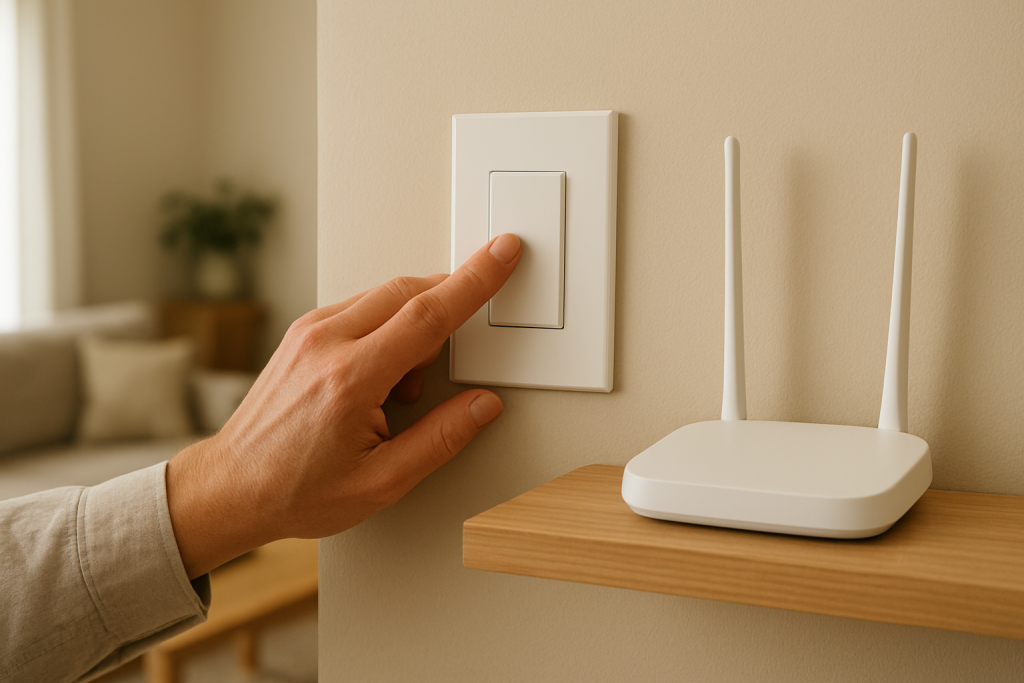
The wall control is local and doesn’t rely on WiFi or the cloud. App control often goes through WiFi plus a cloud service and then back to the device, so latency or app/account sync delays can add seconds even though the switch itself is fine.
My internet speed is high. Why is the switch still slow?
Speed and latency are different. A smart switch needs quick, consistent response times (low latency), not just high download speed. Mesh roaming, interference, or a busy router can create brief latency spikes that you feel as “slow response,” even while streaming works normally.
Is slow response always a WiFi signal problem?
No. A common misconception is that slow response always means weak signal. Many slow-response cases come from cloud delays, expired app sessions, or a voice assistant integration that’s out of sync. That’s why comparing the manufacturer app vs Alexa/Google Home (and trying cellular control) is such a useful test.
Why do groups/scenes respond slower than controlling one switch?
Groups and scenes often wait for multiple devices to receive and confirm the command, and the platform may also reconcile status updates from the cloud. If one device in the group is slow or duplicated across integrations (for example, paired twice), the whole group can feel delayed.
What struck me most is how quickly the noise fades when the real stakes are visible. The work stops feeling like a chore and starts looking like common sense, which is rare—and honestly kind of refreshing.
There’s still plenty to debate, but the center is clear now. You can feel it in the way people talk and move on, with less dragging their feet and more getting on with the day.