Smart Lights Lag Only at Night: What Usually Causes It
Quick Answer
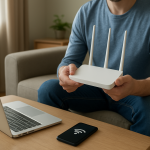
When smart lights respond slowly only at night, the most common cause is not the bulbs themselves—it’s evening network congestion and “busy airtime” on your home WiFi and smart home radios. At night, more devices are active at the same time (streaming TV, gaming, video calls, phones syncing photos, cloud backups, cameras switching to night mode). That extra traffic increases latency, so commands to WiFi bulbs, hubs, and voice assistants take longer to reach the lights.
This can affect WiFi bulbs (TP-Link, Wiz, LIFX, etc.), hub-based Zigbee systems (Philips Hue, SmartThings, Echo Zigbee), Thread/Matter setups, and mixed ecosystems where a phone app talks to a cloud service and then back to your home. The pattern “fine during the day, laggy at night” usually points to timing and load rather than a permanent device failure.
Immediate actions: (1) Run a quick test by turning off streaming on the main TV for 2 minutes and try the lights again. (2) Check whether the lag happens from the wall switch/app on your phone versus a voice assistant—if one is fast and the other is slow, you’ve narrowed the path. (3) Reboot your router and the smart lighting hub (if you have one) in the correct order to clear evening slowdowns.
Why This Happens
Nighttime lag is usually caused by competition for the same communication paths your smart lights depend on. Smart lighting commands are tiny, but they are sensitive to delays. If your network or hub is busy, those tiny commands get stuck waiting their turn. The result is a noticeable pause between tapping “On” and seeing the room light up.
Here are the most common technical causes tied to that nighttime pattern:
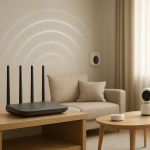
1) WiFi airtime congestion (not just “internet speed”). Even if your internet plan is fast, your WiFi can get “crowded” at night. Streaming, gaming, and multiple phones can consume airtime on the same channel your WiFi bulbs use. When airtime is busy, devices wait longer to transmit, and smart lights feel laggy.
2) Router load and memory pressure during peak hours. Many home routers slow down when lots of devices are connected and actively talking. At night, you often have the maximum number of clients online. Some routers handle that poorly and start delaying local traffic (including smart home commands) even when the internet is fine.
3) Cloud round-trips become slower when services are busy or your uplink is saturated. Some lighting actions (especially from voice assistants, remote access, or certain apps) go phone → cloud → home. If your upload is busy at night (camera uploads, backups), cloud requests can queue up. The lights appear slow even though your local network is technically working.
4) Zigbee/Thread mesh gets noisier at night due to interference. Zigbee and Thread share the 2.4 GHz band with WiFi. In apartments or dense neighborhoods, neighbors’ WiFi usage spikes at night, raising interference. A Zigbee or Thread mesh can start retrying packets, which looks like lag. This is often overlooked because people assume hubs “avoid WiFi problems,” but the radio space is still shared.
5) Automations and schedules collide in the evening. Sunset routines, “movie time” scenes, occupancy lighting, and security lighting often all trigger around the same window. If multiple automations fight (one turns lights on, another dims them, another changes color), the system appears slow or inconsistent. This is a common user mistake: stacking multiple similar routines without realizing they overlap.
6) Device power-saving behavior on phones and tablets. At night, phones may switch to battery saver, background restrictions, or “sleep focus” modes. Some smart home apps become slower to refresh device status, so it looks like the lights are lagging when the app is actually late updating.
A real-world scenario: a family starts streaming 4K video in the living room while two phones begin uploading photos, a laptop runs a cloud backup, and outdoor cameras switch to night mode and start higher-bitrate recording. At the same time, a sunset automation triggers a whole-house scene. The lights still work, but every command takes 2–5 seconds because the network and hub are busy handling everything at once.
Most Likely Causes in Real Homes
1) Evening WiFi congestion on 2.4 GHz. WiFi bulbs and many hubs rely on 2.4 GHz; that band gets crowded at night.
2) Router struggling with many connected devices. Peak device count often happens after dinner; routers can become sluggish without fully “going down.”
3) Upload saturation from cameras/backups. Heavy upload traffic can delay cloud-based control and slow app responsiveness.
4) Zigbee/Thread interference from nearby WiFi networks. More neighbor activity at night increases retries and delays.
5) Conflicting evening automations (sunset, bedtime, motion). Overlapping routines can make lights appear slow, late, or out of sync.
Step-by-Step Fix
Do a “quiet house” test for 2 minutes. Pause streaming on the main TV, stop any active downloads, and ask everyone to avoid heavy internet use briefly. Then toggle a single light from the app.
What the result means: If the lag improves immediately, the issue is almost certainly peak-hour congestion (WiFi airtime, router load, or upload saturation).
If it fails, try next: Continue to step 2 to identify whether the delay is coming from the cloud/assistant path or the local path.
Compare control paths: app vs voice vs physical controller. Try turning the same light on/off three ways: from your phone app, from a voice assistant, and from any local controller (Hue dimmer, smart button, wall remote). Do this while standing near the light.
What the result means: If the local controller is fast but the app/voice is slow, the lag is likely cloud/account related or your phone’s network path. If all methods are slow, it points to network/hub/radio congestion.
If it fails, try next: Move to step 3 to check device status and identify whether the system is “waiting to reach” devices.
Check device status in the app (reachable vs offline vs delayed). Open the lighting app and look for warnings: “unreachable,” “poor connection,” “updating,” or “offline.” Refresh the device list once.
What the result means: If devices show unreachable/offline mostly at night, that’s a strong sign of WiFi signal/airtime issues or a hub mesh struggling under interference. If everything shows reachable but actions are delayed, it may be router load or cloud latency.
If it fails, try next: Go to step 4 and perform a correct power-cycle sequence to clear router/hub slowdowns.
Power-cycle in the correct order (router first, then hubs, then lights if needed). Unplug your modem (if separate) and router for 60 seconds, plug them back in, wait until WiFi is stable, then reboot your smart lighting hub/bridge (Hue Bridge, SmartThings hub, Matter controller) from its power or app option. Only after that, power-cycle a single problematic bulb if it still lags.
What the result means: If this fixes nighttime lag for a while, your router/hub was likely bogged down by peak-hour load or had a stale network state.
If it fails, try next: Proceed to step 5 to check WiFi band behavior and 2.4 GHz crowding.
Verify WiFi band behavior (2.4 GHz vs 5 GHz) and avoid “sticky” connections. In your router app, confirm your phone is on the same home WiFi (not cellular). If your router uses one combined network name for 2.4/5 GHz, temporarily connect your phone to 2.4 GHz (if your router allows) and test again. Also confirm WiFi bulbs are on 2.4 GHz as required.
What the result means: If switching your phone’s band changes responsiveness, the issue is often band steering or a congested 2.4 GHz channel at night.
If it fails, try next: Continue to step 6 to test mesh behavior and placement issues that show up when the network is busy.
Test mesh behavior: move closer to the router/hub and retest. Stand near your router (for WiFi bulbs) or near your hub/bridge (for Zigbee/Thread) and control the same light. If you have WiFi extenders/mesh nodes, try the same test near a node.
What the result means: If it’s faster near the router/hub, the problem is usually signal quality or interference that becomes noticeable only when the airwaves are crowded at night.
If it fails, try next: Go to step 7 to isolate cloud/account delays from local control delays.
Hotspot isolation test (cloud path check). Turn off WiFi on your phone and connect the phone to a mobile hotspot (or use cellular data). Then try controlling the lights again from the app.
What the result means: If lights respond faster while your phone is off the home WiFi, your home network is the bottleneck. If it’s still slow, the delay may be cloud/account related or the hub itself is overloaded.
If it fails, try next: Continue to step 8 to check for schedule collisions and group/scene issues common in the evening.
Verify schedules, scenes, and automations around sunset/bedtime. In your smart home app(s), review automations that run in the evening: sunset triggers, “good night,” motion lighting, and any integrations with security modes. Temporarily disable one evening automation and test responsiveness.
What the result means: If disabling a routine removes lag or weird delays, you likely had overlapping actions (multiple commands firing at once) that overloaded the hub or caused conflicting states.
If it fails, try next: Proceed to step 9 to test group synchronization and identify whether only grouped commands lag.
Group sync test: control one light vs a whole room. Turn on a single bulb, then turn on the entire room/group. Repeat once. If your system supports it, test a simple on/off scene versus a complex color scene.
What the result means: If single bulbs respond quickly but groups lag, the hub/controller is likely sending many commands and getting delayed by congestion, interference, or a busy router. Complex scenes can amplify the issue because they require more commands.
If it fails, try next: Go to step 10 to check for location/room assignment mistakes that can route commands inefficiently.
Confirm rooms/locations and controller selection (especially with Matter and multi-app setups). If you use more than one platform (for example, a manufacturer app plus Apple Home/Google Home/Alexa), confirm devices are assigned to the correct home and room, and that you’re not controlling duplicates. Also verify which device is acting as the main hub/controller (Matter controller, voice assistant hub, or bridge).
What the result means: If you find duplicates or devices assigned to the wrong home, commands can take a longer route (or fail and retry), which looks like nighttime lag.
If it fails, try next: Move to Advanced Troubleshooting for deeper account, firmware, and configuration checks.
Advanced Troubleshooting
This section is only needed if basic fixes fail.
Account or cloud delays (especially noticeable at night)
If app control is slow but local remotes are fast, sign out and back into the lighting app once, then retest. If your system supports local control versus remote control modes, confirm you are on local control when you are at home. Nighttime can expose cloud sensitivity because more people are using services at the same time and your home upload may be busy.
Network issue that matches the nighttime pattern
Check whether your router has a “device priority,” “QoS,” or “traffic management” feature. If it’s enabled and prioritizing streaming or gaming, smart home traffic can get deprioritized. Also check for scheduled router features like nightly security scans, automatic channel optimization, or parental control reports that run in the evening and briefly spike CPU usage.
Firmware/software causes
Update firmware for the router, hub/bridge, and bulbs (through their official apps). A common pattern is that devices work until the network is under stress, then older firmware shows delays, missed acknowledgments, or repeated retries. After updating, reboot the router and hub once to ensure the new code is running cleanly.
Configuration conflicts: groups, scenes, automations, and permissions
If you control the same lights from multiple ecosystems (for example, the bulb maker’s app plus a hub plus a voice assistant), simplify temporarily: pick one primary control app and disable duplicate integrations for a night. Conflicts often show up at night because that’s when automations run and multiple family members issue commands. Also check household permissions: if a child profile or guest account has limited access, some platforms delay or fail commands and then retry.
When to Reset or Replace the Device
A soft restart means rebooting the hub/bridge or power-cycling a bulb once (off for about 10–15 seconds, then on). Do this when a device is responsive sometimes but gets “stuck” or delayed only during peak hours. A soft restart is low risk and usually doesn’t remove settings.
A factory reset is appropriate when a specific bulb or bridge stays laggy even when the rest of the system is fast, or when it frequently shows “unreachable” despite good placement. A factory reset typically removes the device from rooms/groups/scenes and may require re-pairing, re-adding to automations, and re-authorizing integrations. Plan for that time before resetting.
If a bulb, plug, or bridge feels unusually hot, smells like burning plastic, shows discoloration, or has a cracked enclosure, stop using it and replace it. Do not continue troubleshooting a device that appears physically damaged or overheating.
How to Prevent This in the Future
Keep peak-hour traffic predictable. If possible, schedule large uploads and backups for overnight hours when you are asleep, not during the evening when you use lights the most. Cameras and cloud backups are common hidden upload users.
Place hubs and routers for reliability, not convenience. Keep the main router and any lighting bridge in an open area, away from dense bundles of electronics. For Zigbee/Thread hubs, central placement helps the mesh stay strong when interference rises at night.
Be careful with evening automations. Avoid stacking multiple routines at the same time (sunset + motion + “movie mode” + bedtime). If you need them all, stagger triggers by 1–3 minutes and keep scenes simple.
Plan for power outage recovery. After outages, some devices reconnect slowly and may choose weaker connections. If you notice lag after an outage, reboot router then hub once to restore clean connections.
Maintain firmware and app updates. Update the router, hub/bridge, and lighting apps a few times a year. Many “only at night” issues are exposed by load, and updates often improve stability under congestion.
FAQ
Why do my smart lights lag at night but my internet speed test looks fine?
Speed tests mainly measure internet download throughput, not local WiFi airtime congestion or router responsiveness. Smart lights need quick, low-latency delivery of small commands. At night, your WiFi channel can be busy and your router can be under load even if the speed test result is high.
Is this only a WiFi bulb problem, or can Philips Hue/Zigbee/Matter do it too?
It can happen in any ecosystem. Zigbee and Thread/Matter often rely on 2.4 GHz radio space, which can get noisier at night. Also, many systems still involve a controller, app, or cloud step that can slow down when your network is busy.
My lights are slow only when I use voice control. What does that mean?
That usually points to the voice assistant path (assistant device, cloud processing, account link, or your home upload being saturated). Test with a local in-app toggle and, if available, a local remote. If those are fast, focus on account linking, assistant device connectivity, and evening upload usage.
Misconception: “Nighttime lag means my bulbs are wearing out.” Is that true?
Usually not. Bulbs don’t typically “wear out” in a way that only causes delays at specific times of day. A time-based pattern is much more consistent with network congestion, interference, or automations that run in the evening.
If only one room lags at night, what’s the most likely explanation?
Start with placement and signal path. That room may be at the edge of WiFi coverage, connected through a weaker mesh hop, or in a spot with more interference (behind a TV, near a microwave, or surrounded by electronics). The weakness may only become obvious at night when the network is busier and devices have to retry more often.
Relief comes in odd little ways: the kind that doesn’t announce itself, but settles the mind. For once, the conversation has somewhere to go, and the noise thins out.
Not everything is instantly fixed, of course, but the day feels less crowded. That shift—small, steady, a little stubborn—is the real win.