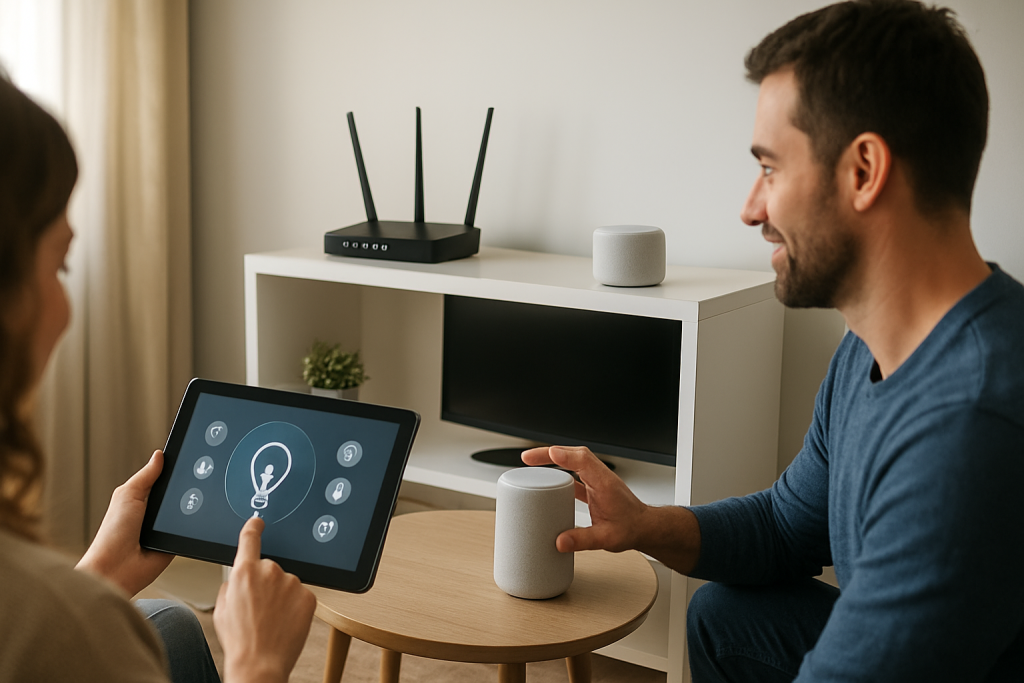
Speed Test Looks Great but Smart Devices Lag Whats Going On
Quick Answer
If your speed test shows high download and upload speeds but your smart TV, doorbell camera, speakers, or smart lights lag, the most common culprit is bufferbloat: a latency spike that happens when your network is busy. Speed tests mostly measure throughput (how much data per second), while smart devices often fail when latency and jitter (delay variation) jump during uploads, downloads, or cloud sync.
This usually shows up when someone starts a video call, uploads photos, backs up a phone, or a camera is sending video to the cloud. The connection is “fast” on paper, but your router or modem is letting queues build up, so small control messages from smart devices get stuck behind big transfers.
Why This Happens
Most smart devices don’t need much bandwidth, but they are sensitive to timing. A smart speaker command, a door lock status update, or a video stream control packet is tiny. If those small packets are delayed by hundreds of milliseconds (or seconds), the device feels laggy, drops audio, stutters video, or appears “offline” even though your internet speed is excellent.
Bufferbloat: fast internet, slow response
Bufferbloat happens when your router, modem, or ISP gateway buffers too much traffic during congestion. Instead of dropping packets quickly and letting TCP slow down, the device holds packets in a queue. That queue increases latency dramatically. You can have 600 Mbps down and still experience 800 ms latency spikes when someone uploads a file or when cloud cameras are active.
Smart devices are often hit hardest because they rely on frequent short exchanges with cloud services. When latency spikes, they time out, retry, and may renegotiate connections. That looks like “Wi-Fi instability,” but it’s often a queueing problem rather than a raw signal problem.
A real-world scenario: apartment Wi-Fi + ISP combo gateway
In an apartment building with dozens of neighboring networks, you might already be dealing with interference on 2.4GHz. Add an ISP modem-router combo that has basic QoS (or none), and you get a perfect storm: a laptop speed test looks great at 5GHz close to the gateway, but a 2.4GHz doorbell camera at the far end of the unit lags whenever someone starts a video meeting. The speed test doesn’t capture the moment-to-moment latency spikes that the camera experiences.
2.4GHz vs 5GHz: why “connected” isn’t the same as “stable”
2.4GHz travels farther and penetrates walls better, but it’s crowded and slower, which increases airtime use and can worsen queueing under load. 5GHz is faster and usually cleaner, but range is shorter; a weak 5GHz signal can cause retries and rate drops that add delay. Many smart devices are 2.4GHz-only, so they end up on the band most likely to be congested.
Common user mistake: testing speed on the wrong device at the wrong time
A frequent mistake is running a speed test on a phone next to the router (often on 5GHz) and assuming the whole home network is fine. Meanwhile, the smart devices are on 2.4GHz through two walls, or they’re competing with a cloud backup upload. The result is “great speed” but poor real-world responsiveness.
An overlooked technical cause: upload saturation
Many people focus on download speed, but bufferbloat is often worst on upload. A single device uploading (cloud backup, security camera, game console update, work VPN) can fill the upstream queue. Because acknowledgments and control traffic also need upload capacity, the entire connection can feel laggy even for downloads.
Router configuration issues that amplify the problem
Some routers ship with QoS disabled or with “adaptive” features that aren’t tuned for your actual line rate. Others have hardware acceleration features that conflict with smart queue management, so latency control never engages. Misconfigured guest networks, band steering that constantly moves clients, or an overloaded router CPU can also introduce delays that look like random smart device lag.
Firmware/software causes and cloud dependencies
Outdated router firmware can contain Wi-Fi driver bugs, memory leaks, or NAT table issues that appear after days of uptime. Smart devices also depend on vendor cloud services; if DNS is slow or the device can’t maintain stable connections due to latency spikes, it may appear to “buffer” or go offline. Firmware updates on the router and the device can fix stability issues, but they won’t fully solve bufferbloat unless queueing is addressed.
DHCP and IP conflicts (simple explanation)
Your router assigns local IP addresses using DHCP. If two devices end up with the same IP (often due to a manual/static IP set on a device, or a bad reservation), you can see intermittent drops, slow responses, or devices that vanish from the app. This is less common than bufferbloat, but it’s worth checking when only one or two devices misbehave consistently.
Step-by-Step Fix
Confirm it’s latency, not raw speed.
Run a bufferbloat-focused test from a computer on Wi-Fi (and then Ethernet if possible). Use a test that reports latency under load (sometimes called “responsiveness” or “loaded latency”). Then repeat while someone uploads a file or starts a video call. If idle latency is fine but loaded latency spikes dramatically, bufferbloat is likely the dominant issue.
Find what’s saturating the connection (especially upload).
Check for cloud backups (phones, computers), security camera uploads, NAS sync, torrent clients, or work VPN traffic. As a quick practical test, pause uploads and see if smart devices immediately become responsive. If your router has traffic statistics, look for sustained upstream usage near your plan’s upload speed.
Enable Smart Queue Management (SQM) or configure QoS correctly.
Look in your router settings for SQM, CAKE, FQ-CoDel, “Smart QoS,” or “Adaptive QoS.” The goal is to control queues by shaping traffic slightly below your real line rate. Set the download and upload limits to about 85–95% of what you actually get in a wired speed test. If your router only offers basic QoS, prioritize real-time traffic (voice/video) and limit bulk uploads where possible.
Bypass or reconfigure an ISP modem-router combo.
If you use an ISP gateway (modem-router combo), it may have poor queue management. Put it into bridge mode (if supported) and use a quality router that supports SQM. If bridge mode isn’t possible, disable Wi-Fi on the ISP gateway and use your own router in access point mode only if the gateway must remain the router; otherwise, double NAT can complicate things.
Improve Wi-Fi conditions for smart devices (2.4GHz and placement).
Move the router higher and more central, away from thick walls, metal cabinets, and appliances. For 2.4GHz, choose a clean channel (1, 6, or 11) and avoid “auto” if it keeps picking crowded channels. For 5GHz, avoid placing the router behind a TV or inside a cabinet. If your smart devices are far away, consider a mesh node or wired access point rather than a cheap extender that can add latency.
Separate bands or adjust band steering.
If band steering aggressively moves devices between 2.4GHz and 5GHz, some smart devices will reconnect repeatedly. If your router allows it, give 2.4GHz and 5GHz different SSIDs temporarily and connect smart devices to 2.4GHz for stability, while keeping phones/laptops on 5GHz for performance. Once stable, you can decide whether to re-enable band steering.
Update firmware on the router and the smart device.
Install the latest router firmware (or the latest stable release offered by the manufacturer). Reboot after updating. Then check the smart device’s app for firmware updates. This addresses known Wi-Fi driver issues, DNS bugs, and stability problems that can magnify latency symptoms.
Rule out DHCP/IP conflicts for “one device always lags.”
If only one camera or one speaker is consistently problematic, check your router’s client list to ensure it has a unique IP address. Avoid manually setting a static IP on the device unless you know what you’re doing; prefer DHCP reservations made in the router. If you suspect a conflict, remove the reservation/static setting, reboot the device, and let it rejoin cleanly.
Advanced Troubleshooting
If smart devices still lag after SQM/QoS and basic Wi-Fi improvements, focus on isolating where delay is introduced: Wi-Fi airtime, router CPU/firmware, or the ISP link.
Measure loaded latency on Ethernet vs Wi-Fi
Connect a laptop to the router via Ethernet and repeat the loaded-latency test while generating traffic (upload a large file to cloud storage, for example). If Ethernet stays responsive but Wi-Fi lags, you likely have Wi-Fi contention, interference, or a weak signal causing retries. If both lag similarly, bufferbloat at the router/modem/ISP link is still the prime suspect.
Check router CPU load and “acceleration” features
Some routers struggle when QoS is enabled, especially on very fast plans. If enabling SQM drops throughput drastically or causes instability, the router may be underpowered. Also check for settings like NAT acceleration, cut-through forwarding, or hardware offload. On some models, these features must be disabled for SQM to work correctly, but disabling them can reduce max speed. The goal is stable low latency, not just peak throughput.
Look for excessive multicast/broadcast traffic
Smart home ecosystems use multicast for discovery (mDNS/SSDP). In rare cases, a misbehaving device or misconfigured network can flood the LAN with broadcasts, increasing Wi-Fi airtime use and causing lag. If your router offers logs or traffic tools, look for unusually high local traffic even when the internet is idle. This is an overlooked cause because speed tests won’t show it.
DNS performance and filtering services
Slow DNS can make smart devices feel unresponsive, especially after reconnecting. If you use a custom DNS provider, parental controls, or filtering on the router, test by temporarily switching DNS to a well-known fast provider or your ISP’s DNS to see if device responsiveness improves. DNS won’t usually cause bufferbloat, but it can stack on top of it and worsen “random” delays.
Mesh and extender pitfalls
Wireless extenders often halve throughput and add latency because they retransmit traffic. If a smart device connects to an extender with a weak backhaul to the main router, it may lag even when the main network is fine. A mesh system with a dedicated backhaul or, best of all, an Ethernet backhaul to an access point is typically more stable for smart devices.
When to Reset or Replace the Device
Resetting or replacing a smart device makes sense when the network is demonstrably stable (low loaded latency, good signal, no IP conflicts) but the device remains unreliable.
Consider a factory reset if the device frequently shows “connected but not responding,” won’t complete firmware updates, or has been moved between networks many times. Before resetting, remove it from the app, reboot your router, then re-add it fresh to avoid stale cloud registrations.
Replace the device if it only supports outdated Wi-Fi standards with poor radios, overheats, or repeatedly drops even when placed close to the router on a clean channel. Also consider replacement if the vendor no longer provides firmware updates, since security and connectivity bugs can linger. If multiple devices of the same model misbehave while others are fine, it can indicate a device-specific Wi-Fi compatibility issue with your router.
How to Prevent This in the Future
Preventing “great speed but laggy smart home” is mostly about keeping latency low under load and making Wi-Fi predictable for low-power devices.
Choose a router that supports SQM (CAKE or FQ-CoDel) and set shaping rates based on real wired results. Keep firmware updated, and reboot only when necessary rather than on a fixed schedule that masks underlying issues. If you rely on an ISP gateway, consider bridge mode with your own router for better queue management.
Design Wi-Fi for coverage, not just peak speed: place the router centrally, avoid hiding it in cabinets, and plan for 2.4GHz devices that live at the edges of coverage. In larger homes or thick-wall apartments, use a mesh system with strong backhaul or add a wired access point. Finally, avoid common mistakes like running constant cloud backups during peak smart home usage, and keep DHCP organized with reservations to prevent IP conflicts as your device count grows.
FAQ
Why do my smart devices lag only when someone is on a video call?
Video calls create steady upstream and downstream traffic and are very sensitive to delay. If your router or modem buffers traffic (bufferbloat), latency can spike under that load, delaying the small control packets your smart devices need. Proper SQM/QoS settings are usually the most effective fix.
Is this a 2.4GHz problem or an internet problem?
It can be both, but bufferbloat is an internet-link/queueing problem that shows up even on strong Wi-Fi. 2.4GHz can add extra delay due to congestion and retries, especially in apartments. Testing loaded latency on Ethernet vs Wi-Fi helps you separate Wi-Fi airtime issues from bufferbloat on the WAN side.
My speed test is perfect. What test should I run instead?
Run a test that reports latency under load (bufferbloat/loaded latency). Then repeat while generating real traffic, such as uploading a large file or starting a cloud backup. If latency jumps dramatically during the upload, that points to bufferbloat rather than insufficient bandwidth.
Can a firmware update really fix smart home lag?
Firmware updates can fix Wi-Fi stability bugs, memory leaks, and compatibility issues that worsen disconnects and delays. However, if the main symptom is latency spikes during network activity, firmware alone may not solve it without enabling SQM/QoS or improving how your router manages queues.
What does a DHCP or IP conflict look like with smart devices?
You may see one device that randomly goes offline, responds slowly in the app, or works only after rebooting. This can happen if two devices share the same IP address due to a manual static IP or a bad reservation. Ensuring each device uses DHCP correctly (or using router-side reservations) usually resolves it.
That’s the strange comfort of it: the problem stops feeling clever the moment it’s named plainly, and the fix stops sounding like a secret handshake. You can almost hear the noise in the background thinning out.
What remains is simpler than expected—less weighing, less circling, more room to breathe. Not dramatic, not cinematic, just… finally workable.