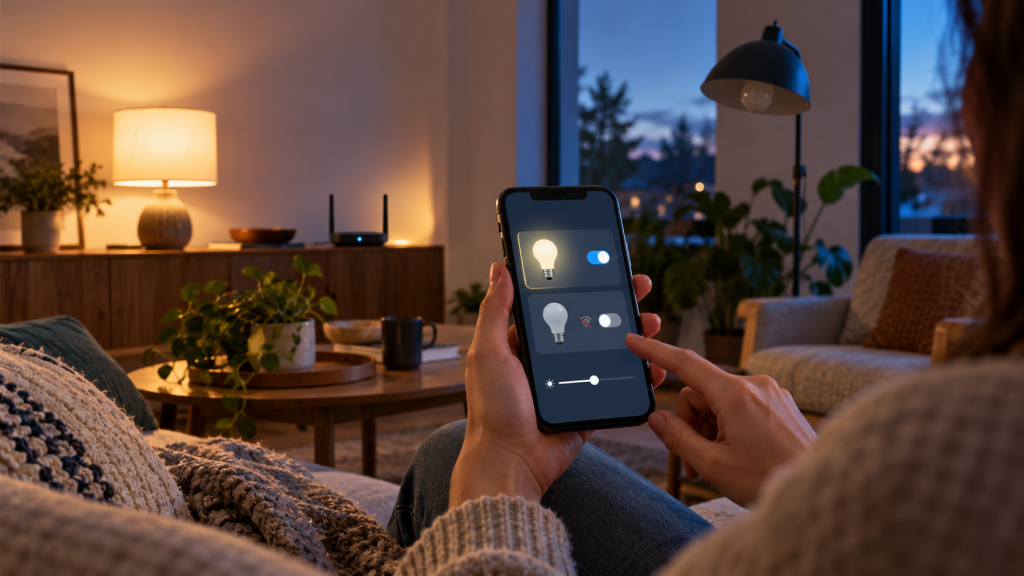
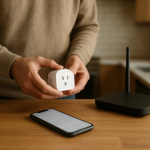
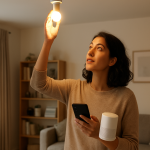
person checking smart light bulb and router in living room

Smart Lights Show Offline in Home App Fixes to Try

Quick Answer

When smart lights show “Offline” in a home app, the most common real-world cause is that the app can’t reach the device on the local network path it expects. That usually happens after a router change, a mesh node switch, a 2.4 GHz/5 GHz mismatch, or a hub (Hue/Zigbee/Matter bridge) losing its connection. The light may still have power and even respond to a physical switch, but the control path (phone → app → local network or hub → light) is broken.

In mixed ecosystems (WiFi bulbs, Zigbee hubs like Hue, Matter controllers, and cloud-linked apps), “Offline” often means the controller you’re using is not on the same network or the device is registered to a different “home,” “room,” or account than the app is currently viewing. It can also be a temporary cloud sync issue where the device is fine locally but the app is waiting for account status updates.

Try these three diagnostics first: (1) Check whether the light responds in its manufacturer app (Hue, TP-Link, etc.) versus only in the Home app. (2) Confirm your phone is on your home WiFi (not cellular, guest WiFi, or a VPN). (3) Power-cycle in the right order: router/mesh first, then hubs/bridges, then the lights.

Why This Happens

“Offline” is usually not a bulb failure. It’s a communication problem between your controlling device (phone/tablet/smart speaker), the controller (hub/bridge/Matter controller), and the light. Smart lighting ecosystems depend on a consistent network identity: the same WiFi network name, the same router addressing, and a stable path from the app to the device or hub. When that identity changes, the app can’t find what it previously paired with, so it labels it offline.

Common technical causes that fit real homes include:

First, WiFi bulbs are often 2.4 GHz-only. If your phone is on 5 GHz and your router isolates bands or uses “smart connect” poorly, pairing may work but later control can become unreliable, especially after a router reboot or firmware update. If X happens (bulb shows offline only in one app or only on one phone) it usually means Y (the controller device is on a different network segment or band behavior changed).

Second, Zigbee-based systems (like Philips Hue and many hub-connected bulbs) rely on a bridge that must stay online. If the bridge loses Ethernet, gets a new IP address, or is plugged into a different mesh node that blocks discovery, the app may show every Zigbee light as offline even though the Zigbee mesh is fine. If this test works (bridge lights look normal and bulbs still respond to a Hue dimmer) the issue is likely Z (app-to-bridge network discovery, not the bulbs).

Third, Matter and multi-admin setups introduce an extra layer: the “controller” (often a smart speaker, hub, or phone) and the “fabric” credentials must match. A controller reset, a different primary phone, or a home being duplicated can make devices appear offline in one app while still working elsewhere.

Real-world scenario: after an internet outage, the router comes back with a different LAN configuration, the mesh re-elects a new main node, and the Hue bridge or Matter controller ends up on a different segment than your phone. Everything looks powered, but the Home app can’t reach the bridge/controller, so all lights show offline at once.

Common user mistake: turning the wall switch off to “reset” a smart bulb and forgetting it’s now physically disconnected. The app reports offline because it is offline—no power—yet the fix is simply leaving the switch on and using the app or a smart button for control.

Overlooked technical cause: guest networks and “client isolation.” Many routers block device-to-device communication on guest WiFi. If your phone is on guest WiFi, it may have internet access but cannot reach hubs, bridges, or bulbs on the main network, causing widespread “Offline” status.

Most Likely Causes in Real Homes

1) Phone is on the wrong network (guest WiFi, cellular, VPN): the app can’t see local devices or hubs.

2) Hub/bridge/controller lost connection or changed IP: Zigbee/Matter devices look offline together.

3) 2.4 GHz/5 GHz band behavior changed: WiFi bulbs drop or become unreachable after router updates or mesh changes.

4) Power was cut at the switch or by a schedule: the bulb is truly offline even though the fixture looks normal.

5) Home/room/account mismatch: the app is viewing a different “home,” location, or account than the devices are registered to.

Step-by-Step Fix

  1. Confirm the light has constant power (without changing wiring). Turn the wall switch fully on and leave it on for smart bulbs. If the bulb is on a smart dimmer not designed for smart bulbs, set it to full brightness and avoid dimming for this test.

    What the result means: If the bulb immediately appears online after you restore power, the issue was physical power loss (often a switch turned off or a dimmer setting).

    If it fails, try next: Move to the app-based checks to determine whether it’s a controller/hub/network issue.

  2. Check device status in the manufacturer app versus the Home app. Open the ecosystem app that originally set up the lights (Hue, TP-Link, Wiz, Nanoleaf, etc.) and see if the same lights are offline there too.

    What the result means: If the lights work in the manufacturer app but show offline only in the Home app, the issue is usually account sync, permissions, home selection, or controller integration (Matter/HomeKit/Google/Alexa link). If they are offline in both apps, the issue is more likely network, hub, or power.

    If it fails, try next: Continue with network and controller checks to restore local reachability.

  3. Verify your phone is on the correct WiFi (and not isolated). Connect your phone to your main home WiFi (not guest). Temporarily disable VPN on the phone. If your router has separate names for 2.4 GHz and 5 GHz, connect the phone to the same band your WiFi bulbs use (often 2.4 GHz).

    What the result means: If lights come online after switching off guest WiFi/VPN or joining the main network, the problem was network isolation. If only WiFi bulbs are affected and you had to switch to 2.4 GHz to regain control, band steering or router settings are likely involved.

    If it fails, try next: Run a controlled power-cycle sequence to re-establish controller and hub connections.

  4. Power-cycle in the correct order (network first, then controllers, then lights). Unplug your modem (if separate) and router/mesh main node for 60 seconds. Plug them back in and wait until WiFi is stable. Then reboot smart home controllers and bridges (Hue bridge, Matter controller, smart speaker hub). Finally, power-cycle the affected lights by turning them off for 10 seconds and back on (only if they are meant to be power-cycled; avoid rapid toggling unless the device’s instructions require it).

    What the result means: If everything comes back online after this sequence, the outage was likely caused by stale network leases, a controller stuck state, or a hub that didn’t reconnect cleanly after a power event.

    If it fails, try next: Test whether the issue is specific to one mesh node or access point.

  5. Run a mesh behavior test (node-to-node problem check). If you use a mesh system, temporarily move your phone near the main router node and test control. If possible, temporarily power off one satellite node for 2 minutes and see if devices come back when everything routes through the main node.

    What the result means: If lights work near the main node or when a satellite is off, the problem is often device discovery or multicast handling on a particular node, or a weak connection between nodes.

    If it fails, try next: Check whether hubs/bridges are connected in a stable way and not bouncing between nodes/ports.

  6. Check hub/bridge/controller connection and indicators. For Zigbee hubs (like Hue), confirm the bridge shows normal status lights and is connected via Ethernet to the router (not to a network that might be isolated). For Matter, confirm your primary controller (smart speaker/hub) is online in its app and on the same home network.

    What the result means: If all Zigbee lights show offline together, it usually points to the bridge being unreachable from the app, not individual bulbs failing. If Matter devices show offline across apps, it often points to the controller being offline or the home fabric being out of sync.

    If it fails, try next: Validate the “home,” “room,” and permissions inside the app.

  7. Confirm you’re viewing the correct home/location and that permissions are intact. In the Home app, verify you are in the correct “Home” (some apps allow multiple homes). Check that you’re logged into the expected account and that household members still have access. Also confirm the lights weren’t moved into a different room or placed in a hidden group.

    What the result means: If devices appear in a different home/room or only the owner can see them, the “offline” report may be a visibility/permission issue rather than connectivity.

    If it fails, try next: Check for group, scene, and schedule conflicts that can make lights look unresponsive or “stuck.”

  8. Run a group sync test and verify schedules/automations. Try controlling one light individually instead of a room/group. Then disable one automation or schedule that affects the lights (such as “Away mode,” “Adaptive lighting,” sunrise/sunset routines, or motion rules) and test again.

    What the result means: If individual control works but group control fails, the issue is likely group sync or a stale scene. If disabling a schedule restores control, the lights were being turned off or changed immediately after you tried to control them, which can look like “offline” or “not responding.”

    If it fails, try next: Use a hotspot isolation test to separate internet/cloud issues from local network issues.

  9. Use a hotspot isolation test (only for WiFi bulbs that can be rejoined later). This is a diagnostic, not a permanent setup. If you have a spare phone, create a hotspot with a simple name and password. Attempt to add one affected WiFi bulb to the hotspot using its setup process (only do this if you are comfortable re-adding it afterward). Then test control from the same phone connected to that hotspot.

    What the result means: If the bulb works normally on the hotspot, your home network is the likely cause (band steering, isolation, or router settings). If it still fails on the hotspot, the bulb may have a firmware issue or be stuck and may need a reset.

    If it fails, try next: Proceed to advanced troubleshooting focused on account/cloud and firmware.

Advanced Troubleshooting

This section is only needed if basic fixes fail.

Check for an account or cloud sync issue

If the manufacturer app controls the lights locally but the Home app shows offline, unlinking and re-linking the integration is often the cleanest fix. In practical terms, that means removing the service connection (or Matter accessory link) from the Home app, then adding it back while your phone is on the main WiFi. If X happens (only one platform shows offline) it usually means Y (cloud token expired, permissions changed, or the home association is stale).

Network issue that affects discovery (not general WiFi strength)

Some smart home discovery depends on local broadcast/multicast. Router features that commonly break this include guest isolation, “AP isolation,” certain parental control profiles, and some mesh “IoT network” modes that separate devices from phones. If turning off guest WiFi and moving to the main network fixes it, keep smart home devices and controllers on the same local network where device-to-device communication is allowed.

Firmware/software mismatch

Update the router/mesh firmware, hub/bridge firmware, and the smart lighting app. Also update the Home app platform software on your phone and any smart speakers/hubs. If this test works (a firmware update restores online status) the issue was likely a compatibility bug triggered by an earlier update or a controller that failed to rejoin after a reboot.

Configuration conflicts: groups, scenes, automations, and permissions

Conflicts often show up as “offline” or “not responding” when the device is actually reachable but being immediately overridden. Look for duplicated devices (same light appearing twice), multiple integrations controlling the same bulb (for example, both a direct WiFi integration and a hub integration), or automations that run at the same time. If removing duplicates or disabling one automation stabilizes control, the root cause is configuration, not connectivity.

When to Reset or Replace the Device

A soft restart is simply removing power briefly (or using an in-app reboot option if available). It does not erase pairing and is the first choice when a device is temporarily stuck.

A factory reset clears the device’s stored network credentials and pairing. After a factory reset, you typically lose: WiFi credentials, hub pairing, Matter/HomeKit pairing, room assignments, scenes, and automations tied to that device. Plan to re-add the light and rebuild any routines that referenced it.

Reset is appropriate when one specific light stays offline while others on the same network and in the same room work normally, or when the light fails the hotspot isolation test. Replace is appropriate when the light repeatedly drops offline after resets and updates, or if it shows signs of physical damage. Safety note: if a bulb or bridge is unusually hot, smells like burning plastic, has discoloration, or the fixture shows heat damage, stop using it and leave it powered off.

How to Prevent This in the Future

Keep the control path stable. Use one primary home network for smart devices and avoid controlling them from guest WiFi. If your router supports it, keep IoT devices on a network that still allows your phone and controllers to reach them locally.

Place hubs and bridges thoughtfully. Zigbee bridges and Matter controllers should be in a central location, away from dense metal objects and not buried behind entertainment centers. For Zigbee systems, leaving several mains-powered Zigbee devices online helps the mesh stay healthy.

Manage automations carefully. Avoid overlapping schedules from multiple apps that fight each other. If you use scenes, update them when you add or replace bulbs so group actions stay consistent.

Plan for power outages. After an outage, give the network time to stabilize before opening the Home app and issuing many commands at once. If your lights frequently show offline after outages, a consistent reboot order (router/mesh → controllers/bridges → lights) prevents many “stuck offline” states.

Maintain firmware and app updates. Update hubs/bridges and router firmware a few times per year, and update smart home apps when you notice connectivity changes after phone OS updates. If an update introduces problems, restarting controllers and re-checking home permissions often restores normal discovery.

FAQ

Why do all my lights show offline at the same time?

When every light goes offline together, the common point of failure is usually the controller or network path: the router/mesh, a hub/bridge (for Zigbee), or a Matter controller. Individual bulb failures rarely happen simultaneously. Start by checking whether the hub/bridge is online and whether your phone is on the main WiFi (not guest or VPN).

The bulbs turn on with the wall switch, so why does the app say offline?

Power and connectivity are different. A bulb can have power and still be unreachable if it lost WiFi, if the hub is offline, or if the app is on the wrong network. If the manufacturer app works but the Home app doesn’t, focus on account linking, permissions, and home selection rather than the bulb itself.

Is “offline” always a WiFi signal problem?

No. Weak signal can cause dropouts, but “offline” is often caused by network isolation (guest WiFi), band steering behavior, a hub/bridge losing its IP, or a controller mismatch in Matter/HomeKit-style setups. If moving closer to the router doesn’t change anything, it’s more likely a discovery/controller issue than raw signal strength.

Why does one phone show the lights offline but another phone can control them?

This usually points to the phone, not the lights: wrong WiFi network, VPN enabled, different account, or different home selected in the app. If switching the affected phone to the main WiFi and disabling VPN fixes it, the lights were never truly offline.

Do I need to factory reset every bulb to fix this?

Usually not. Factory resets are best reserved for a single device that stays offline after network/controller fixes, or after a confirmed hotspot isolation test failure. If many devices are offline, resetting them all often creates extra work and doesn’t address the underlying hub/network cause.

What struck me while reading is how quickly the noise fades when the shape of the problem is finally clear. It stops feeling like some big, distant drama and starts behaving like regular life—annoying, yes, but also solvable.

There’s a quiet relief in that. The rest is just letting it settle, the way a room feels when you finally open a window.

Scroll to Top