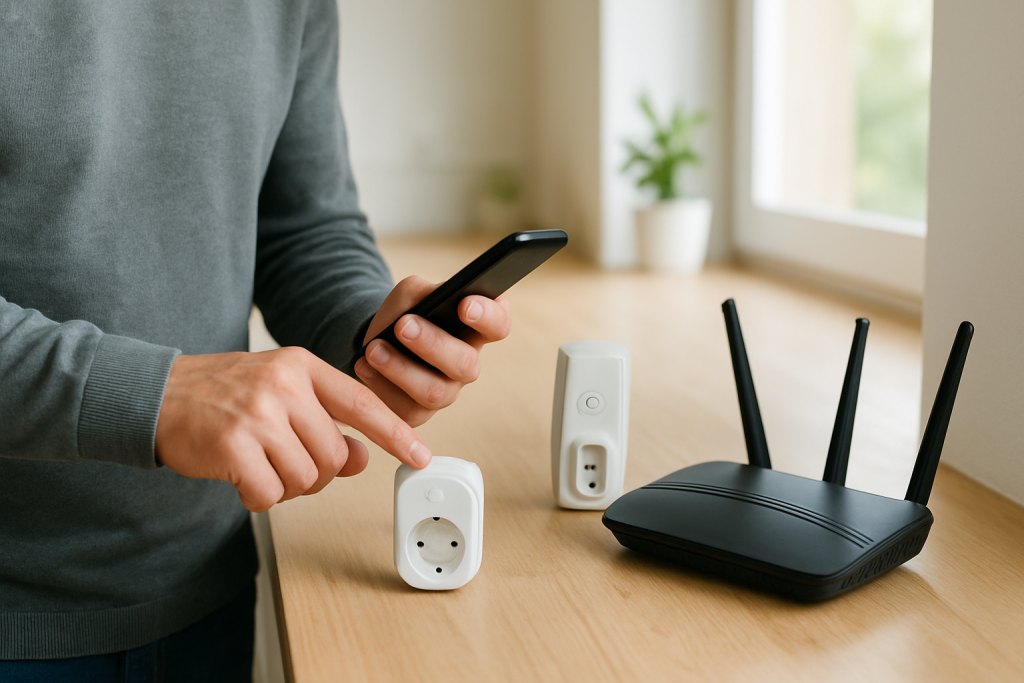
Smart Plug Responds Slowly? Why It Happens and How to Fix It
Quick Answer
A slow response (you tap “On,” wait, then it finally switches) is usually a command delay, not a “weak plug.” In most homes the delay is introduced somewhere along the path between your phone/voice assistant, the cloud service, and the device—often because WiFi latency, temporary cloud slowdown, or app/account sync issues add extra seconds before the plug or switch receives the command.
This is especially common with WiFi smart plugs and WiFi smart switches that depend on an internet round-trip. Zigbee devices behind a hub can also feel slow when the hub is congested or the ecosystem (Alexa, Google Home, Apple Home, SmartThings, Matter controller/bridge) is syncing slowly.
Do these three quick diagnostics first: (1) Try controlling the device from its manufacturer app and then from your voice assistant app to compare which path is slower. (2) While standing near the plug/switch, toggle it and watch whether the app status updates immediately or lags behind the physical change. (3) Put your phone on mobile data (WiFi off) and try again—if the behavior changes, you’ve narrowed it to local network latency vs cloud/app sync.
Why This Happens
When you press a button in an app (or say “turn on the coffee maker”), your command typically travels through several steps: your phone or speaker sends the request to an ecosystem service (or the device maker’s cloud), that service authenticates your account and finds the device, then the command is delivered to the plug/switch over your home network. Any delay in that chain shows up as “slow response.”
Here are the most common delay sources that stay tightly tied to WiFi latency, cloud delay, and app sync:
First, WiFi latency and retransmissions can slow delivery even when the signal looks “connected.” A plug that is barely hanging onto your network may take multiple tries to receive a packet, especially on busy 2.4 GHz channels.
Second, cloud round-trips add time. If the device requires the cloud for control (common for WiFi devices), a slow internet connection, DNS hiccups, or a temporary slowdown on the service side can add seconds.
Third, app sync and session issues can delay both commands and status updates. If your app token expired, the app is stuck syncing, or the ecosystem is reconciling duplicates, it may accept your tap but send the command late.
Real-world scenario: a mesh WiFi system “looks strong” in most rooms, but the smart plug is connecting to a farther node or rapidly roaming between nodes. The device stays online, yet each command takes 3–10 seconds because packets are being retried or routed inefficiently.
Common user mistake: setting up the plug on a combined 2.4/5 GHz SSID with band steering, then later changing the WiFi name or password. The phone reconnects fine, but the plug ends up in a half-registered state where it’s online but slow to respond as the cloud repeatedly re-authenticates or the device struggles to rejoin.
Overlooked technical cause: some ecosystems “double-hop” commands when you control a device from a secondary platform (for example, controlling a manufacturer’s device through Alexa/Google/HomeKit/Matter integration). If that integration is delayed or out of sync, your command may wait in a queue before it reaches the manufacturer cloud and then the device.
Most Likely Causes in Real Homes
These are ordered by how often they create noticeable command delay for smart plugs and smart switches:
1) Cloud or account sync delay between platforms (manufacturer app ↔ Alexa/Google/Apple Home/SmartThings/Matter). If one side is behind, commands can be queued or routed through a slower path.
2) WiFi latency on 2.4 GHz (congestion, interference, or retries). The device is “online,” but every control message takes longer to land.
3) Mesh roaming or poor node selection. The plug/switch clings to a distant mesh node or shifts nodes, increasing latency and causing occasional stalls.
4) Duplicate devices, groups, or conflicting automations across multiple apps. Two clouds may issue competing commands, or a routine may fire immediately after your manual command, creating the appearance of delay or “it changed late.”
5) Post-outage or post-router-restart re-registration. After power or router changes, the device may be online but still renegotiating DHCP, time sync, or cloud registration, which delays the first few commands.
Step-by-Step Fix
Compare control paths: use the manufacturer app first, then the ecosystem app (Alexa, Google Home, Apple Home, SmartThings).
What it means: If the manufacturer app is fast but the ecosystem app is slow, the delay is likely cloud-to-cloud sync or integration lag. If both are slow, it’s more likely WiFi latency or the manufacturer cloud itself.
If it fails: If you can’t control it in one of the apps at all, focus on that app’s account link and device status in the next steps.
Check whether status is lagging or the command itself is lagging: toggle the plug/switch and watch the app state.
What it means: If the device changes quickly (you hear the click or the connected appliance reacts) but the app takes several seconds to update, the main issue is app/cloud status sync delay. If the device itself reacts late, the command delivery is delayed (WiFi latency or cloud delivery).
If it fails: If there’s no physical change and the app spins, continue to isolate local network vs cloud in the next step.
Isolate local WiFi vs cloud: turn off WiFi on your phone (use mobile data) and try again, then switch back to WiFi and repeat.
What it means: If mobile data is faster, your home network path (router/mesh/DNS) is likely the bottleneck. If both are slow, the device cloud or account sync is more likely.
If it fails: If behavior is inconsistent, proceed to the targeted WiFi checks next.
Confirm the device is on 2.4 GHz (for WiFi plugs/switches that require it) and avoid band-steering edge cases.
What it means: Many WiFi smart plugs/switches work only on 2.4 GHz. If your network uses one SSID for both bands, the phone may be on 5 GHz while the device is on 2.4 GHz, which is fine, but band steering changes and roaming can introduce latency or temporary routing issues.
If it fails: If you can’t confirm band info in the app or router, do a practical test: temporarily move the plug closer to the router and see if response becomes instant. If it does, the issue is signal quality/latency, not the device logic.
Test for mesh node problems: keep the device in place, but reboot only the nearest mesh node (or temporarily unplug that node for a minute) and try controlling again.
What it means: If response improves after the node changes, the device was likely attached to a suboptimal node or that node had a latency/queueing issue.
If it fails: If nothing changes, move to app/cloud sync checks—especially if the delay happens mainly through voice assistants.
Relink or re-sync the integration (without resetting the device): in Alexa/Google Home/SmartThings, disable and re-enable the manufacturer skill/service, or reauthorize the account link; in Apple Home/Matter, confirm the correct home and controller are active.
What it means: A stale token or broken cloud link can cause commands to sit while the service retries authentication. Re-linking refreshes credentials and device lists.
If it fails: If the device duplicates appear after relinking, remove duplicates and re-run device discovery to reduce sync confusion.
Check for automation conflicts: review schedules, routines, and scenes in every place you control the device (manufacturer app, Alexa, Google Home, Apple Home, SmartThings).
What it means: If a routine fires near the same time you manually toggle, you can see a delayed “correction” that looks like slow response or random switching. Conflicts are common in shared homes where multiple people set automations in different apps.
If it fails: Temporarily disable all schedules/routines for that device for one hour and test manual control again. If it becomes responsive, re-enable automations one by one to find the conflict.
Do a clean reboot sequence (not a factory reset): close the apps, restart your phone, then restart router/mesh, then power-cycle the plug/switch by turning its outlet circuit off and on using a safe, accessible method (or unplug/replug the smart plug).
What it means: This clears app session glitches, refreshes DHCP and DNS on the network, and forces the device to re-register to its cloud—often fixing “slow after a router restart” issues.
If it fails: If it’s still slow after a clean reboot, move to Advanced Troubleshooting to check cloud/account and ecosystem-specific sync issues.
Advanced Troubleshooting
This section is only needed if basic fixes fail.
Account/cloud issue: If delays happen at specific times (evenings, weekends) across multiple devices, it often points to service-side load or your internet uplink congestion. A good clue is when multiple WiFi smart devices (plugs/switches) feel slow at the same time, regardless of room.
Network issue: If only one or two devices are slow, but they’re in the same area, look for localized 2.4 GHz interference (kitchen appliances, garages, metal cabinets) or a mesh routing problem. The key symptom is “online but sluggish,” often with occasional “unreachable” messages that recover on their own.
Firmware/software cause: After app updates or firmware updates, some devices temporarily rebuild local state or re-check cloud registrations. If the delay began right after an update, verify the device firmware and app version are fully updated (not partially applied), then force-close and reopen the app to refresh its cached device list.
Configuration conflict: Device groups and scenes can add delay because the platform waits for acknowledgments from multiple devices. Test the plug/switch by controlling it individually (not through a group like “All Lights” or a room scene). If individual control is fast but group control is slow, the issue is group processing or one slow device holding up the scene.
Ecosystem sync issue (Alexa/Google/Apple Home/Matter): If voice control is slow but app control is fast, the bottleneck is usually the assistant’s cloud integration or a controller/bridge sync. Re-run device discovery, confirm the device is assigned to the correct home/room, and remove old duplicates. In Matter setups, make sure you are using the intended primary controller (the phone/home hub that actually owns the fabric) to avoid commands bouncing between controllers.
When to Reset or Replace the Device
A soft restart is simply power-cycling the smart plug or smart switch (and optionally restarting the controlling app and router). This is low risk and often resolves temporary cloud registration and local network timing issues.
A factory reset should be used when the device stays persistently slow after you’ve ruled out network latency and integration sync, or when it repeatedly shows “offline/unreachable” despite good WiFi conditions. Resetting typically removes the device from your account and deletes local settings such as WiFi credentials, room assignments, schedules/timers, automations tied to the device, and voice assistant mappings. For smart plugs with energy monitoring, you may also lose energy history or reporting baselines stored in the app/cloud.
Replacement is reasonable when updates repeatedly fail, the device cannot stay connected across different known-good networks, or it shows unstable switching behavior (clicking on/off without a clear automation cause). Also replace immediately if you notice overheating, a burning smell, discoloration, cracking, or any visible damage—stop using it and unplug it if it’s safe to do so.
How to Prevent This in the Future
Keep the command path simple: whenever possible, manage a device primarily in one place and integrate it elsewhere only as needed. Fewer “middlemen” means fewer cloud sync points that can introduce delay.
Maintain stable network habits: avoid frequent WiFi name/password changes, and after router or mesh changes, give devices time to fully reconnect before judging responsiveness. If you have a mesh system, place nodes so the plug/switch isn’t forced to connect through a weak or distant hop.
Favor consistent placement and signal quality: smart plugs behind TVs, inside cabinets, or near large appliances often suffer from higher latency even when they show a connection. Small placement changes can reduce retries and speed up command delivery.
Avoid duplicate automations across apps: don’t schedule the same on/off event in the manufacturer app and also in Alexa/Google/HomeKit/SmartThings. Pick one “source of truth,” and document it in the device name (for example, “Porch Plug (Alexa schedule)”).
Keep naming and room organization consistent: mismatched rooms/homes can cause assistants to control the wrong device or take longer resolving duplicates. This matters most in shared households and when migrating between ecosystems.
Build outage recovery habits: after a power outage, wait for internet and WiFi to stabilize, then reboot the router/mesh once (not repeatedly), then power-cycle the affected smart plugs. Repeated rapid restarts can prolong re-registration delays.
Stay current on firmware and apps, but don’t mix half-updated states: update the controlling app and the device firmware, then fully close and reopen apps to refresh cloud sessions.
Manage permissions and sharing: if multiple users control the same home, ensure everyone is properly invited and using the same “home” in the app. Partial sharing often causes status mismatches and slow commands due to repeated sync attempts.
FAQ
Why is my smart plug fast in the manufacturer app but slow in Alexa or Google Home?
That usually means the delay is in the cloud integration layer, not the plug itself. The assistant is sending the command through an account link that may be out of sync or waiting on a slow cloud-to-cloud handshake. Re-link the service/skill and remove duplicates so the assistant stops “figuring out” which device to control.
My plug turns on quickly, but the app still shows the old status for a few seconds. Is the plug lagging?
No—this is a common misconception. In that case the command likely arrived promptly, but the status update is delayed by app refresh timing or cloud reporting intervals. Focus on app/session refresh and integration sync rather than WiFi strength alone.
Why does it get worse after a router restart or power outage?
After a restart, devices may reconnect to WiFi quickly but take longer to re-register with their cloud service, renew DHCP, and resync time. During that window, commands can be delayed or queued. A clean reboot sequence (router/mesh stabilized first, then the plug/switch) usually shortens this period.
Can too many routines or groups make a smart switch feel slow?
Yes. Groups/scenes can add processing time, and a single slow or offline device in a group can delay the “group complete” state in some apps. Test individual control versus group/scene control; if individual is fast, simplify the group or remove problematic devices from that scene.
There’s a strange comfort in how quickly the story clicks into place. You can almost feel the noise fall away, leaving something simpler than it looked at first.
Not every problem gets that kind of clean landing. This one does, though—quietly, without drama, and with enough room to breathe.