Alexa Says Something Went Wrong: How to Fix It Fast
Quick Answer
When Alexa says “something went wrong,” the most common cause is a broken or expired account session. Your Echo is still on Wi‑Fi, but it can’t properly authenticate to Amazon’s servers, so requests fail even though the device looks “connected.” This often happens after a password change, an app update, a power outage, or switching between multiple Amazon accounts in the Alexa app.
Fix it fast by forcing a clean account re-sync: confirm the Echo is registered to the correct Amazon account in the Alexa app, then sign out of the Alexa app and sign back in. If the Echo still errors, restart the Echo and your network in the right order so the device re-establishes a fresh cloud session.
Why This Happens
Alexa devices don’t just “use Wi‑Fi.” They maintain a secure, ongoing session with Amazon’s cloud. When that session is out of date or can’t be refreshed, the device may still respond to the wake word and even show as connected, but it can’t complete actions like answering questions, controlling smart home devices, or running routines. The result is a vague “something went wrong” message.
Common session/authentication-related causes include:
1) Your Amazon account password was changed (or security settings were updated), but the Echo is still trying to use the old authorization token.
2) The Alexa app is signed into a different Amazon account than the Echo is registered to. This is especially common in households where someone “just signed in real quick” to add a device, or where a phone automatically logs into a different account.
3) Amazon security triggers a re-authentication requirement (for example, unusual login activity, enabling two-step verification, or accepting new terms). The phone app may handle this silently, while the Echo gets stuck until the session is refreshed.
4) Time/date drift after a power outage or extended offline period. Secure sessions depend on accurate time. If the device’s clock is temporarily off, authentication can fail until it syncs again.
5) Corrupted local app cache or a partial app update on your phone. The app may show devices but fail to push updated credentials cleanly.
6) An overlooked technical cause: DNS or network filtering that allows basic internet access but interferes with Amazon authentication endpoints. This can look like “Wi‑Fi is fine” while sign-in and token refresh fail.
Real-world scenario: After a brief power outage, your router comes back online but your Echo reconnects before the internet is fully stable. The Echo keeps a half-broken cloud session. Later you ask for the weather and get “something went wrong,” even though music might partially work or the device shows as online in the app.
Common user mistake: signing into the Alexa app with a different Amazon account than the one used to set up the Echo, then trying to “fix” the device from the wrong account. This often leads to repeated errors and confusion because the app is managing a different household.
Step-by-Step Fix
Check which Amazon account the Alexa app is using (and whether it matches the Echo).
What to do: Open the Alexa app. Go to More > Settings > Your Profile (or account area) and confirm the signed-in Amazon account. Then go to Devices > Echo & Alexa > select your Echo, and look for registration/owner information (wording varies by app version).
What the result means: If the app account and the device owner don’t match your intended household account, the Echo may be authenticated under one account while your app is trying to manage it under another. That mismatch commonly produces “something went wrong” and smart home failures.
If it fails: If you can’t find the device or it appears under a different household, proceed to Step 2 to force a clean app sign-in, then re-check.
Sign out of the Alexa app, then sign back in (this refreshes the cloud session).
What to do: In the Alexa app, go to More > Settings > scroll to Sign Out. Sign out completely. Close the app (remove it from the recent apps list), then reopen and sign in with the correct Amazon account.
What the result means: A fresh sign-in forces Amazon account tokens to refresh. If the issue is a broken session/auth sync, Alexa commands often start working within a minute or two after the app reconnects and updates the device state.
If it fails: If Alexa still says “something went wrong,” continue to Step 3 to restart the Echo so it requests a new session from scratch.
Restart the Echo to force a new authentication handshake.
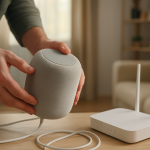
What to do: Unplug the Echo from power for 20 seconds, then plug it back in. Wait until it finishes booting (lights settle and it responds normally). Then try a simple request like “Alexa, what time is it?”
What the result means: If the Echo works immediately after a restart, the device likely had a stuck session or temporary cloud connection state. This is a strong sign the main problem was auth sync, not a permanent hardware issue.
If it fails: If the same error continues, go to Step 4 to check whether the Echo is truly online and reachable from your network.
Confirm the Echo is online in the Alexa app and on your router’s client list.
What to do: In the Alexa app, open the device page and look for an Online status (or last communication time). Then check your router’s connected devices/client list and confirm the Echo appears there.
What the result means: If the Echo is missing from the router list, it may be connected to the wrong Wi‑Fi, stuck during reconnection, or blocked. If it appears on the router but shows offline in the Alexa app, that points back to cloud/auth communication problems (including DNS or filtering issues).
If it fails: If it’s not on the router list, re-connect Wi‑Fi on the Echo (Step 5). If it is on the router list but still fails, do the hotspot test (Step 6) to separate account/session problems from home network problems.
Re-connect the Echo to Wi‑Fi using the Alexa app (without factory resetting).
What to do: In the Alexa app, open the Echo device page, choose Wi‑Fi Network or Change, and follow prompts to reconnect. Use the same network name you normally use.
What the result means: Rejoining Wi‑Fi can trigger a fresh cloud registration and token refresh, especially if the Echo was clinging to a stale connection after an outage.
If it fails: If setup fails or the error persists, proceed to Step 6. You need to determine whether your home network is interfering with authentication.
Do a temporary mobile hotspot test (fast way to isolate network vs. account session).
What to do: Turn on your phone’s hotspot. Connect the Echo to that hotspot using the Alexa app Wi‑Fi change flow. Then try a basic request (time/weather) and one smart home command.
What the result means: If Alexa works on the hotspot, your Amazon account session is probably fine and your home network is the blocker (often DNS/filtering, router security settings, or a mesh feature). If it still fails on the hotspot, the issue is more likely account/session-related (wrong account, security prompt, or a stuck registration).
If it fails: If it works on hotspot, skip to Advanced Troubleshooting (network-related items). If it fails on hotspot, skip to Advanced Troubleshooting (account/cloud items) and consider de-registering/re-registering later.
Restart your network in the correct order to rebuild clean sessions (modem → router → Echo).
What to do: Unplug your modem (or gateway) for 30 seconds, plug it back in and wait until it’s fully online. Then restart your router/mesh main node and wait for Wi‑Fi to stabilize. Finally, restart the Echo.
What the result means: This sequence matters because the Echo needs a stable internet path and working DNS when it requests new authentication tokens. Restarting only the Echo while the network is still settling can keep the broken session going.
If it fails: Move to Advanced Troubleshooting to check account security prompts, DNS/filtering, and configuration conflicts.
Advanced Troubleshooting
Account and cloud session issues to check
Look for an account security prompt or verification requirement. Sign into your Amazon account in a web browser (not just the Alexa app) and check for alerts, verification steps, or requests to re-confirm account details. If Amazon is waiting for confirmation, the Echo may fail to refresh its session and respond with generic errors.
Household/profile confusion. If you use Amazon Household or multiple profiles, confirm the Echo is set to the expected profile/voice ID setup. A partially configured profile change can cause routines, calling, or personalized results to fail in ways that sound like a general error. As a test, ask “Alexa, who am I?” and see if it responds consistently.
Skill re-authentication. If “something went wrong” happens only for one service (music provider, smart home brand, calendar), the Echo may be fine but that skill’s login expired. In the Alexa app, go to More > Skills & Games > find the skill > Disable then Enable to re-link. If basic questions fail too, focus back on the main Amazon account session instead of individual skills.
Network issues that specifically affect authentication
DNS or filtering problems. Some routers offer “security,” “parental controls,” or DNS filtering. These can block or delay the endpoints Alexa uses to authenticate. If the hotspot test worked, temporarily disable those features and retest. If you changed DNS settings recently, revert to automatic/ISP DNS as a test.
Mesh band steering edge case. On some mesh networks, band steering can move the Echo between access points/bands during an authentication refresh, causing repeated failures. If your mesh system allows it, temporarily separate 2.4 GHz and 5 GHz into different network names and connect the Echo to 2.4 GHz for stability. If that fixes it, you can decide whether to keep the Echo on 2.4 GHz or adjust mesh roaming settings.
Firmware/software causes
Stuck update or partial app update. If the Alexa app was recently updated, force-close it, reopen, and confirm it’s fully updated in your phone’s app store. On the Echo side, leave it powered on for at least 30 minutes with stable internet to allow it to complete any pending firmware updates. A device mid-update can behave like it’s online but fail requests.
Configuration conflicts (routines, permissions, and voice features)
Routines failing but basic questions work. That usually points to a routine action that needs permission or a re-linked service. Edit the routine and test actions one by one. If a routine uses a skill, re-authenticate that skill. If it uses location (weather/commute), confirm the device address is set correctly in the Alexa app.
Do Not Disturb and communication permissions. If the error appears during calling, announcements, or messaging, check communication settings in the Alexa app. A permissions change or profile mismatch can produce vague failures even when general Alexa questions still work.
When to Reset or Replace the Device
Use a simple restart (unplug/replug) when the problem started recently (after an outage, router change, or app update) and the Echo sometimes works but is inconsistent. A restart is meant to rebuild the session without losing device setup.
Consider a factory reset only after you’ve confirmed the correct Amazon account, signed out/in on the Alexa app, and tried re-connecting Wi‑Fi and the hotspot test. Factory reset is appropriate when the Echo appears “stuck” (won’t stay registered, won’t complete setup, or repeatedly goes offline immediately after setup).
What you lose with a factory reset: The Echo is removed from your account and must be set up again. You’ll need to rejoin Wi‑Fi, re-apply device-specific settings (like speaker groups, preferred speaker, and some smart home assignments), and re-check routines that reference that specific device name.
Safety note: If the Echo is unusually hot, smells like burning plastic, makes crackling sounds, or shows physical damage, stop using it and unplug it. That’s not a session problem. Do not attempt to open the device or repair it yourself.
How to Prevent This in the Future
Keep account sign-ins consistent. In multi-person homes, choose one primary Amazon account for device registration and stick to it. If someone needs to use their own account, use household features carefully rather than repeatedly signing in/out on the same phone.
After password changes, refresh sessions on purpose. If you change your Amazon password or enable additional security, plan to sign out and back into the Alexa app and restart the Echo once. This prevents days of intermittent “something went wrong” errors caused by stale tokens.
Stabilize power and recovery after outages. After a power outage, give your modem/router time to fully recover before expecting Alexa to behave normally. If you notice errors right after an outage, restarting the Echo after the network is stable is often enough to rebuild a clean session.
Be cautious with DNS filtering and “security” features. If you enable parental controls, ad blocking, or DNS filtering on your router, test Alexa immediately afterward. If problems start, you’ll know the change affected authentication. Keep notes on what you changed so you can undo it quickly.
Manage skills and routines periodically. Remove skills you no longer use and re-authenticate the ones that matter if they start failing. If a routine relies on a cloud service, expect it to occasionally need re-linking after that service updates its login rules.
Mesh planning (only if you use mesh): Place an Echo where it gets a steady connection to one node, not right between two nodes where it may roam. If roaming causes intermittent errors, keeping the Echo on 2.4 GHz can reduce session interruptions during authentication refreshes.
FAQ
Why does Alexa say “something went wrong” even though it’s connected to Wi‑Fi?
Because Wi‑Fi connection and Amazon cloud authentication are different. Your Echo can be connected to your router but still have an expired or broken login session with Amazon’s servers. When the session can’t refresh, Alexa can’t complete requests and falls back to a generic error.
Is this always a Wi‑Fi problem?
No. A common misconception is that any Alexa error equals bad Wi‑Fi. If the device shows online, hears you clearly, and the hotspot test doesn’t change anything, the problem is more likely account/session sync (wrong account, security verification, or stale credentials) than signal strength.
It only fails for one smart home device or one music service. What does that mean?
That usually means the main Alexa session is fine, but a specific skill’s authorization expired. Re-link that skill in the Alexa app (disable/enable) and test again. If basic questions like time/weather also fail, focus on the Amazon account session steps instead.
Do I need to factory reset my Echo to fix this?
Not usually. Factory reset is a last step when the device won’t stay registered or won’t complete setup. Most “something went wrong” cases clear up by confirming the correct account, signing out/in on the Alexa app, and restarting the Echo after the network is stable.
Why did this start right after a power outage?
Outages can leave your router, DNS, or internet connection unstable for a few minutes while everything reboots. If the Echo reconnects during that window, it may establish a partial or stale cloud session. Restarting the Echo after the modem/router are fully online typically forces a clean authentication refresh.
There’s relief in seeing the noise settle. The topic stops feeling like a riddle and starts behaving like something ordinary—like a door that finally closes properly.
Less time arguing with the problem, more time getting on with the day. Not dramatic, not cinematic, but undeniably cleaner in the background.